10 Best Ping Sweep Tools for Finding Devices on Your Network
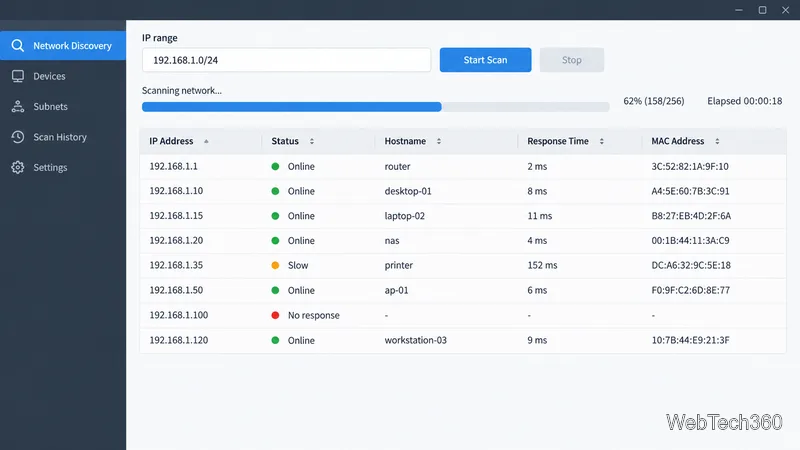
Compare 10 ping sweep tools for quick LAN discovery, cross-platform scanning, and IP address management. Learn what a sweep can—and can’t—tell you.
To use Nmap for traceroute, run nmap -sn --traceroute scanme.nmap.org. The -sn option skips port scanning while Nmap checks whether the host is up; --traceroute asks it to show the route to a responding host. Replace the sample host only with a system you own, administer, or have permission to scan. This path-only command keeps the test narrower than Nmap’s default port scan.
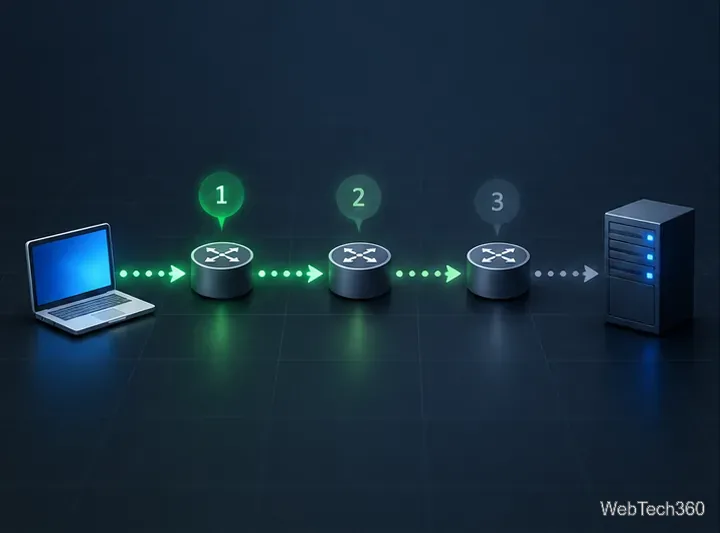
A traceroute estimates the network path by sending packets with different IP time-to-live (TTL) or hop-limit values. Each router reduces that value; when it reaches zero, a router may return an ICMP “Time Exceeded” message. The scanning tool uses those replies to identify hops and measure round-trip time (RTT). TTL counts hops, not seconds.
Nmap’s method differs from the classic traceroute or Windows tracert. Nmap performs traceroute after its scan and uses scan results to select a port and protocol likely to reach the target. It starts with a high TTL and counts downward, while many traditional traceroute tools start at one and count up. As a result, Nmap’s route output is tied to the scan and probes it made; it is not a complete map of every possible route or the return path.
Get Nmap from the official Nmap download page. Choose the installer for Windows or macOS, or follow the official installation guidance for your Linux distribution. Open Command Prompt, PowerShell, Terminal, or a Linux shell and enter nmap --version. If the command is not found, complete installation or add Nmap to your command path.
Some scan and traceroute functions need elevated packet-capture or raw-socket privileges. On macOS or Linux, try prefixing the command with sudo if Nmap reports a permissions problem; on Windows, open the terminal with administrator rights when required. Use only the privilege level needed for your authorized test.
For a safe practice target, the Nmap project explicitly permits Nmap scans of scanme.nmap.org. That permission is limited: do not test exploits or run denial-of-service tests, and keep scans to no more than a dozen per day. For other hosts, get the network owner’s approval first. The project’s Nmap legal and usage guidance explains the scope of its test host and why scanning permissions matter.
Run this command on macOS or Linux:
sudo nmap -sn --traceroute scanme.nmap.orgOn Windows, omit sudo and use an elevated terminal if needed:
nmap -sn --traceroute scanme.nmap.org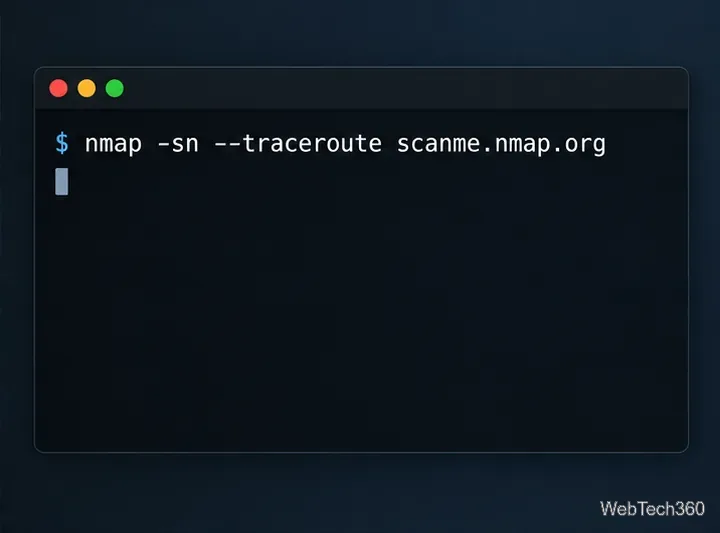
-sn with --traceroute to request host discovery and path tracing without a port scan.The Nmap host-discovery reference documents both options. Nmap still sends network probes; -sn means “no port scan,” not “no traffic.” If you need to investigate a particular service instead, use a narrowly scoped port scan against an authorized host, such as nmap -p 443 --traceroute your-authorized-host.example. This checks TCP port 443 before tracing and can send more traffic than the path-only command.
Look for the TRACEROUTE section and its HOP, RTT, and ADDRESS columns. A hop number marks the observed position along the route. RTT is the time for a probe to reach that hop and for a reply to return; it is not a one-way measurement or a direct measurement of the link alone. Addresses may be shown as IP numbers or, when name resolution succeeds, hostnames.
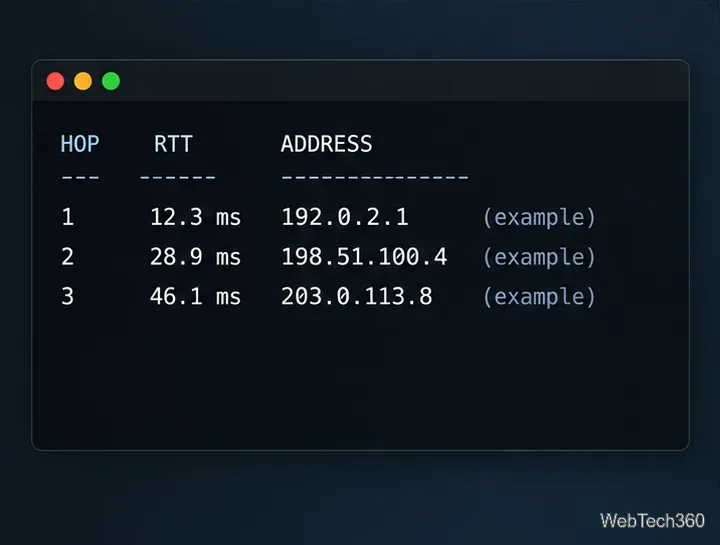
To keep a normal-text copy for comparison, add Nmap’s output option:
sudo nmap -sn --traceroute -oN nmap-trace.txt scanme.nmap.orgRun the same command from the same source network when comparing results. A changed route can reflect routing changes, load balancing, or temporary filtering rather than a fault by itself.
* * * means Nmap did not receive a usable reply for that probe before its timeout. A router may filter or rate-limit responses and still forward traffic, so one silent hop does not prove the path is broken.-n to skip reverse-DNS lookups, for example sudo nmap -n -sn --traceroute scanme.nmap.org.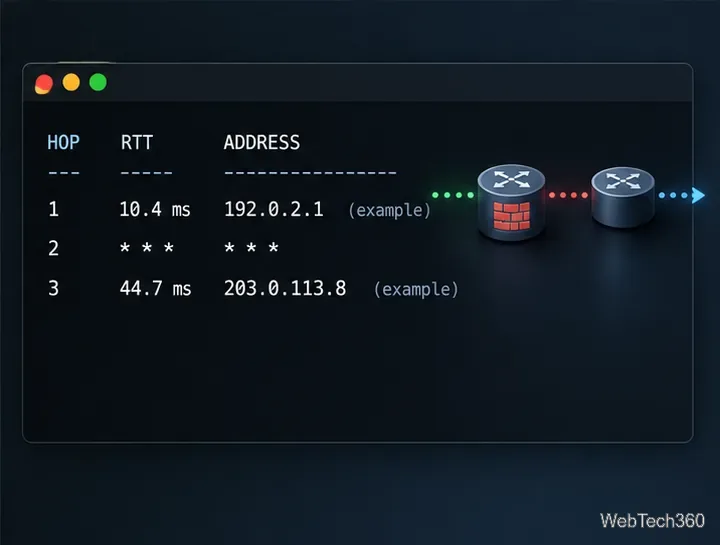
Nmap’s --traceroute is useful when you want path information alongside host-discovery or port-scan results. Read the hop list as evidence from one source, at one time, using particular probes. Firewalls, load balancing, and asymmetric routing can all hide or alter parts of the picture.
Compare 10 ping sweep tools for quick LAN discovery, cross-platform scanning, and IP address management. Learn what a sweep can—and can’t—tell you.
Compare six network management tools for performance monitoring, including SNMP coverage, mapping, alerts, deployment models, and cost tradeoffs.
Compare Wi-Fi analyzer picks for Windows, iPhone, and Android, including tools for channel congestion, signal coverage, heat maps, and network troubleshooting.
Compare seven free, open-source ping monitors, from full network suites to focused latency probes, and choose the right fit for availability, packet loss, and history.
Learn what QoS means in networking, how DSCP markings and traffic queues prioritize voice, video, and business applications, and what QoS cannot fix.
Compare reliable SFTP server software for Windows and Linux, including OpenSSH, Bitvise, SolarWinds, and SFTPGo. Find the right fit for your security and file-transfer needs.
Compare seven IP address manager tools for subnet discovery, DNS and DHCP coordination, network inventory, and open-source IPAM.
Build practical network monitoring with clear device coverage, useful performance metrics, actionable alerts, and a comparison of SolarWinds NPM, PRTG, and OpManager.
Compare network scanner tools for quick device discovery, cross-platform IP scans, and enterprise IPAM, with guidance on matching each option to your network.
Use Nmap’s --traceroute option to map hops to an authorized host, understand hop and RTT output, and troubleshoot missing responses without over-scanning.