Home
» WEB
»
Best Free Driver Updater for Windows 11 and 10: Start Here
Best Free Driver Updater for Windows 11 and 10: Start Here
For most Windows 11 and 10 PCs, Windows Update is the best free driver updater: it is built in, checks compatibility, and avoids bulk installs. If one device needs a fix or feature, use the PC or component maker’s official support tool. Most people do not need third-party software.
Best free driver updater: Windows Update
Microsoft recommends Windows Update for most hardware drivers. Recommended drivers can install automatically; optional ones wait for you to choose them. An optional update does not automatically mean the installed driver is unsafe or broken. Install it when it fixes a problem or adds a feature you need.
A driver’s listed date can mislead: providers set it, and Windows also considers compatibility when choosing a package. An older-looking date alone does not prove a driver is outdated. See Microsoft’s driver update instructions and explanation of how Windows selects drivers.
Check optional drivers in Windows 11 and Windows 10
Open Start > Settings > Windows Update > Advanced options.
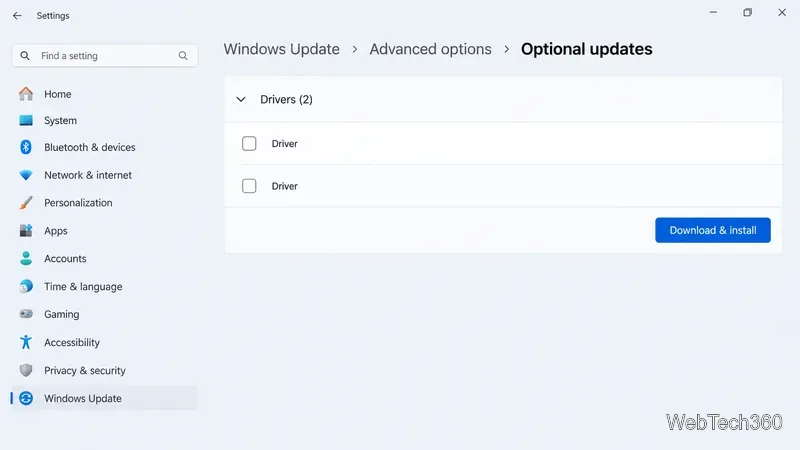
Under Additional options, choose Optional updates. If the setting appears, turn on Receive updates for other Microsoft products.
Expand Driver updates, select only the driver you need, and choose Download & install.
Restart Windows after installation, especially if the update asks you to.
Windows 10
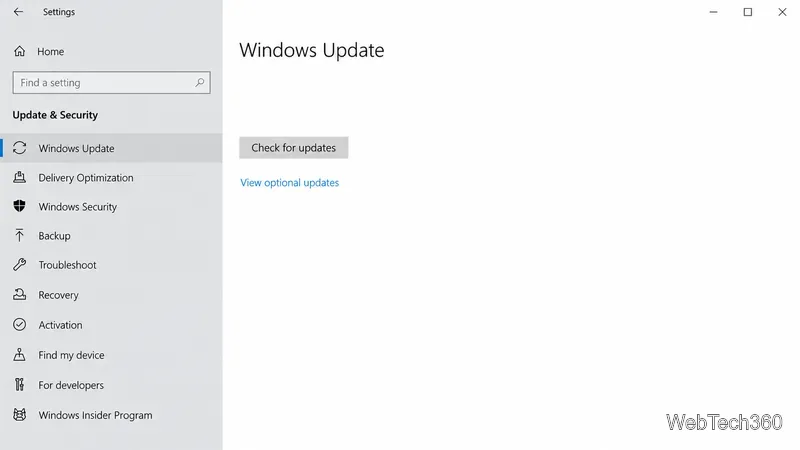
On Windows 10, open View optional updates from Windows Update when that link appears.
Go to Start > Settings > Update & Security > Windows Update, then select Check for updates. If View optional updates appears, open it, select the relevant driver update, and choose Download and install. Restart when the installation finishes.
Windows 10 support ended October 14, 2025. Microsoft no longer provides free Windows Update software updates, security fixes, or technical assistance for it. A driver updater cannot replace operating-system security support; move to a supported Windows version if your PC is compatible.
When Windows Update does not find the driver
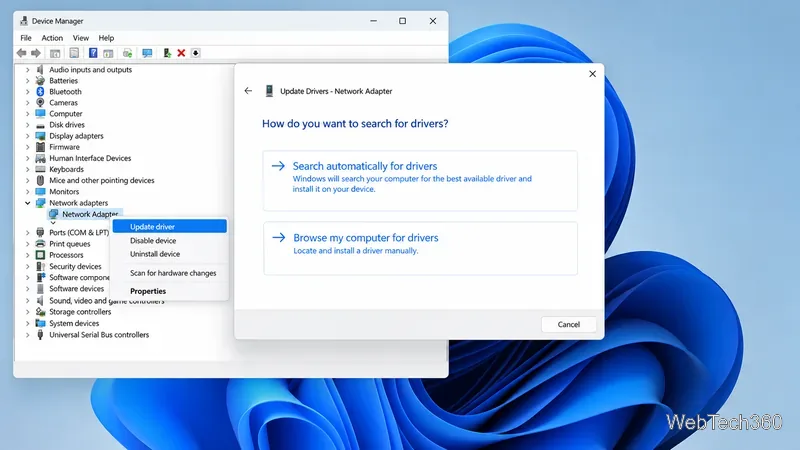
For one device, right-click Start and open Device Manager. Expand its category, right-click it, and choose Update driver. Select Search automatically, or choose Browse my computer only if you already downloaded the matching manufacturer package. If no driver appears, check the official manufacturer site. See Microsoft’s Device Manager guide.
Device Manager is useful for a specific device; use Browse only when you already have the matching manufacturer driver.
Official updater downloads for common hardware
Intel:Intel Driver & Support Assistant detects supported Intel products and lists updates for them. It is not a general updater for every PC component.
NVIDIA: Use the official NVIDIA driver page to choose a supported graphics product and Windows version, or use the NVIDIA App for GeForce driver downloads.
Laptops and branded desktops: Start with the PC maker’s support page and enter the exact model or serial number. Laptop makers may customize drivers for their hardware.
Are third-party driver updaters worth downloading?
They can be convenient, but they are optional. Compare what each tool actually provides before installing it:
Option
Best fit
What to know
Windows Update
Routine driver maintenance on most PCs
Built in; recommended drivers install automatically and optional drivers can be reviewed.
Hardware or PC maker’s updater
A particular Intel, NVIDIA, AMD, or laptop device
Focused on supported products from that manufacturer; it will not update every component.
Driver Booster Free
People who want a multi-device scan
IObit’s manual lists automatic updates and driver backup as Pro features and describes in-app promotion of other products. Review installer screens before accepting offers.
Snappy Driver Installer Origin
Experienced users who need offline installs
The project describes it as free, open source, portable, and compatible with Windows 10/11. It is better suited to careful manual choices than unattended bulk updates.
Update a driver to solve a real issue, get a needed feature, or apply a relevant security fix—not simply because an app labels it “outdated.”
Confirm the device model, Windows version, and download source before installing. Avoid selecting several unrelated drivers at once.
Before a major change, save work and consider a restore point. Microsoft explains how System Restore can undo driver changes without affecting personal files.
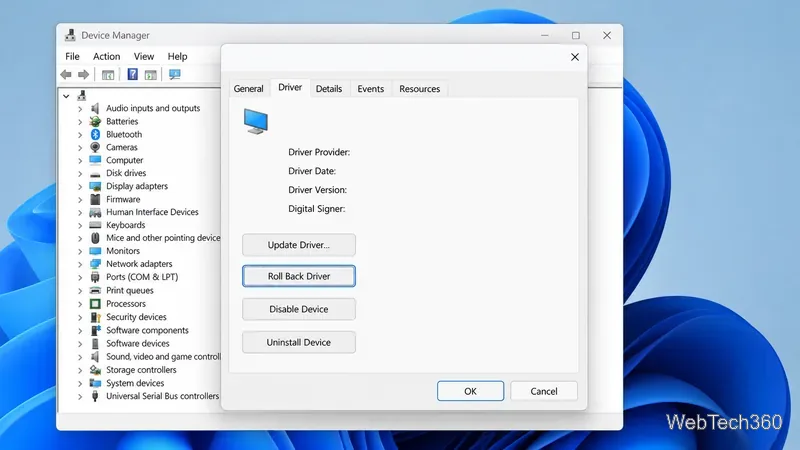
If a device stops working after an update, open Device Manager > device Properties > Driver > Roll Back Driver, when available. If the button is unavailable, Windows does not have an earlier driver version to restore through that option.
Roll Back Driver is available only when Windows has a previous version to restore.
For most PCs, start with Windows Update. Use a dedicated tool when you need a specific newer or missing driver.