How to Disable JavaScript in Chrome for One Tab or a Site
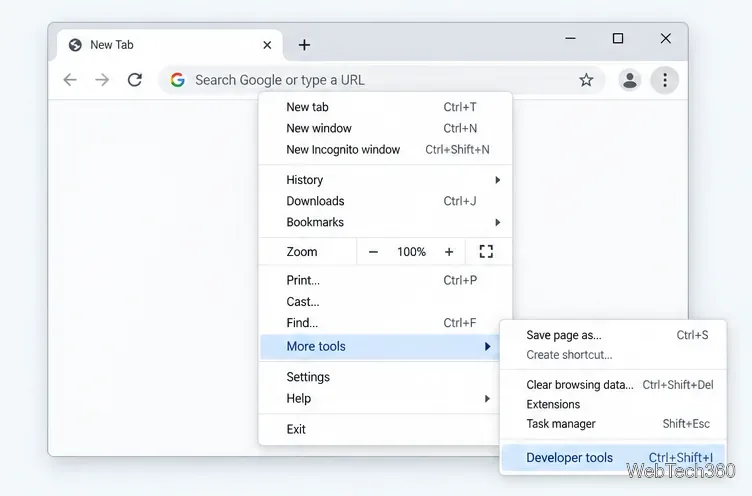
Learn how to disable JavaScript in Chrome temporarily with DevTools, block it for one site, or change the browser default, plus how to restore it.
If you can't hear anyone on Discord, start with the controls inside Discord before changing drivers or reinstalling the app. In most cases, the problem is a Deafen setting, an individual user volume slider, the wrong output device, or a Windows per-app audio setting. Work through the fixes below in order and test a voice channel after each one.
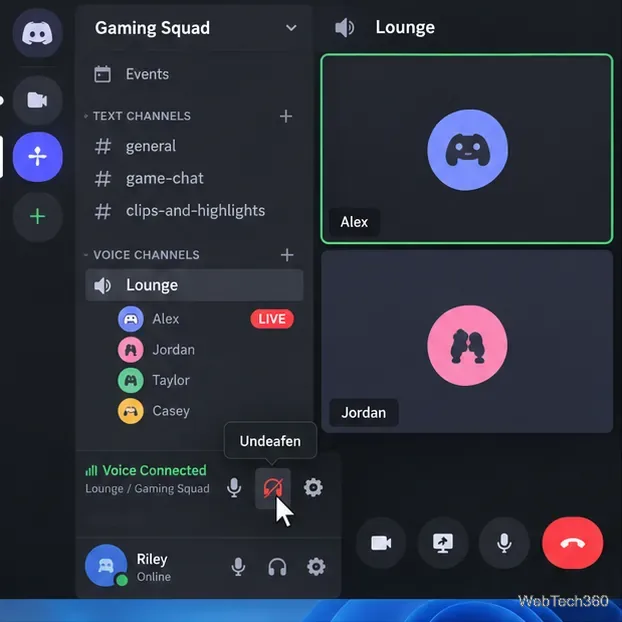
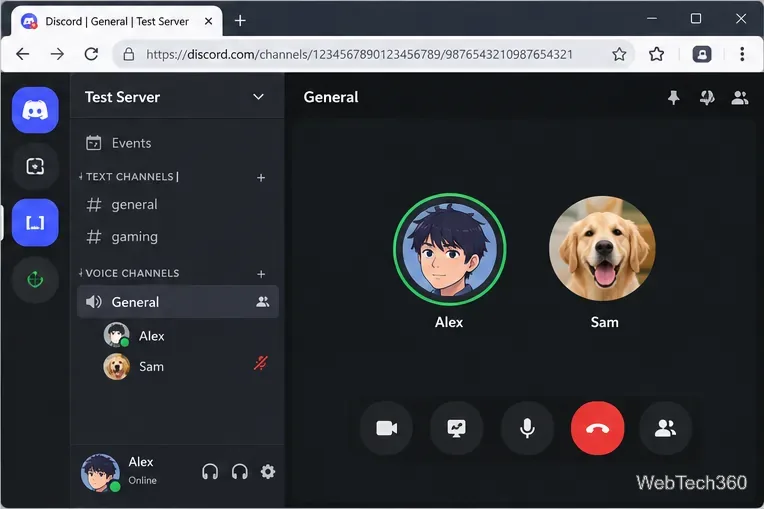
In a Discord voice channel, check the headset icon near your username. If the headset icon has a slash through it, you are deafened and Discord will not play other people's voices. Click the headset icon to undeafen yourself. Discord's current Voice and Video Troubleshooting Guide recommends checking mute and deafen status first.
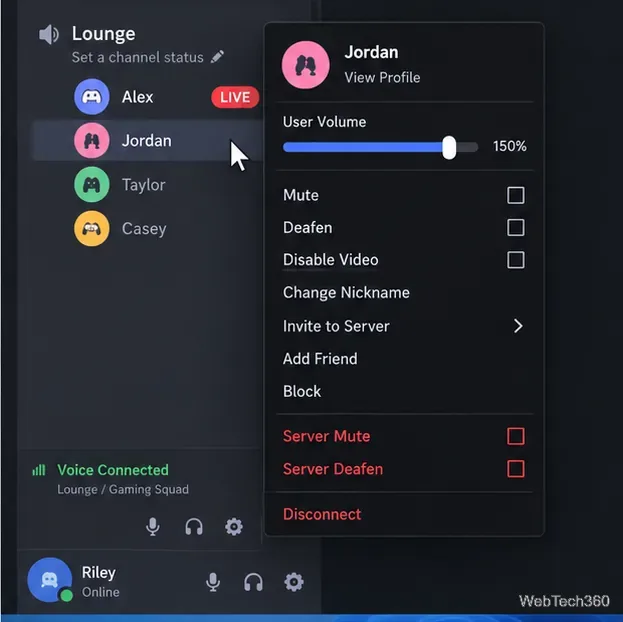
If everyone else sounds normal but one person is silent or extremely quiet, their individual volume may have been lowered. On desktop or in the browser, right-click that person's profile in the voice channel and raise User Volume. This setting is separate from Discord's main output volume.
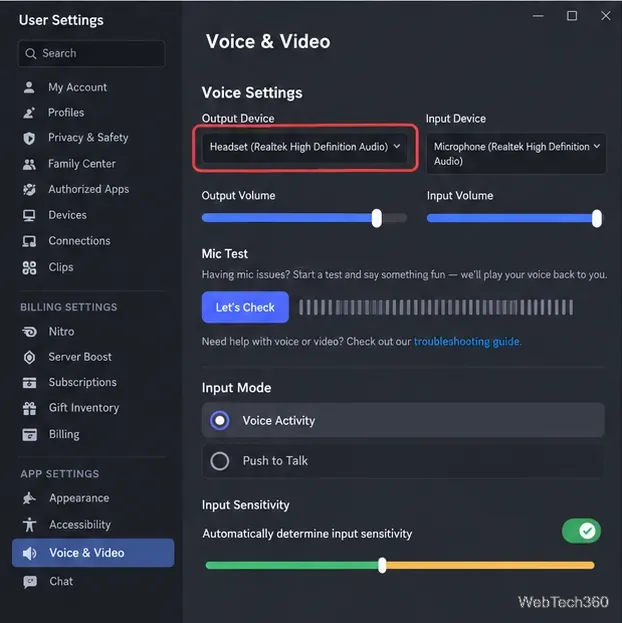
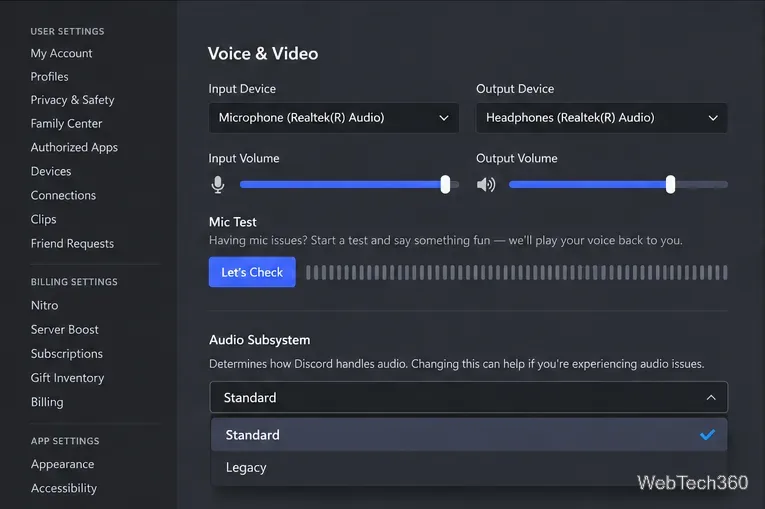
Open User Settings > Voice & Video. Under the Voice settings, choose the headphones or speakers you actually want to use in Output Device, then raise Output Volume. If you recently connected Bluetooth headphones, a USB headset, a monitor over HDMI, or a dock, Discord may still be pointing to a different device.
Discord's official troubleshooting steps specifically recommend verifying both the input and output device here. For a receive-audio problem, the output device is the important one.
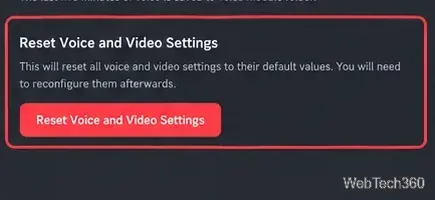
If the device is correct but voices are still silent, stay in User Settings > Voice & Video, open the Debugging area, and use Reset Voice and Video Settings. This returns Discord's voice-related settings to their defaults, so you may need to reselect your microphone or preferred output device afterward.
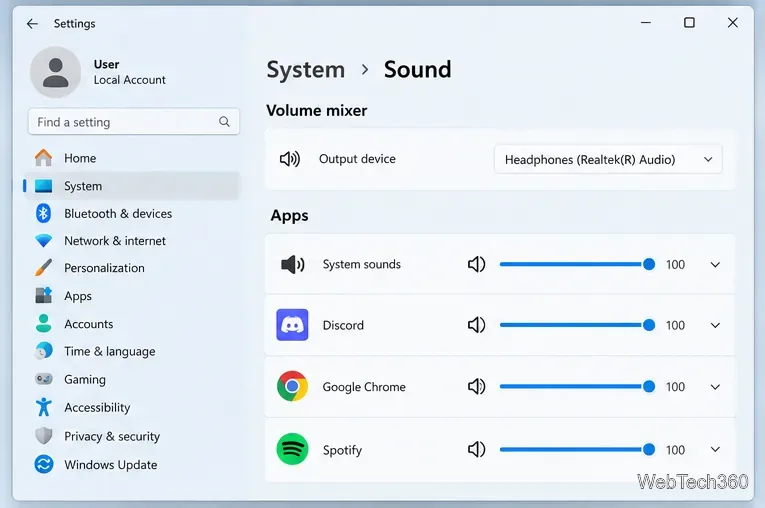
If Discord looks correct, confirm that Windows is not muting or redirecting only the Discord app. In Windows 11, go to Settings > System > Sound > Volume mixer. Under Apps, make sure Discord is not muted, its volume is high enough, and its output device matches the headphones or speakers you want.
Microsoft's app-audio troubleshooting guide notes that per-app volume and per-app output selection can override the system settings.
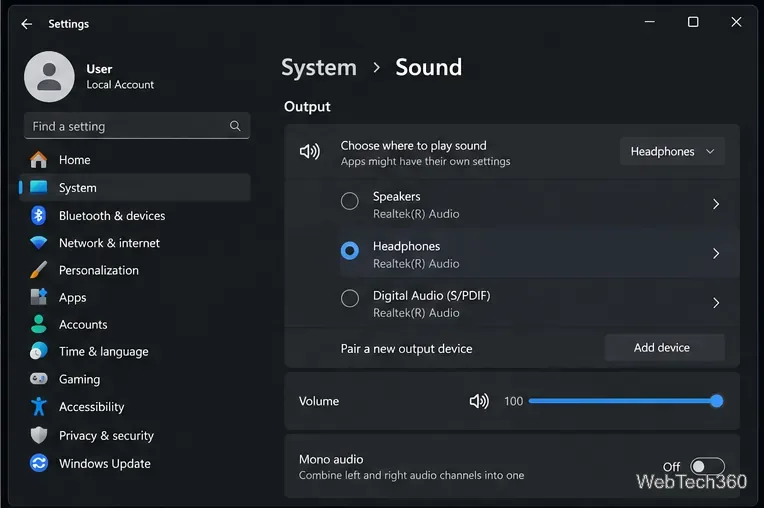
Also open Settings > System > Sound and check the main Output device. This is especially important after switching between speakers, Bluetooth devices, headsets, docks, and HDMI displays.
On Windows, Discord still recommends trying the other audio subsystem when normal playback troubleshooting fails. In User Settings > Voice & Video, find Audio Subsystem and switch between Standard and Legacy. Relaunch Discord if prompted, then test the same voice channel again.
Press Ctrl+R on Windows to refresh the Discord desktop client. Discord's support documentation also recommends completely quitting and reopening the app so it can refresh normally. If the problem persists, download a fresh installer from the official Discord download page and reinstall the desktop app.
Open Discord in a supported browser and join the same call or voice channel. If browser audio works but the desktop app remains silent, the problem is likely limited to the desktop client or its audio routing. If neither version has sound, focus on Windows output, the headset connection, and the audio driver instead.
Play audio in another app. If your headphones or speakers are silent everywhere, the problem is no longer Discord-specific. Check the physical connection, confirm that Windows detects the device, disable problematic audio enhancements, and update or reinstall the audio driver. Microsoft's Windows audio troubleshooting guide covers those system-level fixes.
If Windows audio works and the browser works but Discord desktop does not, collect your Discord Voice & Video settings and debug information and contact Discord Support. That is a better next step than repeatedly changing unrelated microphone settings when the issue is specifically that you cannot hear other people.
Learn how to disable JavaScript in Chrome temporarily with DevTools, block it for one site, or change the browser default, plus how to restore it.
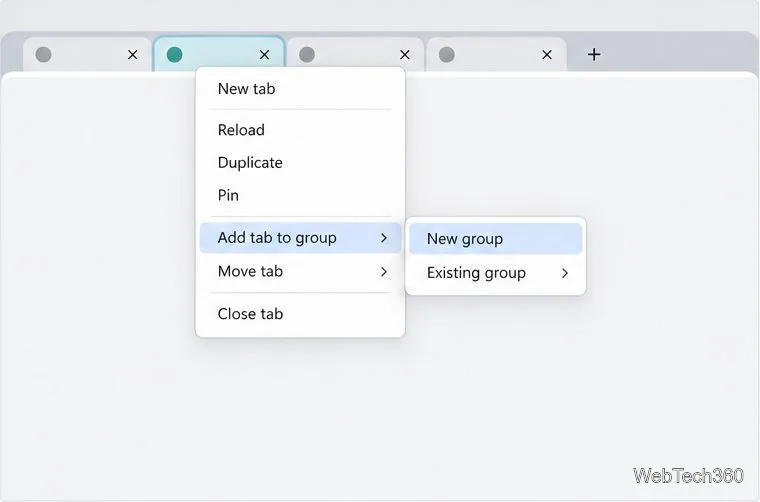
Organize related Chrome tabs into a group, then hide or reopen them with one click. See the current desktop steps, keyboard option, and what collapsing does.
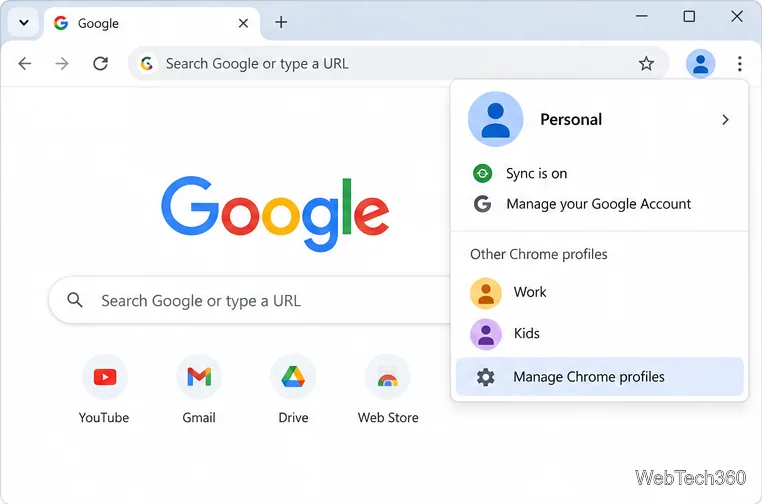
Rename a Chrome profile from its menu or profile manager, see what the label affects, and fix display delays without changing your Google Account name.
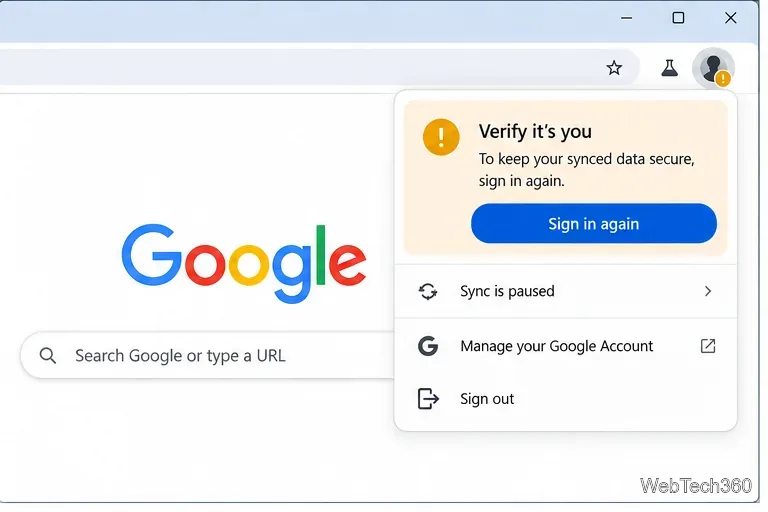
Fix Chrome sync pausing and repeated sign-in prompts by restoring account access, keeping site data, updating Chrome, and checking extensions or profiles.
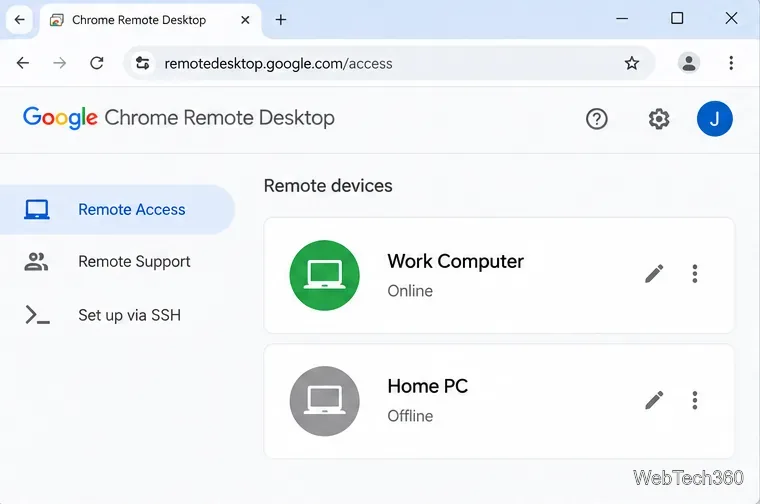
Chrome Remote Desktop not working? Fix offline hosts, update Chrome, reset remote access, check permissions, firewall rules, and managed-network restrictions.
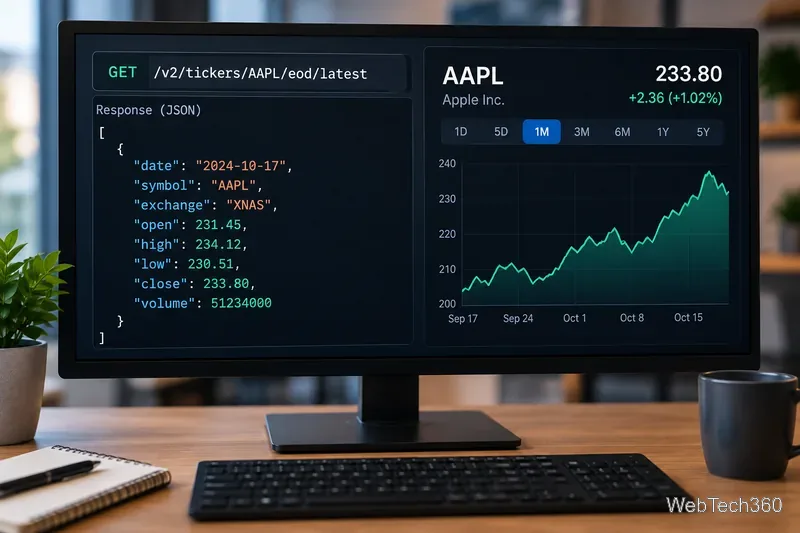
Marketstack review covering API v2, real-time and intraday data, historical coverage, pricing, limits, pros, cons, and who should use it.
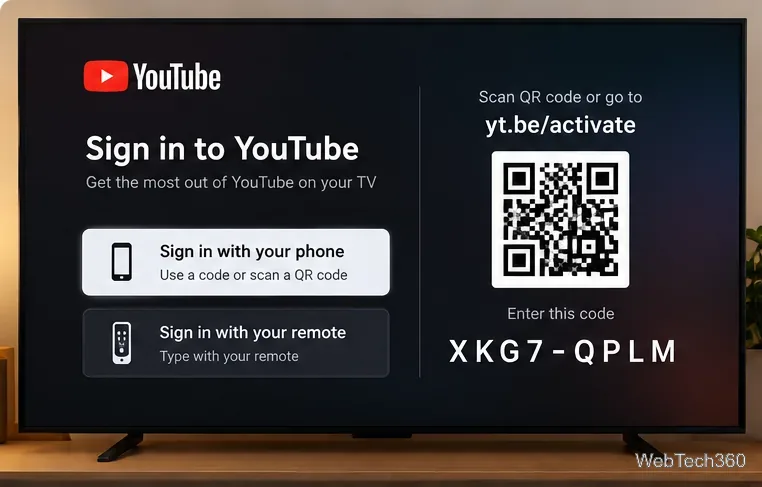
Learn how to activate YouTube at youtube.com/activate or yt.be/activate, enter your TV code, choose your Google Account, and fix sign-in problems.
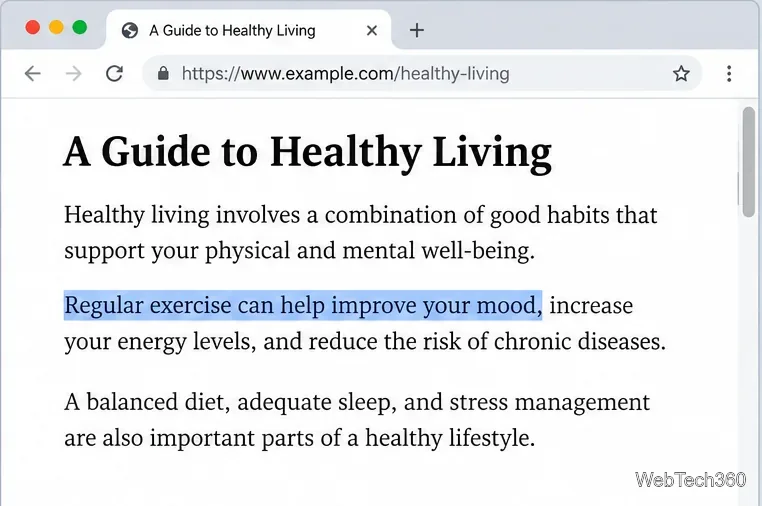
Learn how to link directly to selected text in Chrome with Copy link to highlight, how text-fragment URLs work, and what to do if a link fails.
Can't hear anyone on Discord? Check Deafen and user volume, choose the right output device, reset Voice & Video, and fix Windows audio settings.
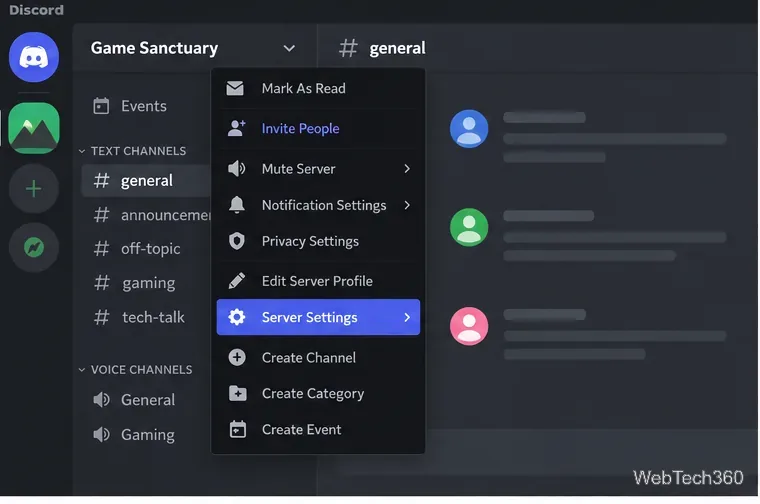
Learn how to add roles in Discord, change a role name, set permissions, assign or remove members, reorder roles, and delete roles safely.