How to Disable JavaScript in Chrome for One Tab or a Site
Learn how to disable JavaScript in Chrome temporarily with DevTools, block it for one site, or change the browser default, plus how to restore it.
Discord lets you format message text with Markdown, so you can make words bold, italic, underlined, or struck through without changing the actual message font. The fastest method is to wrap the text in a few special characters before you send it. Discord also supports code blocks, spoilers, headings, lists, links, and block quotes.
One important distinction: message formatting is not the same as changing fonts. Discord's official shortcut guide says message text does not have built-in font commands. Discord Nitro now offers Display Name Styles for names, but those styles do not turn ordinary chat messages into custom fonts.
Type your message normally, add the Markdown characters around the words you want to style, then send the message. Discord's official Markdown guide documents the following combinations.
| Style | What to type | Example |
|---|---|---|
| Bold | **text** | **Important** |
| Italics | *text* or _text_ | *Note* |
| Underline | __text__ | __Read this__ |
| Strikethrough | ~~text~~ | ~~Old plan~~ |
| Bold italics | ***text*** | ***Very important*** |
| Underline + bold | __**text**__ | __**Update**__ |
| Underline + italics | __*text*__ | __*Emphasis*__ |
| Underline + bold italics | __***text***__ | __***Critical***__ |
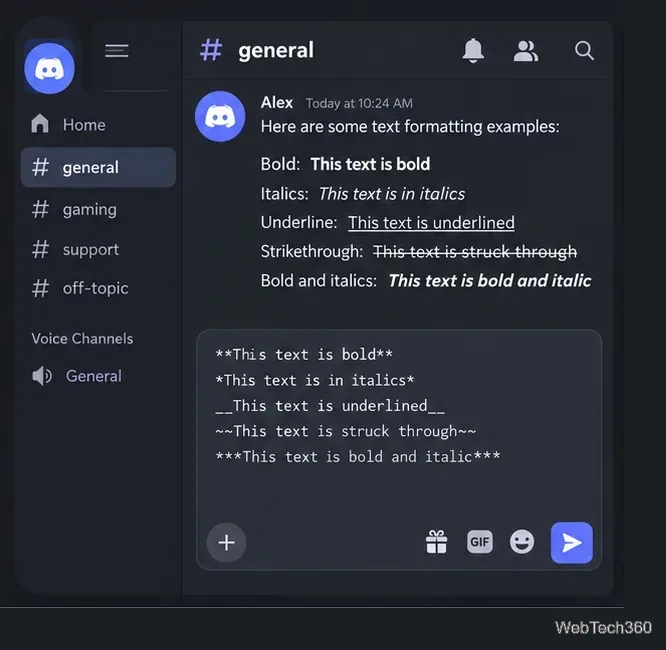
You can stack compatible Markdown markers. For example, __***Status update***__ combines underline, bold, and italics. If you also need strikethrough, place double tildes around the section you want crossed out, such as ~~__***Old status***__~~. Keeping the opening and closing markers balanced makes formatting easier to troubleshoot.
On the desktop app, Discord also documents keyboard shortcuts for selected text: Ctrl+B, Ctrl+I, and Ctrl+U on Windows, or Command+B, Command+I, and Command+U on macOS. See Discord's commands and shortcuts guide for the current list.
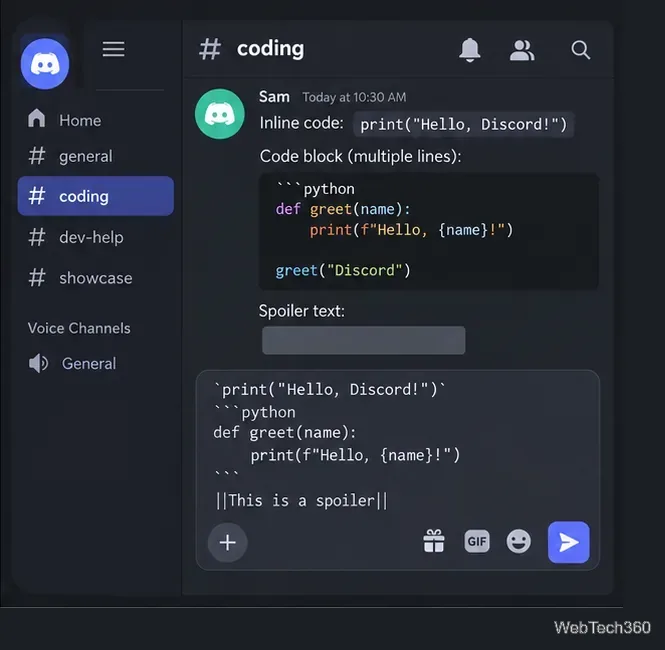
Use one backtick on each side for inline code, such as `npm install`. For a multi-line code block, put three backticks before the first line and three after the final line. Code blocks are useful when you want characters such as asterisks or underscores to display literally instead of being interpreted as formatting.
For hidden spoiler text, place two vertical bars on each side: ||This is a spoiler||. Discord also lets you mark selected text as a spoiler from the message formatting controls. Discord notes that spoiler markup inside code blocks is not hidden; details are in the official Spoiler Tags guide.
Discord's current Markdown supports more than emphasis. These options are useful for rules, announcements, and longer messages:
# , ## , or ### . A space after the hash marks is required.-# .- or * . Discord documents two leading spaces for an indented list item.[link text](https://example.com).> ; use >>> before the first line for a multi-line quote.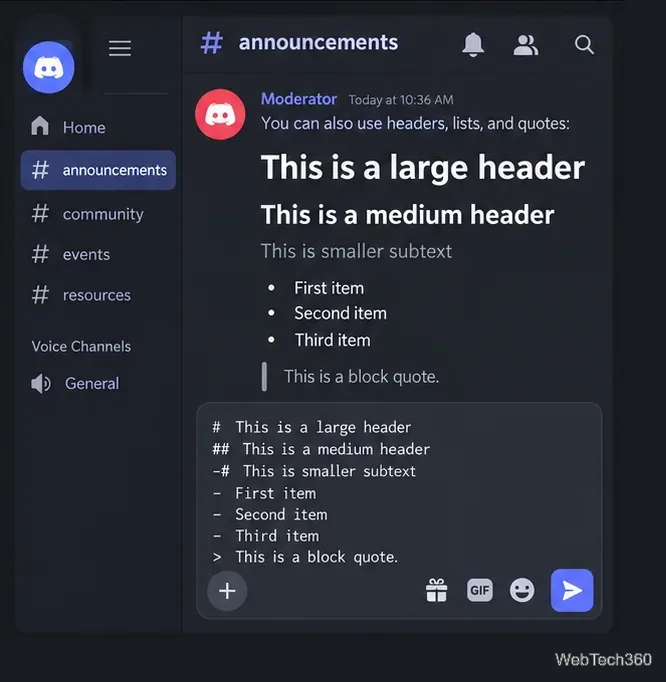
For normal message text, Markdown changes style, not the underlying font family. Discord's current official Markdown documentation does not list commands for choosing an arbitrary message color. Older tricks that used labels such as diff, ini, css, or fix depended on code-block syntax highlighting, so they should not be treated as reliable color-formatting commands.
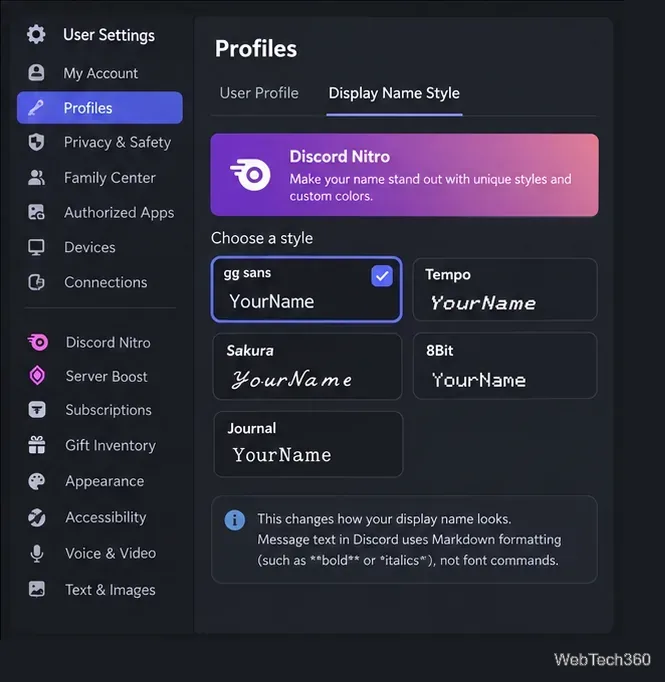
Discord does now have a separate Nitro feature called Display Name Styles. The official Display Name Styles FAQ says Nitro members can customize how their display name appears with fonts, colors, and effects. Options listed by Discord include gg sans, Tempo, Sakura, 8Bit, and Journal, among others. This affects your display name rather than the body text of messages.
For everyday use, the core set is simple: **bold**, *italics*, __underline__, and ~~strikethrough~~. Once those are familiar, Discord's headings, lists, code blocks, spoilers, and quotes make longer messages much easier to scan.
Learn how to disable JavaScript in Chrome temporarily with DevTools, block it for one site, or change the browser default, plus how to restore it.
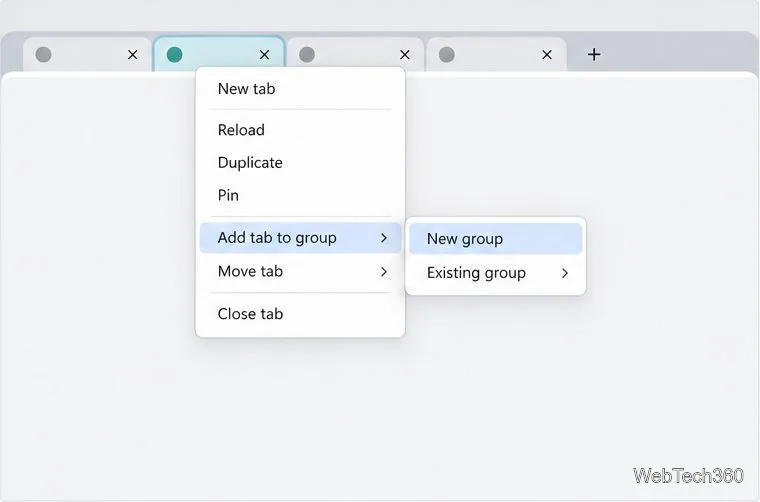
Organize related Chrome tabs into a group, then hide or reopen them with one click. See the current desktop steps, keyboard option, and what collapsing does.
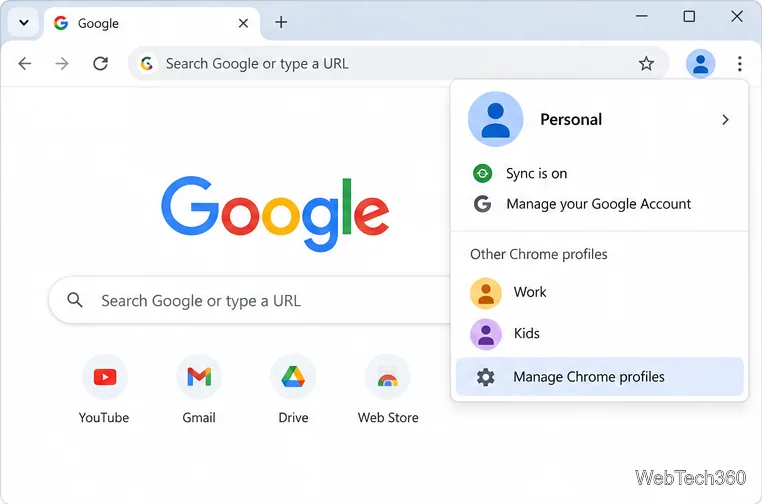
Rename a Chrome profile from its menu or profile manager, see what the label affects, and fix display delays without changing your Google Account name.
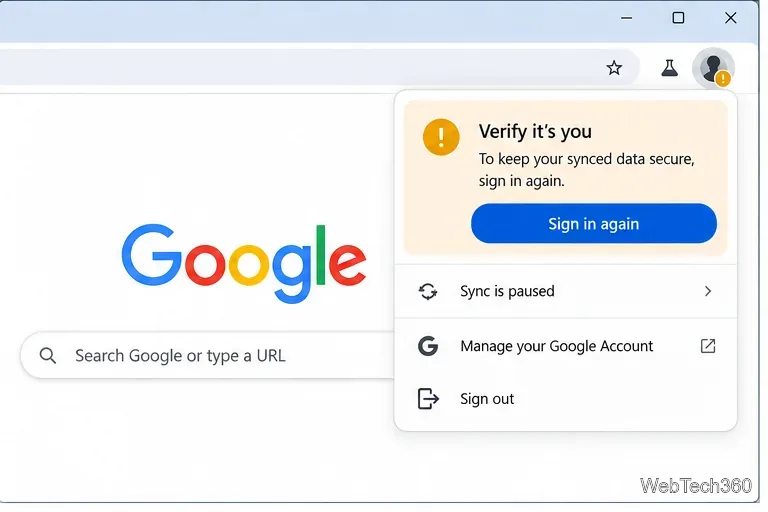
Fix Chrome sync pausing and repeated sign-in prompts by restoring account access, keeping site data, updating Chrome, and checking extensions or profiles.
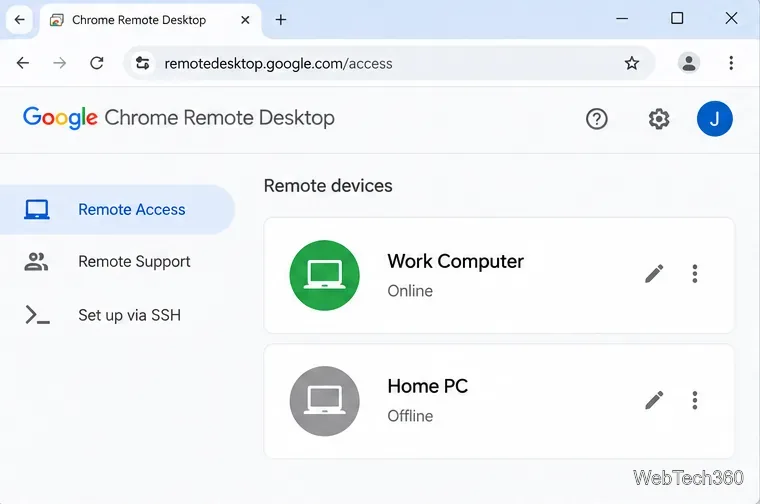
Chrome Remote Desktop not working? Fix offline hosts, update Chrome, reset remote access, check permissions, firewall rules, and managed-network restrictions.
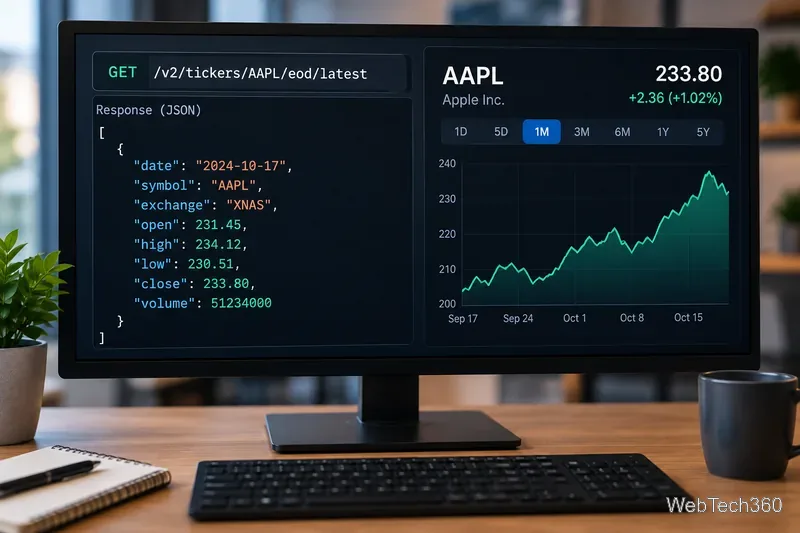
Marketstack review covering API v2, real-time and intraday data, historical coverage, pricing, limits, pros, cons, and who should use it.
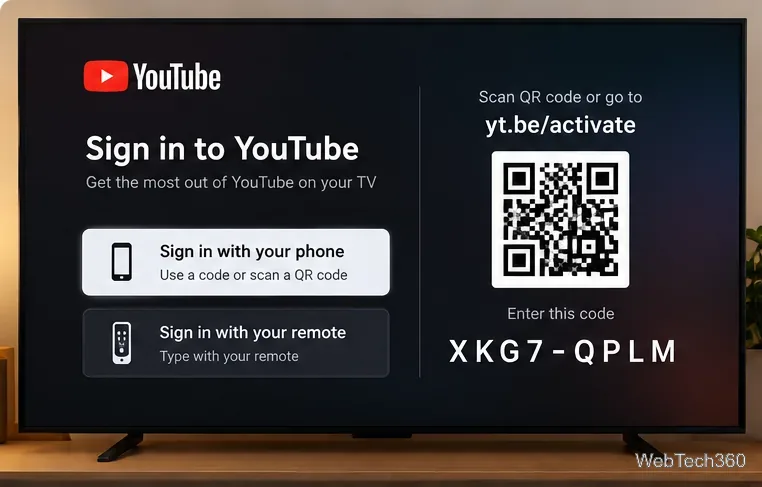
Learn how to activate YouTube at youtube.com/activate or yt.be/activate, enter your TV code, choose your Google Account, and fix sign-in problems.
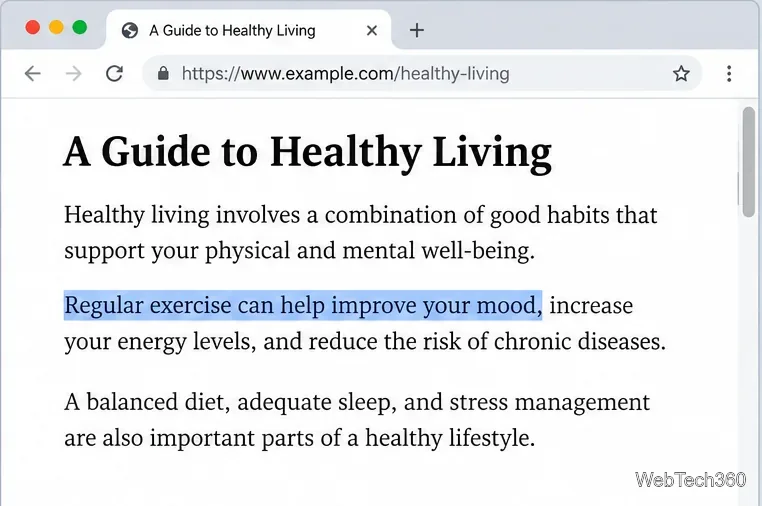
Learn how to link directly to selected text in Chrome with Copy link to highlight, how text-fragment URLs work, and what to do if a link fails.
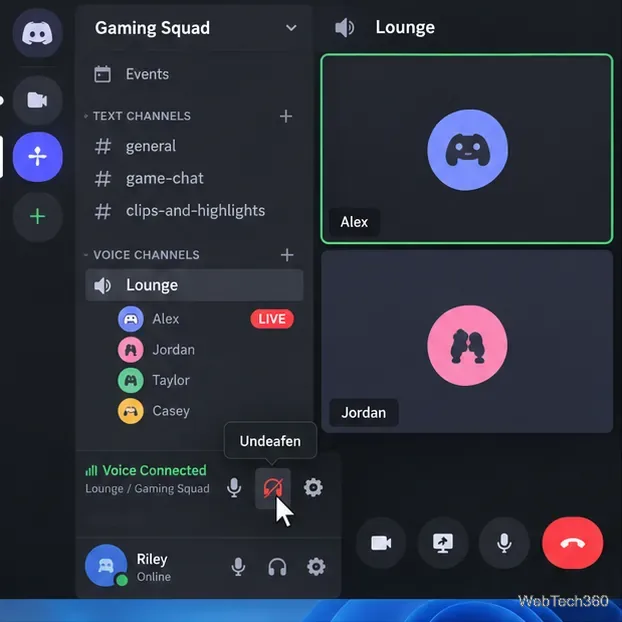
Can't hear anyone on Discord? Check Deafen and user volume, choose the right output device, reset Voice & Video, and fix Windows audio settings.
Learn how to add roles in Discord, change a role name, set permissions, assign or remove members, reorder roles, and delete roles safely.