Home
» WEB
»
Discord Profile Picture: How to Change It and Choose a Clear Avatar
Discord Profile Picture: How to Change It and Choose a Clear Avatar
Your Discord profile picture is the image people see beside your messages and on your profile. Change your main avatar from User Settings > Profiles on desktop, or tap your avatar and choose Edit Profile on mobile. Discord’s current profile guide lists PNG and GIF files; animated GIF avatars require Nitro.
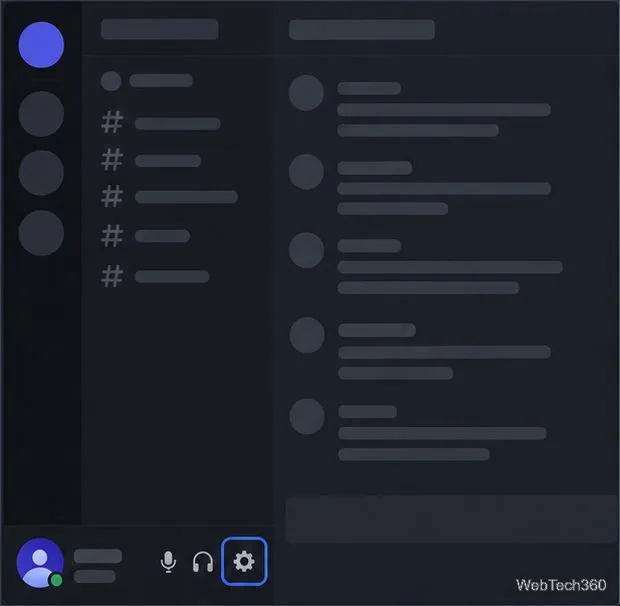
Open User Settings. In the desktop app or browser, select the gear icon at the lower-left of the Discord window, beside your account controls.The User Settings control sits beside your account controls.
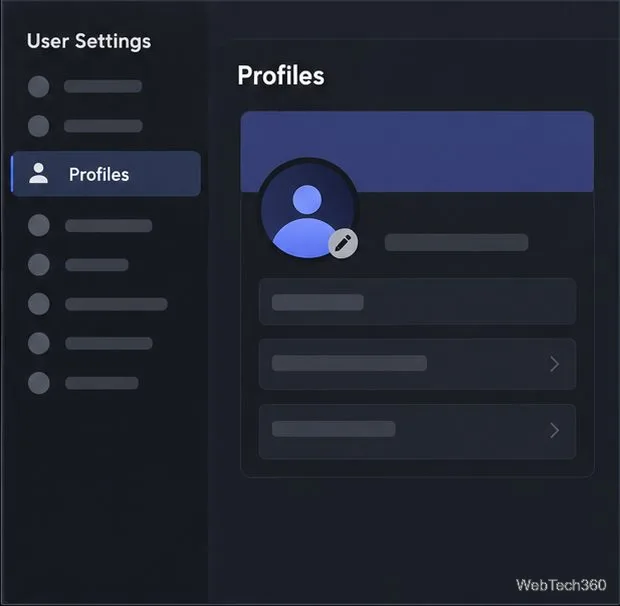
Open Profiles. In User Settings, select Profiles in the settings sidebar. Select Profiles to open the settings for your main user profile.
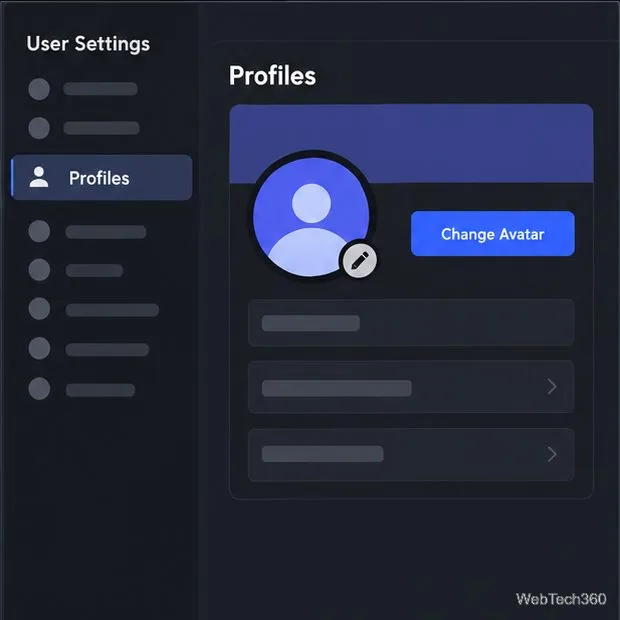
Choose a new avatar. Select Change Avatar or click your current avatar. Pick a supported PNG or GIF file from your computer. Use Change Avatar to upload a new primary avatar.
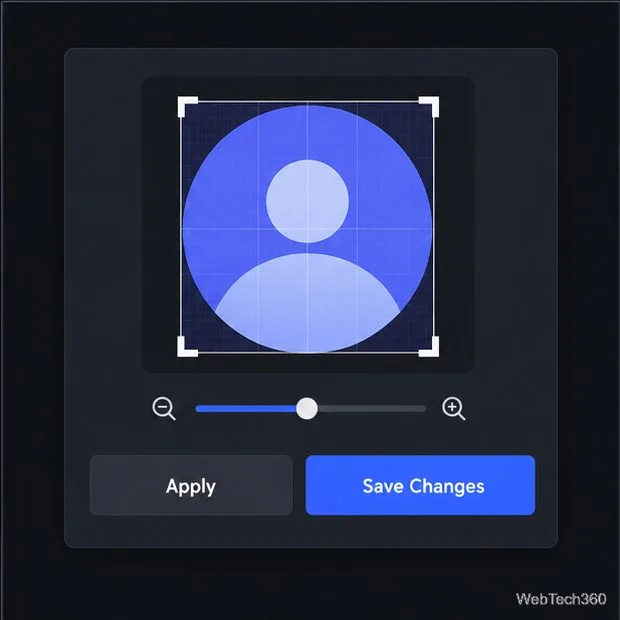
Preview and save. Position the image so the important subject stays in the visible crop. Select Apply, then Save Changes. Check the preview before exiting.Review the crop, then apply and save your changes.
Change your profile picture in the mobile app
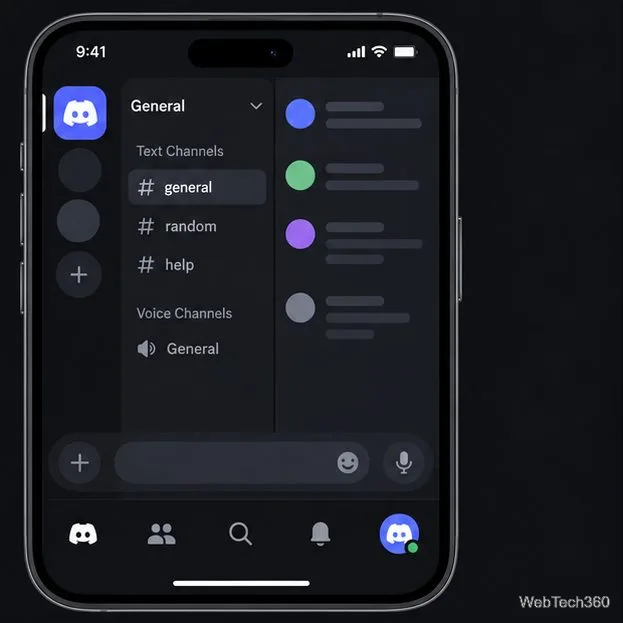
Open your profile. Tap your avatar in the bottom-right corner of the Discord mobile app. Open your profile from the avatar control at the bottom right.
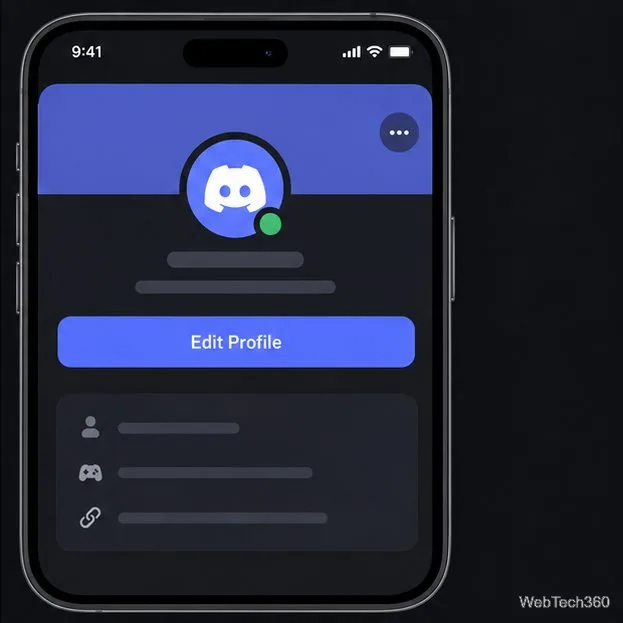
Tap Edit Profile. Choose Edit Profile, then tap your current avatar to start changing it. Select an image from your photo library or files.Tap Edit Profile to reach your avatar settings.
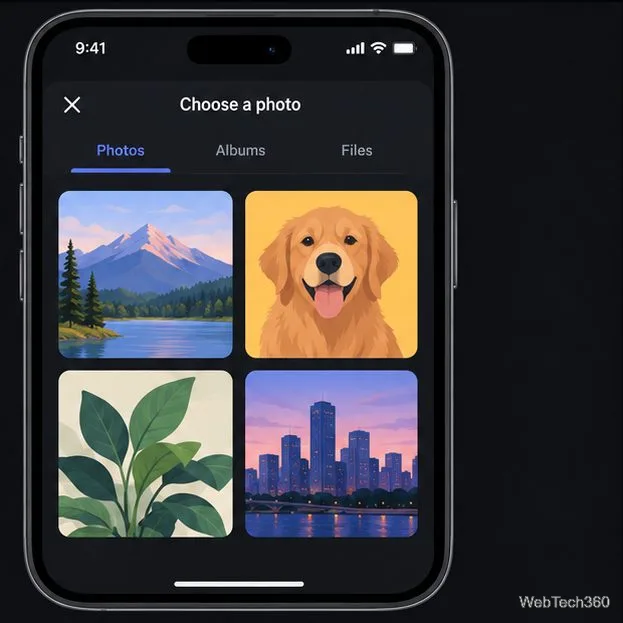
Adjust the crop. Move or zoom the image until the subject fits comfortably inside the preview. Tap Choose to accept the crop.Choose a photo from your device library.
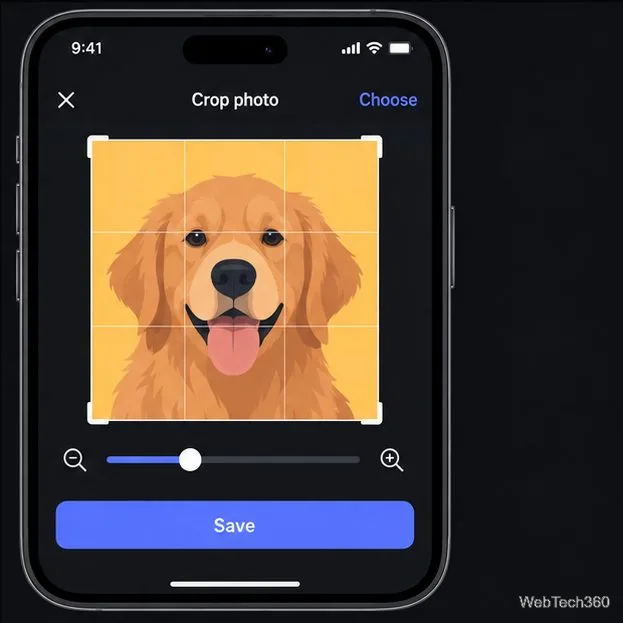
Save the change. Review the updated profile picture and tap Save in the upper-right corner. If you leave the editor before saving, the new image may not be applied.Adjust the crop, choose it, and save the updated profile.
Tips for choosing an avatar that looks good
Use a simple, centered subject. Discord shows avatars in small circular spaces across chats and server lists. A square source image with the face, symbol, or character near the middle is easier to crop without losing important details.
Check it at thumbnail size. Fine text, thin outlines, and busy backgrounds disappear when an avatar is reduced. Use a clear silhouette, strong contrast, and one focal point so people can recognize it quickly.
Leave a little breathing room. Don’t place eyes, logos, or other key details against the edge of the original image. The crop preview may trim the corners, so zoom out slightly if the subject feels cramped.
Choose a picture that fits your privacy comfort level. A real photo is optional; an illustration, game character, or simple icon can work just as well. If you prefer not to make your face or surroundings identifiable, choose an image that doesn’t reveal them.
Use an image you’re allowed to share. Use an image you own or have permission to share, and follow Discord’s Community Guidelines and Terms of Service, which apply to content across the platform.
File formats, size, and common upload issues
Discord’s current main-profile instructions list PNG and GIF as supported avatar formats. They don’t specify a required pixel dimension for a standard profile picture. Start with a clear square image and use Discord’s preview to position it. If a JPEG upload is rejected, export a PNG and try again; Discord lists JPG separately for per-server avatars in its Per-Server Profiles guide, so don’t assume the file rules are identical.
The file won’t upload: confirm it is a PNG or GIF, then try a smaller, freshly exported copy if the picker or upload fails.
The image looks awkward: reopen the preview and adjust the zoom or placement. Keep the subject near the center and check how it looks as a small circle.
A GIF stays still: animated profile avatars require Nitro. Use a PNG for a still image.
You can’t change it again: Discord’s current mobile help guide says usernames and avatars can be changed twice in an hour. If you hit that limit, wait before trying again; the older “once every 10 minutes” claim isn’t the current guidance.
Remember the difference between your profile and a server profile
Your main avatar is the default across Discord. Nitro members can set a separate per-server profile, including a different avatar for a particular community. Changing that server-specific avatar doesn’t replace your main profile picture elsewhere. If you meant to change only how you appear in one server, use the per-server profile settings instead of the main Profiles page.
Frequently asked questions
What size should a Discord profile picture be?
Discord’s current main-profile guide doesn’t give a mandatory pixel size. A square, sharp image is a practical starting point; use the crop preview to make sure the important part remains visible.
Can I use an animated Discord profile picture?
Yes. Discord supports GIF avatars for Nitro subscribers. Without Nitro, choose a still PNG image for your main profile picture.