Home
» WEB
»
How to Access Chrome Bookmarks Without Opening Chrome
How to Access Chrome Bookmarks Without Opening Chrome
If Chrome will not open, your computer is unavailable, or you need bookmarks from an old installation, you may still be able to retrieve them without launching the browser. The most practical option is Google Takeout, provided the bookmarks were saved to the Google Account you used with Chrome and are still available there. Takeout can export Chrome bookmarks as an HTML file, which you can open in a browser or import into another browser.
If your bookmarks existed only in a local Chrome profile and were never synced to your Google Account, Takeout may not contain them. In that case, look for the old Chrome profile or a backup of its local data instead.
1. Check whether your bookmarks are synced
Think about whether you signed in to Chrome and enabled bookmark sync on the device that held the bookmarks. If you can sign in to the same Google Account on another device, first check whether the bookmarks appear there. Google explains how Chrome data is made available across devices in its official Chrome sync guide.
Do not assume Takeout can recover bookmarks that were never uploaded to the account, were deleted, or belong to a different Chrome profile or Google Account. If you used multiple profiles, repeat the check for the account associated with each profile.
2. Select Chrome in Google Takeout
Open Google Takeout in any available browser and sign in to the relevant Google Account. Takeout works independently of the Chrome desktop application.
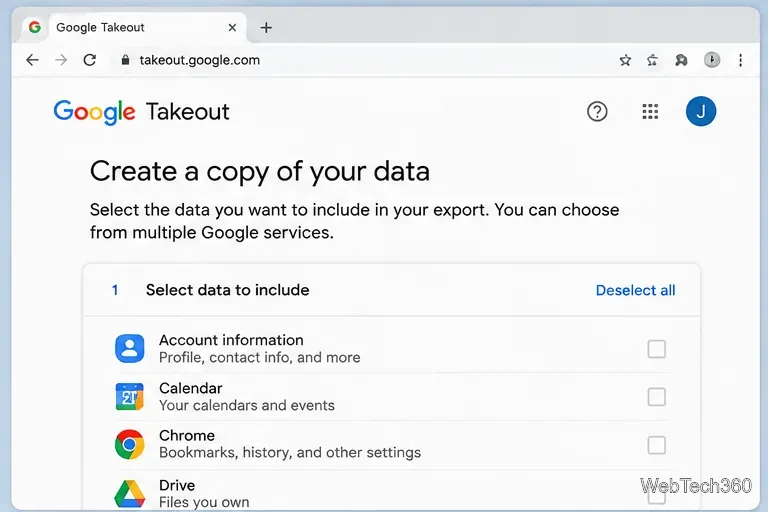
Google Takeout’s data selection page before choosing Chrome for export.
On the data-selection page, choose the option to deselect all services if many are selected.
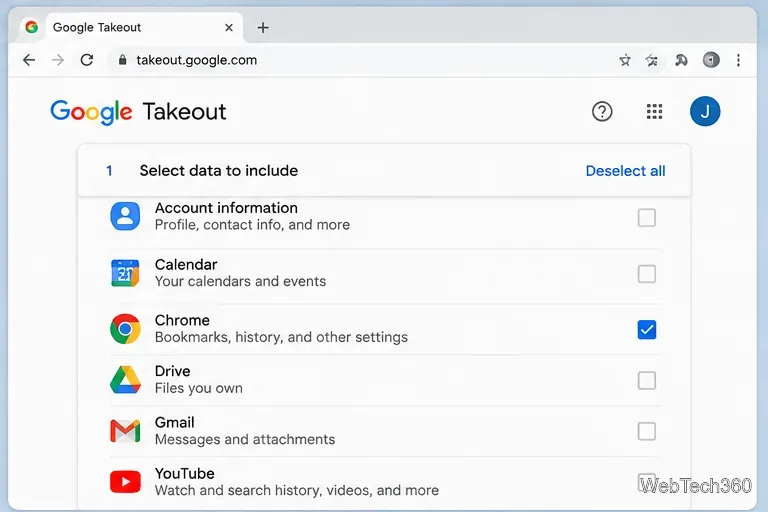
Find Chrome in the list and select its checkbox.
Open the Chrome data-selection control if it appears, so you can choose the specific data to export.
The Google Takeout service list with Chrome selected and other services unchecked.
3. Export bookmarks only
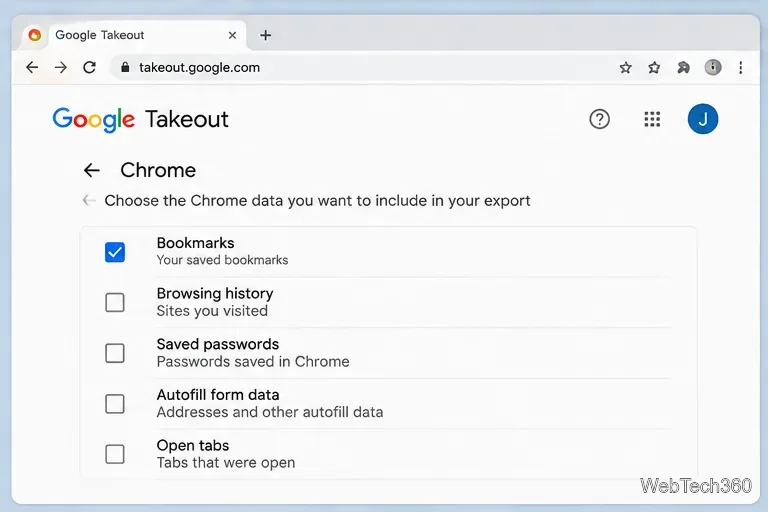
In the Chrome data options, select Bookmarks and clear the other categories you do not need. The exact labels or layout may vary as Google updates Takeout, but the goal is to include bookmarks only. Google’s Chrome data export documentation lists bookmarks among the data that may be included in an export.
Chrome export options with Bookmarks checked and other data categories unchecked.
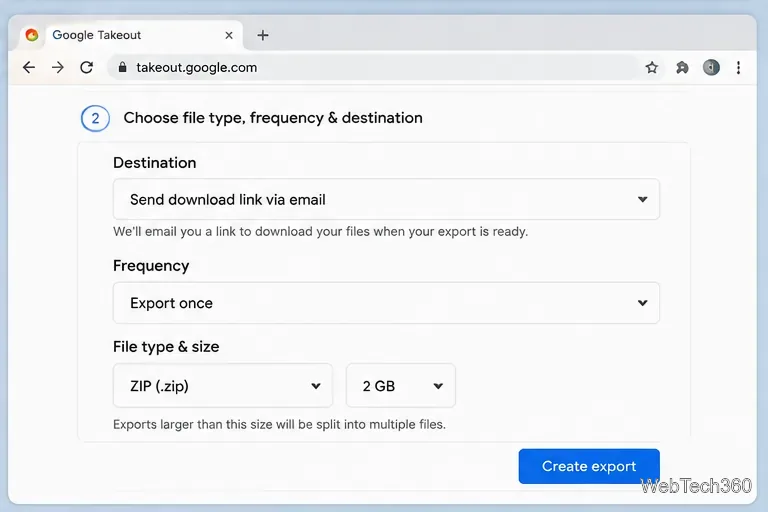
Confirm the selection and continue to the export settings. Choose an email download link and a one-time export if those options are offered. ZIP is a convenient archive format; the default archive size is usually sufficient for a bookmarks-only export. Finish by creating the export.
Google Takeout’s delivery settings for a one-time ZIP archive sent by email.
4. Download and extract the archive
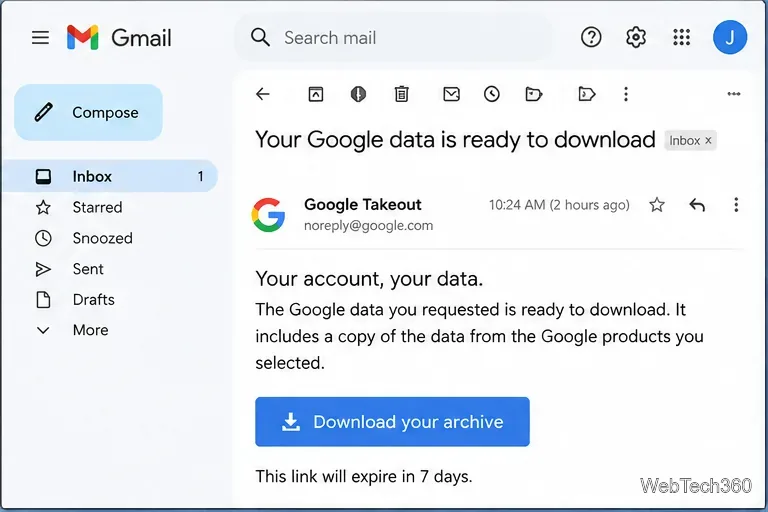
Takeout prepares the archive and notifies you when it is ready. Preparation time can vary, so do not rely on a fixed delivery time. Open the notification from Google Takeout and download the archive. If you do not see the message, check your spam folder and revisit Takeout to see whether the export is ready.
An email notification that the requested Google Takeout archive is ready to download.
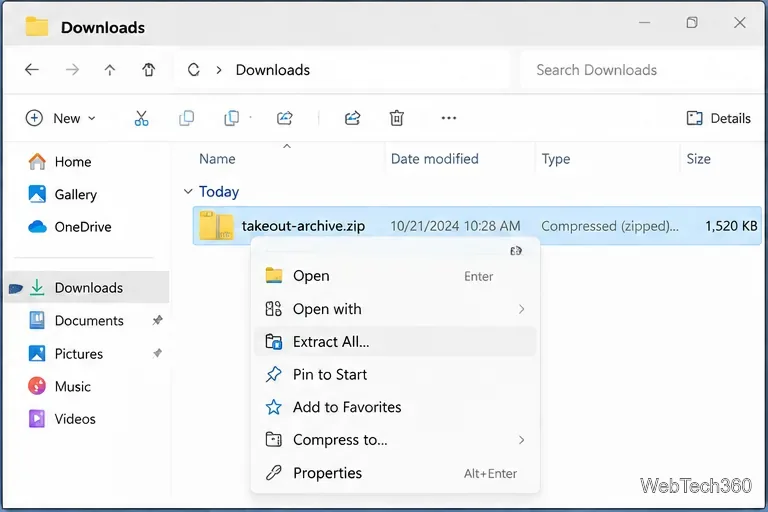
Find the downloaded ZIP file in your Downloads folder or the location you selected. Extract it using your operating system’s built-in archive utility or another trusted ZIP tool; do not try to edit the archive while it is still compressed.
The Downloads folder showing the Takeout ZIP archive and the Extract All command.
5. Find and open Bookmarks.html
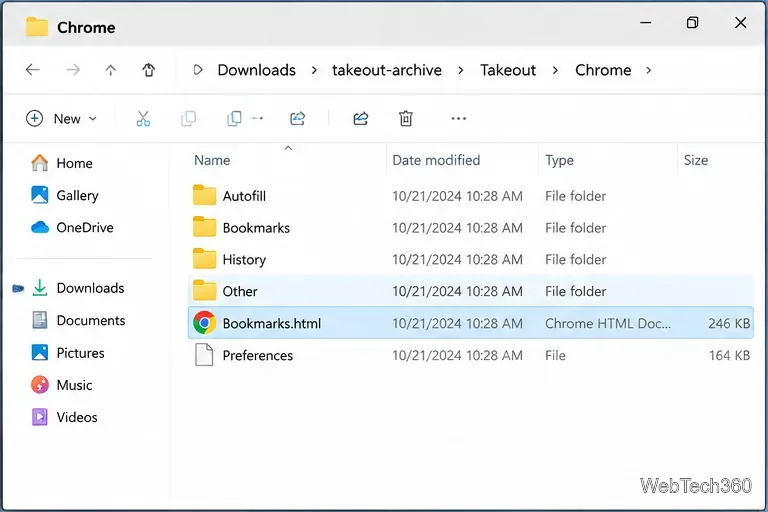
Open the extracted Takeout folder, then look inside the Chrome folder for Bookmarks.html. The folder layout can vary, but the bookmark export is supplied as HTML. Keep a copy of the original archive and extracted file before making changes.
The extracted Takeout Chrome folder with the Bookmarks.html file selected.
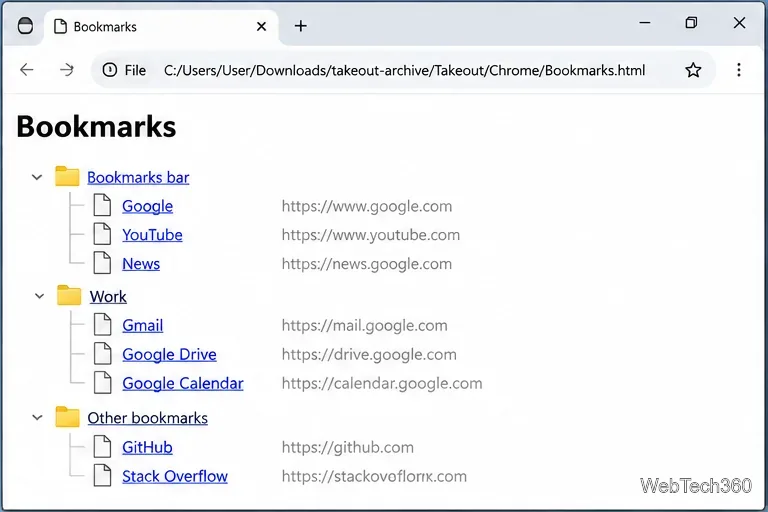
Double-click Bookmarks.html to view its links in a browser. It is a saved HTML document, not a live Chrome profile, so it lets you browse the exported list but does not restore Chrome settings, extensions, passwords, or browsing history. The export generally preserves bookmark folders, making it easier to find items from the bookmarks bar or other saved folders.
A browser displaying bookmarks and their original folder structure from Bookmarks.html.
6. Import the bookmarks into another browser
If you want the links back in an active browser, use that browser’s bookmark-import feature and select the HTML file. For Chrome, Google’s instructions are under Import Chrome bookmarks and settings. Other browsers have their own import menus; look for an option to import bookmarks from an HTML file.
Importing may place the links in a new folder rather than merging them into your existing folders exactly as before. Review the imported bookmarks and keep the original HTML file as a backup until you are satisfied that everything you need is present.
If Takeout does not contain your bookmarks
Verify the account: Try the Google Account used by the original Chrome profile, not just the account currently open in another browser.
Check another synced device: If bookmarks are visible there, you can sign in and export them from Chrome’s Bookmark Manager when the browser is available.
Look for a local profile backup: If sync was never enabled, search your old computer or backup for Chrome profile data. Avoid overwriting the original profile while investigating.
Remember the limits: Takeout exports data available in the selected account; it is not a remote recovery tool for every bookmark ever saved on every device.
For a browser that still opens, the quickest route is usually Chrome’s built-in Bookmark Manager: open it, choose its More menu, and select Export bookmarks. Google documents that shorter method in its bookmark import and export guide.