Home
» WEB
»
How to Add a Dropdown List in Google Sheets: 2 Quick Methods
How to Add a Dropdown List in Google Sheets: 2 Quick Methods
To add a dropdown list in Google Sheets, select the cell or range where people will enter data, then choose Insert > Dropdown. In the rule editor, pick Dropdown from a range to use values stored in cells, or choose Dropdown to type a short set of options directly. The instructions below use the current desktop interface.
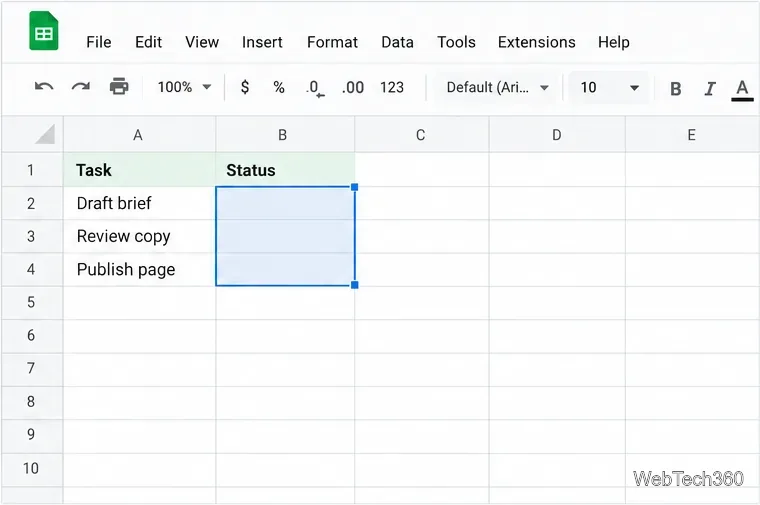
Select the cells that should receive a status dropdown.
Choose the right method
Method
Use it when
Example
Dropdown from a range
Your options already live in the sheet or will change over time.
A task status list kept on a Lists tab.
Dropdown
You need a small, stable set of choices and do not need a separate source list.
Audited, Not audited, Pending deliverables.
Both methods use a data-validation rule. Selecting the full destination range before creating the rule lets one setup cover many cells at once. Google also documents other entry points, including right-clicking a cell or opening Data > Data validation.
Method 1: Create a dropdown from a range
Use this approach when the choices are maintained in worksheet cells. For the example, the task names are in column A and the status dropdowns will go in column B.
Enter each allowed choice in its own cell in one column. Put the values in A2:A4—Draft brief, Review copy, and Publish page—and keep the header in A1 outside the source range. Select the destination cells, such as B2:B100. You can select a smaller range if only a few rows need the rule.
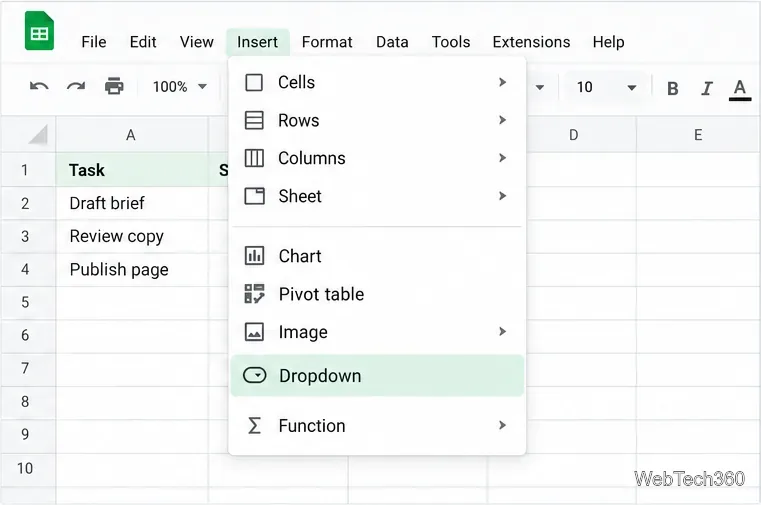
Choose Insert > Dropdown. The Insert menu provides a direct route into the rule editor.
Choose Insert, then Dropdown to start the rule.
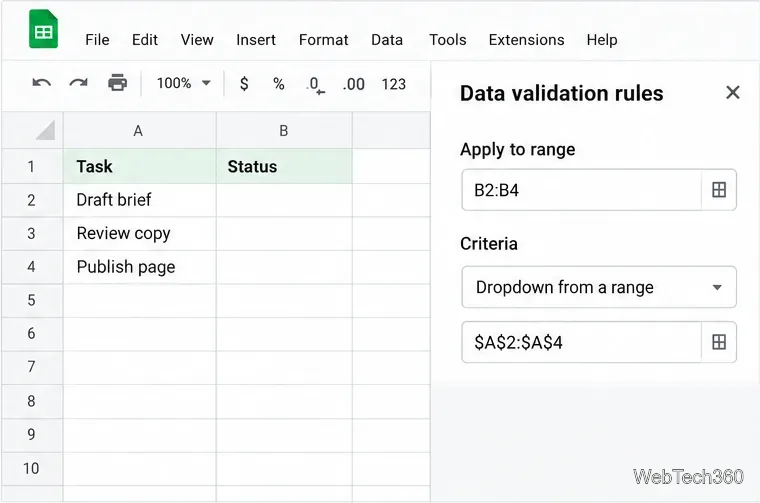
Under Criteria, choose Dropdown from a range. In the source-range box, enter $A$2:$A$4, or use the range-picker button and select the cells on the sheet. If the list is on another tab, use the picker to select that tab and its value cells.
Set the rule to read its choices from cells A2 through A4.
Check the destination shown under Apply to range so you do not attach the rule to the source list by mistake. If the rule should cover more or fewer cells, adjust that destination range before saving.
Choose how Sheets should handle an entry that is not on the list. Reject input blocks it; Show warning lets someone keep it while displaying a warning. In Advanced options, you can also choose a display style such as chip, arrow, or plain text.
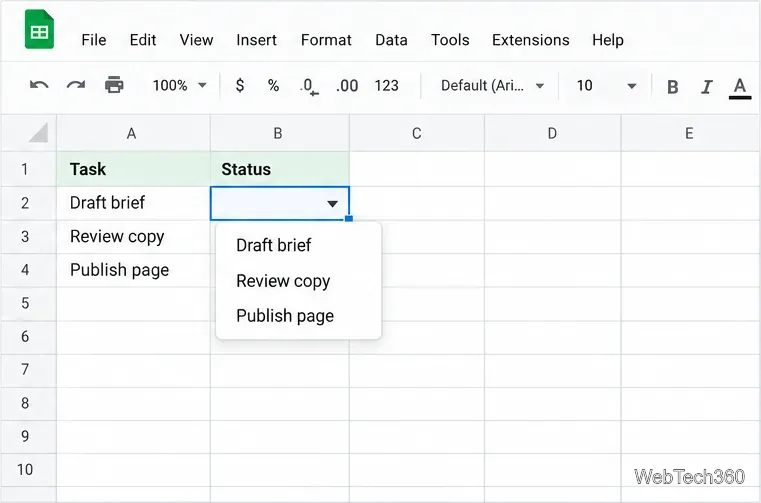
Click Done, then open a cell’s dropdown arrow and choose a value. When the source cells change, the range-based choices update to match.
Open the cell menu to select one of the values from the source range.
This method is a good fit for shared spreadsheets because someone can maintain the choices in one place without editing every validation rule. Select only the cells that contain real choices; if you include a header or unused rows, those can appear as extra or blank menu entries.
Method 2: Type dropdown options directly
Use a manual dropdown for a compact list that rarely changes. Here, an audit column will record whether each task has been checked.
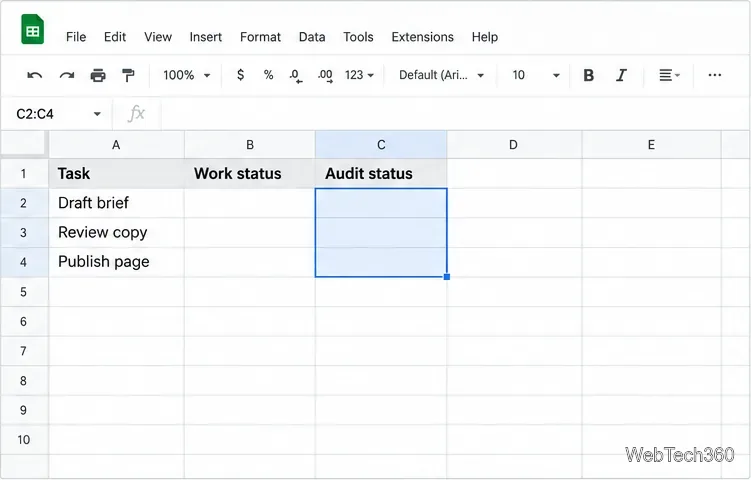
Select the cells where the audit choices should appear.
Select the destination cells, for example C2:C100 under an Audit status header.
Choose Insert > Dropdown, then set Criteria to Dropdown. This is the manual option, rather than Dropdown from a range.
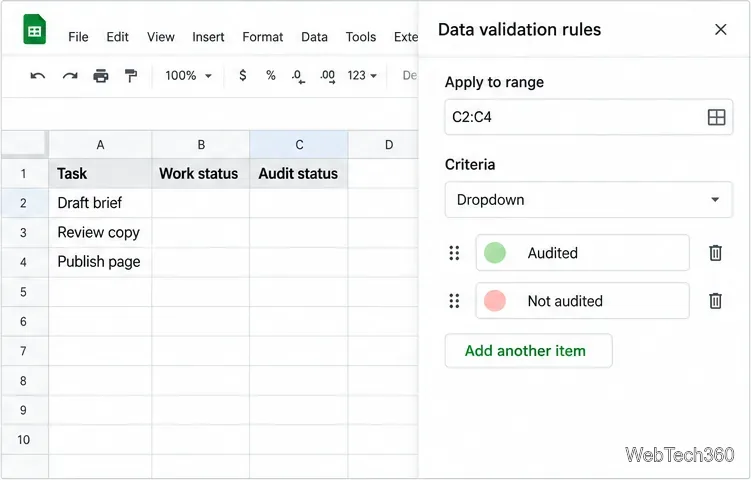
Enter the first value in the item field. Click Add another item for each additional value, entering Audited, Not audited, and Pending deliverables as separate options. Use the item controls to correct spelling or change the order before saving.
Enter manual dropdown values one at a time.
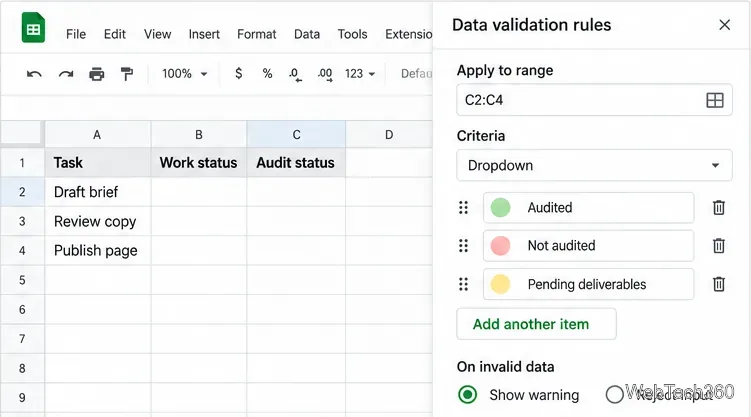
Decide whether to reject values outside the list or show a warning, and choose a display style if you want to change how the choices appear in cells. Click Done to save the rule.
Review the full set of manual choices and decide how invalid entries should be handled.
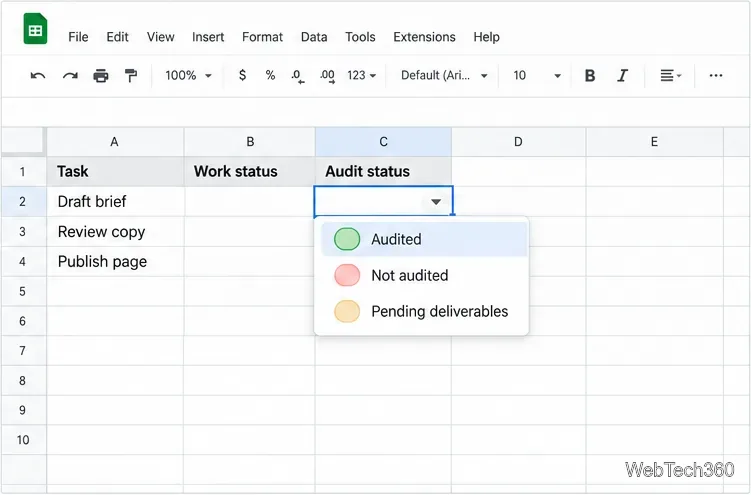
Click the arrow in a destination cell to apply an audit status. The list is now attached to the selected range; you do not need to copy the rule cell across the sheet. If the audit choices change later, edit the rule and update its items.
The finished audit dropdown displays all three options.
Edit, remove, or troubleshoot a dropdown
The arrow or menu is missing: Select a destination cell and check Data > Data validation. Confirm the rule’s Apply to range covers that cell and that the in-cell dropdown is enabled.
A choice is missing: For a range-based rule, verify the source range includes the cell containing that value and does not stop before the last option. Keep headers outside the range. For a manual rule, open the rule and add or correct the item.
People can enter other values: Change the invalid-data setting to Reject input. If exceptions are useful, keep Show warning instead.
You need to revise the list: Select a dropdown cell, open Data > Data validation, edit the criteria or destination range, and click Done. To remove the rule, select Remove rule in the editor.