How to Disable JavaScript in Chrome for One Tab or a Site
Learn how to disable JavaScript in Chrome temporarily with DevTools, block it for one site, or change the browser default, plus how to restore it.
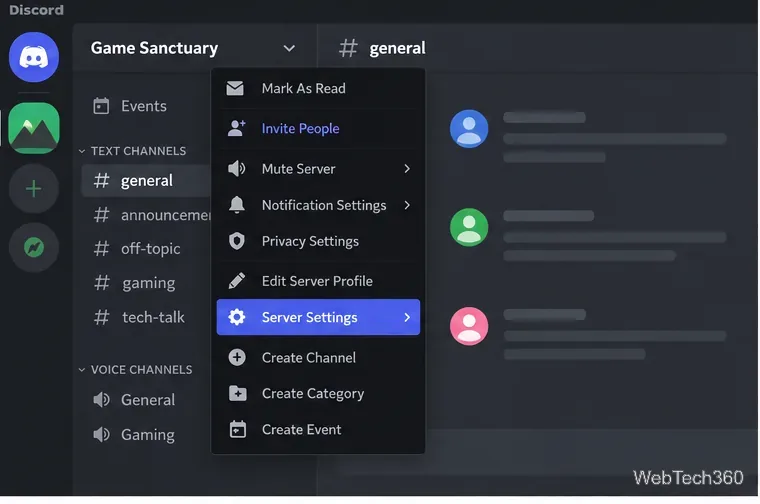
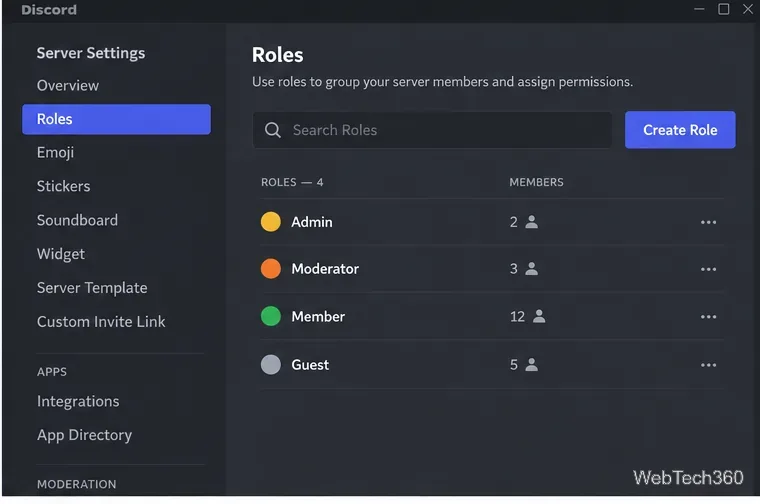
To add roles in Discord, you need to own the server or have permission to manage roles. On desktop or the web app, open the server menu, choose Server Settings, open Roles, and select Create Role. From there, you can name the role, choose its appearance, set permissions, place it in the role hierarchy, and assign it to members.
Discord's current role system is more flexible than older versions of the app, so it is worth setting up roles carefully instead of giving broad permissions to individual members. Discord's official Roles and Permissions guide also recommends using the hierarchy to keep server management organized and secure.
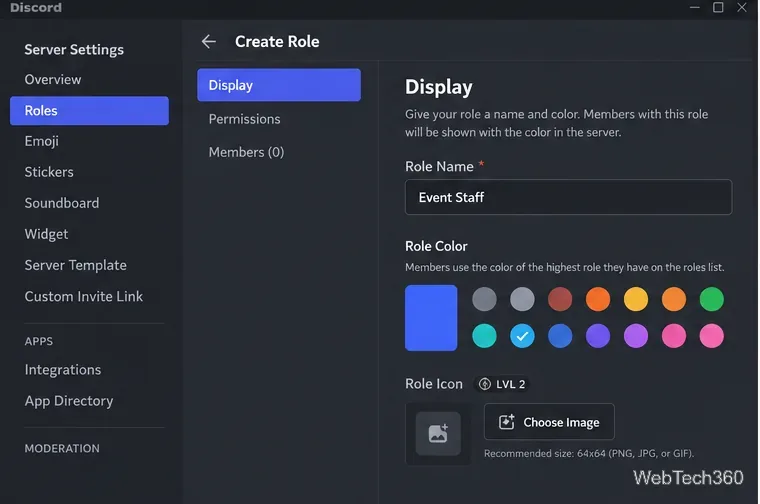
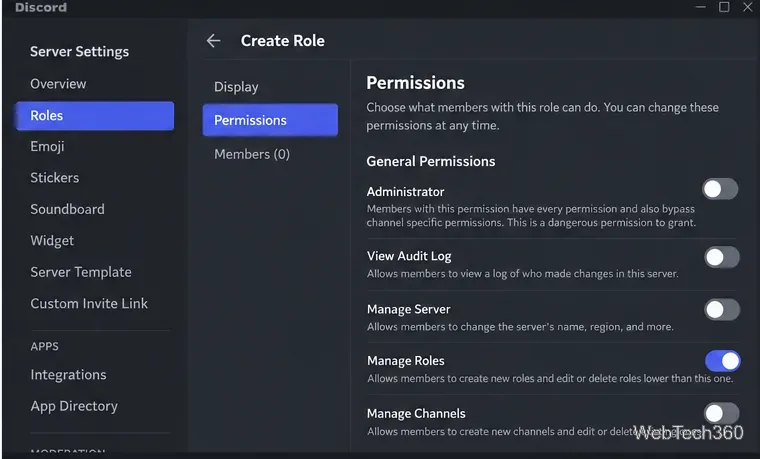
You do not need to make a replacement role just to rename one. Go to Server Settings > Roles, select the role, open its Display settings, change the Role Name, and save the change. Members keep the role and its permissions; only its configured name changes.
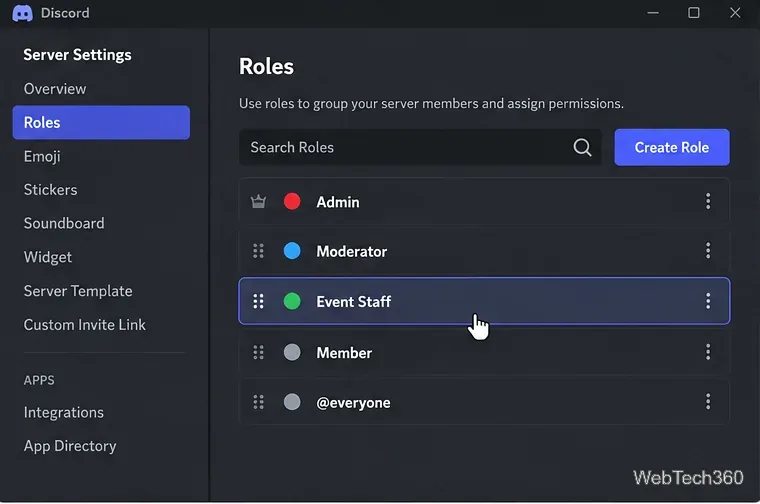
Role order matters for moderation. In Server Settings > Roles, drag roles into the order you want, with more trusted management roles higher in the list. Discord says a member can only affect members whose highest role is below their own, and a user with Manage Roles can only create or modify roles below their highest role.
On desktop/browser, Discord provides a Members page for role management. For non-Community servers, open Server Settings > Members. Community servers can also expose Members near the top of the channel list. Find the member, use the control in the Roles column, and check the role you want to add. Discord documents this workflow in its Members Page guide.
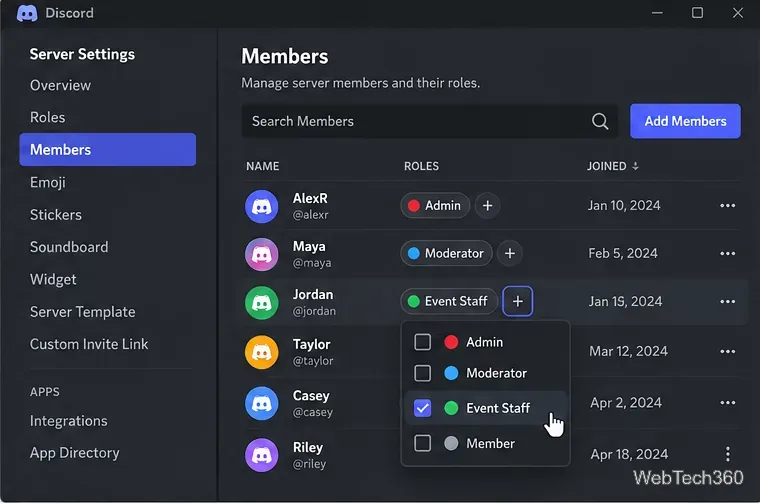
You can also assign a role from a member's profile when Discord shows the role control there. The role's server-wide permissions apply as soon as the assignment is made.
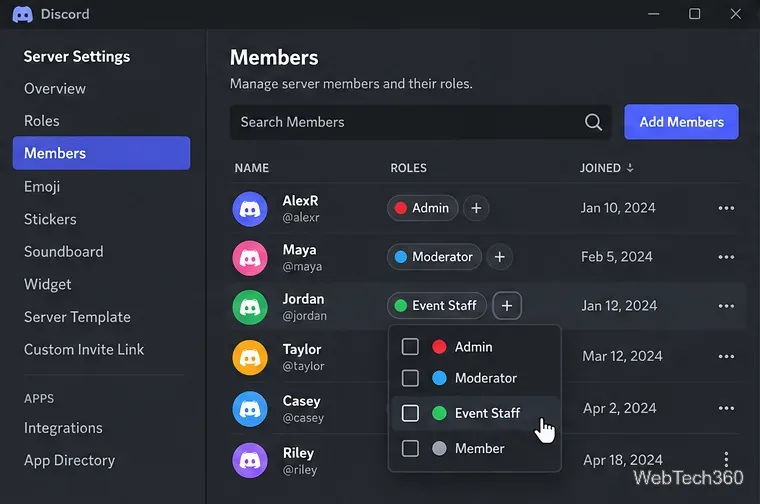
Removing a role does not delete the role from the server. Open the member-management view, open that member's role list, and uncheck the role you want to remove. If the member has other roles, permissions supplied by those roles can still remain active.
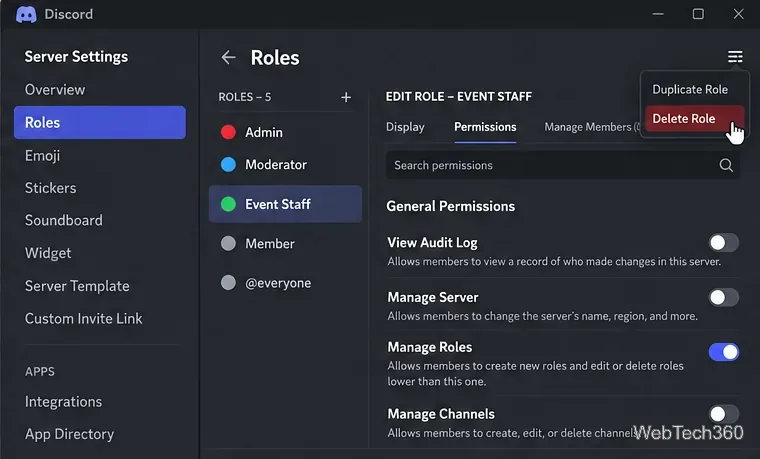
To remove a role completely, return to Server Settings > Roles, select the role you are allowed to manage, open its role actions menu, and choose Delete Role. Confirm the deletion if Discord asks. Deleting a role removes that role from members, so check its permissions and membership first.
The old idea that a member simply gets the permissions of their single highest role is not accurate. At the server level, Discord calculates a member's permissions by combining the allowed permissions from @everyone and all roles assigned to that member. Channel-specific overrides are then applied on top of those server permissions according to Discord's permission hierarchy.
Role position still matters for administration: it determines which members and roles someone can manage, and it influences which role color is displayed. For a detailed breakdown of server and channel overrides, see Discord's permission hierarchy documentation.
For most servers, the safest setup is to keep @everyone relatively limited, create a small number of clearly named roles, and grant moderation permissions only where they are actually needed.
Learn how to disable JavaScript in Chrome temporarily with DevTools, block it for one site, or change the browser default, plus how to restore it.
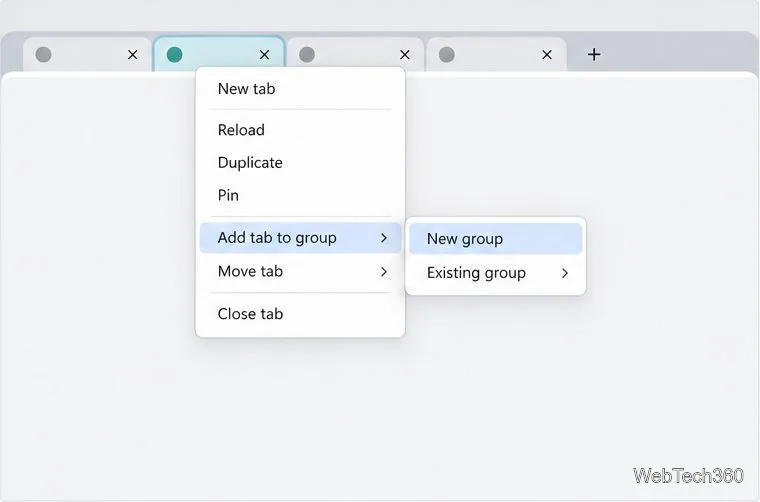
Organize related Chrome tabs into a group, then hide or reopen them with one click. See the current desktop steps, keyboard option, and what collapsing does.
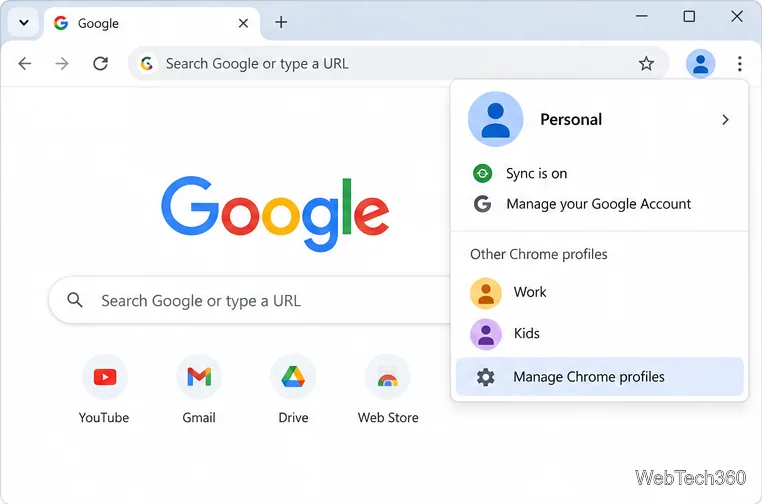
Rename a Chrome profile from its menu or profile manager, see what the label affects, and fix display delays without changing your Google Account name.
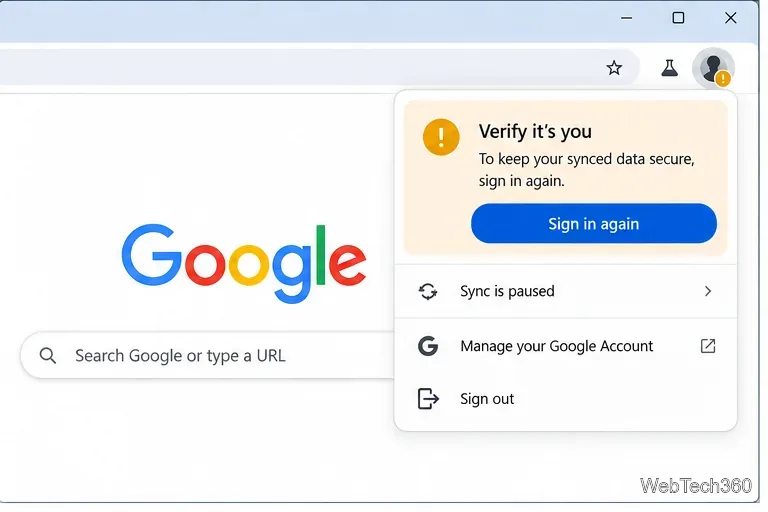
Fix Chrome sync pausing and repeated sign-in prompts by restoring account access, keeping site data, updating Chrome, and checking extensions or profiles.
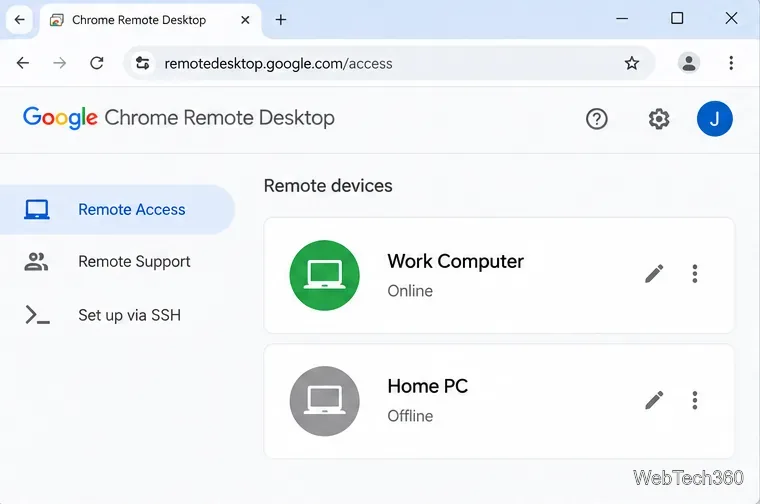
Chrome Remote Desktop not working? Fix offline hosts, update Chrome, reset remote access, check permissions, firewall rules, and managed-network restrictions.
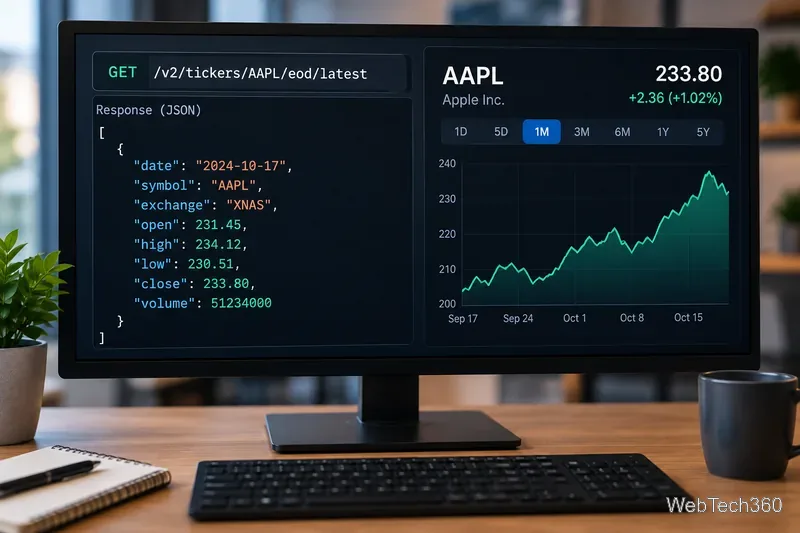
Marketstack review covering API v2, real-time and intraday data, historical coverage, pricing, limits, pros, cons, and who should use it.
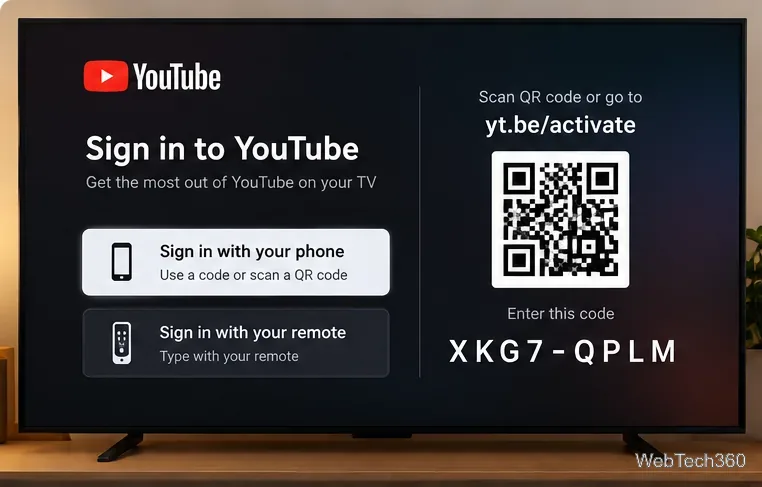
Learn how to activate YouTube at youtube.com/activate or yt.be/activate, enter your TV code, choose your Google Account, and fix sign-in problems.
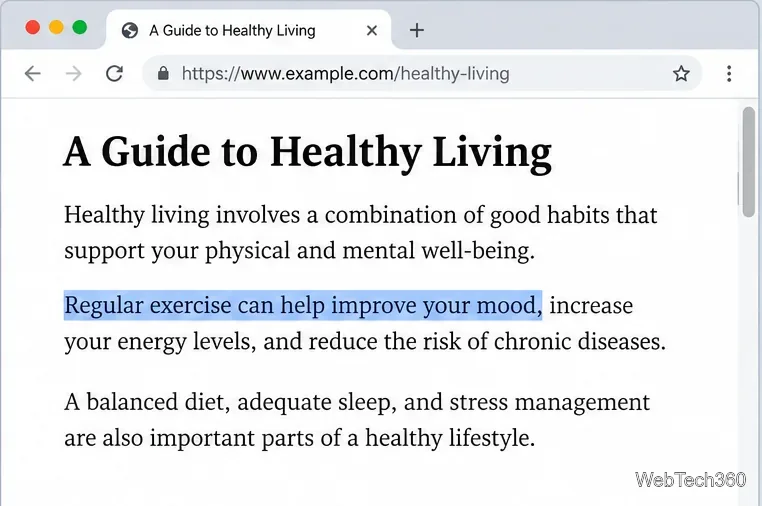
Learn how to link directly to selected text in Chrome with Copy link to highlight, how text-fragment URLs work, and what to do if a link fails.
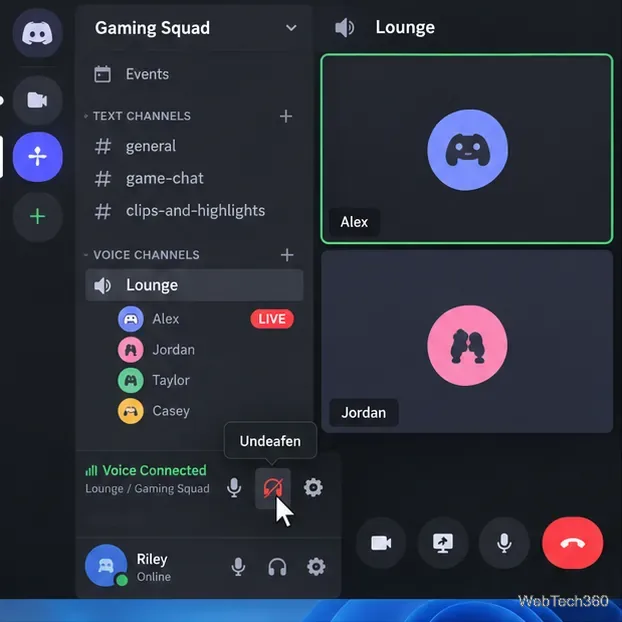
Can't hear anyone on Discord? Check Deafen and user volume, choose the right output device, reset Voice & Video, and fix Windows audio settings.
Learn how to add roles in Discord, change a role name, set permissions, assign or remove members, reorder roles, and delete roles safely.