Home
» WEB
»
How to Cancel a Google Calendar Event and Notify Guests
How to Cancel a Google Calendar Event and Notify Guests
To cancel a Google Calendar event you organized, open it, select the trash icon or Delete event, choose which part of a recurring series to remove if Calendar asks, and send a cancellation email to guests. If you were invited to someone else’s event, removing it from your calendar does not cancel it for everyone; the organizer must delete it.
Check whether you organized the event
Only the event organizer or someone with permission to edit the calendar can cancel an event for all invitees. Deleting an event you created removes it from your calendar and from the calendars of invited guests. If you are a guest without edit access, you can remove the invitation from your own calendar, but the event remains active for everyone else. Google’s computer instructions for deleting an event explain the difference.
Cancel an event on a computer
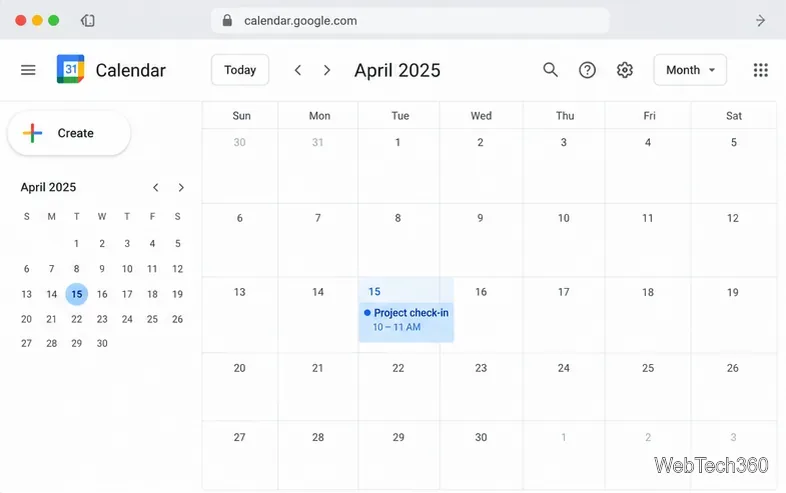
Open the event. Go to Google Calendar in a browser and sign in to the account that owns the event. Find the event on the calendar and click it. Check the title and date so you do not remove a different meeting by mistake.
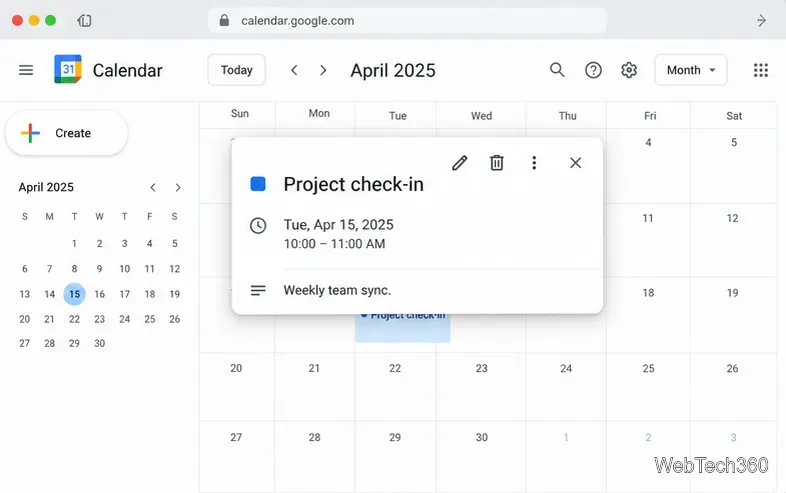
Choose Delete. In the event details pop-up, click the trash-can icon, labeled Delete event in Calendar’s help instructions. If you do not see a delete option, you may be looking at an invitation you do not own or a calendar where you lack edit permission.
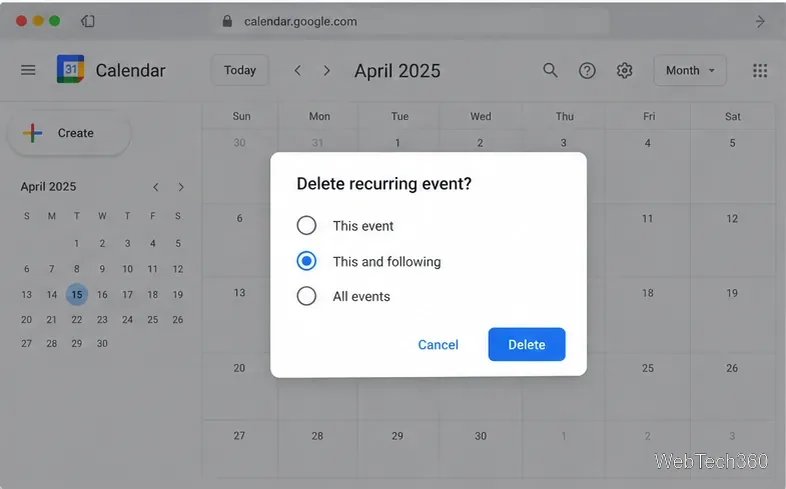
Select the right recurrence option. For a repeating event, Calendar asks which instances to delete. This event removes only the selected occurrence. This and following removes that occurrence and later ones. All events removes the entire series. Review the choice before continuing: Google says a deletion made with This and following is not placed in Trash and cannot be restored there.
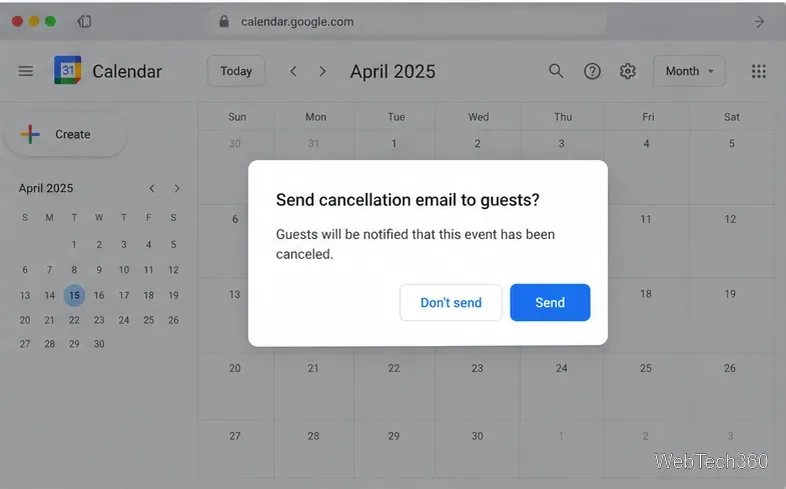
Notify the guests. If Calendar asks whether to send cancellation emails, choose Send to tell invitees the meeting is canceled. If you choose not to send an email, contact guests through another channel so they know not to attend. Calendar can take a little time to sync the removal across devices and other people’s calendars.
Remove an event in the mobile app
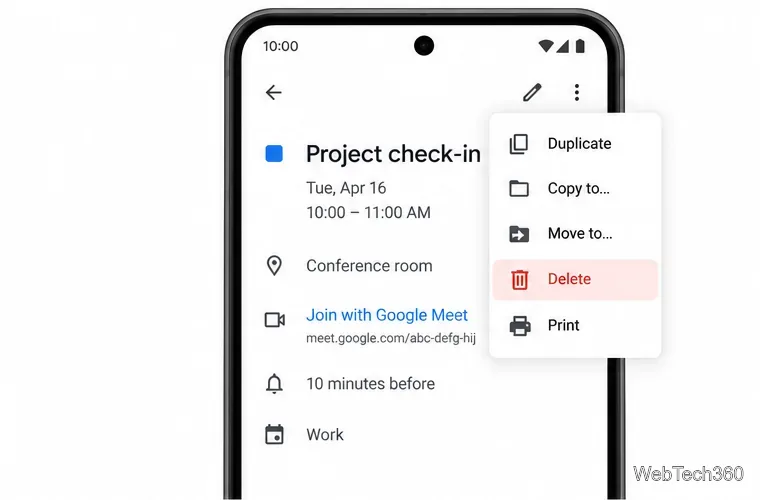
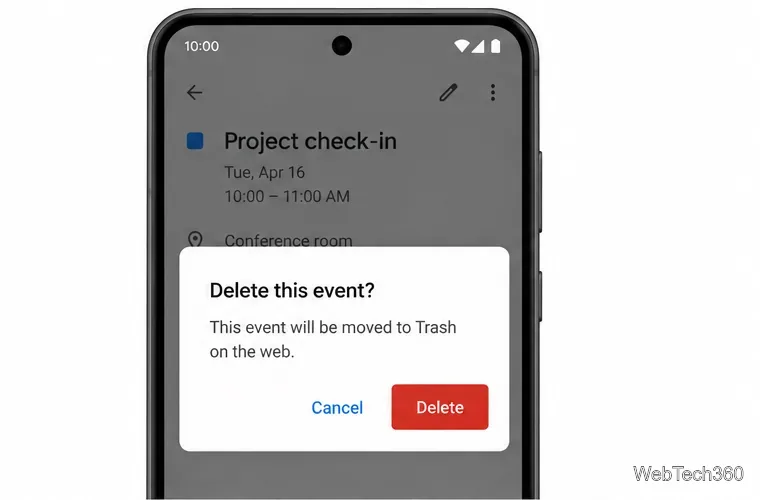
On Android, iPhone, or iPad, open the Google Calendar app and tap the event. Tap More (the three-dot menu), tap Delete, then confirm by tapping Delete or Delete event, depending on the screen. Google documents these steps for Android and iPhone and iPad.
If the event belongs to someone else and you do not have permission to edit it, this action only removes it from your calendar. It does not cancel the organizer’s meeting or send a cancellation for all guests.
Restore a deleted event from Trash
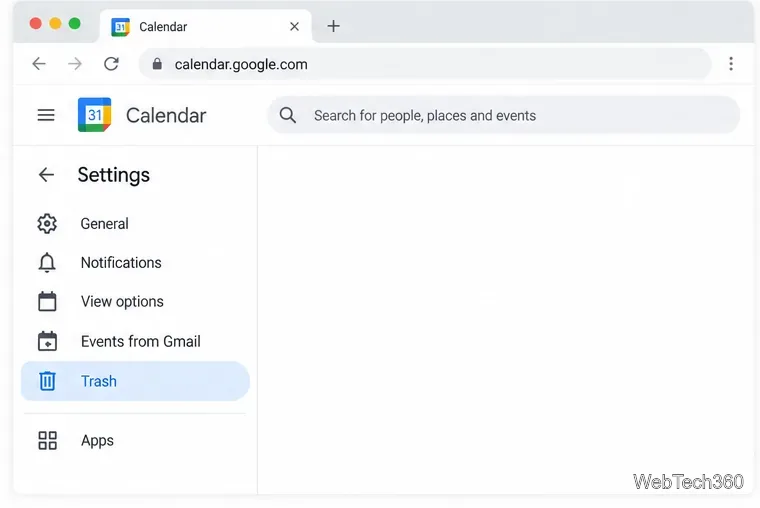
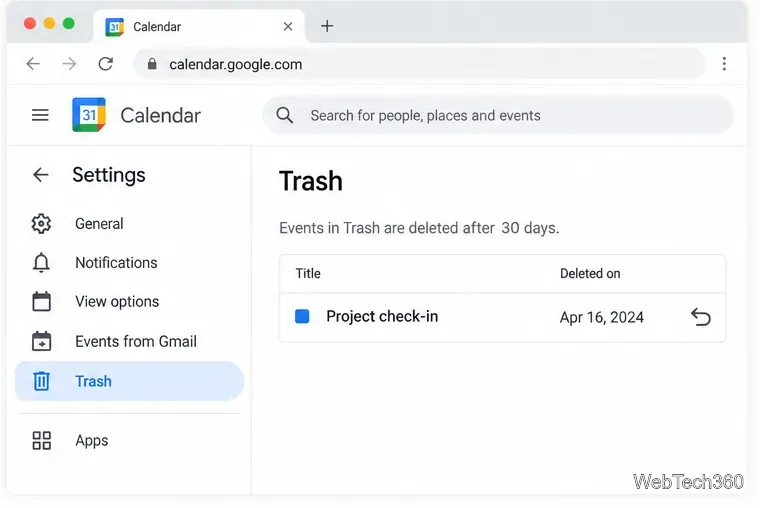
If you deleted an event by mistake, use Google Calendar on a computer. In the upper-right corner, click Settings, then Trash. Find the event and click the restore arrow beside it. You can restore events for up to 30 days after deletion; after that, Calendar permanently removes them from Trash.
Trash is separate for each calendar, so check the calendar where the event was created if it is missing. You also need edit access to see or restore that calendar’s deleted events. When an event’s creator restores it, guests have to RSVP again.
If the event still appears or is missing from Trash
It still appears on a phone or another calendar app: refresh or reopen the app and allow time for sync. Deletion may not appear everywhere immediately.
You cannot find it in Trash: check the correct Google account and calendar. Events stay for only 30 days, and you may not see Trash items for calendars you cannot edit.
You deleted “This and following” in a recurring series: those occurrences cannot be restored from Trash. If you need the meetings again, ask the organizer or recreate the series and invite guests again.
You are an attendee, not the organizer: ask the event owner to cancel it if the meeting should be removed from everyone’s calendar.
For a one-time event, the short version is: open it, delete it, and send the cancellation notice. For a recurring meeting, confirm the scope first; that choice determines whether one date, future dates, or the whole series disappears.