How to Disable JavaScript in Chrome for One Tab or a Site
Learn how to disable JavaScript in Chrome temporarily with DevTools, block it for one site, or change the browser default, plus how to restore it.
To change a Chrome profile name on a computer, open the profile menu, choose Manage Chrome profiles, and edit the profile card you want to rename. Enter the new label and Chrome saves it automatically; you do not need to restart the browser. You can also edit the profile that is already open through Profile > Customize profile > Edit. Google’s current Chrome profile instructions include both routes.
Use this route when you want to rename a different profile or prefer to see all of your profiles before choosing one. Chrome keeps each profile’s browsing information separate, so check the profile name and picture before editing.
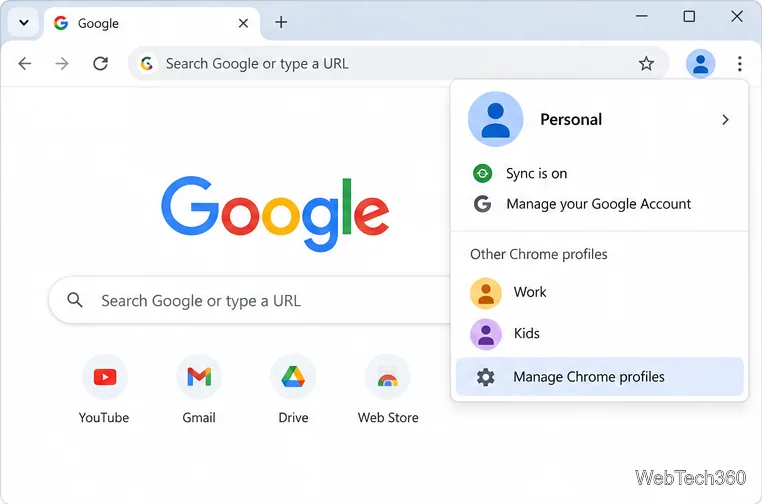
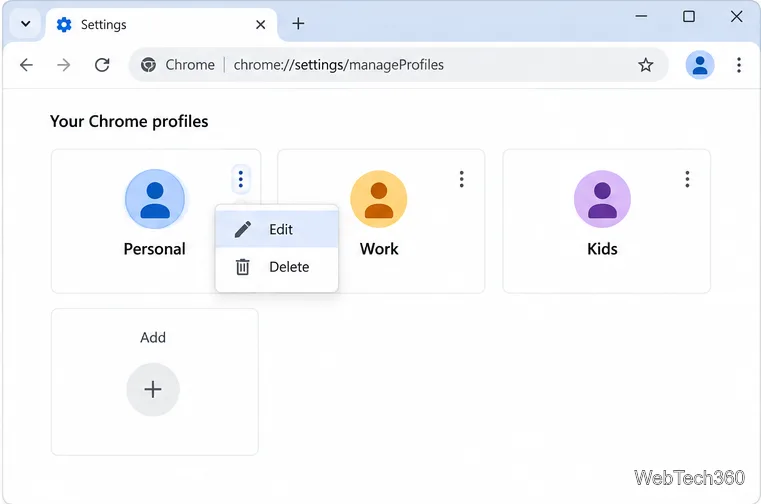
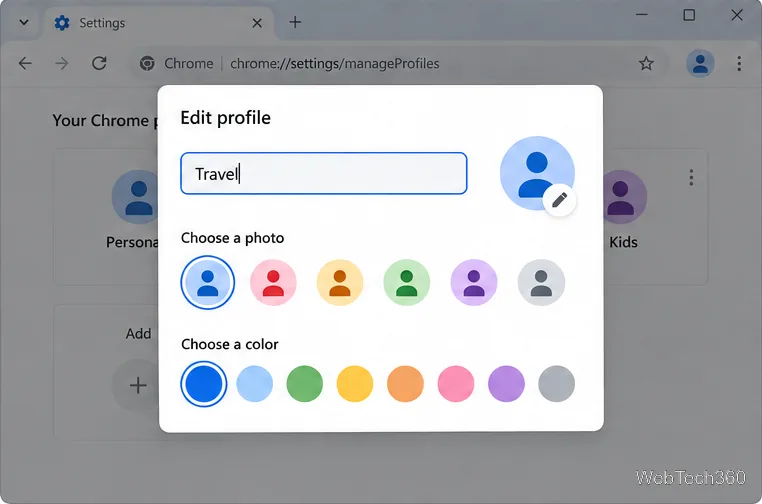
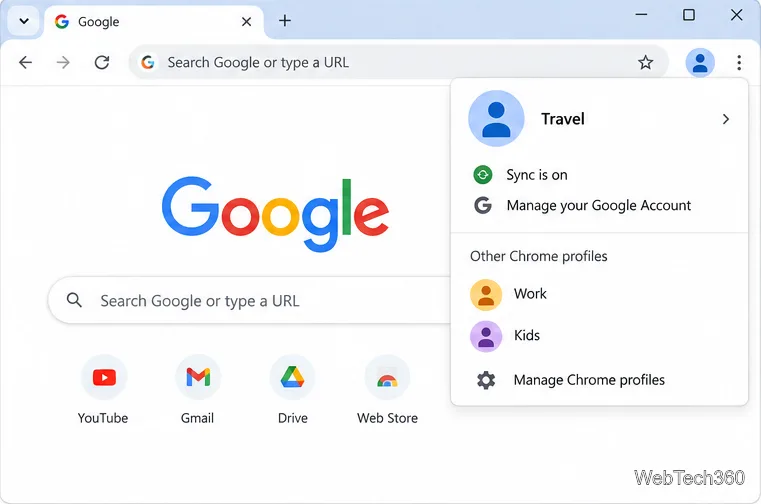
The illustrations show a profile called “Personal” being renamed to “Travel.” Use any short label that will help you recognize the right Chrome window, such as “Work,” “School,” or “Family.” The name is only a label for organizing profiles; it does not change the websites or account data stored in them.
If the profile you want is already open, you can use Chrome’s shorter route: select the profile icon, choose Customize profile, and select Edit. Change the name in the editor and close it. This shortcut edits the current profile; use Manage Chrome profiles when you need to select a different profile first.
Chrome’s wording can shift slightly between releases or operating systems. If you do not see the shortcut, use the profile manager route above. The important control is the profile card’s More > Edit option, not the Google Account menu.
A Chrome profile keeps its own bookmarks, history, passwords, and settings. Renaming the profile changes its identifying label in Chrome. It does not merge profiles, remove their stored information, or change the Google Account name attached to a signed-in profile. Google notes that when you first sign in to a new Chrome profile, its name may start as your Google Account name; you can still edit the Chrome profile label afterward.
The profile editor can also change the photo and color theme associated with a Chrome profile. Those settings help distinguish profile windows at a glance, but they are optional and are not required to rename a profile. If you want to change the picture used across Google services, update the Google Account picture separately. Google says account photo changes can take a few days to appear throughout its products, so a delay there does not mean the Chrome profile rename failed.
You do not need to turn Chrome Sync off and back on to change the profile label. The rename is made in the Chrome profile editor and saves automatically.
Once the new label appears in the profile menu or manager, the change is complete. Your profile remains the same profile, with its existing bookmarks, history, passwords, and settings.
Learn how to disable JavaScript in Chrome temporarily with DevTools, block it for one site, or change the browser default, plus how to restore it.
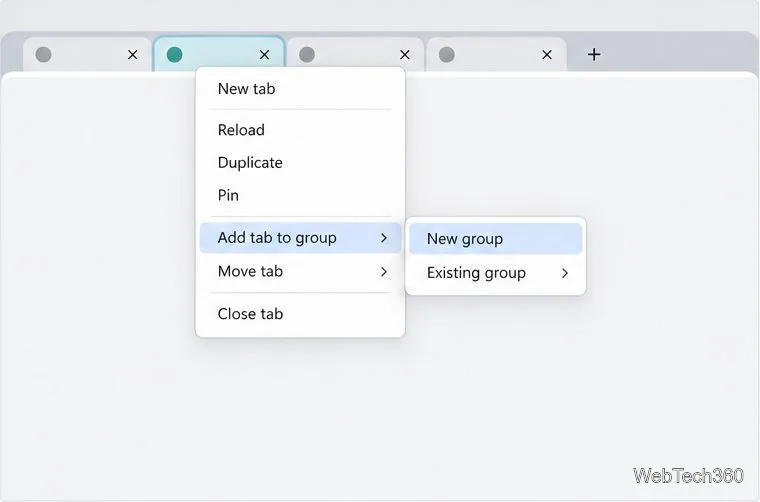
Organize related Chrome tabs into a group, then hide or reopen them with one click. See the current desktop steps, keyboard option, and what collapsing does.
Rename a Chrome profile from its menu or profile manager, see what the label affects, and fix display delays without changing your Google Account name.
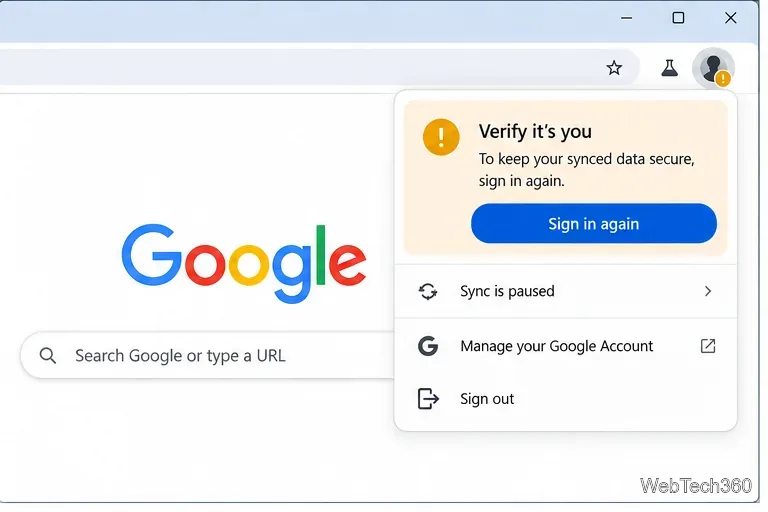
Fix Chrome sync pausing and repeated sign-in prompts by restoring account access, keeping site data, updating Chrome, and checking extensions or profiles.
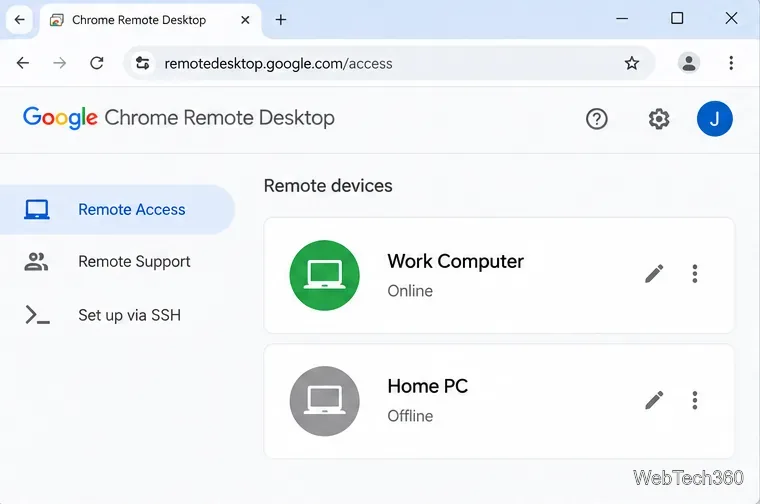
Chrome Remote Desktop not working? Fix offline hosts, update Chrome, reset remote access, check permissions, firewall rules, and managed-network restrictions.
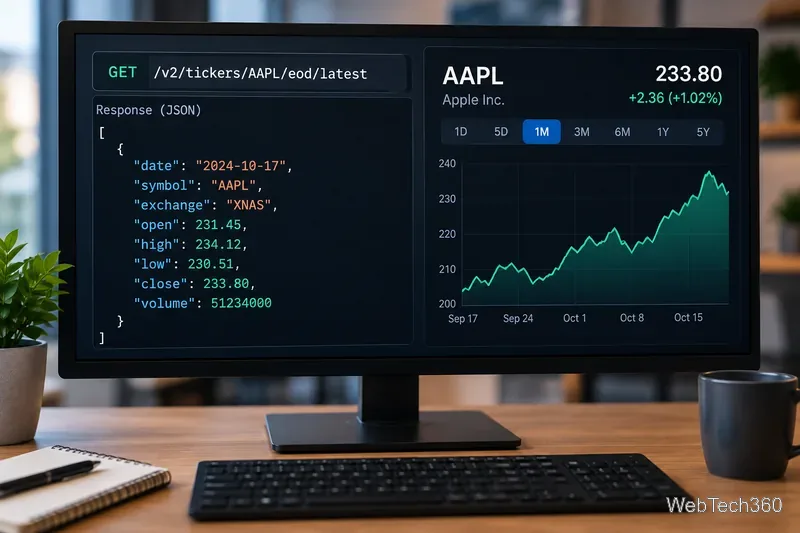
Marketstack review covering API v2, real-time and intraday data, historical coverage, pricing, limits, pros, cons, and who should use it.
Learn how to activate YouTube at youtube.com/activate or yt.be/activate, enter your TV code, choose your Google Account, and fix sign-in problems.
Learn how to link directly to selected text in Chrome with Copy link to highlight, how text-fragment URLs work, and what to do if a link fails.
Can't hear anyone on Discord? Check Deafen and user volume, choose the right output device, reset Voice & Video, and fix Windows audio settings.
Learn how to add roles in Discord, change a role name, set permissions, assign or remove members, reorder roles, and delete roles safely.