Home
» WEB
»
How to Clear Your Cache in Chrome on Windows and Android
How to Clear Your Cache in Chrome on Windows and Android
To clear only the cache in Chrome, open Delete browsing data, choose a time range, select Cached images and files, and click or tap Delete data. Leave cookies, browsing history, passwords, and other categories unchecked if you want to keep them. On a computer, open the More menu and choose Delete browsing data. On Android, open More, tap Delete browsing data, and use More options to select the cache category.
Chrome keeps temporary copies of page resources, such as images, so sites can reopen them faster. Clearing those files can help when a page looks outdated or has a loading or formatting problem, and it can reclaim some local storage. It does not reliably make Chrome faster or free computer RAM; the first visit to a site afterward may take longer while files load again. Google describes the cache and its effects in its Chrome cache and cookies help page.
Clear the Chrome cache on a computer
These steps apply to Chrome on Windows, macOS, Linux, and ChromeOS. The current English interface uses the label Delete browsing data.
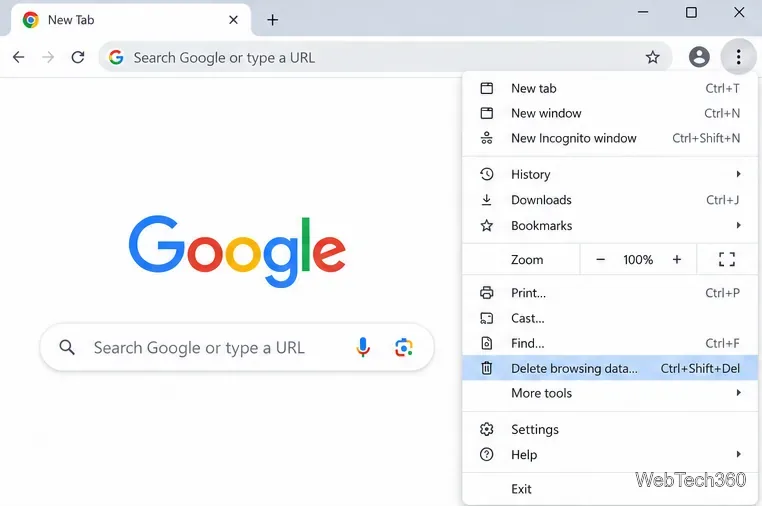
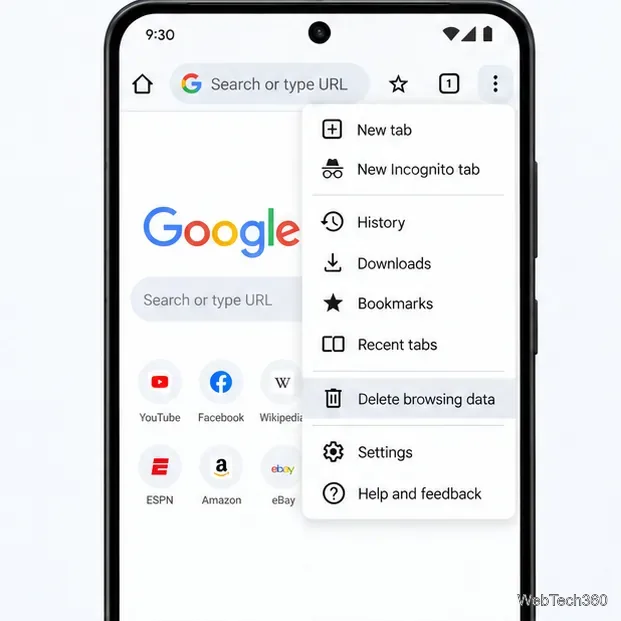
Open Chrome and select the three-dot More menu in the upper-right corner. Choose Delete browsing data. If you do not see it, type “Delete browsing data” in the address bar and select the Chrome Action chip with that name.
Choose Delete browsing data from Chrome’s More menu.
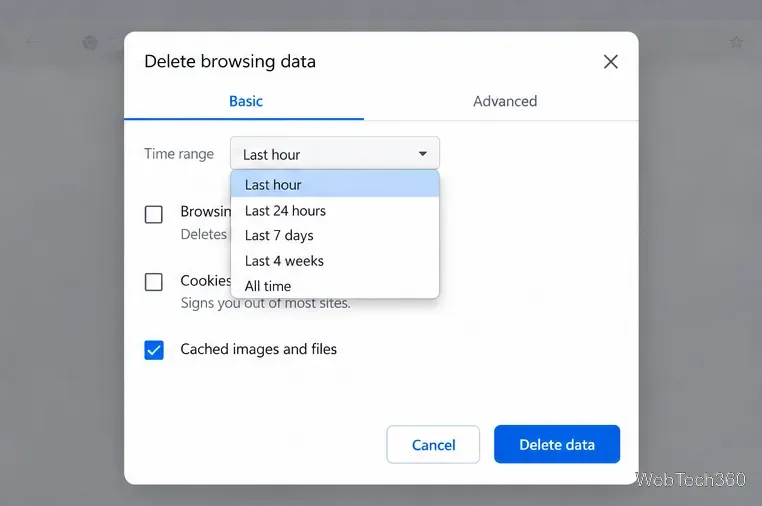
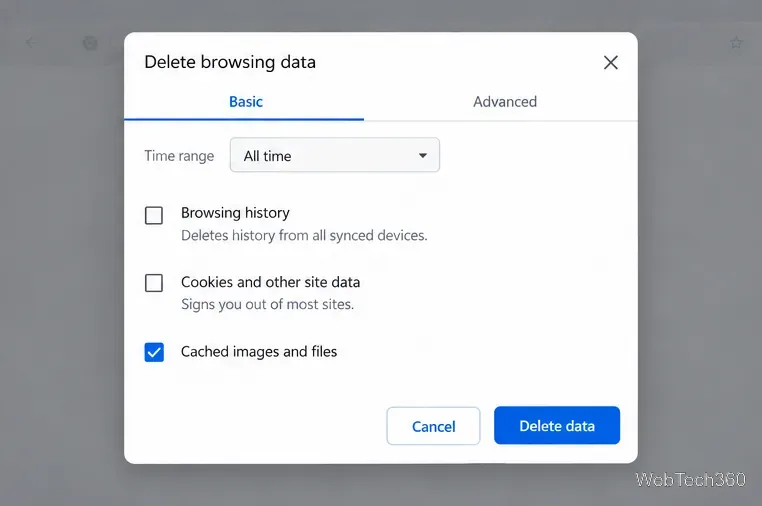
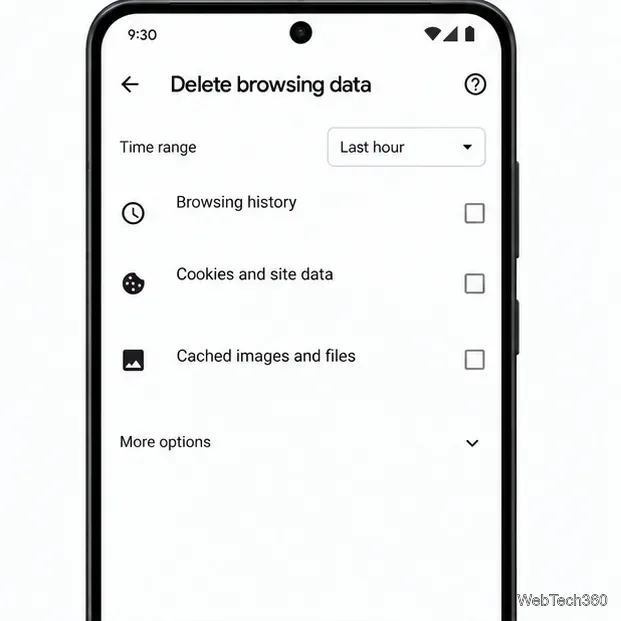
In the dialog, select a Time range. Choose All time to remove cache files across the full available period; choose a shorter range if you only want to clear recent files.
Select a time range before choosing which data to remove.
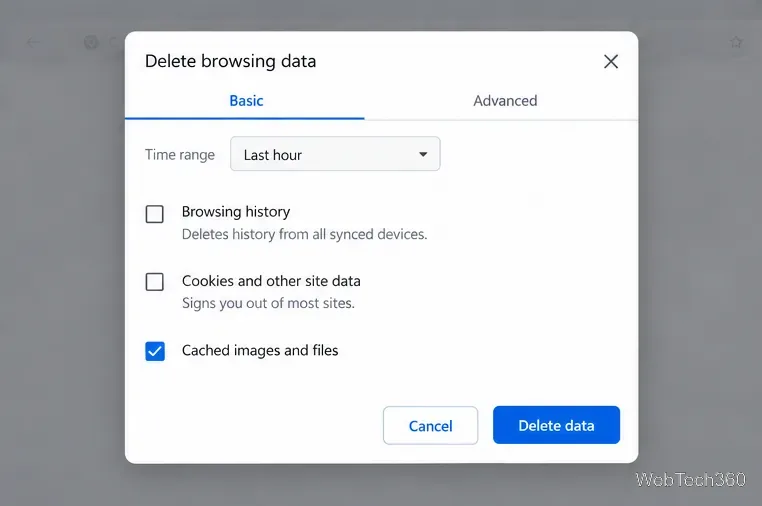
On the Basic tab, check Cached images and files. Clear the check marks beside browsing history and cookies if you want to keep them. Review any other selected boxes before continuing.
Select Delete data. Then reload the site that had the problem and see whether it now shows correctly.
Selecting only the cache preserves the other unchecked categories.Confirm that Cached images and files is selected before choosing Delete data.
The same dialog is available from Chrome’s address bar: type Delete browsing data, then select the matching Action chip. This can save a few menu clicks. The steps and current labels are documented in Google Chrome Help for computers.
Clear the Chrome cache on Android
On an Android phone or tablet, Chrome provides a direct shortcut from its menu. The exact layout can vary with the app version and screen size, but the data category is called Cached images and files.
Open the Chrome app and tap More (the three-dot icon) beside the address bar. Tap Delete browsing data.
Choose the time range you want. For a full cleanup, choose All time. If Chrome first shows a shorter quick-clean screen, tap More options to review individual data types.
Open the data-removal screen directly from Chrome’s Android menu.Review the time range and open More options when you need individual data controls.
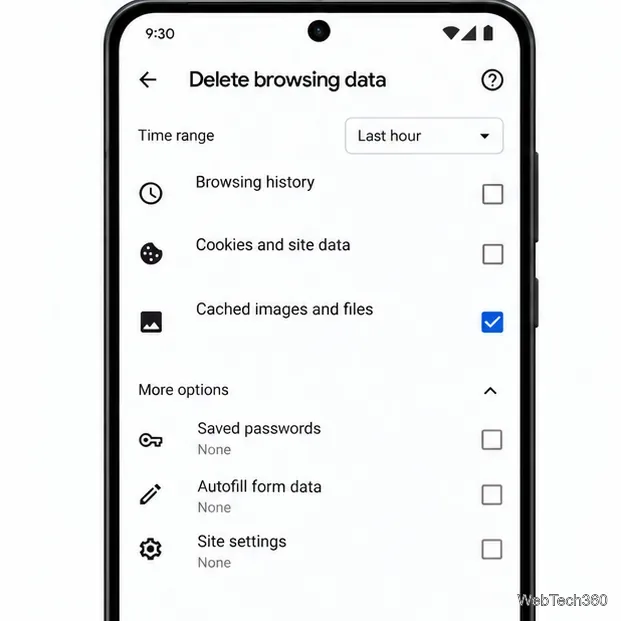
Select Cached images and files. Make sure Browsing history and Cookies and site data are unchecked if you do not want those removed. Leave passwords, autofill, and site settings alone unless you intend to clear them too.
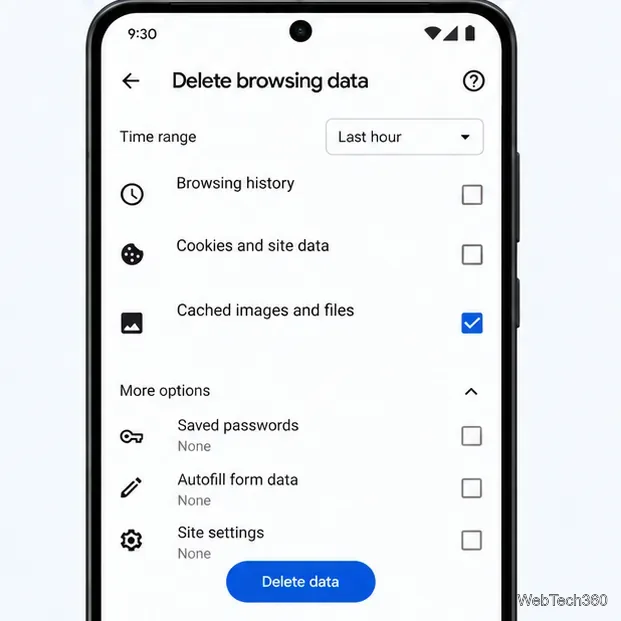
Tap Delete data and confirm if Chrome asks. Reopen or refresh the affected site.
Choose the cache category while leaving unrelated data types unchecked.Tap Delete data to finish clearing the selected cache files.
Chrome’s dialog combines several kinds of browser data, but they do different jobs. To troubleshoot a stale page while keeping your normal sign-ins and records, select the cache category by itself.
Data type
What it affects
When to select it
Cached images and files
Temporary copies of page content that Chrome can reload.
Usually the right choice for a display, loading, or formatting issue.
Cookies and site data
Site sessions and preferences; removing them can sign you out or reset site settings.
Select only when you are troubleshooting a site’s saved session or are ready to sign in again.
Browsing history
The list of pages you visited and related address-bar suggestions.
Select only if you also want to erase that record.
Passwords and autofill
Saved login or form information, managed separately from the page cache.
These are not needed to refresh site files; leave them unchecked unless you mean to remove them.
What happens after you clear the cache?
Chrome rebuilds its cache as you browse. A site may load more slowly the next time because images and other resources need to be downloaded again. If you selected only Cached images and files, cookies and browsing history stay in place, so clearing the cache alone should not sign you out of websites. If you also delete cookies or site data, some sites may ask you to sign in again or restore preferences. Your Google Account sign-in and a website’s own login are separate; clearing site cookies can affect the latter.
Clearing cache is one troubleshooting step, not a fix for every connection problem. If a page still fails, check that the address is correct, test your internet connection, update and restart Chrome, and then try Google’s other recommended checks for extensions or browsing data. See Google’s guide to fixing Chrome connection and loading errors.