How to Disable JavaScript in Chrome for One Tab or a Site
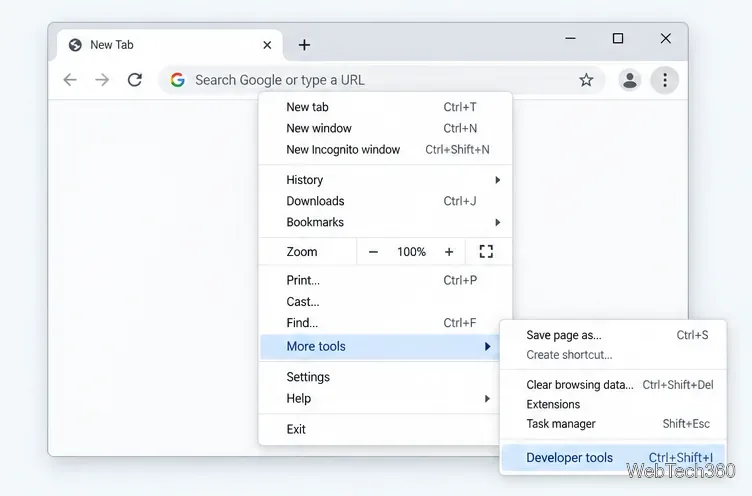
Learn how to disable JavaScript in Chrome temporarily with DevTools, block it for one site, or change the browser default, plus how to restore it.
To collapse or expand a tab group in desktop Chrome, click the group’s name or colored circle in the tab strip. Its member tabs disappear when the group is collapsed; click the same header to show them again. The tabs remain open. You do not need to enable a Chrome flag or restart the browser for this basic feature.
If you already see a group in your tab strip, skip to the next section. Otherwise, create one from any tab you want to organize:
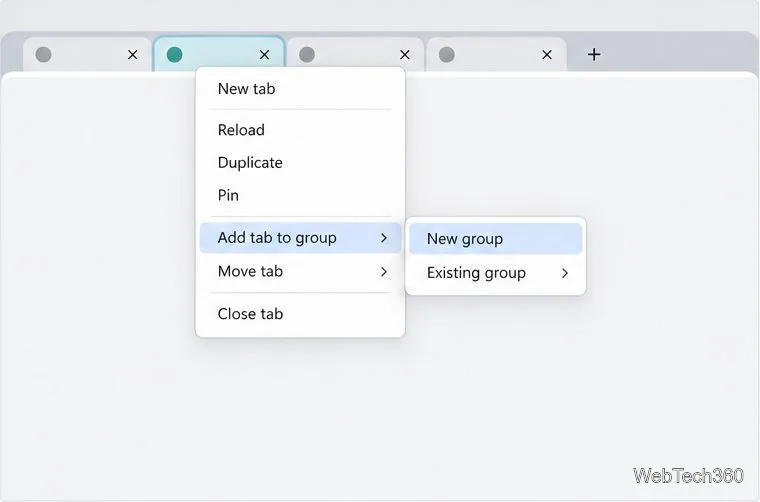
Use a label that will be easy to recognize later, such as “Research,” “Work,” or a project name. A group can contain several related pages, and the header gives them a shared color and label. If you choose an existing group in the context menu, Chrome adds the tab to that group instead of making another one.
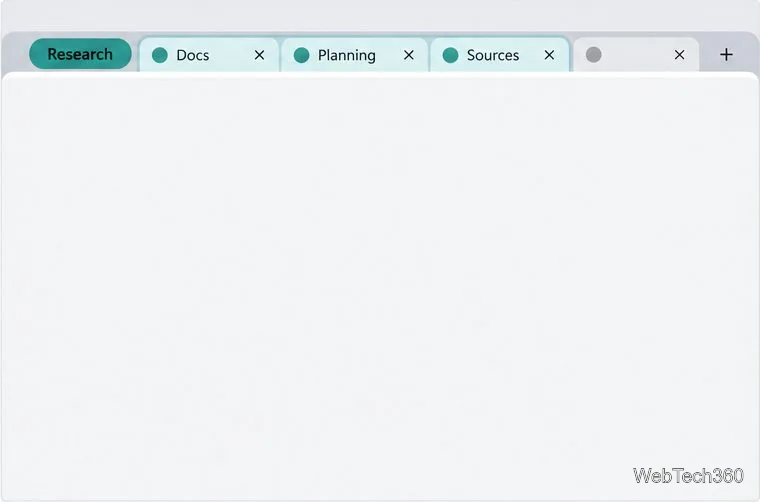
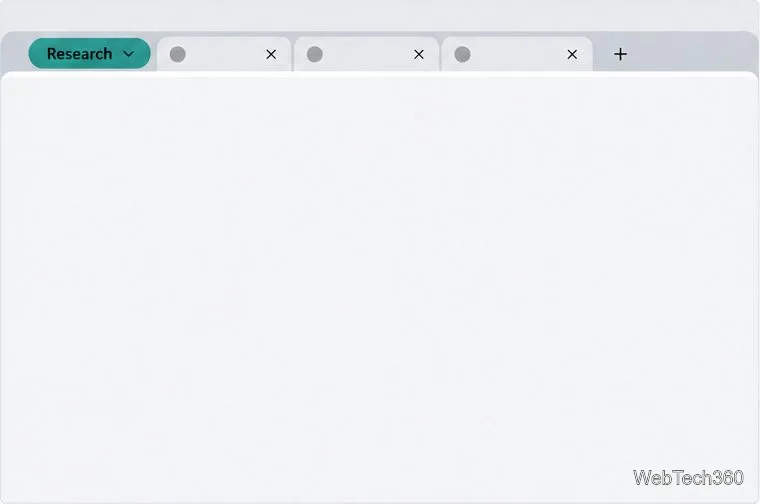
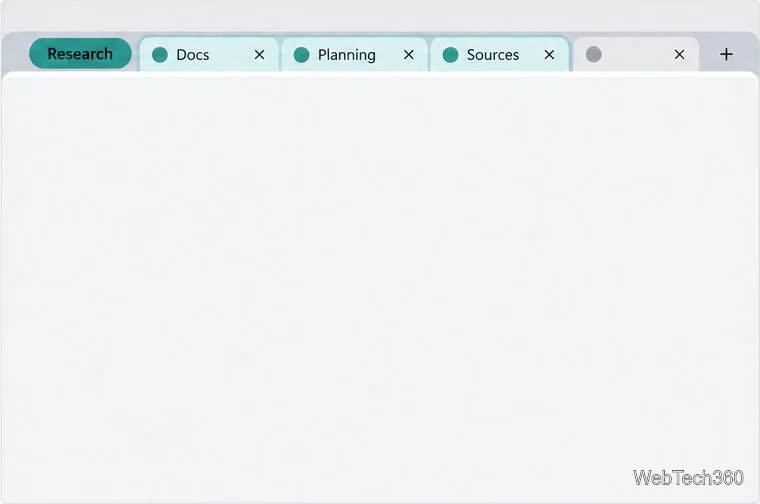
Find the group header in the tab strip and click its name or colored circle once. Chrome hides the tabs that belong to that group, leaving the header visible. To bring those tabs back, click that same header again. You can repeat this for each group you want to tuck away; collapsing one group does not collapse every group in the window.
Chrome’s keyboard help also supports toggling a group without a mouse: move focus to the tab group header, then press Space or Enter. The exact way to move focus through browser controls can depend on your computer and keyboard settings. If the header is not focused, the keypress may activate a different control. See Google’s Chrome keyboard shortcuts guide for platform-specific navigation details.
Collapsing is a way to reduce visual clutter in the tab strip. It does not close the tabs, remove their group, or turn the action into a save command. While the group is collapsed, you can select the group header, but you cannot select an individual tab inside it until you expand the group again.
If you want to dissolve the group while leaving its tabs open, right-click the group header and choose Ungroup. That is different from collapsing: ungrouping removes the group structure, while collapsing keeps it intact for the next time you need those pages. On your current device, the tabs stay open; if tab groups are synced, ungrouping also removes the group on other devices using the same Google Account.
The older instructions for enabling “Tab groups” and “Tab groups collapse” in chrome://flags are no longer needed for the normal desktop workflow described in Chrome Help. The old “Tab Groups Collapse Freezing” flag is not a required part of collapsing a group either. Treat the control as a visibility and organization feature; do not rely on it to close tabs or guarantee a particular memory reduction.
Google’s Chrome tab management guide covers creating, editing, collapsing, and expanding tab groups on a computer. If Chrome’s menus look different, use that current help page for the labels shown in your desktop version.
Learn how to disable JavaScript in Chrome temporarily with DevTools, block it for one site, or change the browser default, plus how to restore it.
Organize related Chrome tabs into a group, then hide or reopen them with one click. See the current desktop steps, keyboard option, and what collapsing does.
Rename a Chrome profile from its menu or profile manager, see what the label affects, and fix display delays without changing your Google Account name.
Fix Chrome sync pausing and repeated sign-in prompts by restoring account access, keeping site data, updating Chrome, and checking extensions or profiles.
Chrome Remote Desktop not working? Fix offline hosts, update Chrome, reset remote access, check permissions, firewall rules, and managed-network restrictions.
Marketstack review covering API v2, real-time and intraday data, historical coverage, pricing, limits, pros, cons, and who should use it.
Learn how to activate YouTube at youtube.com/activate or yt.be/activate, enter your TV code, choose your Google Account, and fix sign-in problems.
Learn how to link directly to selected text in Chrome with Copy link to highlight, how text-fragment URLs work, and what to do if a link fails.
Can't hear anyone on Discord? Check Deafen and user volume, choose the right output device, reset Voice & Video, and fix Windows audio settings.
Learn how to add roles in Discord, change a role name, set permissions, assign or remove members, reorder roles, and delete roles safely.