Home
» WEB
»
How to Convert a PowerPoint to Google Slides and Keep the Original
How to Convert a PowerPoint to Google Slides and Keep the Original
To convert a PowerPoint presentation to Google Slides, upload the .ppt or .pptx file to Google Drive, open it with Google Slides, and choose File > Save as Google Slides. Google creates a separate Slides presentation, so the uploaded PowerPoint remains available as the original. Simply opening and editing a PowerPoint file in Slides does not convert it; those edits are saved in the Office file's original format.
Before you convert
Use a desktop browser and sign in to the Google account where you want the finished presentation stored. Find the PowerPoint file on your computer or in Drive, and keep the original if you may need to return to it. Google's current guide to working with Microsoft Office files explains the difference: Drive can edit Office files in their existing format, or convert one into a Google file. A conversion creates a copy.
This workflow is useful when you need a native Google Slides deck for Slides-only features or collaboration. If you only need to make a quick edit and send the same .pptx back to a PowerPoint user, you can edit the Office file in Slides without converting it.
Convert a PowerPoint file to Google Slides
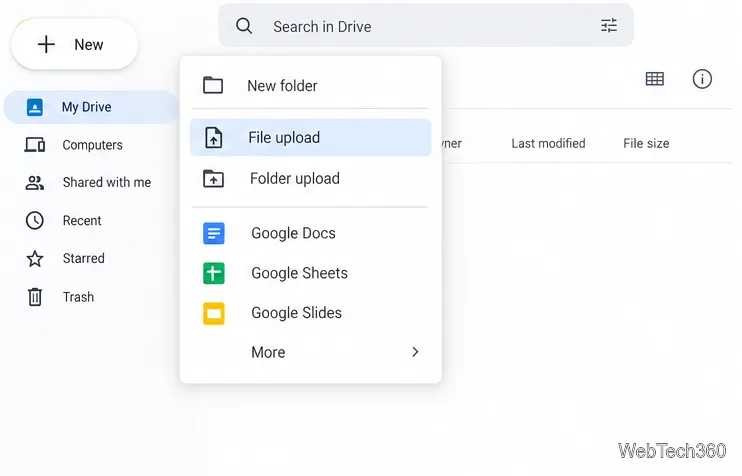
Upload the presentation to Drive. Open Google Drive, click New, choose File upload, and select the .ppt or .pptx file. You can also drag the file into the Drive window. Wait for the upload to finish before opening it. Google's Drive upload instructions cover both methods.
Choose File upload from the New menu in Drive.
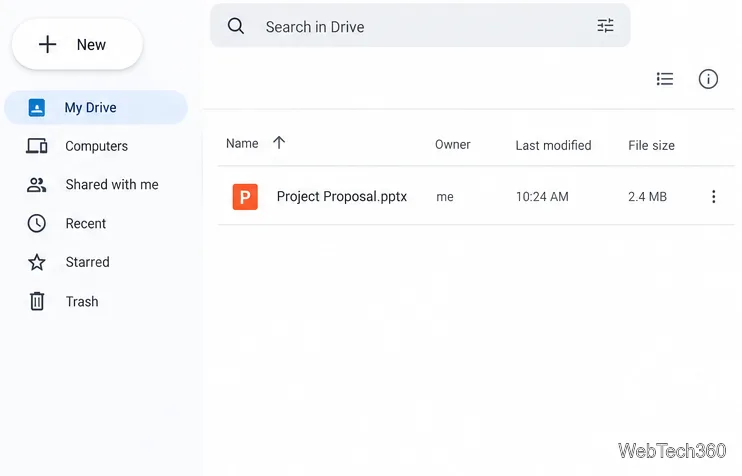
Locate the uploaded PowerPoint. If Drive shows an upload-complete message, use it to find the file. Otherwise, open the folder where you uploaded it and look for the presentation with its PowerPoint filename and icon. This is still the original .ppt or .pptx file at this point.
Confirm the PowerPoint appears in the Drive folder.
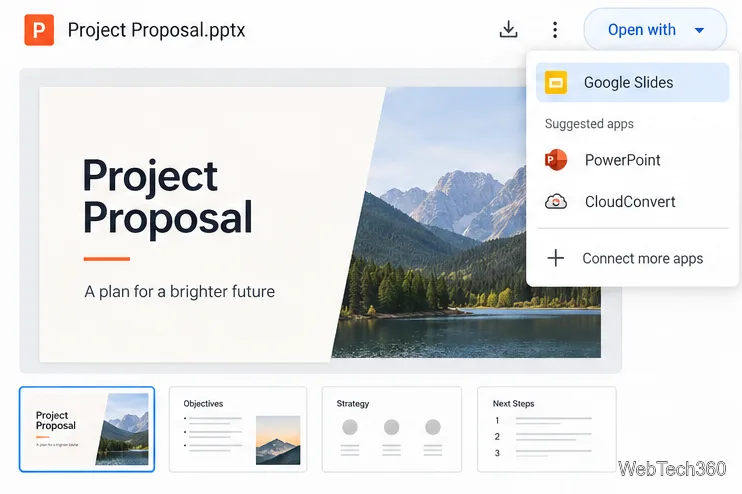
Open it in Google Slides. Double-click the file to preview it, then click Open with Google Slides at the top. You can now view and edit the Office file in the browser. Until you convert it, Google saves changes to that file in its original Microsoft Office format.
Open the uploaded PowerPoint with Google Slides.
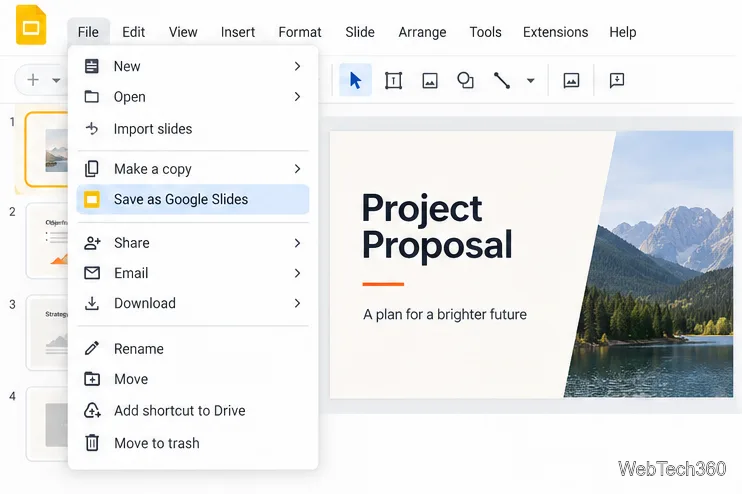
Save a native Slides copy. In the editor, click File and then Save as Google Slides. Google opens a new presentation in Slides format. Give the new file a clear name if needed, and leave the original PowerPoint in Drive as your reference copy.
Choose Save as Google Slides to create the converted copy.
Check the converted presentation
Conversion does not guarantee a pixel-for-pixel match. Review the new Slides file before sharing it or presenting, especially if the deck relies on custom fonts, detailed layouts, animation, embedded media, charts, or SmartArt. Check the slide order, text wrapping, image crops, colors, links, and speaker notes. Run the slideshow from beginning to end so you can catch changes that are easy to miss in the editor.
Google documents some specific compatibility changes: embedded charts and videos in PowerPoint files are converted to images, and SmartArt images are converted to Google Drawings. An image may look right but may not retain the same editing controls as its PowerPoint source. If a chart or video must remain editable or playable, rebuild or reinsert it in the Google version and check the result again.
For a clean comparison, keep both files open in separate tabs and inspect slides with complex formatting one by one. If something is wrong only in the Google copy, correct that copy; the original PowerPoint gives you a safe fallback. Google's Office file compatibility guide lists supported formats and known feature changes.
Common questions
Does opening a PowerPoint in Slides convert it automatically?
No. Opening the file lets you edit it in Slides while it remains a PowerPoint file. Choose File > Save as Google Slides to create a separate native Slides copy. This avoids mistaking an Office file that happens to be open in Slides for a converted presentation.
Can I turn the converted file back into PowerPoint?
Yes. Open the Google Slides copy and choose File > Download > Microsoft PowerPoint (.pptx). This downloads a PowerPoint version; it does not replace the original file in Drive. Google's download instructions explain how to choose a file type.
Can I convert a .ppt file, or does it have to be .pptx?
Google's compatibility guide lists both .ppt and .pptx among presentation formats that can be converted. If a file will not open, check that the upload completed and that you selected the actual presentation rather than a shortcut or preview.