Home
» WEB
»
How to Create and Share Collections on Facebook
How to Create and Share Collections on Facebook
To create a collection on Facebook, open Saved, choose Create new collection, give it a name, and add saved posts. To share it, open the collection and use Invite to select friends who can contribute. You can organize collections on both desktop and mobile, although the placement and wording of controls may vary between Facebook app versions.
A collection is a themed group of things you've saved on Facebook, such as recipes, home ideas, or places to visit. Unlike a Messenger conversation, it keeps related items together so you and invited contributors can return to them.
Create a Facebook collection on a computer
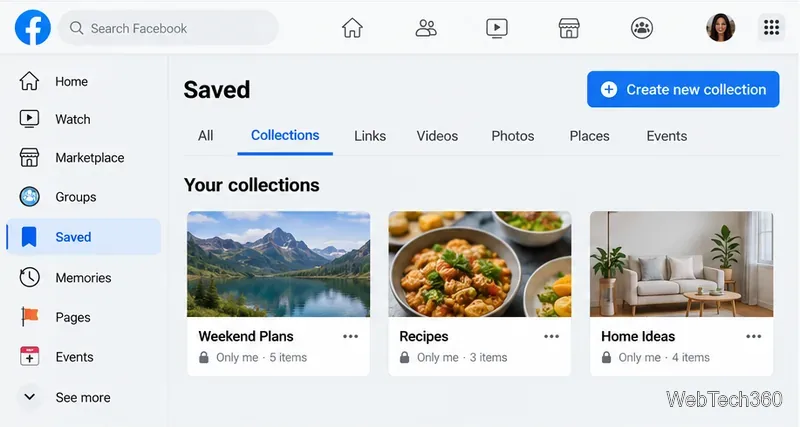
Sign in to Facebook and open your Saved page. You can also select Saved from the left menu, sometimes under See more.
Look for Create new collection or a similar Create collection control.
Enter a descriptive name, such as “Weekend Plans,” and select Create. Your collection will appear with your other saved groups.
On desktop, open Saved and choose Create new collection to organize bookmarks by topic.
Desktop is convenient for sorting a long Saved list. To revisit a collection, return to Saved and select its name. If a creation button isn't visible, check the Collections section or try the latest Facebook app.
Create a collection in the Facebook app
Open Facebook on your iPhone or Android phone and open Menu (the three-line icon or your profile/menu shortcut).
Tap Saved. If you don't see it, expand See more in the menu.
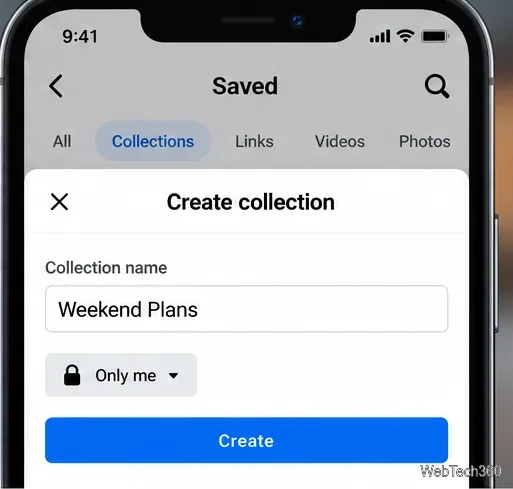
Find Collections and choose Create or Create collection. Name the collection, review its audience if prompted, and tap Create.
Name your collection in the mobile app and check the audience setting before creating it.
You may also see an option to create a collection immediately after saving a post. If your app shows a different label, look for a plus sign or a collection option within Saved rather than relying on the location of a particular button.
Add posts, videos, and links to a collection
You can sort something you saved earlier or add a new item while browsing Facebook.
On a post or Reel you want to keep, open its three-dot menu and choose an available option such as Save post or Save reel.
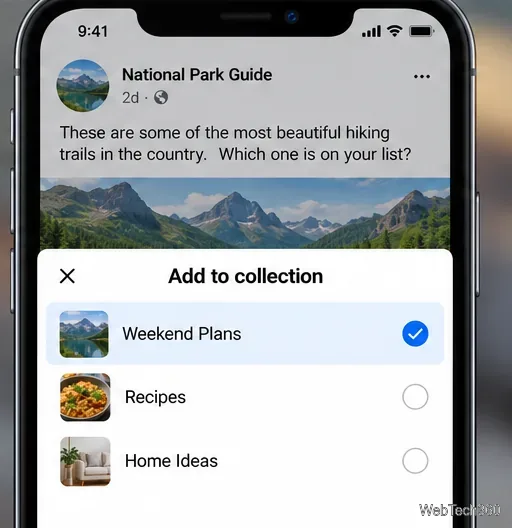
If Facebook offers Add to collection, choose your collection. Otherwise, open Saved, find the item, and use its menu to select Add to collection.
Open the collection to confirm that the item appears. On some layouts, you can also use Add items or Add more from within the collection.
Choose a collection while saving a post, or move an existing saved item into it later.
Facebook may let you save posts, links, Reels, and Marketplace listings, but available actions depend on the content and where it appears. Saving something does not make you the owner of the original post.
Share a collection and invite contributors
Open Saved and select the collection you want to share.
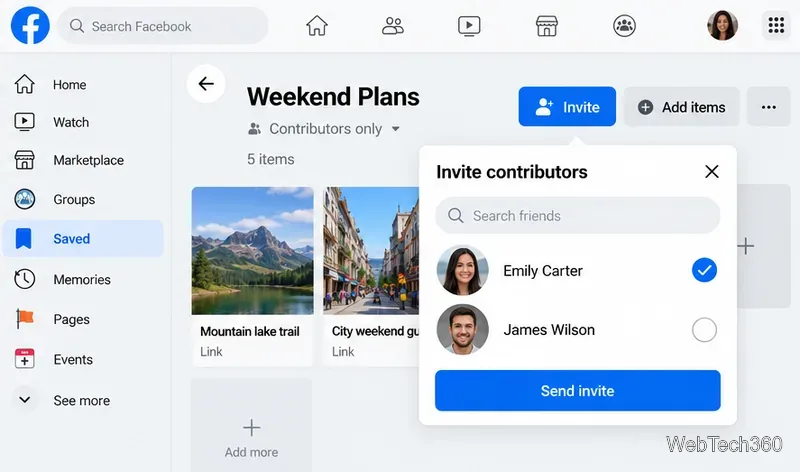
Look for Invite, Invite contributors, or an option in the collection menu. This can appear on desktop as well as in the mobile app.
Select the Facebook friends you want to include and confirm the invitation.
Review the collection's audience and contributor list to make sure you shared it with the intended people.
Open a collection and choose Invite to let selected friends help build the list.
Contributors can see the shared collection and add their own saved finds. Meta introduced this collaborative feature for shared gift lists and group plans, as described in its announcement of Facebook collection sharing. The older claim that invitations work only on mobile is no longer a reliable instruction.
Check who can see your collection
Don't assume every collection is private after you share it. Collections typically start with an Only me audience, but available settings may include Friends, Public, and Contributors only. In the iPhone or Android app, open a collection, look for its audience label or the three-dot menu, and choose Privacy settings if that option appears. Check the audience before inviting people or adding sensitive material.
The collection's visibility is separate from the privacy of an original post. A friend invited to your collection still may not be able to open a post from a private group or an audience they don't belong to. Likewise, if the original author deletes an item or changes its audience, saving it does not preserve a readable copy.
If you can't find Collections or Invite
Saved is missing: Expand the Facebook menu or use the direct Saved link in a desktop browser. Confirm you're signed in to the account that saved the items.
No Create or Invite button: Update the Facebook app, open the collection itself, and check its overflow (three-dot) menu. Facebook changes menu layouts and may vary features by account or device.
Your friend can't view an item: Check the original post's audience and whether it belongs to a private group, rather than changing only the collection's privacy.
You saved a Marketplace listing: Look in Marketplace's saved-items area too. Meta announced newer Marketplace collection and sharing options in its Marketplace update; those screens can differ from the general Saved page.
For a shared vacation shortlist or party plan, create one clearly named collection, add a few useful items, invite only the people involved, and revisit its audience setting whenever the group changes. That keeps the collection useful without making saved content visible more widely than intended.