Home
» WEB
»
How to Customize Colors and Themes on Chrome’s New Tab Page
How to Customize Colors and Themes on Chrome’s New Tab Page
Chrome’s built-in color and theme controls now live in the Customize Chrome side panel on the New Tab page. Open a new tab, choose Customize Chrome in the lower-right corner, then use Appearance to pick a background, browser color, or light and dark mode. Your selection previews as you make it. You do not need to enable Chrome flags for this current workflow.
Where “Colors and themes” moved
Older guides may describe a separate “Colors and themes” tab and ask you to enable experimental flags such as NTP customization menu version 2. That is the Chrome 78-era interface. Today, Google’s desktop instructions put these controls under Appearance in the New Tab page’s Customize Chrome panel. The wording and available gallery options can change over time, but the basic route is still the New Tab page, Customize Chrome, Appearance.
This guide covers Chrome on a computer. The Android and iPhone New Tab settings use a different interface, so desktop button names may not match what you see on a phone.
Before you begin
Google’s current help page says you need to be signed in to a Google Account and use Google as Chrome’s default search engine to customize the New Tab page. If you use another default search engine, or are signed out, some New Tab controls may not appear. The New Tab page can also be controlled by an extension; Chrome says an extension that manages it is identified in the page footer.
Change the Chrome theme or New Tab background
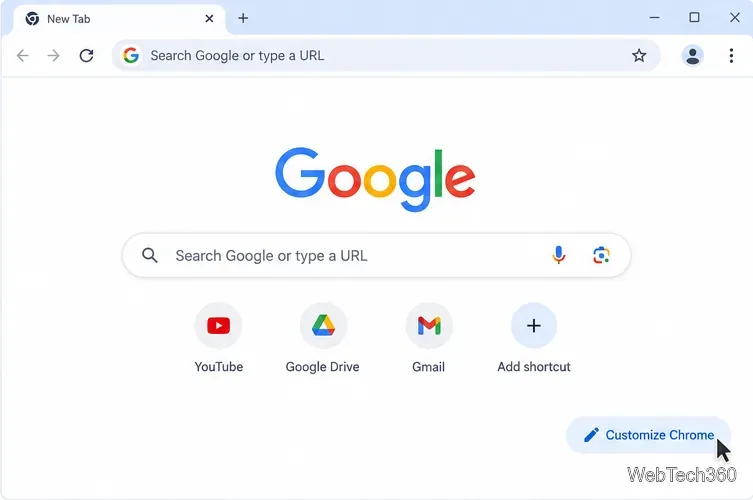
Open a New Tab page. Select the plus button beside your tabs or press Ctrl+T on Windows or Linux, or Command+T on Mac. In the lower-right corner, click Customize Chrome. If you do not see that button, open Chrome’s side panel and choose Customize Chrome there.
Open Customize Chrome from the lower-right corner of a desktop New Tab page.
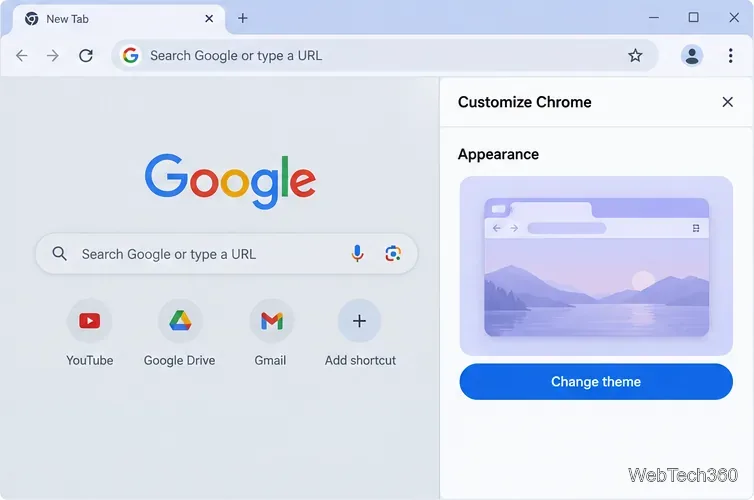
Open the theme picker. In the side panel, stay in Appearance and select Change theme. Chrome opens a gallery of background collections and theme choices alongside a preview of the New Tab page.
The Appearance section opens the theme gallery through Change theme.
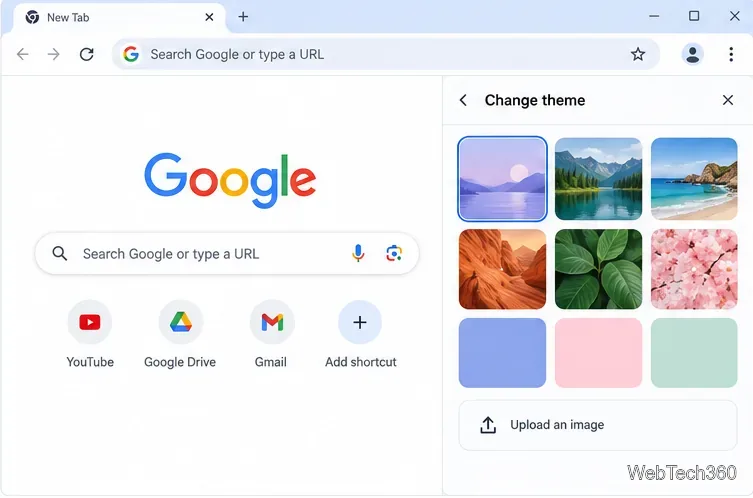
Choose a background. Browse the available collections, then select a theme thumbnail to apply it. To use your own picture, select Upload an image and choose a file from your computer. Some collections offer Refresh daily, which rotates the background each day. The selection is applied in the browser as you make it; there is no separate Save button in the desktop panel.
Select a gallery background or upload an image for the New Tab page.
Pick a browser color and light or dark mode
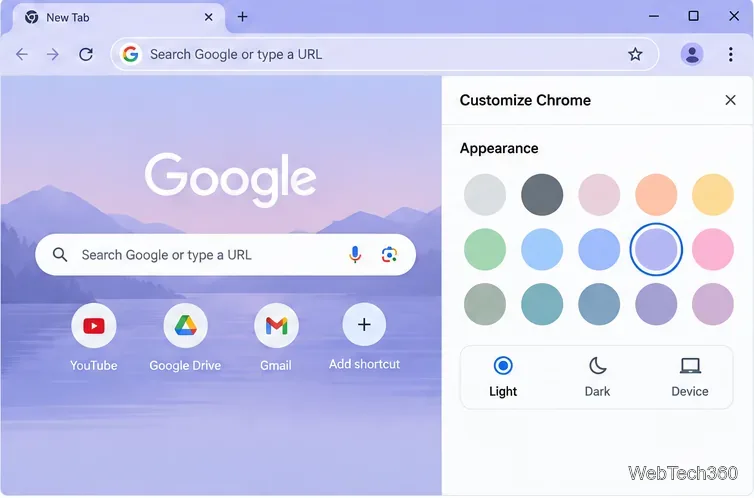
Return to Appearance and choose the browser color. Chrome may suggest a color that coordinates with the background or theme you selected. If you prefer another shade, choose one of the color options shown in Appearance. The color changes the browser’s frame and interface accents; it does not recolor the image you selected for the New Tab background.
Choose a browser color and set Chrome to Light, Dark, or Device appearance.
The Light, Dark, and Device choices control Chrome’s overall appearance. Choose Light or Dark to set it directly, or Device to have Chrome follow your computer’s appearance setting. This is separate from choosing a background image: you can keep the same image while changing the browser color or light mode.
Reset the look or troubleshoot a missing control
To undo the built-in theme and colors, open Customize Chrome and select Reset to Default Chrome at the bottom of the panel. If Customize Chrome is missing, first check that you are on a normal Chrome New Tab page, signed in, and using Google as the default search engine. If an extension has replaced or controls the New Tab page, check the footer for its name and review that extension in Chrome’s extension settings.