Home
» WEB
»
How to Deactivate Messenger on iPhone or Android
How to Deactivate Messenger on iPhone or Android
How to Deactivate Messenger on iPhone or Android
You can deactivate Messenger from a phone, but Meta requires you to deactivate the connected Facebook account first. After that, open Messenger and use Accounts Center to deactivate Messenger separately. If you want to keep Facebook active, you cannot fully deactivate Messenger through this route; you can turn off notifications, hide your active status, or remove the app from your phone instead.
Menus can vary by app version. Before confirming, choose Deactivate account, not Delete account.
What Messenger deactivation changes
Facebook and Messenger deactivation are separate. Facebook can remain inactive while Messenger stays usable if you keep it active. Complete the second stage to stop Messenger too. Meta says deactivated profiles are hidden from most views, but messages you sent may remain visible to recipients. Deactivation is reversible; deletion is a separate, permanent process. See Meta’s Messenger deactivation instructions and its deactivation-versus-deletion explanation.
Step 1: Deactivate your Facebook account
Start in Facebook. Meta says the Messenger option appears only after Facebook is deactivated. Confirm the account or profile shown is the one you want to pause.
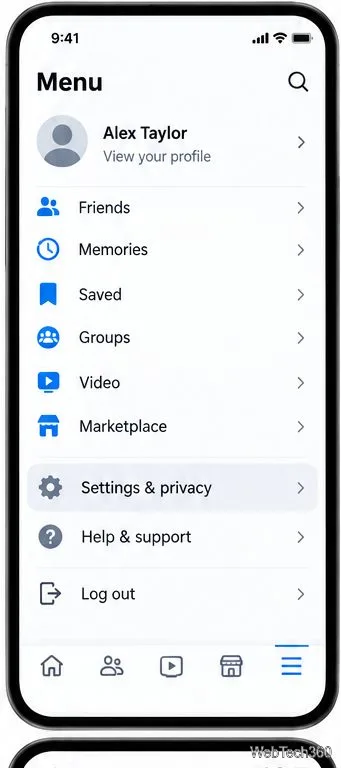
Open the Facebook app and tap Menu or your profile picture. Choose Settings & privacy, then Settings.
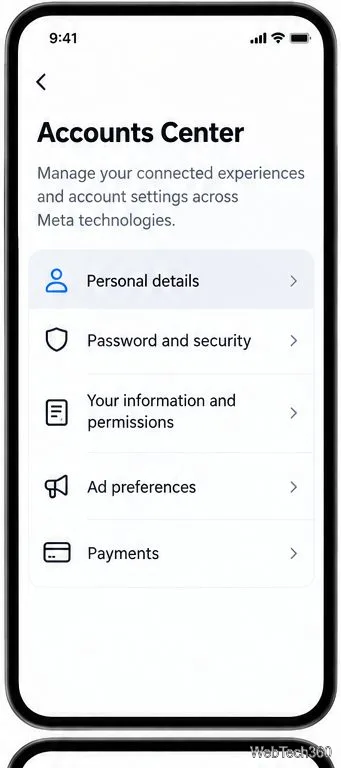
Open Accounts Center. If you see See more in Accounts Center, tap it.
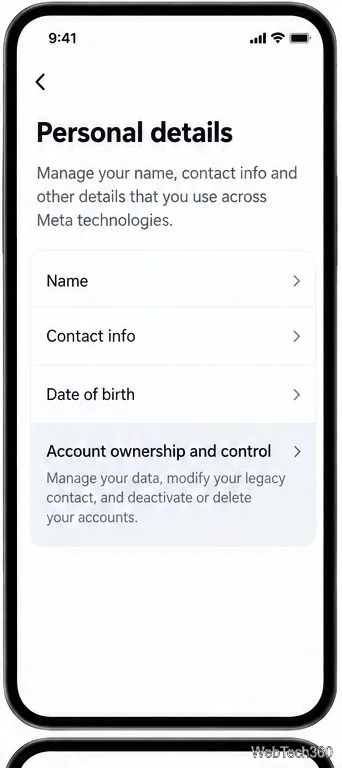
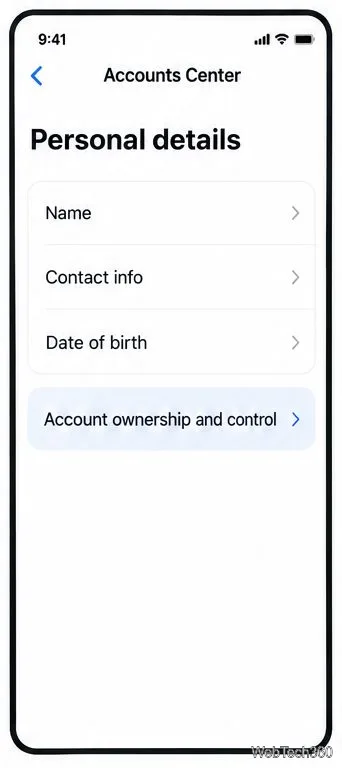
Tap Personal details, then Account ownership and control.
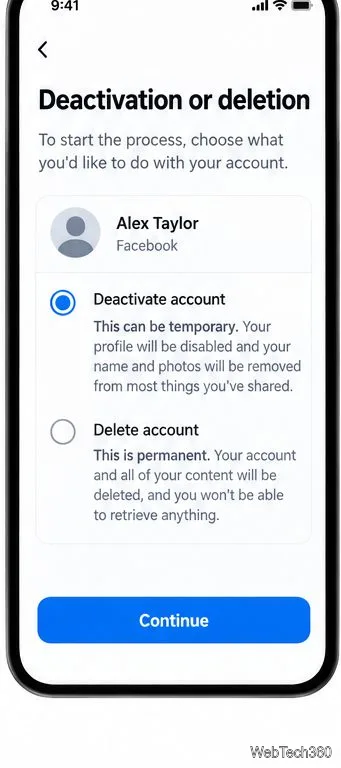
Choose Deactivation or deletion, select the Facebook account or profile you intend to pause, and choose Deactivate account.
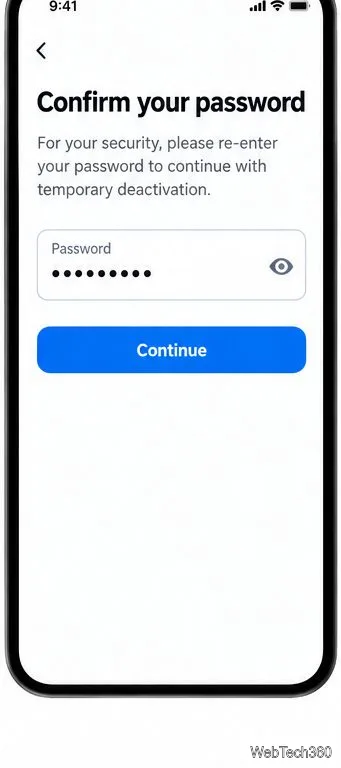
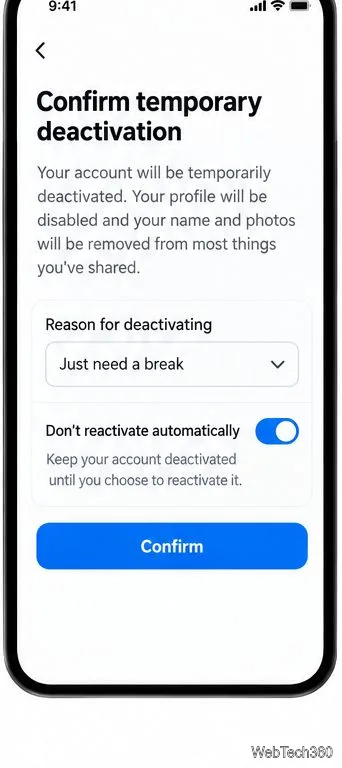
Tap Continue and follow the prompts. Facebook may ask for your password, a reason, and whether or when you want the account to reactivate. Review the options, then confirm deactivation.
Open Facebook settings before entering Accounts Center.Choose Personal details in Accounts Center.Open account ownership controls.Select temporary deactivation, not deletion.Confirm your identity when prompted.Review the reactivation choice before confirming.
Keep Deactivate account selected; do not choose Delete account. Review any reactivation prompt and set it according to your preference. Meta’s official Facebook deactivation guide describes this Accounts Center route. Labels can vary slightly by app version.
Step 2: Deactivate Messenger in the Messenger app
After Facebook is deactivated, open Messenger to complete its separate deactivation.
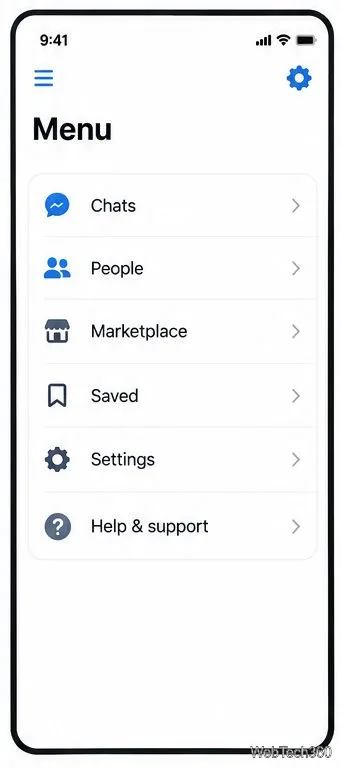
Open Messenger. Tap the Menu icon (often three lines) or your profile picture, then tap the Settings gear.
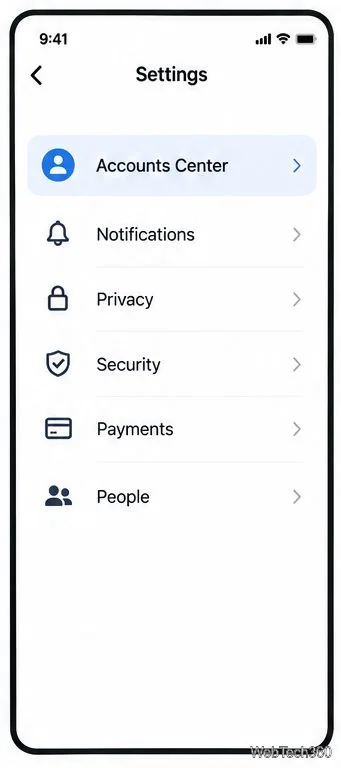
Open Accounts Center and choose Personal details.
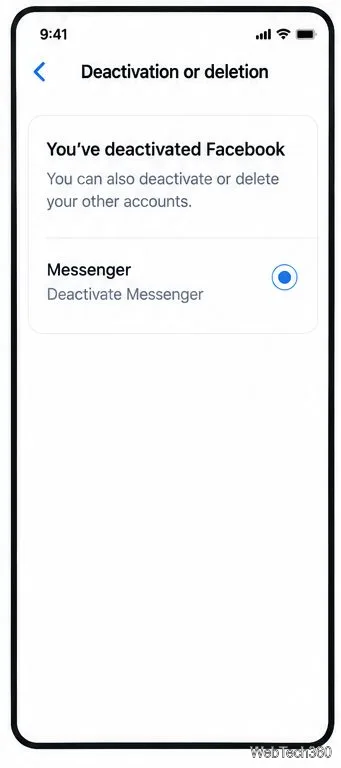
Tap Account ownership and control, then Deactivation or deletion.
Select the Messenger account or the Messenger deactivation option shown for your account. Choose Deactivate, review the confirmation, and follow the remaining prompts.
Open Messenger settings after deactivating Facebook.Continue into Accounts Center.Go to the account ownership controls.Choose the Messenger deactivation option shown for your account.
Select Messenger, not the Facebook profile. If the option is missing, verify Facebook is deactivated, update Messenger, and reopen Accounts Center. Meta’s help page about Messenger with a deactivated Facebook account explains how Messenger can remain usable after Facebook deactivation.
If you want to keep Facebook active
There is no full Messenger deactivation switch for a Facebook account that is still active, according to Meta’s current Messenger instructions. Choose a lighter option based on what you want to stop:
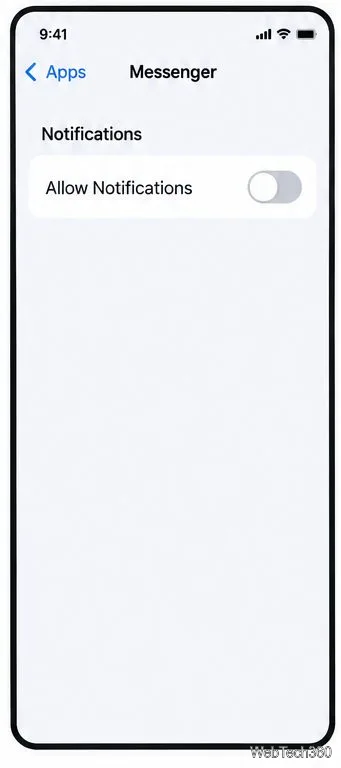
Stop alerts: turn Messenger notifications off in your phone’s Settings. On iPhone, open Settings > Apps > Messenger > Notifications, then switch off Allow Notifications. If your iPhone organizes app settings differently, search Settings for Messenger. See Apple’s current iPhone notification instructions.
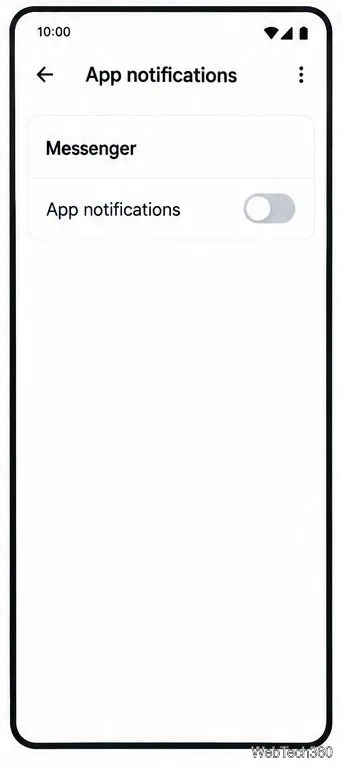
Stop Android alerts: open Settings > Notifications > App notifications, select Messenger, and turn notifications off. Android menu names vary by manufacturer and version; you can also press and hold a Messenger notification and open its settings. See Google’s Android notification guide.
Appear offline: in Messenger settings, turn off Active Status if that control is available. This changes whether others can see when you are active; it does not deactivate the account or prevent messages from arriving.
Remove the app: uninstall Messenger from the phone. This removes local app access, but it does not deactivate the account or erase conversations already sent.
On iPhone, disable Messenger alerts in Settings.On Android, switch off Messenger under App notifications.
Common questions
Can I deactivate Messenger without deactivating Facebook?
Meta requires Facebook to be deactivated before the Messenger option appears. If Facebook stays active, muting or removing the app will not deactivate Messenger.
Will deactivation delete my chats?
No. Deactivation is not the same as deleting conversation history. Messages you previously sent may still be visible to other people in their chats. Review Meta’s account deletion information separately if you are considering permanent deletion.
What if I only delete Messenger from my phone?
Uninstalling the app only removes it from that device. Your account and existing conversations remain, and you can access Messenger again by reinstalling the app or signing in elsewhere.
Interface illustrations are guides to the menu path; labels and screen layout can differ slightly by device, region, or app version.