How to Disable JavaScript in Chrome for One Tab or a Site
Learn how to disable JavaScript in Chrome temporarily with DevTools, block it for one site, or change the browser default, plus how to restore it.
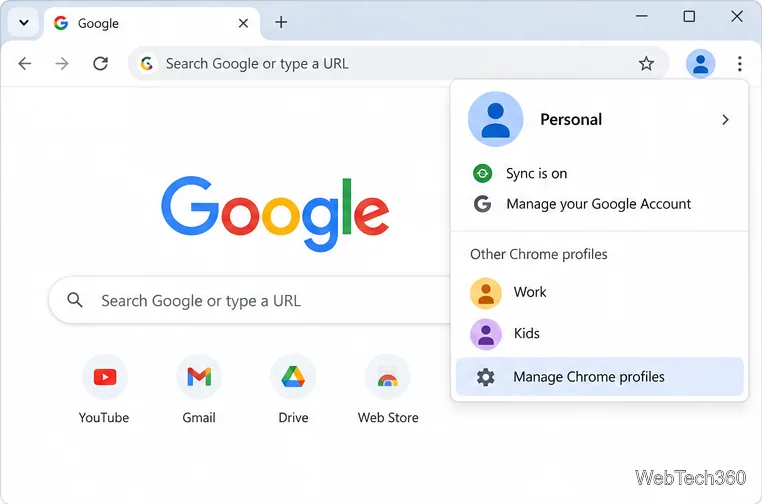
To delete a Chrome profile on a computer, open Chrome, select your profile picture, choose Manage Chrome profiles, open the three-dot menu on the profile you want to remove, and select Delete. Chrome will ask you to confirm before removing that profile from the computer.
The important part is what happens to your data. Google says deleting a profile erases that profile's bookmarks, history, passwords, and other settings from that computer. If some of that information was saved in your Google Account, it can still be available when you sign in again. Local-only data may be lost, so back up anything you need before you confirm the deletion.
First, decide whether the profile contains information that exists only on this device. Google's current Chrome guidance explains that signing in to Chrome can save bookmarks, passwords, settings, and other supported data in your Google Account. Tabs and browsing history have their own setting and may not be saved unless that option is enabled. See Google's Chrome data and account-saving guide for the current list.
If you are not sure whether important data is account-saved, make a manual backup before deleting the profile:
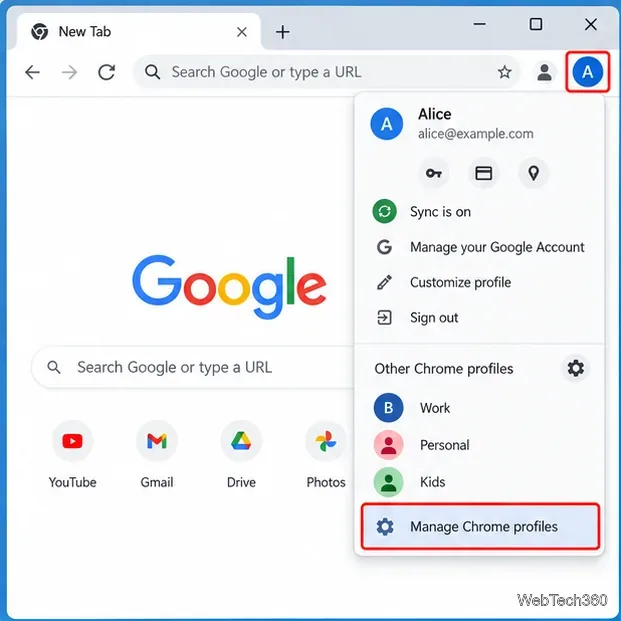
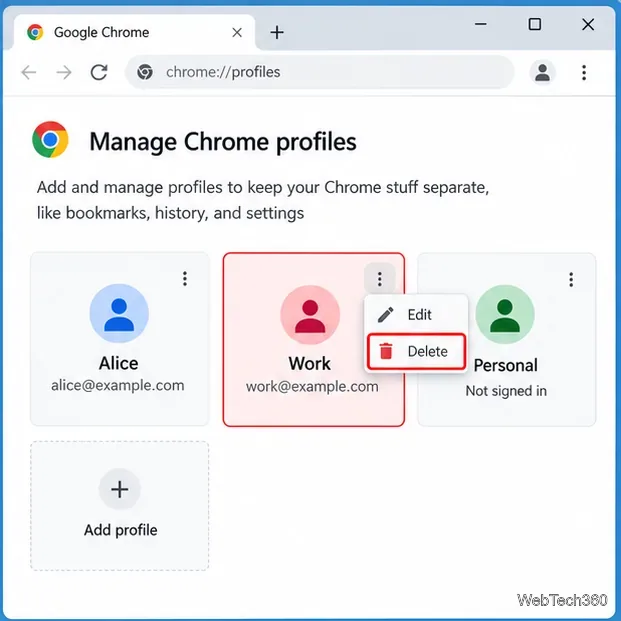
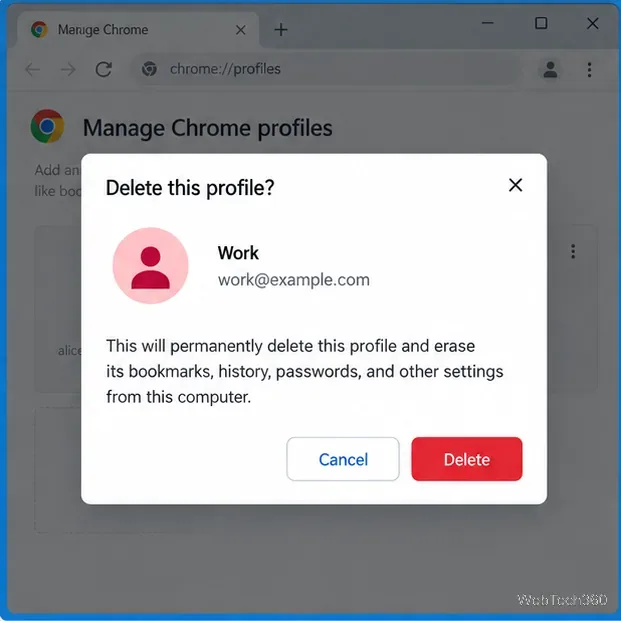
These steps match Google's current desktop instructions in Manage Chrome with multiple profiles. The older wording Remove this person, which appeared in previous Chrome versions, has been replaced by the simpler Delete action in current documentation.
Deleting a Chrome profile removes that browser profile from the computer. It does not delete your Google Account. It also does not automatically erase information that has already been saved to your Google Account.
If your goal is to remove data stored in your Google Account rather than just delete a local Chrome profile, use Google's account and Chrome data controls instead. Google explains the distinction in How sign-in works in Chrome with your Google Account.
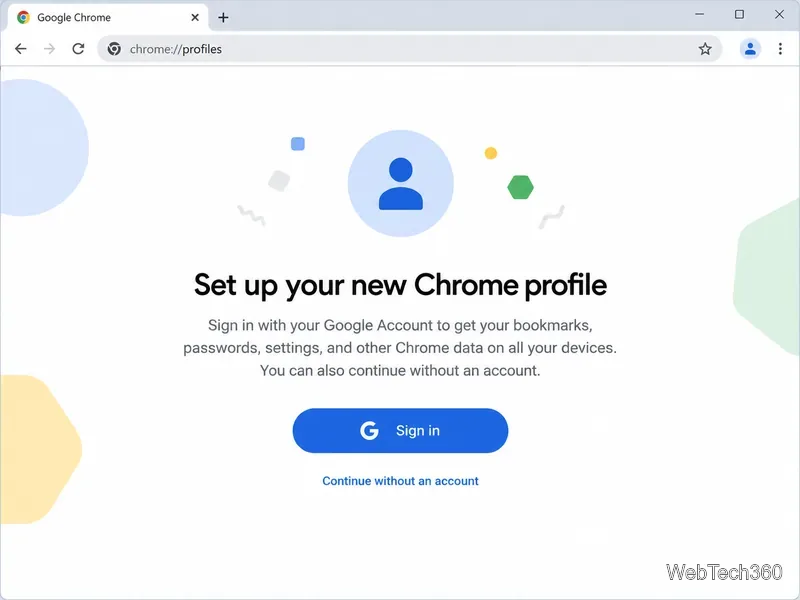
Chrome does not provide an undo button for a deleted local profile. If the information you need had already been saved in your Google Account, the practical recovery method is to create a new Chrome profile and sign in with the same Google Account. Supported account-saved bookmarks, passwords, settings, and other data can then become available again.
If the deleted profile contained data that was stored only on the computer and you did not export or back it up first, you should assume that data may not be recoverable through Chrome. Avoid relying on old advice that says the profile folder will always remain intact after deletion; Google's current support guidance treats the profile's local data as erased from the computer when the profile is removed.
Before clicking the final Delete button, check the profile name, avatar, and signed-in Google Account so you do not remove the wrong profile. If the profile is used for work, school, or a separate project, export any local-only bookmarks or passwords first. Once you have verified that the data you need is safely stored elsewhere, deleting the unused Chrome profile is a quick way to clean up the profile picker without affecting your Google Account itself.
Learn how to disable JavaScript in Chrome temporarily with DevTools, block it for one site, or change the browser default, plus how to restore it.
Organize related Chrome tabs into a group, then hide or reopen them with one click. See the current desktop steps, keyboard option, and what collapsing does.
Rename a Chrome profile from its menu or profile manager, see what the label affects, and fix display delays without changing your Google Account name.
Fix Chrome sync pausing and repeated sign-in prompts by restoring account access, keeping site data, updating Chrome, and checking extensions or profiles.
Chrome Remote Desktop not working? Fix offline hosts, update Chrome, reset remote access, check permissions, firewall rules, and managed-network restrictions.
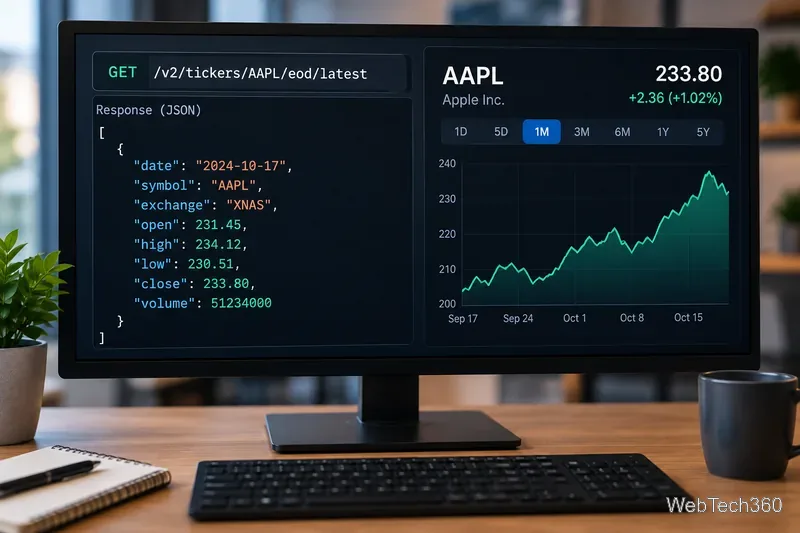
Marketstack review covering API v2, real-time and intraday data, historical coverage, pricing, limits, pros, cons, and who should use it.
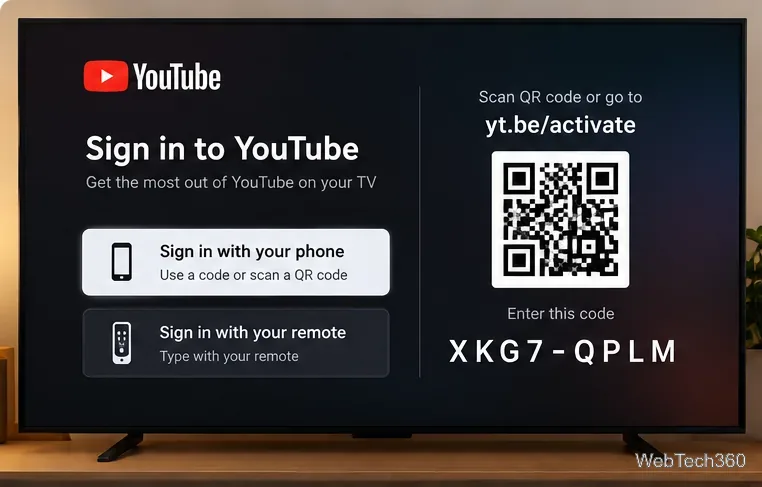
Learn how to activate YouTube at youtube.com/activate or yt.be/activate, enter your TV code, choose your Google Account, and fix sign-in problems.
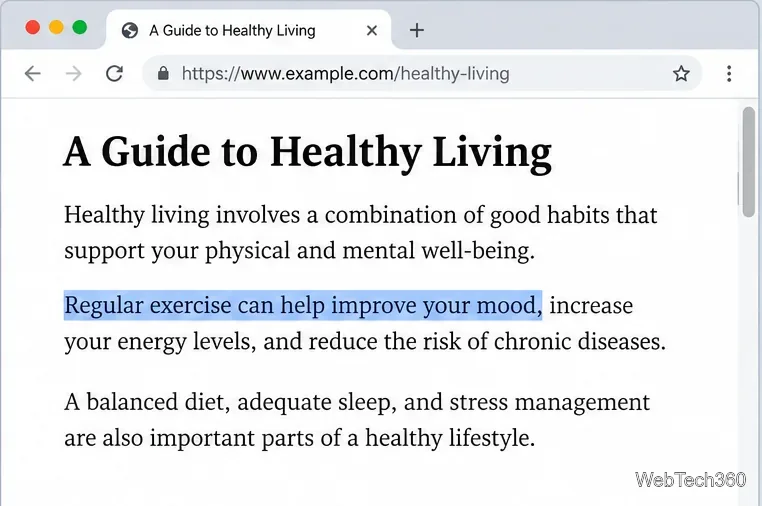
Learn how to link directly to selected text in Chrome with Copy link to highlight, how text-fragment URLs work, and what to do if a link fails.
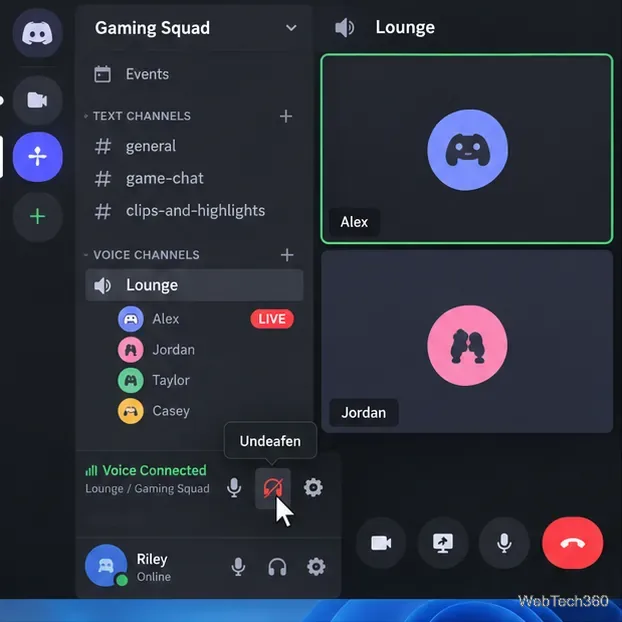
Can't hear anyone on Discord? Check Deafen and user volume, choose the right output device, reset Voice & Video, and fix Windows audio settings.
Learn how to add roles in Discord, change a role name, set permissions, assign or remove members, reorder roles, and delete roles safely.