Home
» WEB
»
How to Delete a Gmail Account Without Deleting Your Google Account
How to Delete a Gmail Account Without Deleting Your Google Account
You can delete Gmail without deleting your entire Google Account. The process removes your Gmail address and mail service while leaving eligible services such as Google Drive and Google Play available. Before you start, download any messages you need and add a non-Gmail email address to your Google Account. If you want to erase Drive, Photos, Calendar, and other account data too, that is a different process: deleting your entire Google Account.
Before you delete Gmail
Back up important messages and data. Use Google Takeout to export Gmail and any other information you want to keep. Downloading an archive does not delete the original data.
Change your contact email. Update banking, shopping, social media, subscriptions, work accounts, password recovery, and any other service that uses this Gmail address.
Choose an alternate email address. Google requires an existing address that is not a Gmail address if you want to continue signing in to your Google Account after removing Gmail.
Check account ownership. If this is a work, school, or organization-managed Gmail account, contact the administrator; your available options may differ.
You can follow these steps in a desktop browser. The settings may also be accessible through the Gmail app on Android or iPhone; menu labels can vary slightly by device and account.
1. Open your Google Account settings
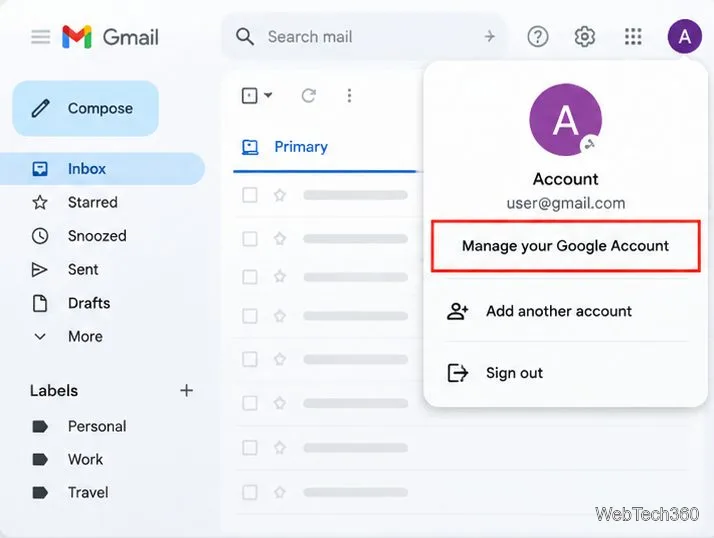
Go to Google Account. If you start from Gmail, click your profile picture in the upper-right corner and choose Manage your Google Account. Confirm that you have selected the account whose Gmail service you want to remove.
Open account settings from the Gmail profile menu.
2. Open Data & privacy
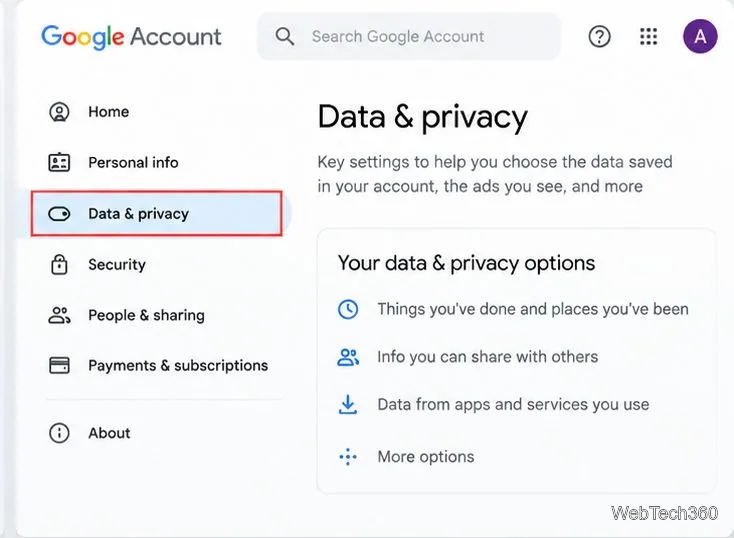
In the navigation menu, select Data & privacy. Look for the section covering data from the apps and services you use, or the tools for removing data from services you no longer use. Google occasionally adjusts the wording or placement of these settings.
Go to Data & privacy to manage account data.
3. Choose the option to delete a Google service
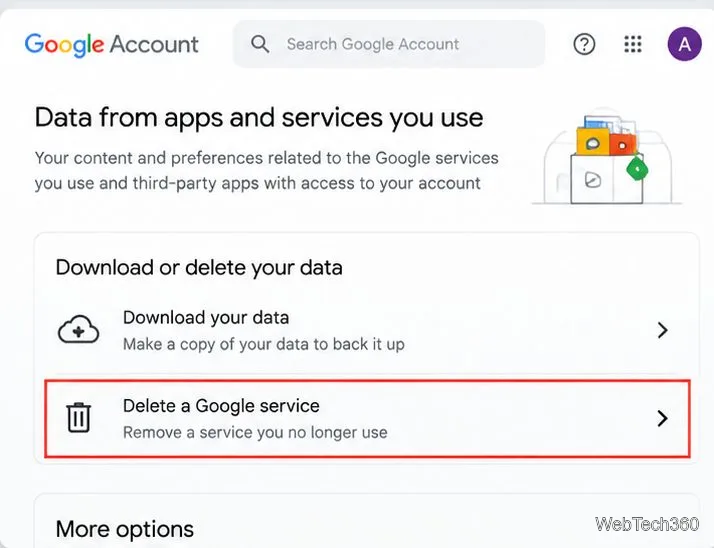
Select Delete a Google service or the equivalent service-removal option. Google may ask you to sign in again or verify your identity before showing the available services.
Choose the option for removing an individual Google service.
4. Select Gmail—not your entire Google Account
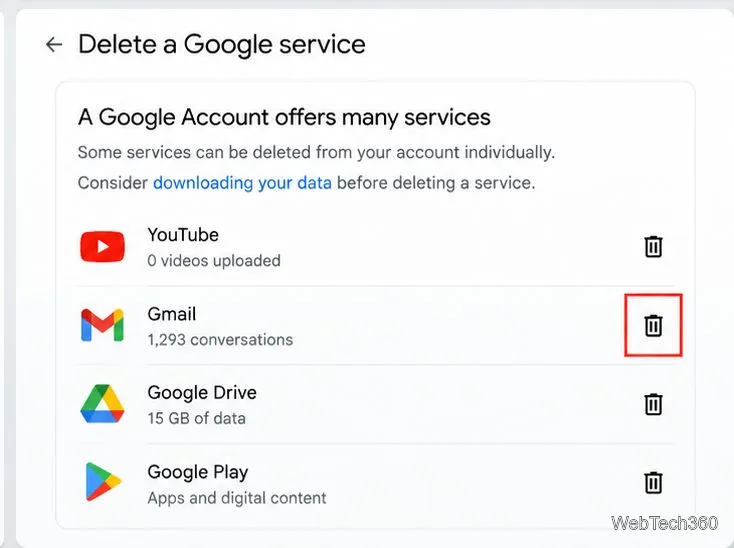
Find Gmail in the list of Google services and select the delete icon beside it. Do not choose the option to delete your Google Account unless you intend to remove the account and its associated data across Google services.
Select Gmail—not the entire Google Account.
5. Enter an alternate email address
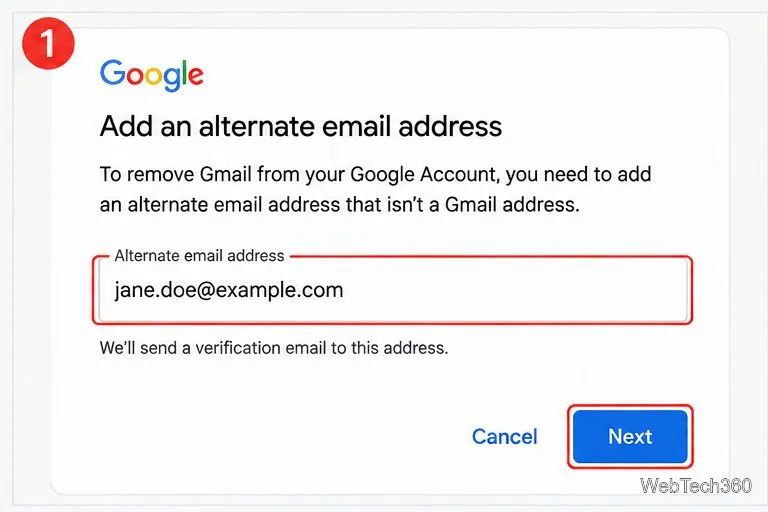
Enter an email address you already use that is not another Gmail address, then select Next. Google will send a verification message to that address. Your Gmail service is not removed until you complete the verification step.
Add an alternate address that is not a Gmail address.
6. Verify the alternate address
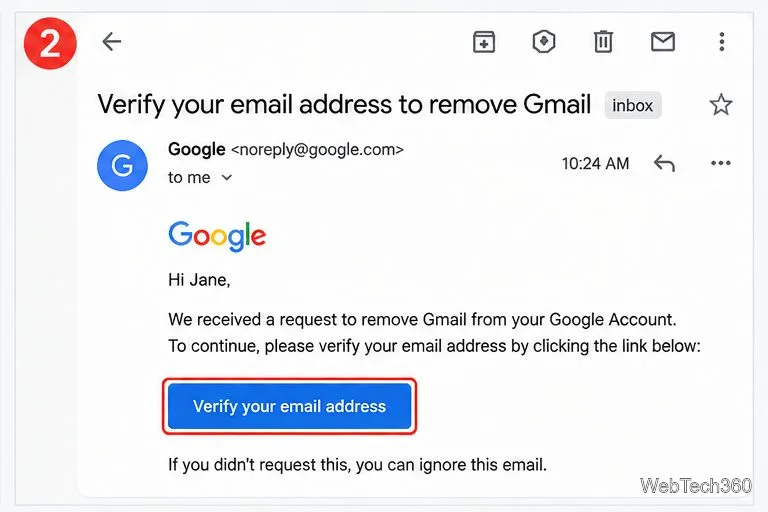
Open the verification message in the alternate inbox and follow its link or button. If the message does not appear, check the spam or junk folder and confirm that you entered the address correctly. Only use a verification email you requested yourself.
Verify the alternate address to authorize Gmail removal.
7. Review the warning and confirm
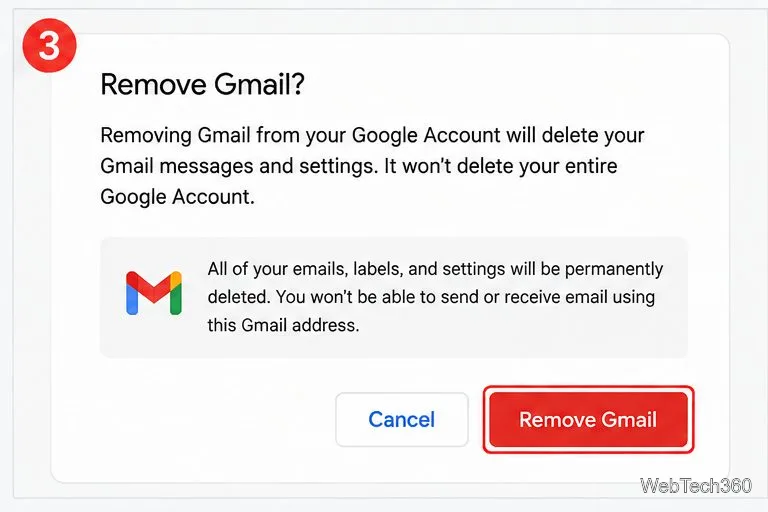
Read Google's final explanation carefully, then confirm that you want to remove Gmail. The confirmation is consequential: you will no longer be able to send or receive messages using that Gmail address. Follow any remaining on-screen prompts to finish.
Confirm only after reviewing what will be deleted.
8. Confirm that your other Google services remain
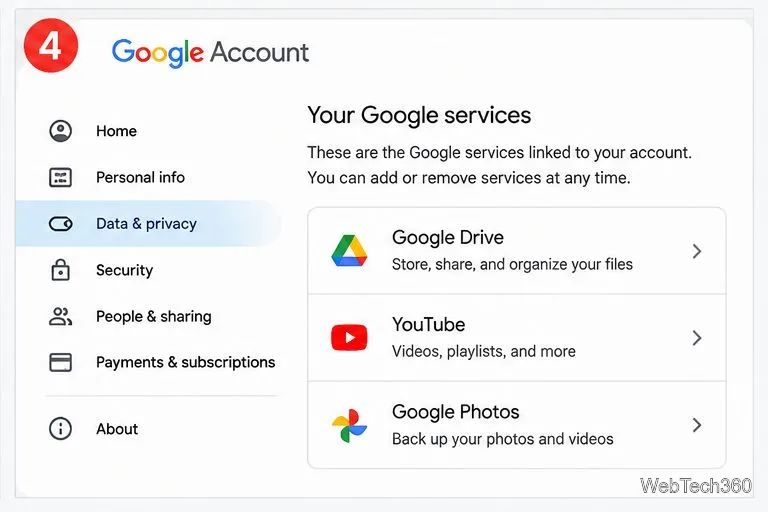
Removing Gmail does not delete your whole Google Account. You can continue to use services that are not otherwise affected, including Google Drive and Google Play purchases, by signing in with the alternate address you verified. If you use Gmail Offline, Google also recommends clearing your browser's cache and cookies.
Removing Gmail leaves the rest of the Google Account in place.
What happens after Gmail is removed?
Email and settings: Google says Gmail messages and settings are deleted after 30 days.
Sending and receiving: You can no longer use the removed Gmail address to send or receive email.
Address availability: Other people cannot use your old Gmail address in the future.
Other Google services: Your Google Account remains, and services such as Drive and Google Play purchases are not automatically deleted by removing Gmail.
Recovery: You may be able to recover the Gmail address if you change your mind, but after some time your messages may no longer be recoverable. Do not rely on recovery as a backup.
Deleting Gmail vs. deleting your Google Account
These are two different actions. Removing Gmail deletes the mail service while preserving the rest of the Google Account. Deleting the entire Google Account can remove emails, Drive files, Calendar data, Photos, and access to Google services and purchases associated with that account. If your goal is simply to stop using Gmail or switch providers, choose the Gmail-only option.