How to Disable JavaScript in Chrome for One Tab or a Site
Learn how to disable JavaScript in Chrome temporarily with DevTools, block it for one site, or change the browser default, plus how to restore it.
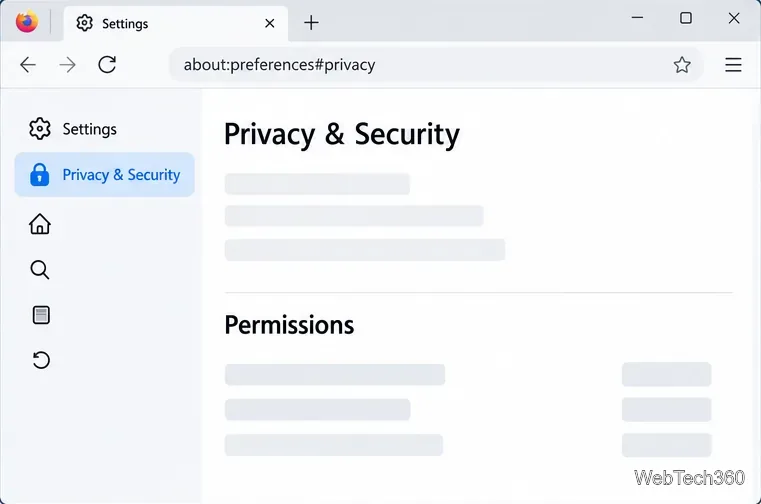
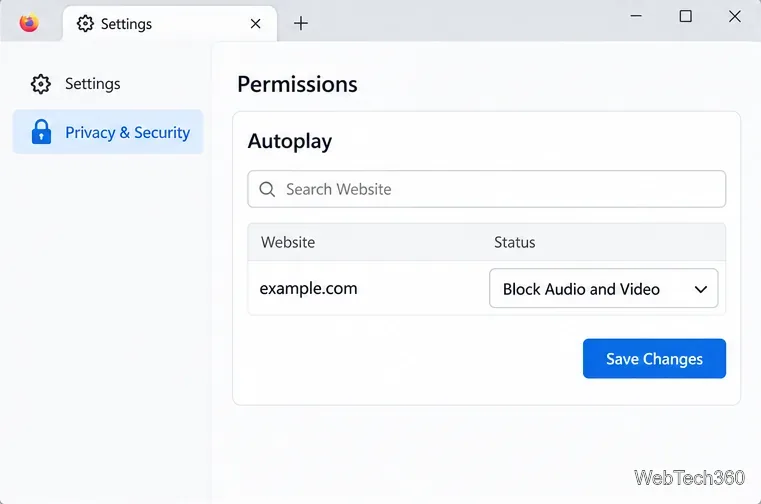
To fully disable autoplay in Firefox on your computer, open Settings → Privacy & Security → Permissions → Autoplay and set the default for all websites to Block Audio and Video. Firefox blocks media with sound by default, but muted videos may still start; the combined option blocks both, including muted clips.
The steps below apply to Firefox desktop on Windows, macOS, and Linux. Menu placement varies slightly: use the Firefox menu button and choose Settings, or on macOS choose Firefox → Settings from the menu bar.
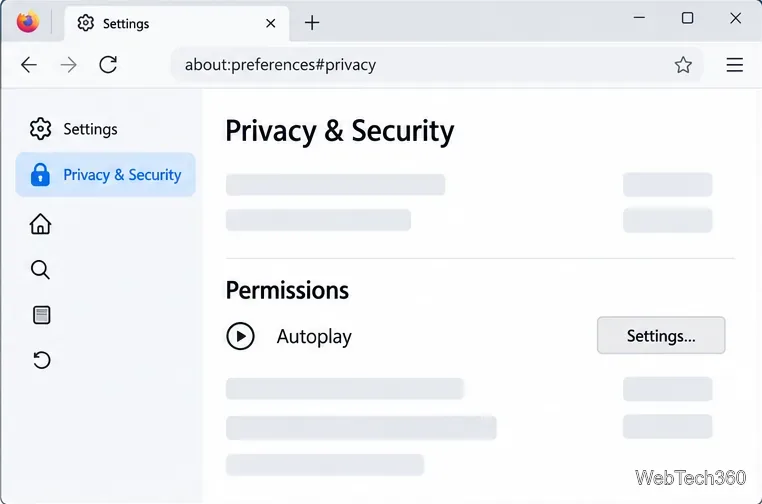
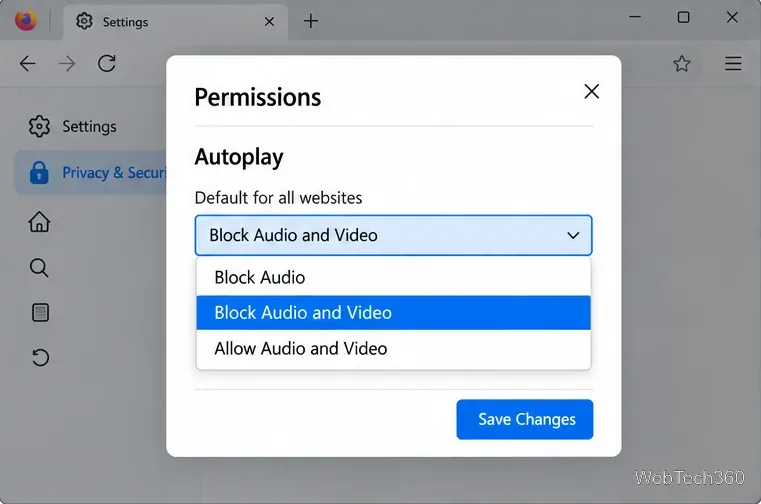
Mozilla lists three global choices in the Autoplay dialog:
| Setting | What it allows or blocks |
|---|---|
| Block Audio | Stops media that would play with sound. A muted video can still autoplay. |
| Block Audio and Video | Stops all media from autoplaying, including muted video. Choose this for the strictest built-in block. |
| Allow Audio and Video | Allows websites to start media automatically. |
Firefox's default blocks media with sound, so seeing a video move silently does not necessarily mean the setting failed. Change the global choice to Block Audio and Video if you want the video itself to remain stopped. See Mozilla's current guide to allowing or blocking media autoplay for the documented options and site controls.
A website can have its own Autoplay permission that overrides your default. If one site keeps starting media, check its entry in Firefox's Autoplay list before changing advanced preferences.
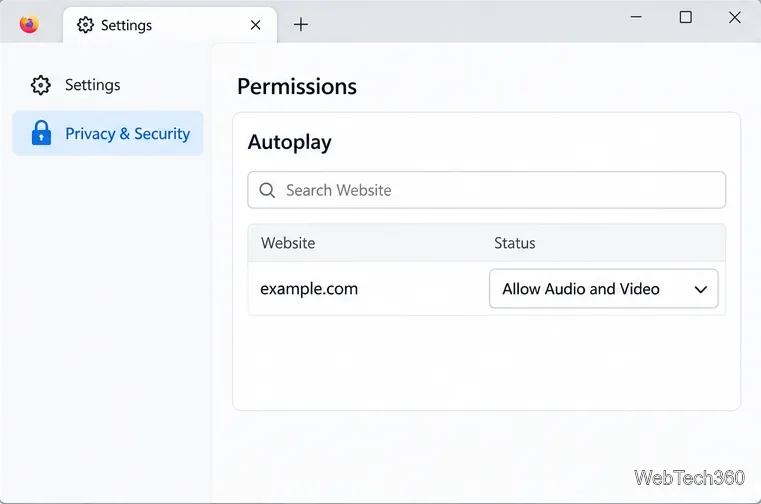
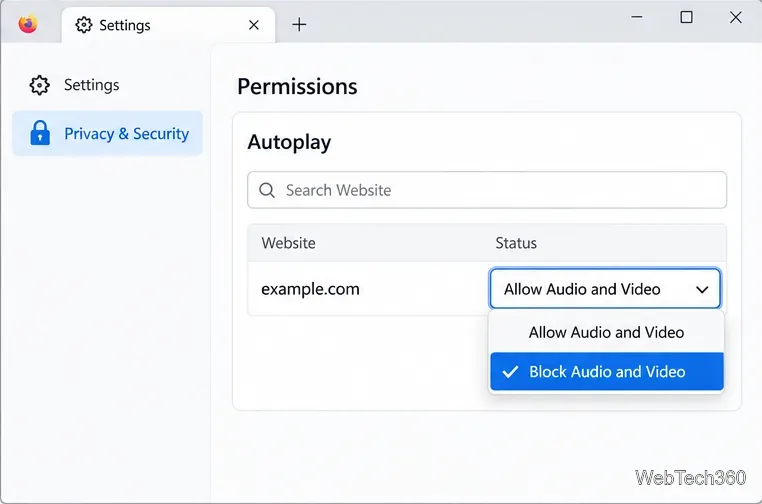
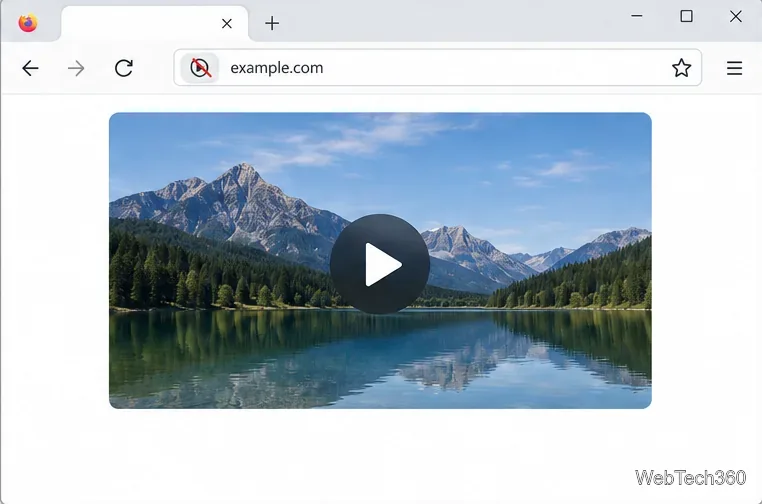
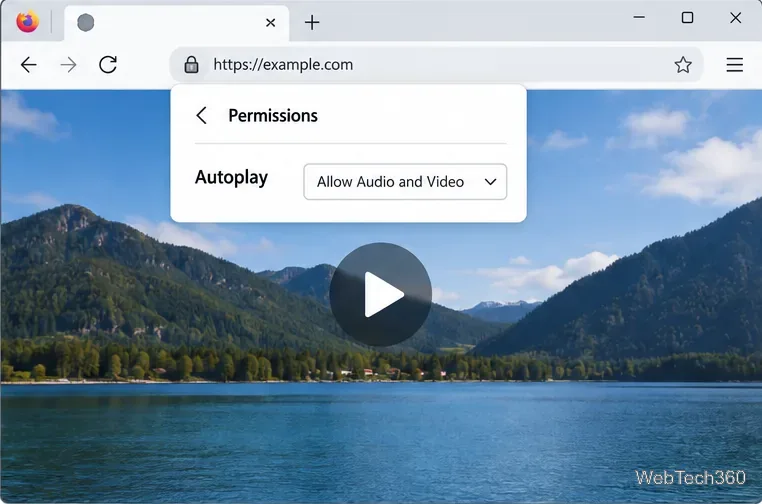
When Firefox is actively blocking media on a page, an autoplay-permission icon may appear in the address bar. Click it to open the site's permissions panel and review that site's Autoplay choice. A site-specific Allow setting can take precedence over the stricter global selection.
This Firefox permission controls media a website tries to start without your direction. It does not prevent you from pressing a player’s Play button, and a website may have its own playlist or “play next” control after you start a video. If playback begins only after you click or interact with the page, check that site's player controls as well.
Older tutorials may recommend changing internal media.autoplay preferences on about:config. You do not need to edit those preferences for the normal global or per-site controls described here. Mozilla describes the Configuration Editor as an advanced page and warns that changing preferences can affect browser stability, security, or performance. Start with the built-in Autoplay dialog; use Mozilla's about:config guidance only if you have a separate reason to change an advanced preference.
Learn how to disable JavaScript in Chrome temporarily with DevTools, block it for one site, or change the browser default, plus how to restore it.
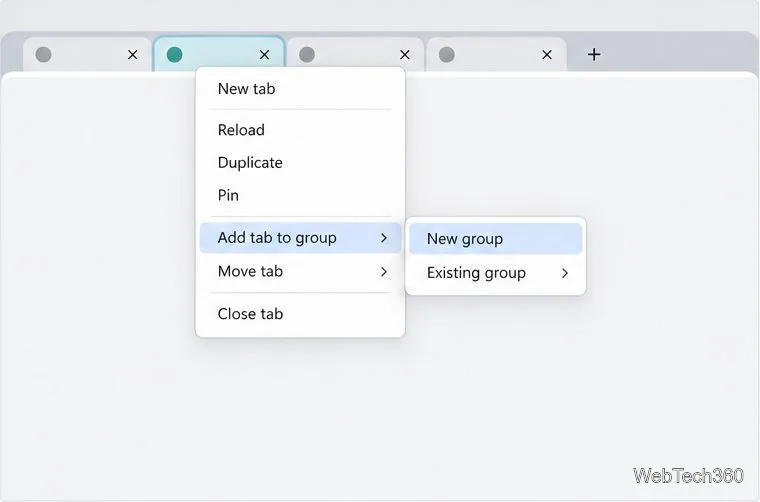
Organize related Chrome tabs into a group, then hide or reopen them with one click. See the current desktop steps, keyboard option, and what collapsing does.
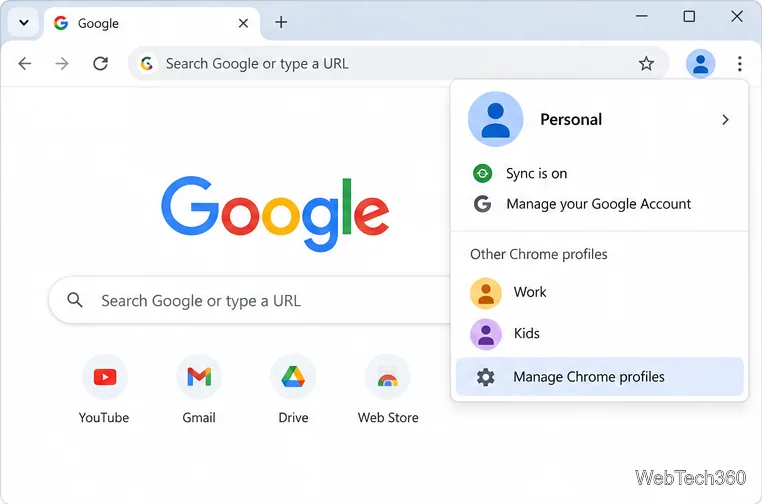
Rename a Chrome profile from its menu or profile manager, see what the label affects, and fix display delays without changing your Google Account name.
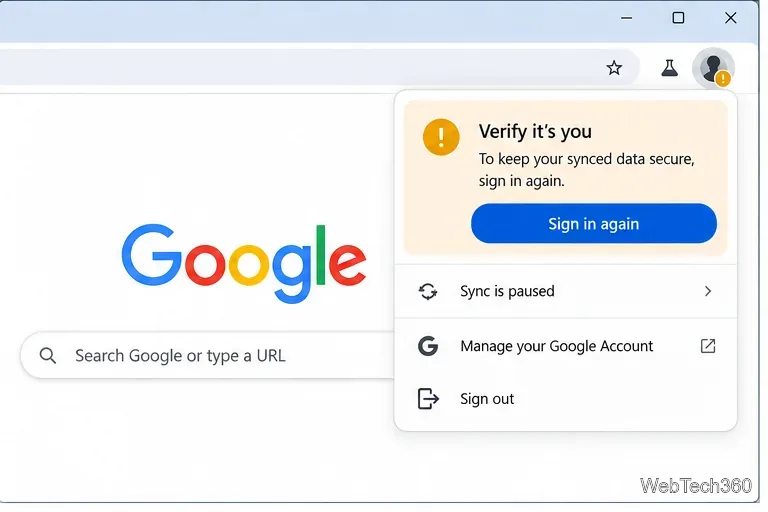
Fix Chrome sync pausing and repeated sign-in prompts by restoring account access, keeping site data, updating Chrome, and checking extensions or profiles.
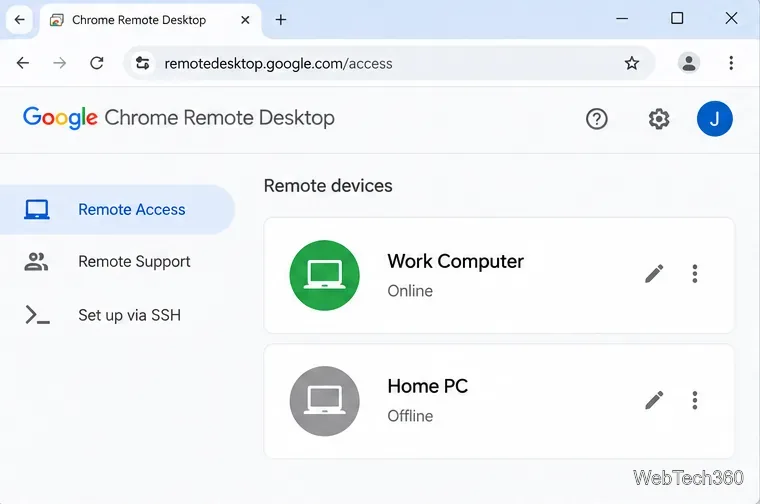
Chrome Remote Desktop not working? Fix offline hosts, update Chrome, reset remote access, check permissions, firewall rules, and managed-network restrictions.
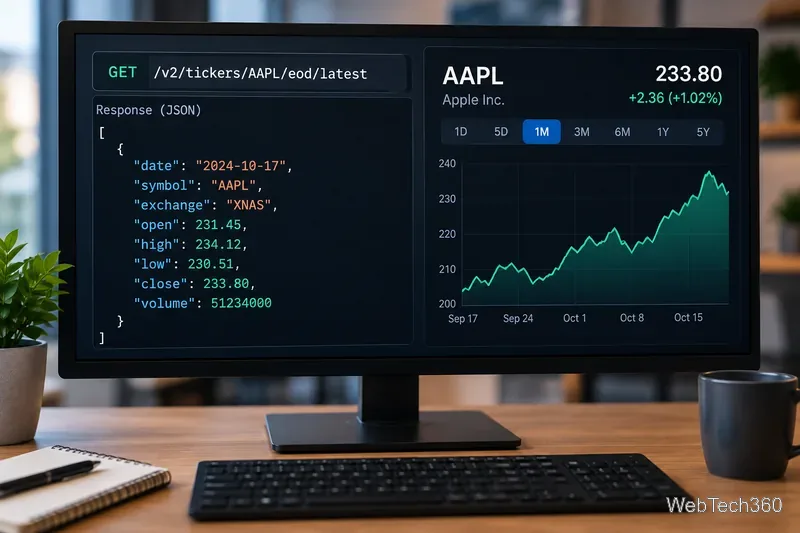
Marketstack review covering API v2, real-time and intraday data, historical coverage, pricing, limits, pros, cons, and who should use it.
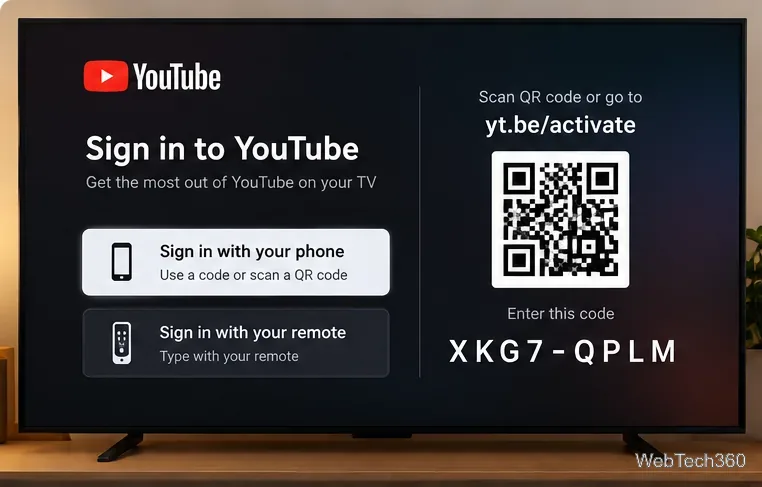
Learn how to activate YouTube at youtube.com/activate or yt.be/activate, enter your TV code, choose your Google Account, and fix sign-in problems.
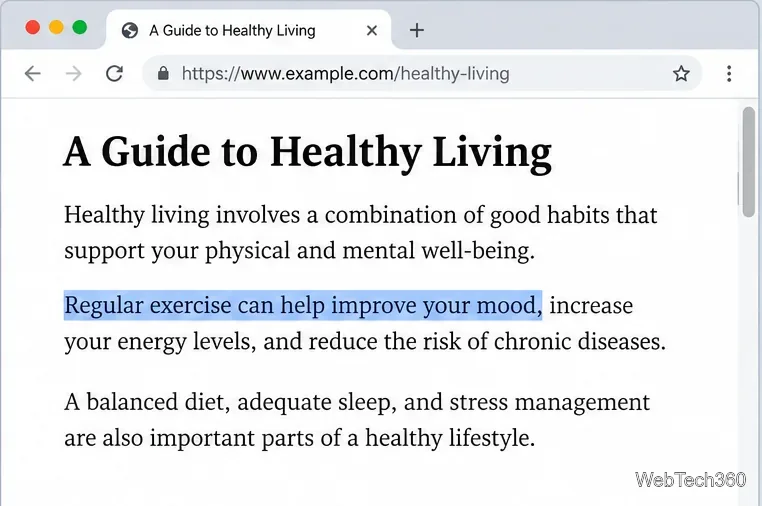
Learn how to link directly to selected text in Chrome with Copy link to highlight, how text-fragment URLs work, and what to do if a link fails.
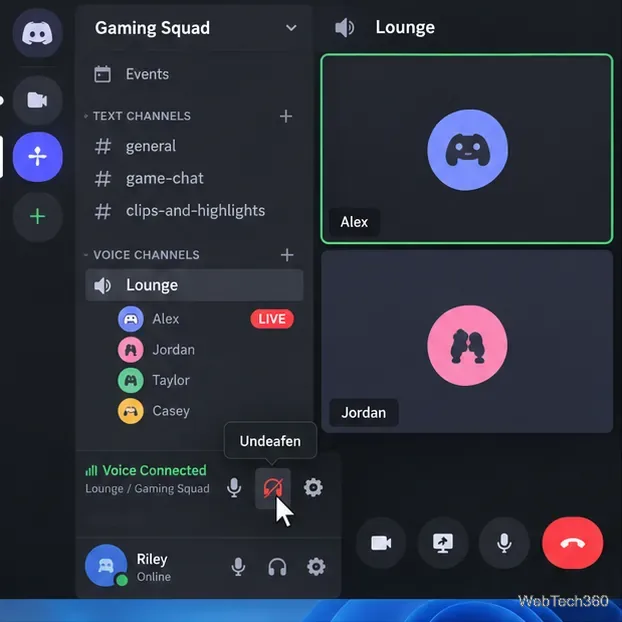
Can't hear anyone on Discord? Check Deafen and user volume, choose the right output device, reset Voice & Video, and fix Windows audio settings.
Learn how to add roles in Discord, change a role name, set permissions, assign or remove members, reorder roles, and delete roles safely.