How to Disable JavaScript in Chrome for One Tab or a Site
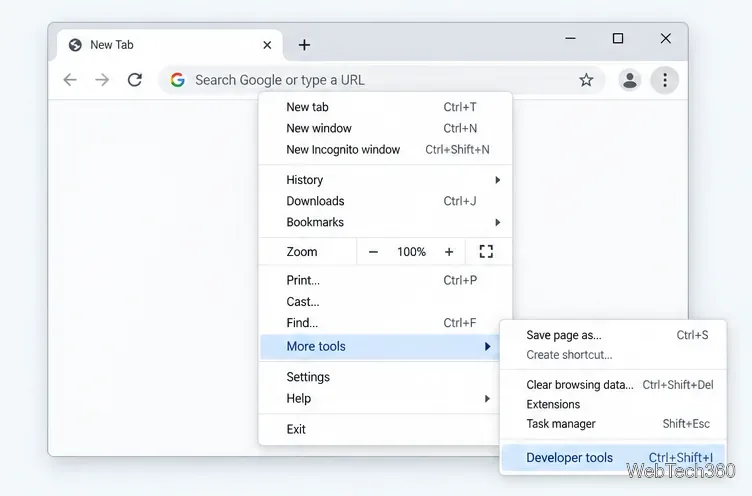
Learn how to disable JavaScript in Chrome temporarily with DevTools, block it for one site, or change the browser default, plus how to restore it.
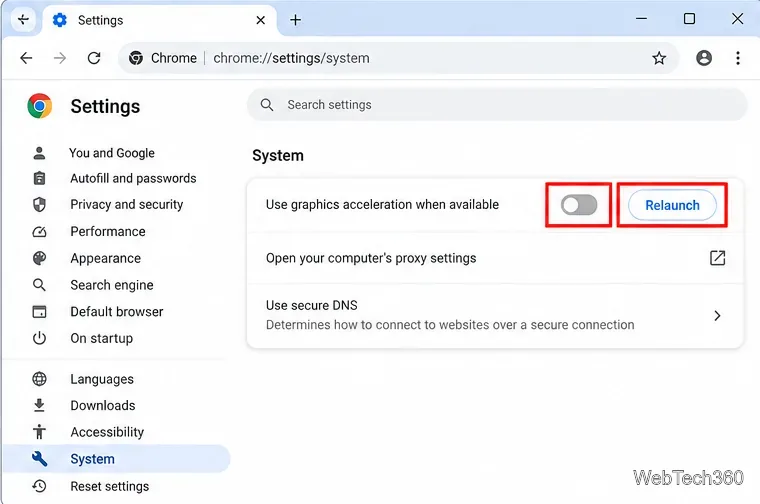
To disable hardware acceleration in Google Chrome on a desktop computer, open Chrome, go to Settings > System, turn off “Use graphics acceleration when available,” and select Relaunch. Older Chrome help pages may call the same option “Use hardware acceleration when available.” Turning it off can be useful when you are troubleshooting flickering, blank or black video, rendering glitches, or crashes that appear to involve the GPU or graphics driver.
This guide applies to desktop Chrome on Windows, macOS, and Linux. The fastest route is to enter chrome://settings/system in the address bar, but you can also reach the setting through Chrome’s menus.
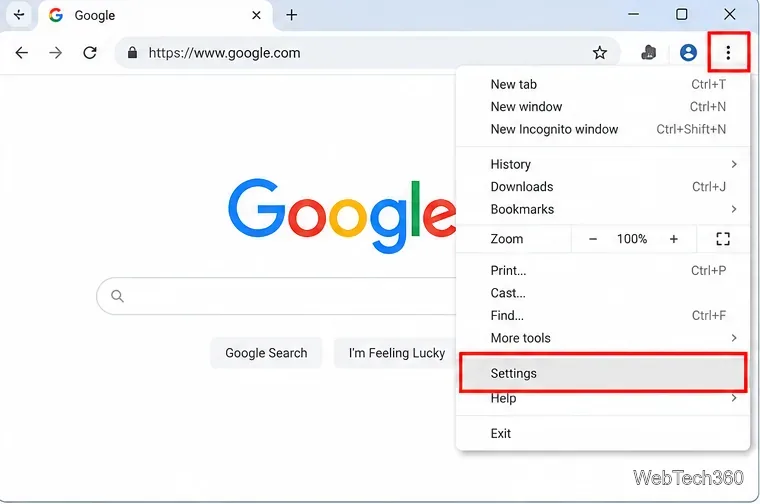
Open Google Chrome, select the three-dot More menu in the upper-right corner, and choose Settings.
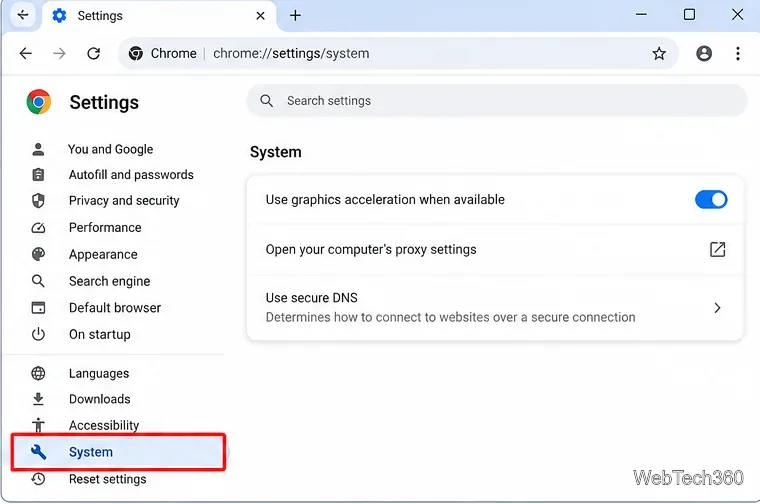
In Settings, select System in the left sidebar. If the sidebar is collapsed, you can use the Settings search box or enter chrome://settings/system directly.
Find Use graphics acceleration when available. When the switch is on, Chrome can use the GPU for supported browser workloads instead of relying only on software processing. In some older Chrome versions and Google support text, this setting is described as hardware acceleration, so do not worry if the wording on your computer is slightly different.
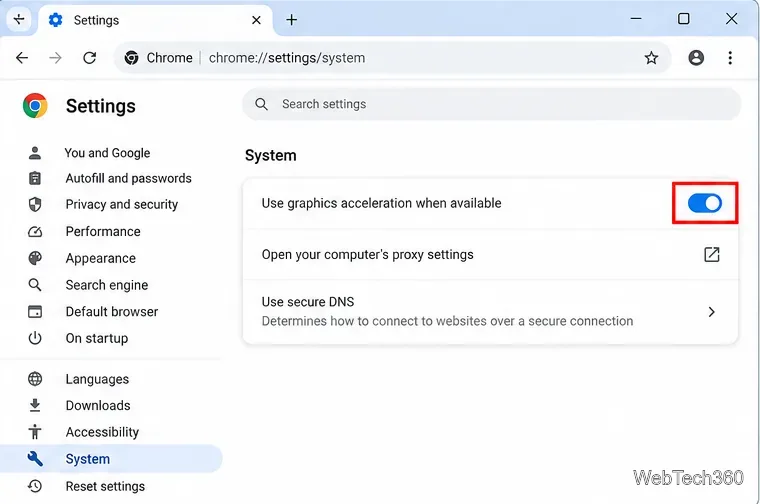
Turn the switch off. Google’s Chrome Help documentation includes disabling hardware acceleration as a troubleshooting step for Chrome crashes and rendering-related problems. See the official Chrome crash troubleshooting guide.
Select Relaunch when Chrome prompts you. Chrome must restart before the change is fully applied. Save any work in web apps first; normal tabs are generally restored after a relaunch, but you should not rely on unsaved form data or active web-app sessions surviving.
Hardware acceleration lets Chrome use graphics hardware for tasks such as compositing, rasterization, video processing, WebGL, and other GPU-backed browser features when the platform supports them. Disabling the setting makes Chrome fall back to software processing for many of those tasks.
That can work around a buggy graphics driver or a Chrome-GPU compatibility problem, but there is a tradeoff: video playback, animation, 3D content, browser games, or graphics-heavy web apps may use more CPU or perform less smoothly. Google’s Chrome for Developers documentation also notes that WebGPU is disabled when “Use graphics acceleration when available” is turned off. You can read the official WebGPU troubleshooting guidance for more detail.
After Chrome relaunches, enter chrome://gpu in the address bar. Under Graphics Feature Status, features that previously used the GPU may now show messages such as Software only, hardware acceleration unavailable, or Disabled. The exact list varies by operating system, GPU, driver, and Chrome build.
The same Chrome developer documentation recommends chrome://gpu when checking whether Chrome detects and uses GPU acceleration, so this is a better verification method than judging only by how a page looks.
It is best treated as a troubleshooting switch, not a universal performance tweak. Try disabling it when Chrome has a problem that appears specifically related to rendering or GPU use, such as:
If turning acceleration off does not help, turn it back on so Chrome can use supported GPU features normally.
Update Chrome before making deeper changes. Open the three-dot menu, choose Help > About Google Chrome, let Chrome check for updates, and relaunch if an update is available. Google explains the current process in its official Chrome update guide.
You should also install graphics-driver updates from your operating system or GPU manufacturer, especially if chrome://gpu reports unavailable acceleration or driver-related problems. If the issue continues, test Chrome with unnecessary extensions disabled and consider resetting Chrome settings using Google’s official reset instructions.
On a work or school computer, an administrator may control hardware acceleration through Chrome Enterprise policy. If the switch is missing, locked, or immediately changes back, contact the device administrator rather than trying to override managed settings.
Only if it clearly fixes the problem you are trying to solve. For normal browsing, video, WebGL, WebGPU, and other graphics-heavy web content, leaving graphics acceleration enabled usually allows Chrome to use the hardware capabilities available on the device. If the browser is stable with acceleration enabled, there is little reason to disable it permanently.
Learn how to disable JavaScript in Chrome temporarily with DevTools, block it for one site, or change the browser default, plus how to restore it.
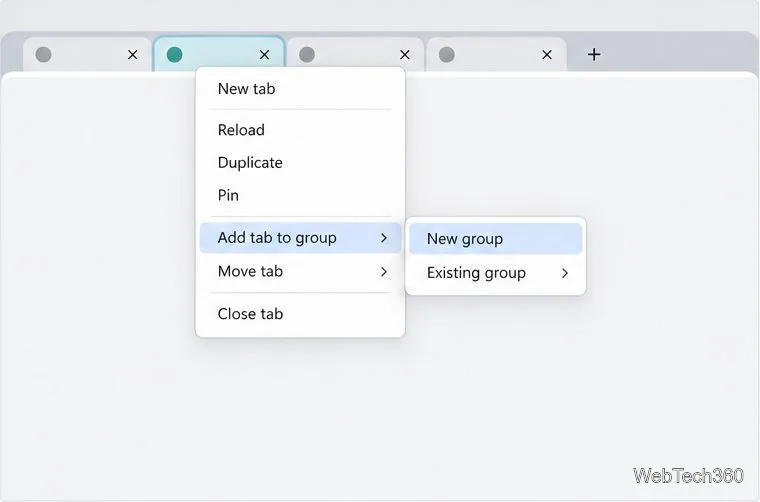
Organize related Chrome tabs into a group, then hide or reopen them with one click. See the current desktop steps, keyboard option, and what collapsing does.
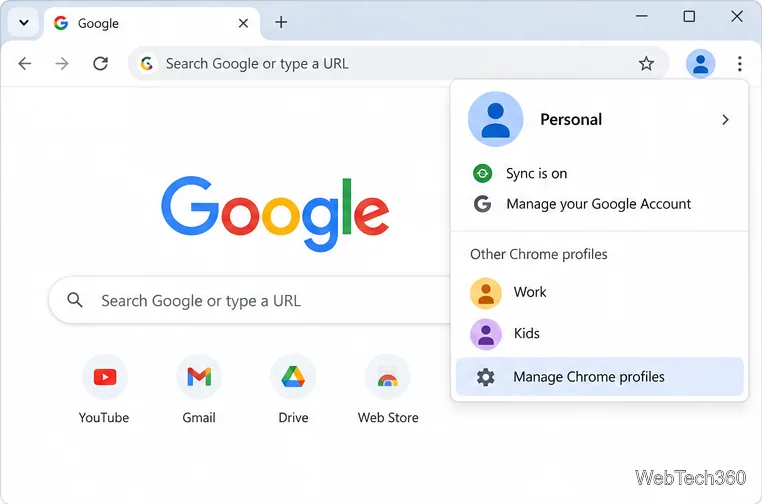
Rename a Chrome profile from its menu or profile manager, see what the label affects, and fix display delays without changing your Google Account name.
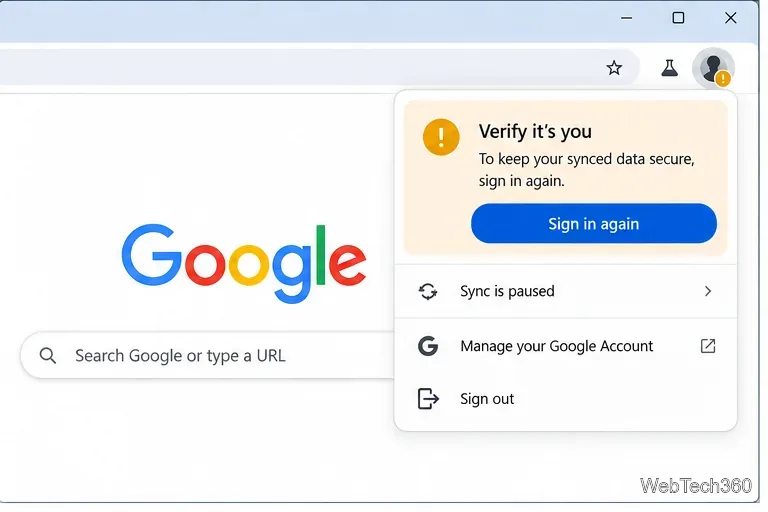
Fix Chrome sync pausing and repeated sign-in prompts by restoring account access, keeping site data, updating Chrome, and checking extensions or profiles.
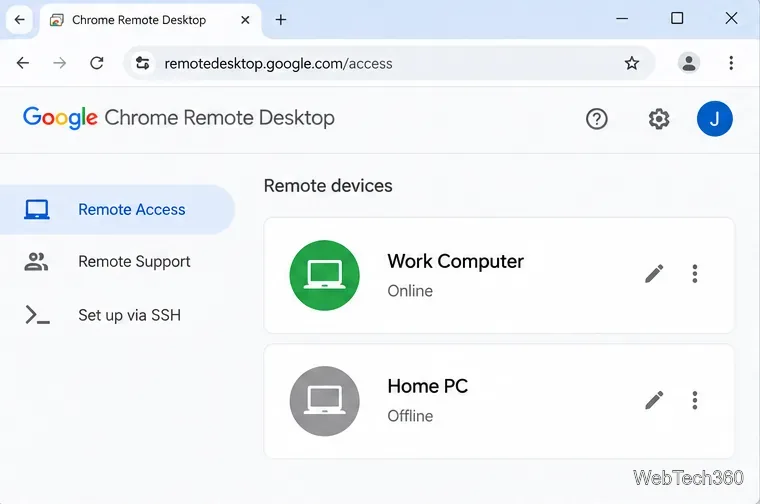
Chrome Remote Desktop not working? Fix offline hosts, update Chrome, reset remote access, check permissions, firewall rules, and managed-network restrictions.
Marketstack review covering API v2, real-time and intraday data, historical coverage, pricing, limits, pros, cons, and who should use it.
Learn how to activate YouTube at youtube.com/activate or yt.be/activate, enter your TV code, choose your Google Account, and fix sign-in problems.
Learn how to link directly to selected text in Chrome with Copy link to highlight, how text-fragment URLs work, and what to do if a link fails.
Can't hear anyone on Discord? Check Deafen and user volume, choose the right output device, reset Voice & Video, and fix Windows audio settings.
Learn how to add roles in Discord, change a role name, set permissions, assign or remove members, reorder roles, and delete roles safely.