How to Disable JavaScript in Chrome for One Tab or a Site
Learn how to disable JavaScript in Chrome temporarily with DevTools, block it for one site, or change the browser default, plus how to restore it.
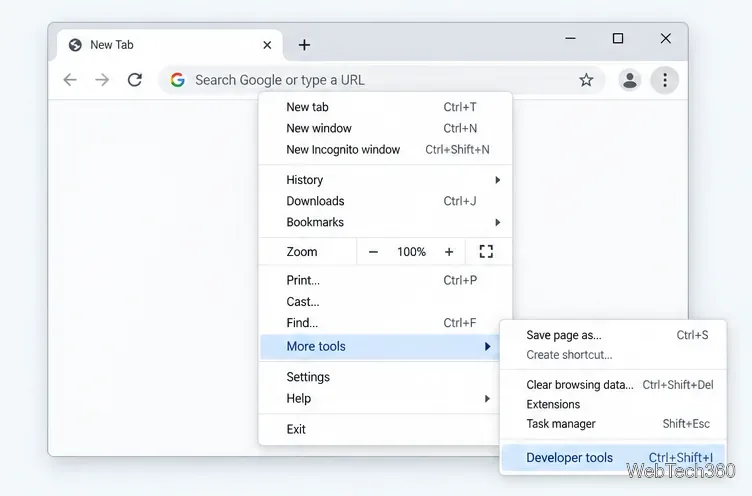
To disable JavaScript in Chrome for one tab, open DevTools, press Ctrl+Shift+P on Windows or Linux (or Command+Shift+P on Mac), search for Disable JavaScript, and press Enter. Keep DevTools open: Chrome keeps JavaScript disabled in that tab only while DevTools is open. For a longer-lasting block, change the JavaScript permission for one site or set a browser-wide default.
The DevTools method is useful for testing a page or checking whether a feature depends on JavaScript. It is not a reliable way to get rid of every sign-in prompt or pop-up, and turning JavaScript off can make websites harder to use.
These steps apply to desktop Chrome. They do not change the setting in every tab or create a permanent browser preference.
javascript, select Disable JavaScript from the results, and press Enter. If more than one result appears, choose the command with that exact name.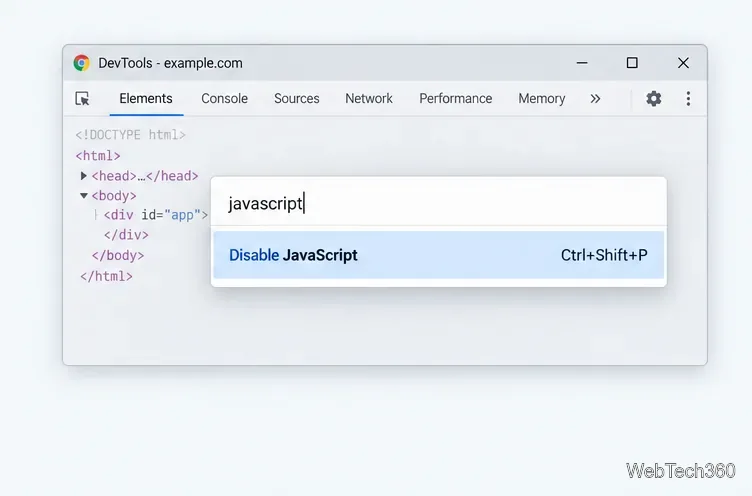
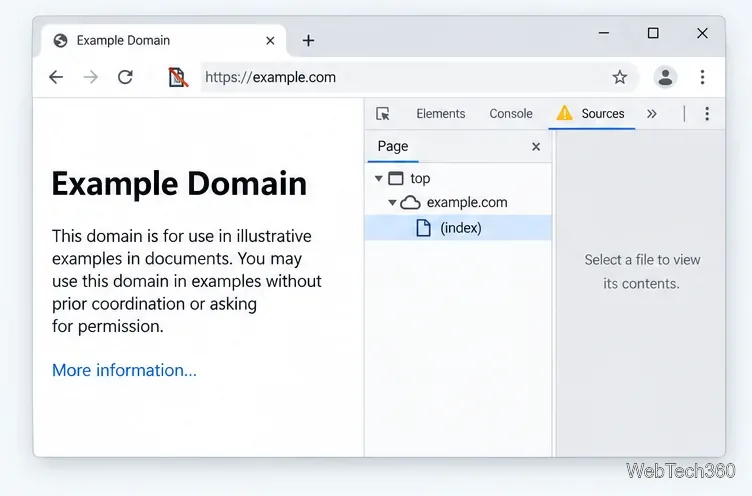
The setting follows the current tab while DevTools remains open. If you navigate to another page in that tab, JavaScript remains disabled there too. Opening a separate tab does not apply the DevTools change to that new tab.
Use Chrome’s site permissions if you want the restriction to remain in place after closing DevTools. Chrome lets you change permissions for an individual site without changing the default for other sites.
Open the site in Chrome, select the site information icon to the left of its address, then choose Site settings. Find JavaScript and set the permission to Block. Chrome saves site-setting changes automatically. Reload the page to apply the new permission. To restore the site, return to the same setting and allow JavaScript again, or reset the site’s permissions.
To block JavaScript broadly on desktop Chrome, open the three-dot menu and go to Settings > Privacy and security > Site settings > JavaScript. Choose Don’t allow sites to use JavaScript. This changes the default for websites, so pages that rely on scripts may not work. You can return to this screen and allow JavaScript again. A site-specific permission can be set separately from the default.
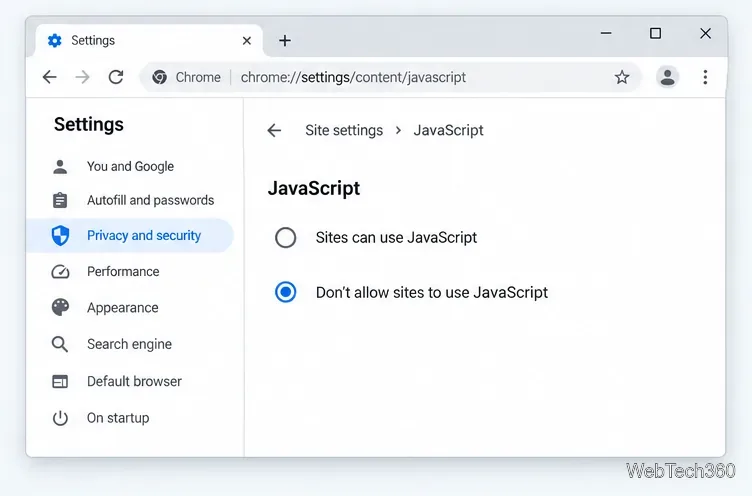
Chrome’s menu wording and layout can vary slightly across releases, but the JavaScript control remains under Site settings. Google’s Chrome site-permissions guide covers both the default and individual-site settings.
Usually, no. JavaScript powers interactive parts of websites, including forms and games, and disabling it may also stop sign-in flows, menus, embedded media, or checkout controls from working. Some pages may still show prompts or open windows through other browser features, so disabling scripts is not a dependable pop-up blocker.
If you only want to block unwanted pop-up windows or redirects, use Chrome’s Pop-ups and redirects permission instead: open Settings > Privacy and security > Site settings > Pop-ups and redirects, then choose a default or adjust one site. Chrome blocks pop-ups by default, and its pop-up settings guide explains how to manage exceptions. Notification messages are a separate permission and can be blocked separately.
For the temporary DevTools change, reopen the Command Menu and run Enable JavaScript, or simply close DevTools. Chrome’s documented DevTools workflow keeps JavaScript off only in the current tab while DevTools is open; closing it restores JavaScript. If you changed a site or browser default in Settings, go back to the JavaScript permission and allow sites again. For more detail, see Chrome’s DevTools instructions for disabling JavaScript.
Learn how to disable JavaScript in Chrome temporarily with DevTools, block it for one site, or change the browser default, plus how to restore it.
Organize related Chrome tabs into a group, then hide or reopen them with one click. See the current desktop steps, keyboard option, and what collapsing does.
Rename a Chrome profile from its menu or profile manager, see what the label affects, and fix display delays without changing your Google Account name.
Fix Chrome sync pausing and repeated sign-in prompts by restoring account access, keeping site data, updating Chrome, and checking extensions or profiles.
Chrome Remote Desktop not working? Fix offline hosts, update Chrome, reset remote access, check permissions, firewall rules, and managed-network restrictions.
Marketstack review covering API v2, real-time and intraday data, historical coverage, pricing, limits, pros, cons, and who should use it.
Learn how to activate YouTube at youtube.com/activate or yt.be/activate, enter your TV code, choose your Google Account, and fix sign-in problems.
Learn how to link directly to selected text in Chrome with Copy link to highlight, how text-fragment URLs work, and what to do if a link fails.
Can't hear anyone on Discord? Check Deafen and user volume, choose the right output device, reset Voice & Video, and fix Windows audio settings.
Learn how to add roles in Discord, change a role name, set permissions, assign or remove members, reorder roles, and delete roles safely.