Home
» WEB
»
How to Disable Twitter (X) Infinite Scroll in Your Browser
How to Disable Twitter (X) Infinite Scroll in Your Browser
To stop Twitter’s endless feed in a desktop browser, install an extension that adds a stopping point. Twitter is now called X. Pagination adds numbered pages in Chrome and Edge; FocusDeck: Intentional Feed limits a Firefox session to a chosen number of posts. X’s Home timeline guide explains For You and Following but does not document a control to stop continuous loading. These add-ons affect the browser view, not your X account settings. Checked October 23, 2026; X interface changes can affect compatibility.
Choose an extension for your browser
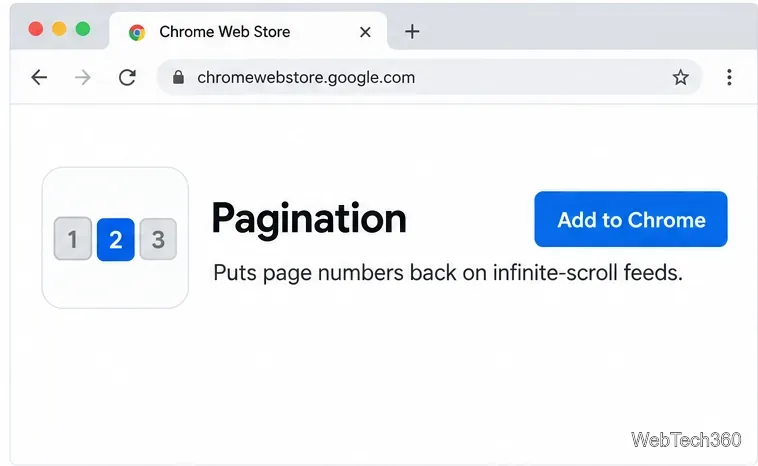
Chrome or Edge:Pagination in the Chrome Web Store says it supports X/Twitter and breaks an infinite feed into pages. The listing showed version 1.0.0, updated October 11, 2026, with no ratings. Microsoft confirms that Chrome Web Store extensions can also be installed in Edge.
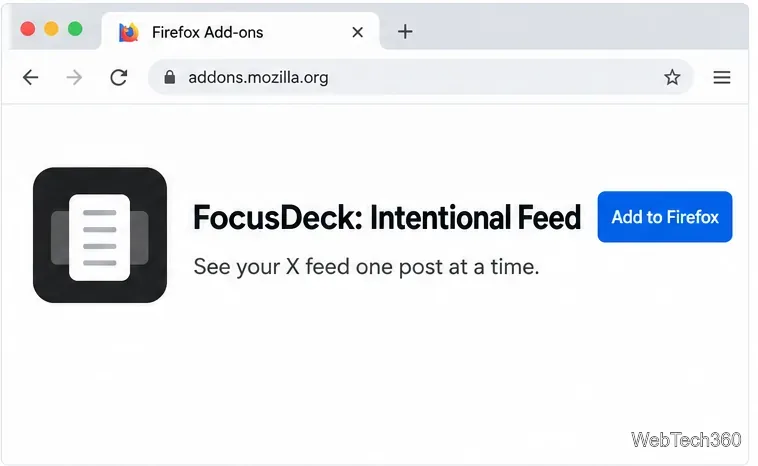
Firefox:FocusDeck: Intentional Feed on Mozilla Add-ons presents X posts one at a time. It lets you choose 10, 20, 30, or a custom post count for a session, then locks the remaining feed when you reach the limit. The listing was updated October 2, 2026, and showed two users and one review when checked, so it has limited public feedback.
Both are independent extensions. Review the permission prompt before installing. FocusDeck’s Mozilla listing requests access to browser tabs and to x.com and twitter.com pages, so it can interact with content on those sites.
The current Chrome listing describes Pagination as a way to put page breaks back into supported feeds.
Stop infinite scrolling in Chrome or Edge
Open the Pagination listing in the Chrome Web Store. In Chrome, select Add to Chrome, review the permission prompt, and choose Add extension if you are comfortable with the access it requests. Google’s installation guide recommends approving only extensions you trust.
In Edge, open the same listing. Select Get extension or Get, allow extensions from other stores if Edge prompts you, and review the permission request before adding it. Microsoft documents this flow in its Edge extension guide.
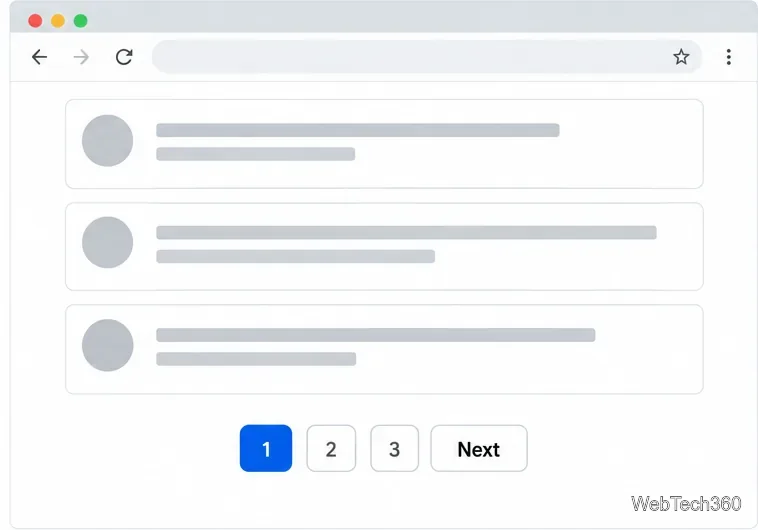
Open x.com in the browser where you installed the add-on and reload the Home timeline. Scroll through the currently displayed posts. When Pagination is working, its page controls give you a deliberate stopping point; select a page number or Next to continue rather than relying on the feed to append posts continuously.
If page controls do not appear, confirm the extension is enabled and can run on x.com, then reload. Page size can vary with the feed layout, especially around media posts.
The page numbers and Next control represent Pagination’s added break between groups of posts.
Set a reading limit in Firefox
Open the FocusDeck listing on Mozilla Add-ons and select Add to Firefox. Read the browser’s permission prompt before confirming. Mozilla’s Firefox add-on guide describes the standard install process and where to manage extensions afterward.
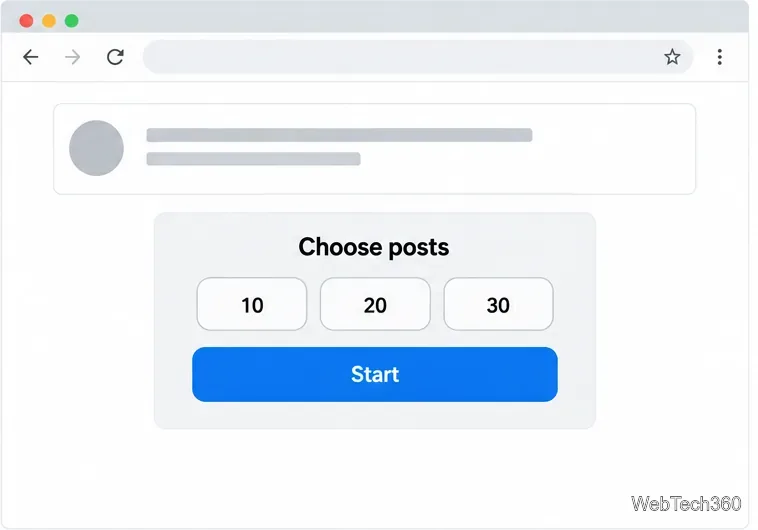
Open or reload x.com. Start a session from the extension when its prompt appears, choose 10, 20, 30, or a custom number of posts, and select Start. FocusDeck shows one post at a time; use J or the down arrow to move forward and K or the up arrow to go back. At the selected limit, the session ends and posts beyond that limit stay locked.
FocusDeck caps a reading session instead of loading another batch. Its listing says opening a post, thread, or media pauses the session; returning resumes it. For numbered batches, use Pagination in a supported Chromium browser.
The FocusDeck listing describes a one-post-at-a-time reading experience for X.The session prompt shows the post-count choices documented for FocusDeck.
Troubleshoot or turn the extension off
Check access to x.com. A feed-changing extension needs access to the site it modifies. If it is enabled but has no effect, open its details in the browser’s extension manager and check the site-access setting.
Look for a conflict. X’s web troubleshooting guide says browser add-ons can interfere with x.com. Temporarily turn off other extensions that change the timeline, one at a time, and reload the page to identify a conflict.
Do not rely on the old Twitter Infinite Scroll Disabler as a current fix. Its Firefox listing says it was last updated September 20, 2019 and requests access to twitter.com. The maintainer’s project page says frequent Twitter interface changes made it hard to maintain. The listing does not establish that it works on today’s x.com.
Disable or remove it whenever you want. In Chrome, go to Extensions > Manage extensions and switch it off or choose Remove. In Edge, open Extensions > Manage extensions and turn off its toggle. In Firefox, open the menu, select Extensions and Themes, and disable or remove the add-on. See the official Chrome, Edge, and Firefox instructions if the menu labels differ.
After switching the add-on off, reload x.com. If it stops working after an X update, check its official store page for an update rather than downloading from an unofficial mirror.