How to Disable JavaScript in Chrome for One Tab or a Site
Learn how to disable JavaScript in Chrome temporarily with DevTools, block it for one site, or change the browser default, plus how to restore it.
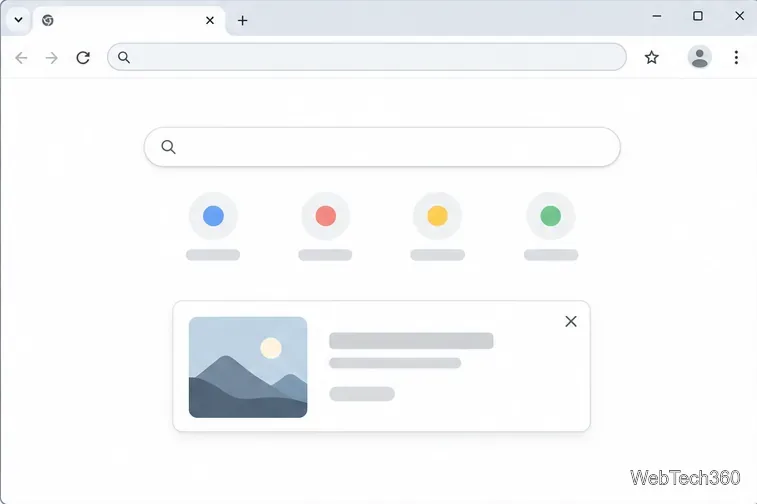
If a promotional message appears on Chrome’s New Tab page, look for the X in the upper-right corner of the message and select it. Chrome’s desktop New Tab page supports dismissing eligible promotions this way. The dismissal applies to that message; it does not turn off every promotion or other content on the page. If there is no close control, Chrome may not offer a way to dismiss that particular item in your current version or profile.
A promo message is usually a single panel in the middle or lower part of a New Tab page. It may point to a Chrome or Google service, feature, or announcement. When Chrome provides a dismissal option, the message has an X button.
Chrome also shows separate New Tab cards, such as browsing or Drive-related content. These have card menus and settings of their own. The steps below dismiss a promo message; they do not remove a card, change your Google Doodle, or block browser notifications.
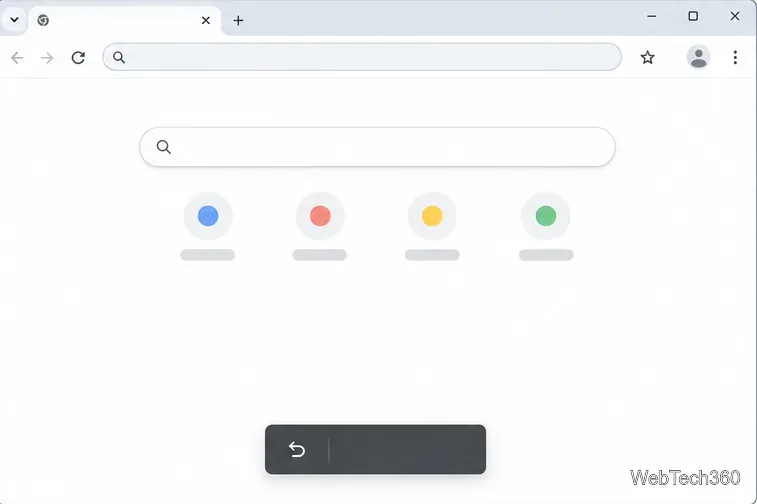
If Chrome briefly offers an undo control after the card closes, select it right away to restore the message. If no undo option appears, reopen the New Tab page and check whether that same promo is still present.
Closing a promo removes the displayed message from the New Tab page. It is not a general opt-out for Chrome promotions. A different message may appear later, and dismissing a promo does not disable the Google logo or Doodle, change your startup page, or stop notifications from websites.
Chromium’s implementation identifies the dismissed promo and sends its ID to a blocklist. Its code describes dismissal as applying until a new promo message is populated. That is why closing one item should not be treated as a permanent setting for all future New Tab content.
First, update Chrome and reopen the browser. On your computer, select More (the three-dot menu) > Help > About Google Chrome. Chrome checks for an update on that page; if one is available, select Relaunch to apply it. See Google’s Chrome update instructions if the menu differs. Then open a new tab and check the promo again.
Some older instructions say to visit chrome://flags and enable #ntp-dismiss-promos. That was an experimental route, not a setting you should assume is available in current Chrome. Chromium describes flags as a way to test experiments, and those controls can change or disappear. If the old flag is missing, do not enable unrelated flags to try to force a close button.
If Chrome is up to date and the promo still has no close control, there may be no supported per-message dismissal for that item. The current Chrome help page documents how to manage New Tab cards, but does not provide a single setting to turn off every promotional message. You can leave the item alone, or use another page as your startup page if you do not want to see Chrome’s New Tab page when opening a window.
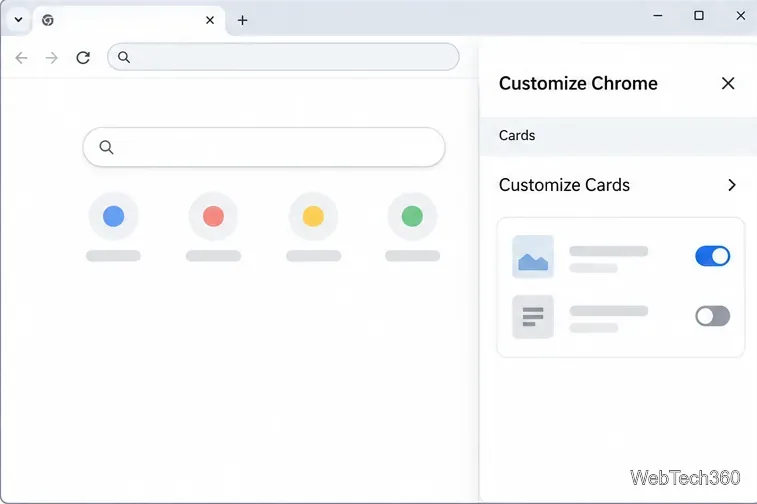
If the item is a card rather than a one-off promo, Chrome provides card controls. On a New Tab page, select Customize Chrome in the lower-right corner, open Cards, and choose Customize Cards. Turn off the card types you do not want to see. The available options can depend on your search engine and sign-in settings; Google’s New Tab page guide lists the current card controls.
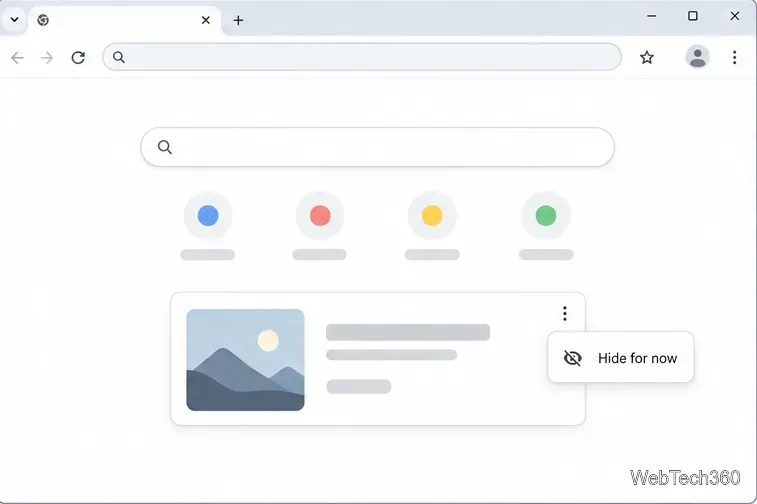
Some individual cards also have a More menu in their upper-right corner. Depending on the card, the menu may offer an option such as Hide for now or hide a specific item. For example, Chrome’s help instructions describe a “Hide for now” choice for the Drive priority card. This changes that card’s display; it does not control separate promo messages.
Promo messages can point to a feature or service that you may want to revisit. If you are unsure, open the link in another tab or bookmark the destination before selecting the X. That way, you can remove the message from the New Tab page without losing a useful page you have not read yet.
Learn how to disable JavaScript in Chrome temporarily with DevTools, block it for one site, or change the browser default, plus how to restore it.
Organize related Chrome tabs into a group, then hide or reopen them with one click. See the current desktop steps, keyboard option, and what collapsing does.
Rename a Chrome profile from its menu or profile manager, see what the label affects, and fix display delays without changing your Google Account name.
Fix Chrome sync pausing and repeated sign-in prompts by restoring account access, keeping site data, updating Chrome, and checking extensions or profiles.
Chrome Remote Desktop not working? Fix offline hosts, update Chrome, reset remote access, check permissions, firewall rules, and managed-network restrictions.
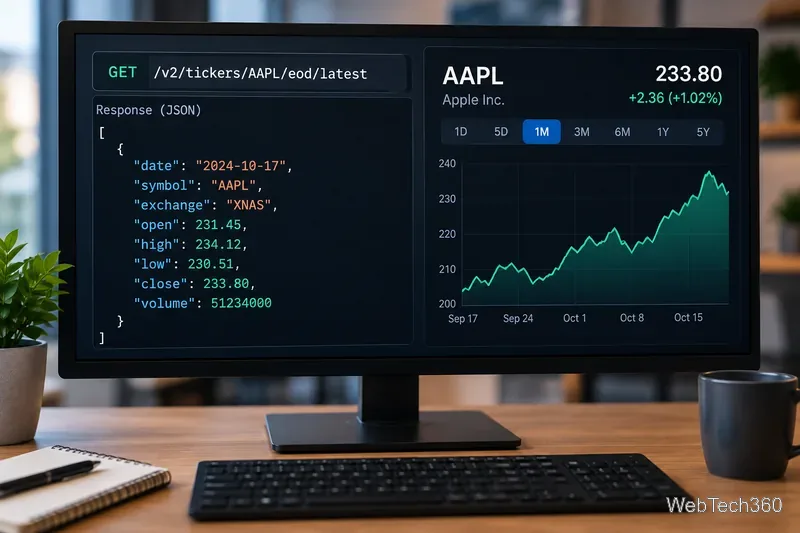
Marketstack review covering API v2, real-time and intraday data, historical coverage, pricing, limits, pros, cons, and who should use it.
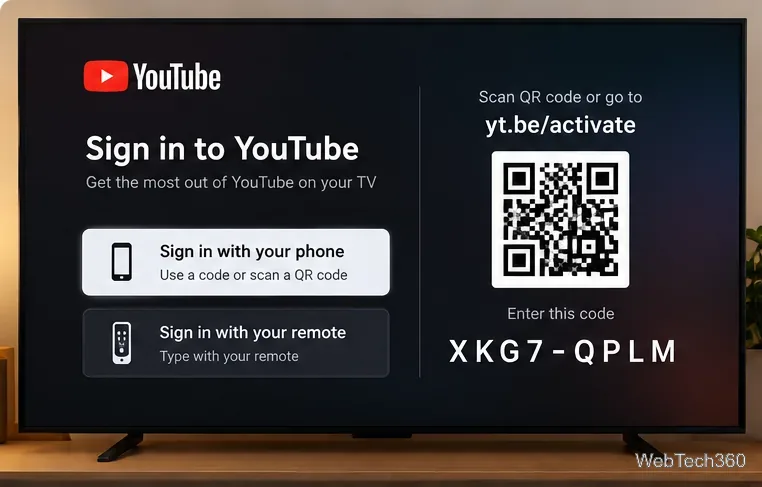
Learn how to activate YouTube at youtube.com/activate or yt.be/activate, enter your TV code, choose your Google Account, and fix sign-in problems.
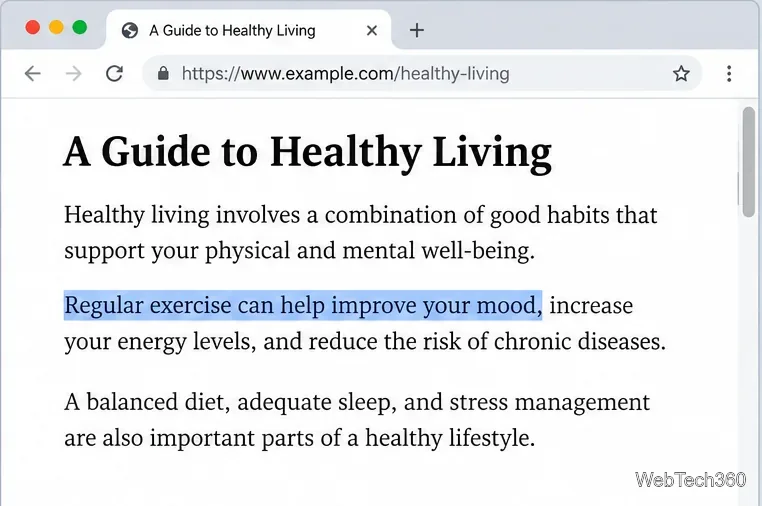
Learn how to link directly to selected text in Chrome with Copy link to highlight, how text-fragment URLs work, and what to do if a link fails.
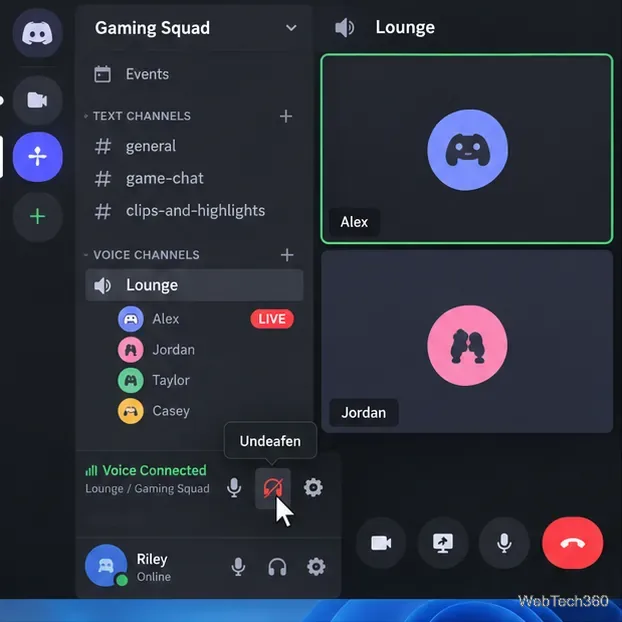
Can't hear anyone on Discord? Check Deafen and user volume, choose the right output device, reset Voice & Video, and fix Windows audio settings.
Learn how to add roles in Discord, change a role name, set permissions, assign or remove members, reorder roles, and delete roles safely.