Home
» WEB
»
How to Download an HTML Table as a CSV File: Step-by-Step Guide
How to Download an HTML Table as a CSV File: Step-by-Step Guide
To download an HTML table as a CSV file, use a Firefox table-export add-on or copy the visible cells into a spreadsheet and export them. The add-on is quicker; copying avoids installing an extension. CSV keeps rows and values, not a webpage’s colors, fonts, or layout.
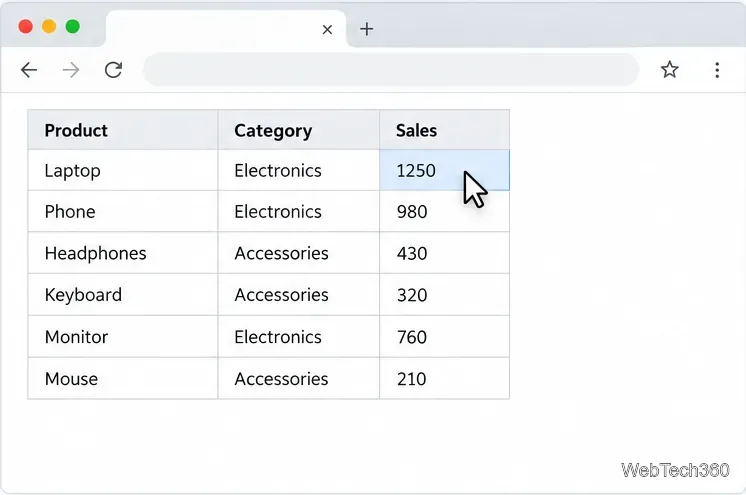
A selectable HTML table exposes the rows and columns an exporter reads.
Make sure the page contains an HTML table
An HTML table is structured data arranged in rows and cells, not a screenshot, chart, or graphic drawn on a canvas. If you can select text in individual cells, it is likely a real table. The MDN reference for the HTML table element explains the structure. Wait for the page to finish loading; some sites fill tables only after you scroll or apply a filter. If the site provides its own CSV download, use it first.
Option 1: Export from Firefox with an add-on
The Firefox add-on Download table as CSV adds a right-click command. Its Mozilla listing currently labels it Experimental, says it was last updated May 31, 2020, and notes a known issue with tables inside iframes. Review its current compatibility and permissions before installing. Mozilla’s add-on guide explains the installation flow.
Open the official listing. In Firefox, visit the Mozilla Add-ons page and follow the browser’s install prompt if you decide to use the extension. Avoid extension downloads from unrelated sites.
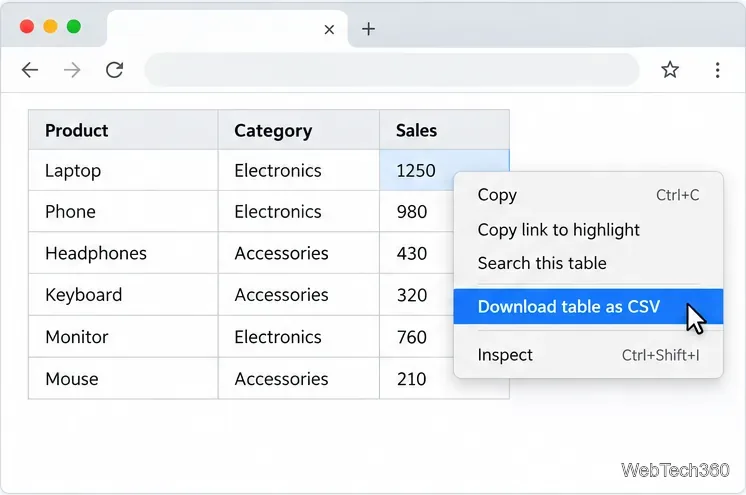
Export the table. Open the webpage and wait for its data to appear. Right-click a cell and choose Download table as CSV. The add-on also describes a toolbar route: click its icon, then click the table.
Right-click a table cell to access the add-on’s export command.
Find the file. Check Firefox’s Downloads panel or the folder set in Firefox’s download settings. The filename can vary; you can open the CSV without renaming it.
The completed CSV appears in the browser’s download list.
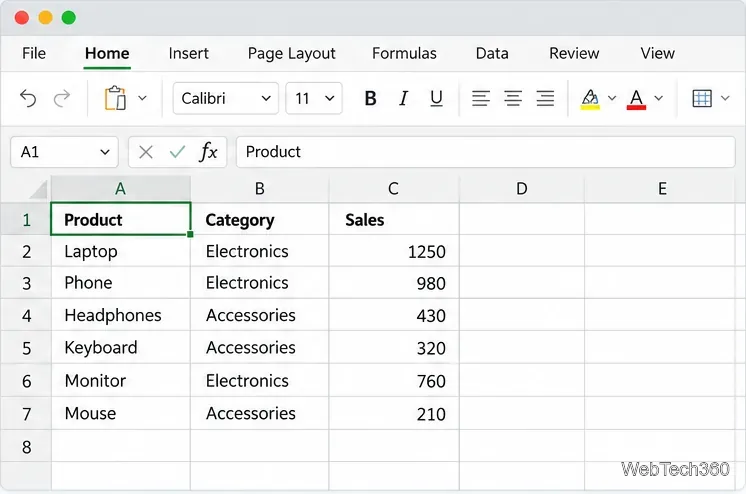
Check the export. Open the file in Excel, Google Sheets, or another spreadsheet app. Confirm that headers and records occupy separate columns and that the row count looks plausible.
Verify that headers and values remain aligned in separate columns.
Option 2: Copy the table into a spreadsheet
Use this route in any browser when you do not want an extension. It works when the webpage lets you select the table text.
Drag across the table headers and data rows, then press Ctrl+C on Windows or Command+C on a Mac.
Paste into cell A1 of a blank worksheet. Check that each web table column appears in its own spreadsheet column. If all the text lands in one cell or includes surrounding page text, undo and select a smaller area.
In Excel, choose File > Save As or Save a Copy, then select a CSV file type. In Google Sheets, choose File > Download and a CSV format; labels can vary slightly by version.
CSV removes spreadsheet formatting. Excel also saves only the active worksheet in a CSV file, so select the right sheet first. See Microsoft’s Excel CSV instructions and Google’s Sheets export guidance.
Check the data before using it
CSV separates fields with commas and records with line breaks. A field containing a comma, quote, or line break needs quoting so it does not spill into another column; RFC 4180 describes these common rules. Open the file in a spreadsheet to inspect it instead of judging only by the raw text.
Compare the first and last records with the webpage. Check multirow headers, blank cells, dates, long numbers, and identifiers that begin with zero, since spreadsheet apps can reinterpret some values. The Firefox add-on listing also warns that special characters may not display as expected. If the exact characters matter, compare the export with the original page or use the copy-and-paste route.
Troubleshooting
If the command is missing, confirm the add-on is enabled, reload the page, and right-click inside a cell.
If the table is in an embedded frame, the add-on’s listing says export may fail. Try the site’s download control or copy the visible cells instead.
If the page shows an image rather than selectable cells, a table exporter cannot recover structured rows directly. Look for a data download or use OCR, then verify every value.
If columns shift, check for commas, line breaks, merged headers, or nested tables in the source.
For a one-time export, a spreadsheet is often sufficient. The Firefox add-on can save clicks for repeat use, but check its current listing before relying on an Experimental extension whose last listed update was in 2020.