Home
» WEB
»
How to Edit the Sidebar in Gmail for Web
How to Edit the Sidebar in Gmail for Web
You can clean up the Gmail sidebar on the web without deleting labels or losing messages. The two main controls are the Show/Hide options in Settings > Labels and the More divider in the left navigation. Use them to keep frequently used folders and labels visible while tucking less-used items out of the way. Gmail’s built-in system labels have a largely fixed order, but you can choose which ones appear and control the visibility of your own labels.
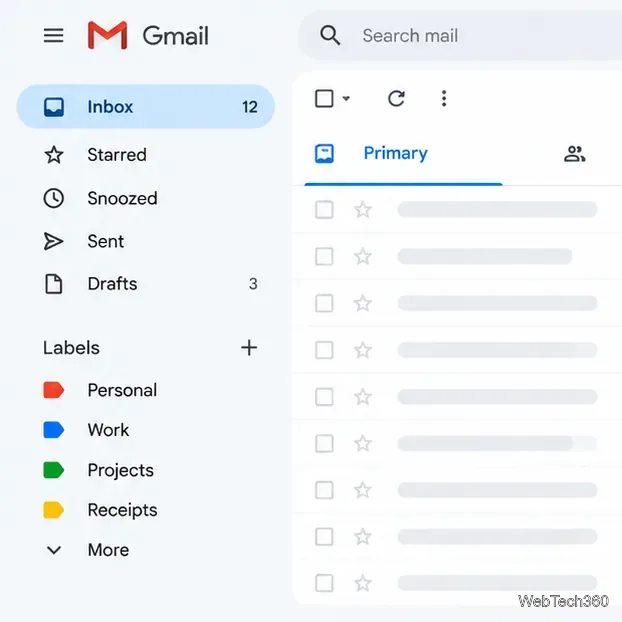
Gmail’s left navigation combines system folders with custom labels.
1. Show or hide labels in Gmail settings
This is the most direct way to control which labels appear in the sidebar. It is useful when a label is missing, or when you want to reduce clutter without deleting anything.
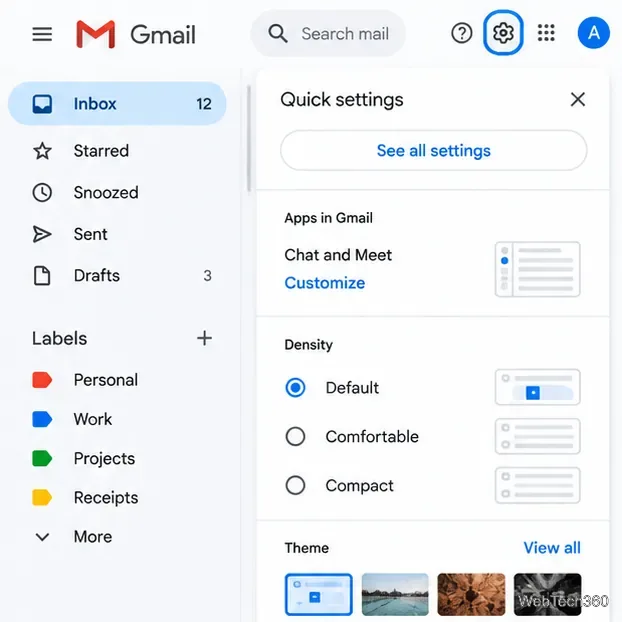
Click the Settings gear in the upper-right corner.
In the Quick settings panel, click See all settings.
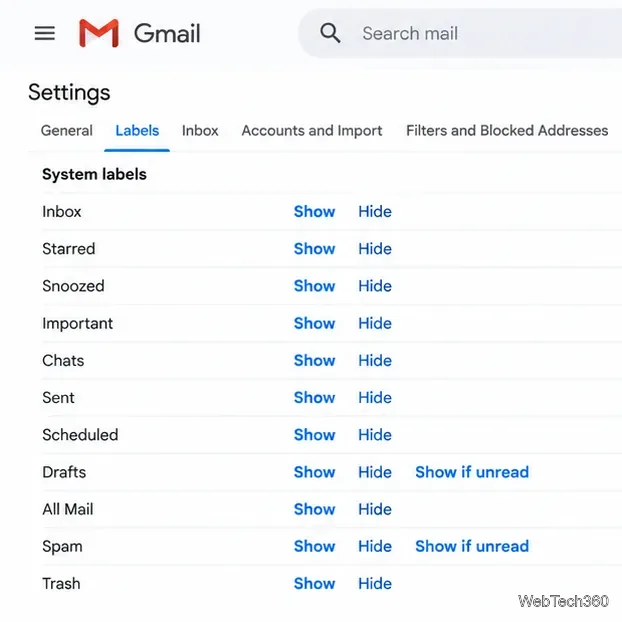
Open the Labels tab.
Find the label you want to adjust and choose Show or Hide in the “Show in label list” column. Depending on the label and account interface, you may also see Show if unread.
Return to the inbox and check the left navigation. If you changed a setting on a page that presents a Save Changes button, save before leaving that page.
Use See all settings to open Gmail’s full settings, including label visibility.
Show keeps a label in the navigation list; Hide removes it from that list, not the label itself or the messages carrying it. A setting such as “Show if unread” displays the label only when it contains unread mail, which can make it seem to disappear after you read everything. Google explains these controls in its official Gmail label management guide.
2. Move labels above or below More
The More entry divides the main navigation from additional items. Labels below it are still available; they simply remain collapsed until you expand More.
In the left sidebar, click More if the label you want to move is currently hidden beneath it.
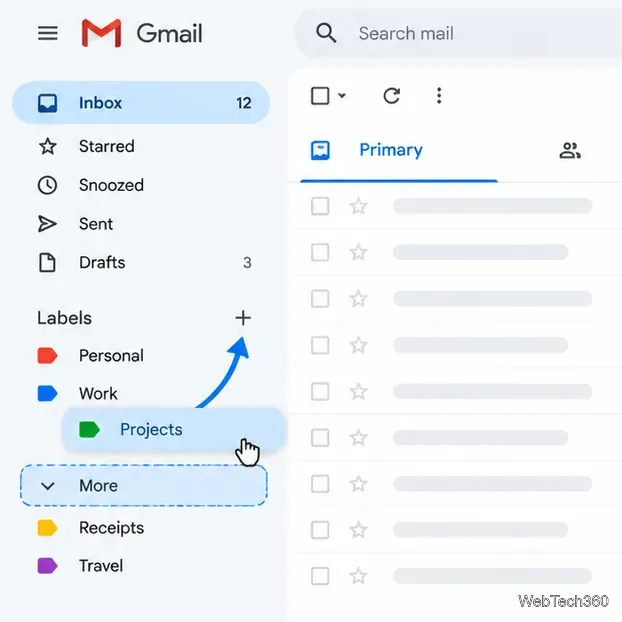
Drag the custom label to the position you want, either into the always-visible section above More or back into the section below it. If dragging is unavailable or difficult, use the label visibility controls in Settings instead.
Look for Gmail’s confirmation message after moving an item. If an Undo option appears, you can use it immediately if you moved the wrong label.
Move a custom label above More to keep it visible, or below More to reduce clutter.
This changes how the navigation is displayed; it does not move messages between labels, delete email, or change who can see your messages. Remember that Gmail labels are organizational tags rather than separate copies of a message. Learn more in Google’s official instructions for creating and managing labels.
3. Adjust built-in folders and special labels
Inbox, Starred, Snoozed, Sent, Drafts, Spam, and Trash are system labels, while labels you create are custom labels. Settings can let you choose whether supported system labels appear, but Gmail controls the standard ordering of built-in items. You generally cannot drag Spam or Drafts into any arbitrary position the way you might expect in a fully customizable menu.
The Labels settings tab is the reliable place to control visibility for supported system labels.
Custom labels are usually arranged alphabetically within their section rather than in a completely free-form order. If you want a custom label to appear earlier, consider giving it a meaningful name with a prefix, such as “01 Projects” or “Work — Clients.” Choose a naming scheme that remains understandable and searchable; avoid renaming labels solely to force an order if that would confuse your workflow.
4. Hide the entire sidebar when you need more room
If the goal is to see more of a message rather than reorganize labels, click the Main menu button (the three horizontal lines near the Gmail logo) to collapse the left navigation. Click it again to restore the sidebar. This is different from hiding individual labels: it temporarily collapses the whole navigation area. Google documents this option in its Gmail inbox layout help page.
Troubleshooting: a label still isn’t visible
Check the visibility setting. Open Settings > Labels and confirm that the label is set to Show rather than Hide.
Expand More. The label may be available in the collapsed section rather than removed.
Check “Show if unread.” A label with no unread messages may be hidden until new mail arrives.
Check available sidebar space. A crowded or narrow window can make the navigation harder to scan. Collapse other Gmail panels if they are enabled, or widen the browser window.
Confirm you are editing the right label. Hiding a label from the sidebar does not delete it; deleting a label is a separate action and should be avoided unless you intend to remove that label.
Which option should you use?
Use Settings > Labels to show or hide a label reliably.
Use More to keep less-used labels accessible without leaving them all expanded in the main list.
Use the menu button to collapse the whole sidebar temporarily.
Expect Gmail to control the order of its built-in folders; use clear names to help custom labels sort into a useful order.
These options let you simplify Gmail’s web interface while keeping your existing labels and email intact.