Home
» WEB
»
How to Enable the New Chrome Extensions Menu
How to Enable the New Chrome Extensions Menu
In current desktop versions of Chrome, the Extensions menu is built in. You normally do not have to enable a flag: click the puzzle-shaped Extensions button near the address bar to see installed extensions and pin the ones you want on the toolbar. The older Extensions Toolbar Menu flag mentioned in archived instructions was an experiment; its absence from chrome://flags is expected in modern Chrome.
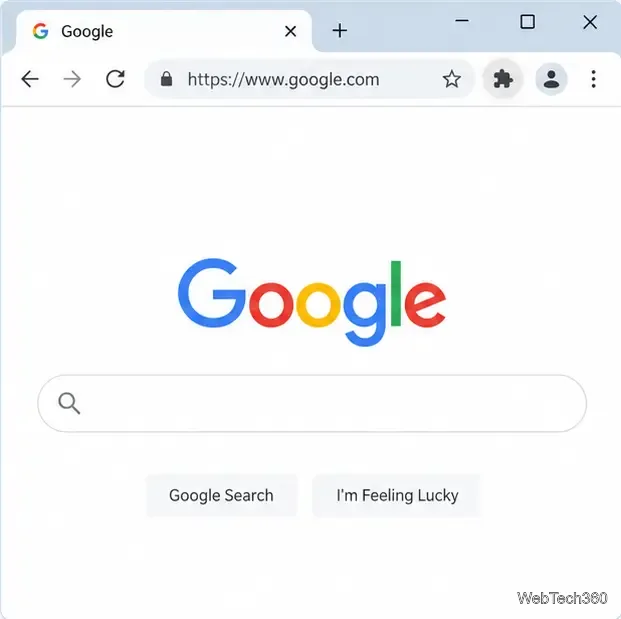
The Extensions button opens the menu for installed extensions.
Does the new Chrome Extensions menu still need to be enabled?
No. Chrome's current extension workflow uses the built-in Extensions button and menu. Google's current help explains how to show or hide an extension with Pin and Unpin, and how to manage an extension separately. You can read Google's instructions for installing and managing extensions.
The earlier flag path, chrome://flags/#extensions-toolbar-menu, belonged to an older rollout. Chrome flags are experimental switches, so their names and availability can change. You do not need to search for that setting or enable a similarly named flag to get the current menu. Google's Chrome flags guide describes flags as tools for trying experimental browser features.
Open the Extensions menu in Chrome
Update Chrome. Select the three-dot More menu, choose Help, then About Google Chrome. Let Chrome install any available update and relaunch the browser if it asks. Menu placement can vary slightly as Chrome updates.
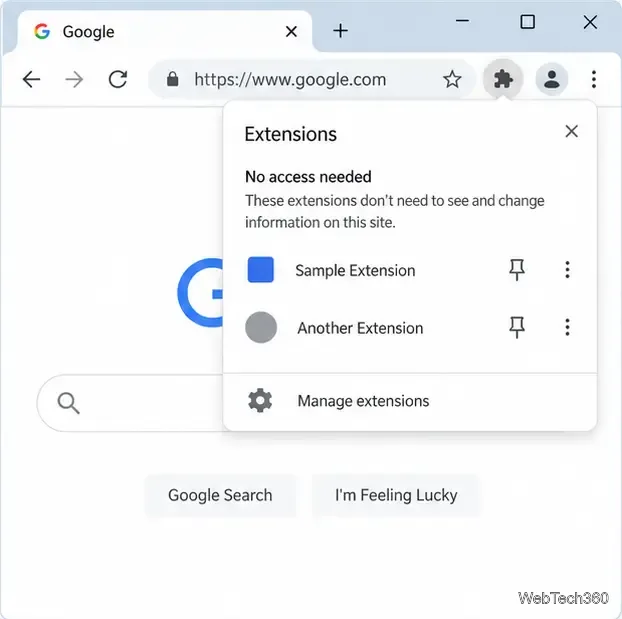
Open the menu. Select the puzzle-piece Extensions button to the right of the address bar. The popup lists extensions installed in the current Chrome profile. Select an extension's name or icon to open its own popup when that extension provides one.
The Extensions menu is a launcher and toolbar organizer. It does not replace an extension's options page, and it does not turn an extension on or off. For full controls, use the Extensions management page described below.
Each listed extension has its own pin control and menu.
Pin an extension to the toolbar
Select the Extensions button to open the popup.
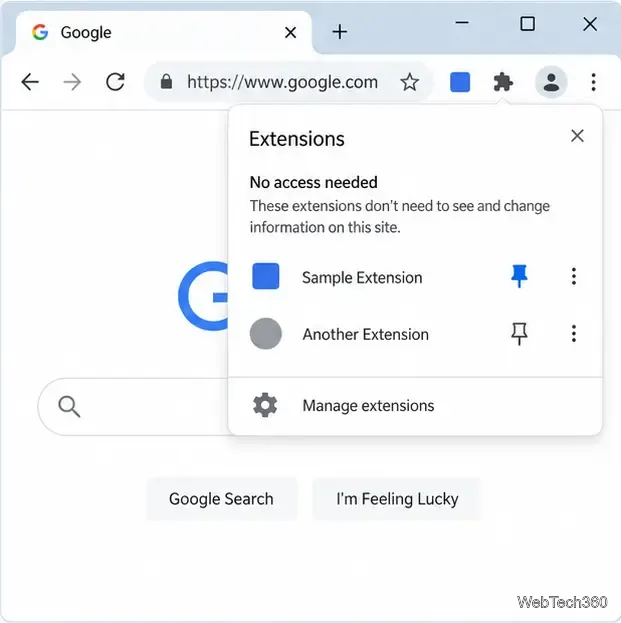
Find the extension you want to keep visible and select its Pin control. The extension's icon appears beside the address bar, where you can select it directly.
Repeat for other extensions you use often. You can drag pinned buttons along the toolbar to arrange their order.
Pinning only controls where an extension's button appears. It does not grant new permissions, enable a disabled extension, or install anything. An extension may not offer a toolbar button or pin control; Google notes that the option is not available for every extension.
A pinned extension stays visible beside the address bar.
Unpin an extension without removing it
To reduce toolbar clutter, right-click the extension's pinned icon and select Unpin. The icon leaves the toolbar, but the extension remains installed. Open the Extensions menu again to find it; if the menu offers Pin, select it to show the icon again. Unpinning is different from choosing Remove from Chrome, which uninstalls the extension.
Chrome also has toolbar controls in some current desktop releases. If the Extensions button itself is hidden, open More > More tools > Customize Chrome, then select Toolbar. Turn on the Extensions button if it appears in the available controls. You can also check More > Settings > Appearance for the toolbar customization option. See Google's desktop Chrome toolbar instructions for the current path.
Turn an extension on or off
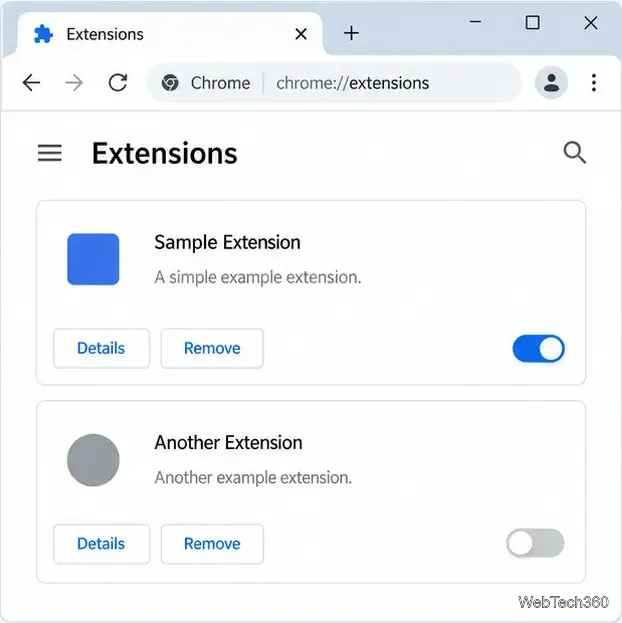
To change whether an extension runs, type chrome://extensions in the address bar and press Enter. Find the extension's card and use its switch. Turning it off keeps it installed but stops it from running; turning it back on restores its availability. Select Details for controls such as site access, or select Remove if you want to uninstall it.
The management page has the switches for enabling or disabling extensions.
If the Extensions button or a listing is missing
Check toolbar settings. Open Chrome's toolbar customization controls and make sure the Extensions button is enabled, if it is listed there. A disabled toolbar button can make the menu seem missing even while extensions remain installed.
Check the profile's installed extensions. Open chrome://extensions to see what is installed in the current profile and whether each item is enabled. Chrome profiles keep their own extension lists, so switching profiles can change what appears in the menu.
Check browser management. A work or school administrator can restrict extensions. If a setting is unavailable or an extension is marked as managed, contact the administrator rather than trying to override the policy.
Ignore missing old flags. If a guide tells you to enable Extensions Toolbar Menu but that flag is not present, it is an outdated instruction for current Chrome. Use the built-in menu and toolbar settings instead.
For additional help, use Google's extension management guide. It covers enabling or disabling extensions, arranging toolbar icons, changing permissions, and removing an extension.