How to Disable JavaScript in Chrome for One Tab or a Site
Learn how to disable JavaScript in Chrome temporarily with DevTools, block it for one site, or change the browser default, plus how to restore it.
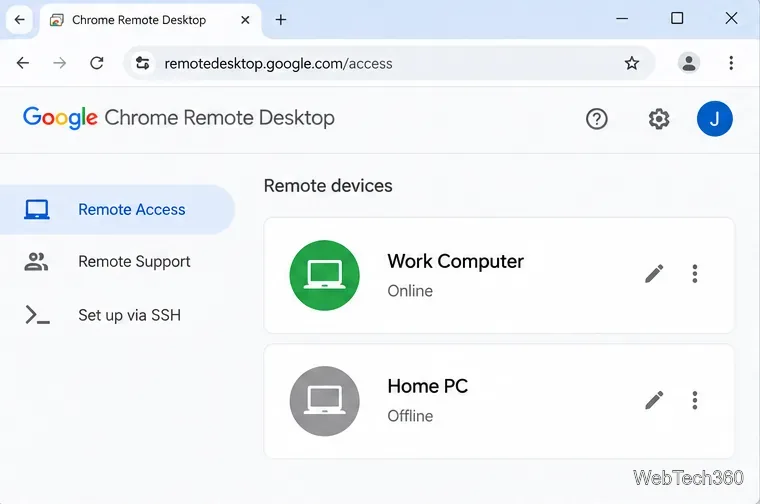
If Chrome Remote Desktop is not working, start by checking whether the remote computer appears online at Chrome Remote Desktop Remote Access. An offline computer usually points to a host, power, or network problem. If it appears online but will not connect, update Chrome, check host permissions, reset remote access, and then review firewall or administrator restrictions.
One important change from older tutorials: on a computer, Chrome Remote Desktop is now used through the web. Google’s current Chrome Remote Desktop help page directs users to remotedesktop.google.com/access or /support and installs the required host component during setup.
Open the Remote Access page and look at the computer you are trying to reach. If it shows Offline, make sure that computer is turned on, awake, and connected to the internet. Also confirm that the Chrome Remote Desktop page opens normally on both computers.
Google states that an internet connection is required to share or access a computer. If ordinary websites also fail to load, fix the network connection first. There is no need to rely on old platform-specific ping commands just to diagnose Chrome Remote Desktop.
Google recommends using the latest version of Chrome or ChromeOS for Chrome Remote Desktop. In Chrome, open More > Help > About Google Chrome. Chrome checks for an update on that page; choose Relaunch if an update is waiting. Google’s Chrome update instructions note that updates normally finish after the browser restarts.
If Chrome is already current, fully close and reopen it. If the remote computer still appears offline, restart that computer as well. This clears a stuck browser or host process without changing the remote-access configuration.
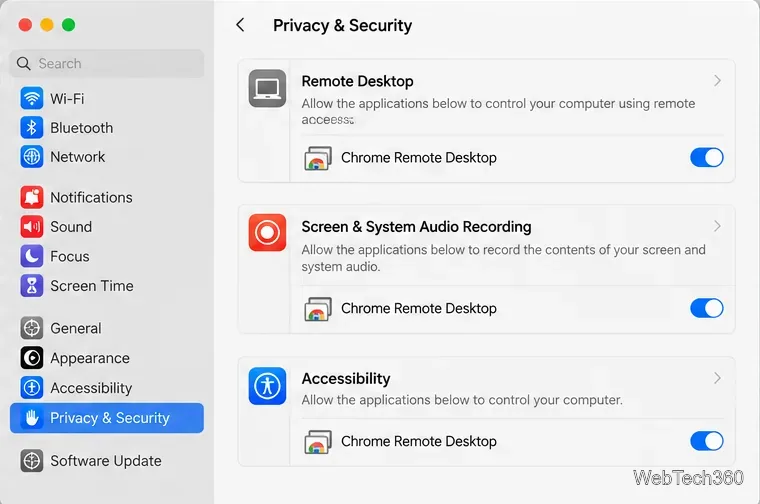
On macOS, Chrome Remote Desktop may prompt you to change security settings during setup. Open Apple menu > System Settings > Privacy & Security and review the permissions requested by Chrome Remote Desktop. Depending on the macOS version and the access being requested, relevant privacy areas can include Remote Desktop, Screen & System Audio Recording, and Accessibility. Apple documents these controls in its Remote Desktop privacy guide and screen-recording privacy guide.
If the host installation itself seems damaged, reinstall it. Google’s support page lists removal steps for Windows and Mac. After uninstalling, return to the Remote Access page, choose the setup/download option, and follow the prompts to install Chrome Remote Desktop again.
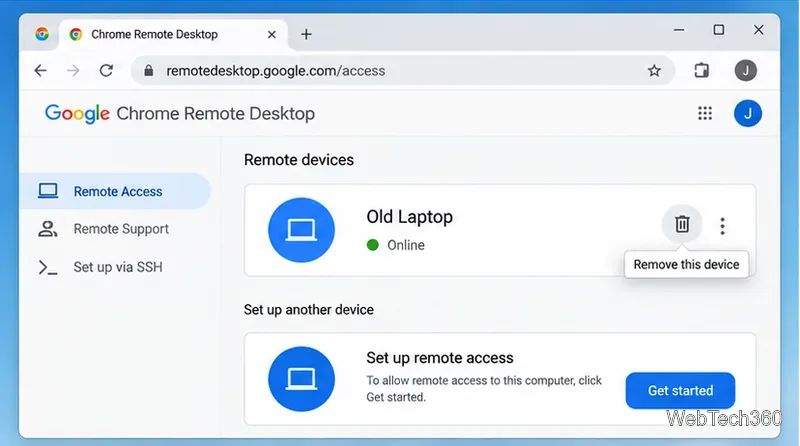
If the computer is listed but saved remote access keeps failing, reset that host configuration. On the remote computer, open the Remote Access page. Next to the computer, choose Disable remote connections or the remove control, then set up remote access again and create a new PIN.
Do this only while you have local access to the remote computer or another way to control it, because disabling remote connections removes the saved unattended-access entry until setup is completed again.
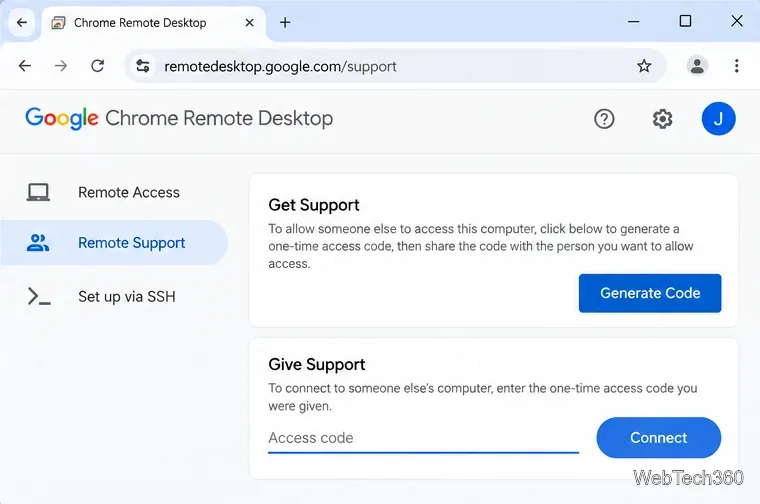
If unattended access with a PIN is still failing, use Remote Support as a diagnostic. On the computer that needs help, choose Generate Code under Get Support. On the assisting computer, enter that code under Give Support and connect. The person at the remote computer must approve the connection.
Google says the access code works only once. For longer support sessions, the person sharing the computer is periodically asked to confirm that sharing should continue. If a one-time support session works while saved Remote Access does not, resetting the saved host entry and PIN is a sensible next step.
Security software or a restrictive network can block Chrome Remote Desktop. Google’s troubleshooting guidance says antivirus and firewall rules must allow outbound UDP, inbound UDP responses, TCP port 443, and TCP and UDP port 3478 for STUN. On tightly controlled networks, Google also publishes a more detailed Chrome Remote Desktop network guide.
Do not permanently disable your firewall or antivirus just to make the connection work. Add only the required allow rules, or ask the network administrator to review them. If the computer is on a work or school network, Chrome Remote Desktop can also be restricted by organizational policy. In that case, contact the administrator rather than trying to bypass the restriction.
For most connection failures, the fastest order is: confirm the host is online, update and restart Chrome, verify permissions, reset the host entry, test with a one-time support code, and finally inspect firewall or managed-network rules.
Learn how to disable JavaScript in Chrome temporarily with DevTools, block it for one site, or change the browser default, plus how to restore it.
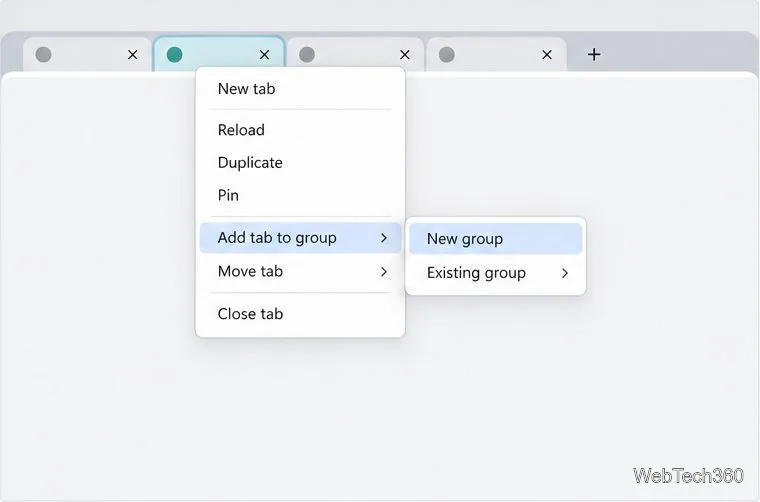
Organize related Chrome tabs into a group, then hide or reopen them with one click. See the current desktop steps, keyboard option, and what collapsing does.
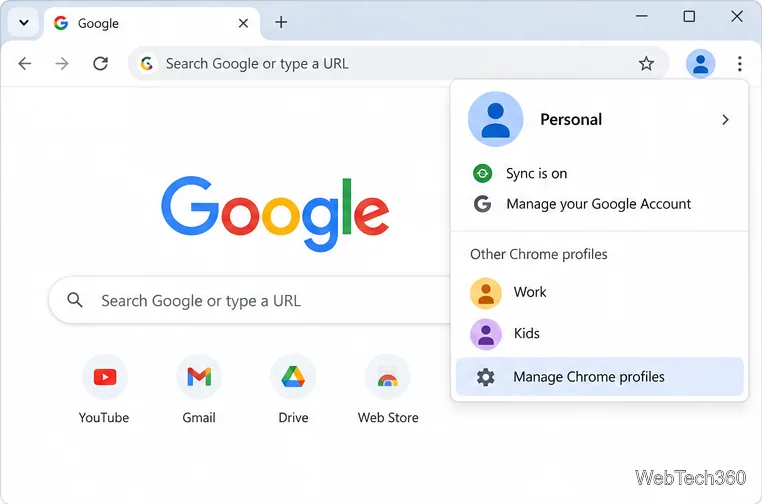
Rename a Chrome profile from its menu or profile manager, see what the label affects, and fix display delays without changing your Google Account name.
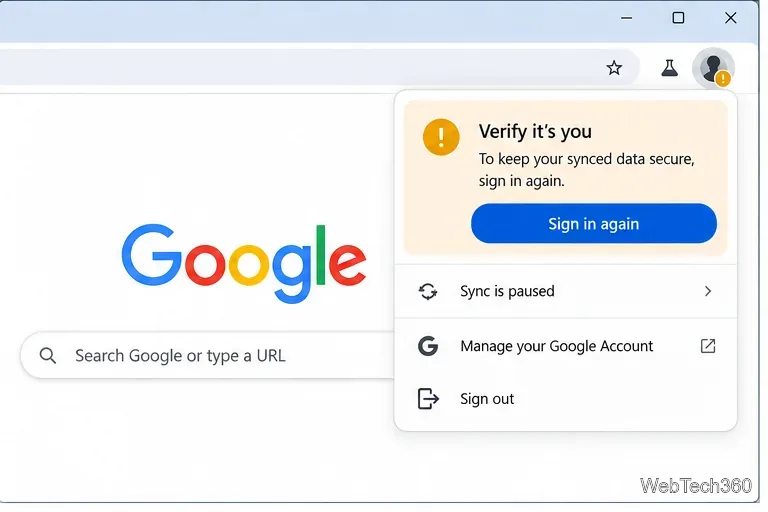
Fix Chrome sync pausing and repeated sign-in prompts by restoring account access, keeping site data, updating Chrome, and checking extensions or profiles.
Chrome Remote Desktop not working? Fix offline hosts, update Chrome, reset remote access, check permissions, firewall rules, and managed-network restrictions.
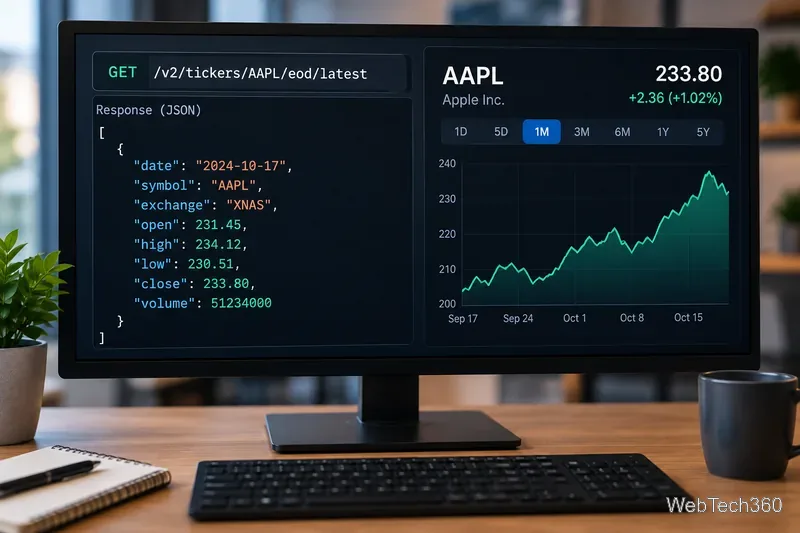
Marketstack review covering API v2, real-time and intraday data, historical coverage, pricing, limits, pros, cons, and who should use it.
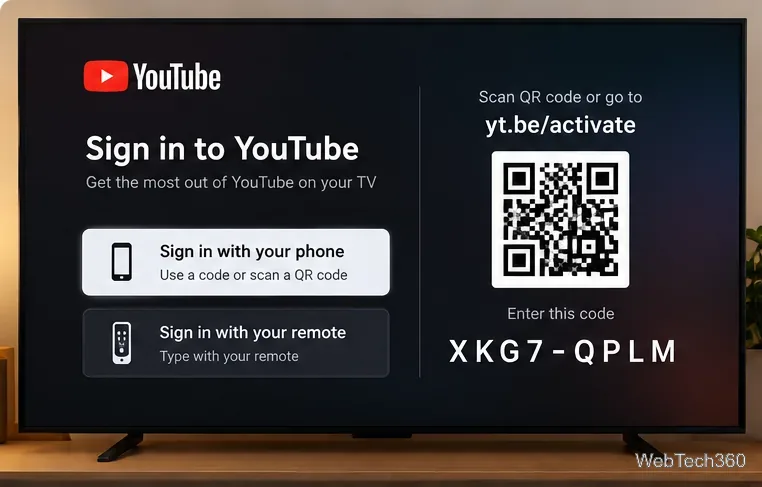
Learn how to activate YouTube at youtube.com/activate or yt.be/activate, enter your TV code, choose your Google Account, and fix sign-in problems.
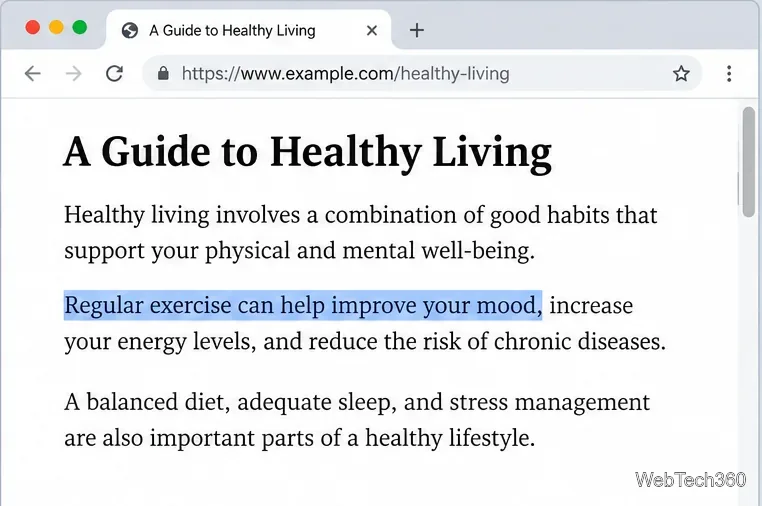
Learn how to link directly to selected text in Chrome with Copy link to highlight, how text-fragment URLs work, and what to do if a link fails.
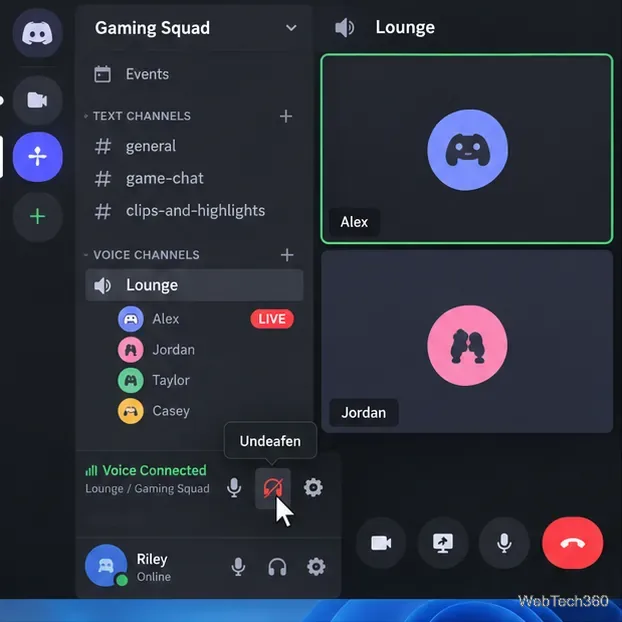
Can't hear anyone on Discord? Check Deafen and user volume, choose the right output device, reset Voice & Video, and fix Windows audio settings.
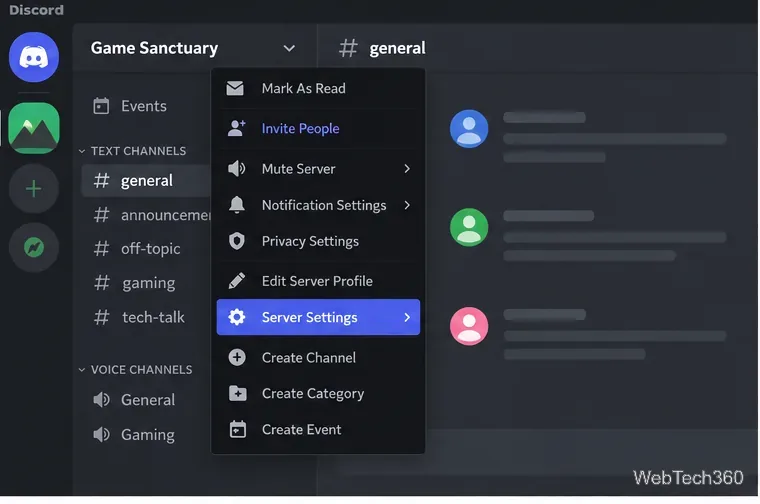
Learn how to add roles in Discord, change a role name, set permissions, assign or remove members, reorder roles, and delete roles safely.