Home
» WEB
»
How to Fix Chrome’s “This File Is Not Commonly Downloaded” Warning
How to Fix Chrome’s “This File Is Not Commonly Downloaded” Warning
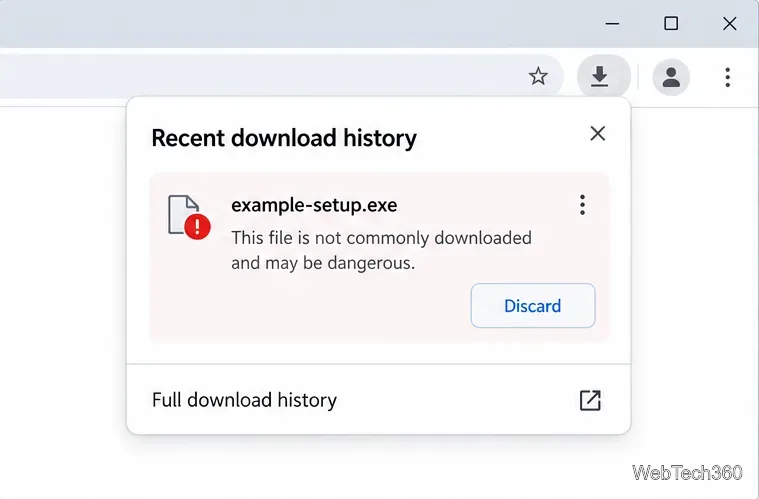
Chrome’s “This file is not commonly downloaded and may be dangerous” message means Safe Browsing considers the download unfamiliar or suspicious; it does not prove that the file is malware, and it does not prove that the file is safe. First verify the publisher and the exact download. If you cannot confirm both, choose Discard. If the source checks out and you accept the remaining risk, Chrome lets you override the warning for that file from Downloads.
Why Chrome shows the warning
Chrome’s download checks can warn about a file that is new or uncommon, a download that appears suspicious, or a file that Safe Browsing identifies as harmful. A warning can appear for a legitimate new release because Google has not yet built a safety reputation for it. But the same uncertainty means you should not treat the message as a harmless false positive. Compressed archives and password-protected files can also be difficult to inspect.
Google explains the different warning categories in its Chrome download safety guide. The warning is a security decision for a particular download, not a general Chrome setting that needs to be switched off.
How to handle the warning safely
1. Confirm that you have the right file and source
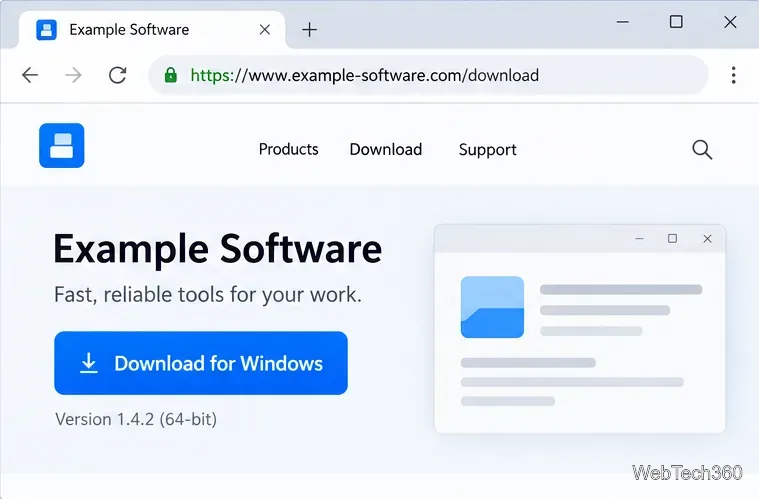
Close any unexpected download prompt and go directly to the software maker’s official site by typing its address or using a trusted bookmark. Check the full domain carefully; a familiar product name in a search result or page title is not enough. Confirm that the file name, version, and operating system match what you intended to download. HTTPS protects the connection, but it does not by itself prove that the site or file is trustworthy.
Check the publisher’s domain and the specific release before deciding what to do with the download.
2. Review the item in Chrome Downloads
Open Chrome’s More menu and choose Downloads, or select the Downloads icon near the address bar. Confirm the file name and warning text. If you did not expect the file, cannot verify its source, or see a stronger warning that Chrome identifies it as dangerous, choose Discard and stop. Do not follow a website’s instructions to disable security checks or ignore a malware warning.
If you cannot establish that the file is the one you intended to get, discard it.
3. Use Chrome’s download override only after verification
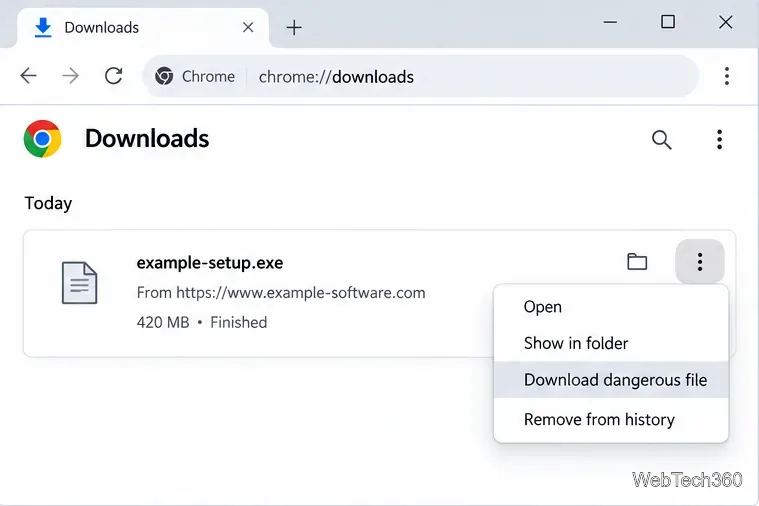
If the file is expected, the domain is the publisher’s real site, and the publisher confirms the release, open the item’s three-dot menu in Downloads and choose Download dangerous file if Chrome offers that option. This is a one-file override. It does not clear the warning for other downloads or certify this file as safe. Chrome’s wording and available actions can vary with the warning and browser version; if the override is unavailable, do not try to defeat the block by turning off Safe Browsing. Google’s instructions for downloading a warned file describe this menu path and caution that bypassing a warning is not recommended.
Use this menu option only after you have independently verified the file and publisher.
4. Scan and verify the file before opening it
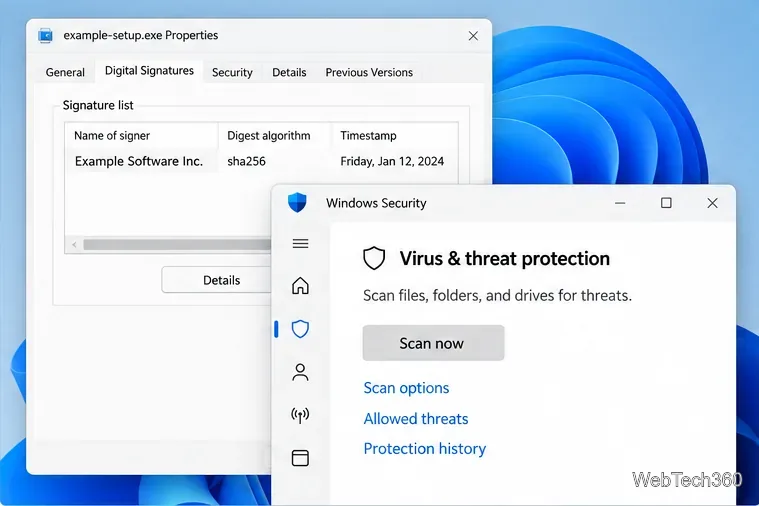
Leave the file unopened while you check it. On Windows, right-click it in File Explorer and select Show more options > Scan with Microsoft Defender (Windows 11 may hide the command in the extended menu). Microsoft also recommends scanning an individual file before use. If the publisher lists a SHA-256 checksum, compare it with the file’s value; in PowerShell, run:
Replace setup.exe with the file’s actual name. A matching checksum shows that the file matches the publisher’s published copy; it does not guarantee the software itself is harmless. If Windows shows a digital-signature tab, check that the signer is the publisher you expected. A detection from your security software, a mismatched checksum, or an unexpected signer is a reason to quarantine or delete the file, not to run it. A clean scan is useful but cannot guarantee safety.
You can also check a non-sensitive file with VirusTotal, but its documentation says submitted samples’ basic results are shared with examining partners. Do not upload personal documents, company files, or anything confidential. A disagreement among scanners is not proof that a file is safe.
Check the signer and scan the saved file before launching it; no scan can guarantee a file is harmless.
If the warning keeps appearing
Download a fresh copy from the publisher’s official page and repeat the checks; do not reuse a copy from a mirror or file-sharing link. If a legitimate release is still marked as uncommon, ask the software publisher to confirm the file and provide its official checksum. Chrome users cannot personally remove a file’s reputation warning. A site owner can review the download guidelines and the Uncommon downloads issue in Search Console, then request a security review after confirming the download is legitimate. Google says uncommon-download warnings can be lifted once Safe Browsing verifies the file.
For a publisher’s review steps, see Google’s Search Console Security Issues report. Keep Chrome Safe Browsing enabled: disabling it also disables download warnings and removes a layer of protection rather than fixing the download.