How to Disable JavaScript in Chrome for One Tab or a Site
Learn how to disable JavaScript in Chrome temporarily with DevTools, block it for one site, or change the browser default, plus how to restore it.
DNS_PROBE_FINISHED_NXDOMAIN means the browser asked DNS for a domain name and received an NXDOMAIN (“non-existent domain”) result. In practice, that can mean the address is misspelled or the site’s DNS is broken, but it can also be caused by a stale local DNS cache, a bad resolver, or network software that changes DNS traffic.
If only one site fails, check the address and the site first. If many unrelated sites fail on the same device or network, work through the fixes below in order.
DNS converts names such as example.com into IP addresses. The IETF defines NXDOMAIN as a response indicating that the queried domain name does not exist in DNS. You can read the technical definition in RFC 8020.
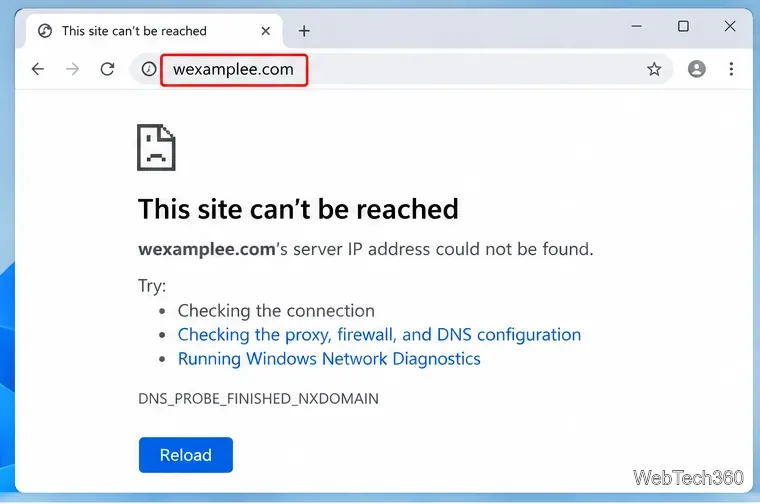
Retype the domain instead of relying on an old bookmark. Then open two or three unrelated sites. If everything else works, the problem is probably limited to that domain or its DNS records. If you own the site, check the registrar and authoritative DNS configuration rather than changing settings on every visitor’s device.
Also try the same domain in another browser. A second browser is useful for diagnosis, but it will not fix a genuine DNS failure.
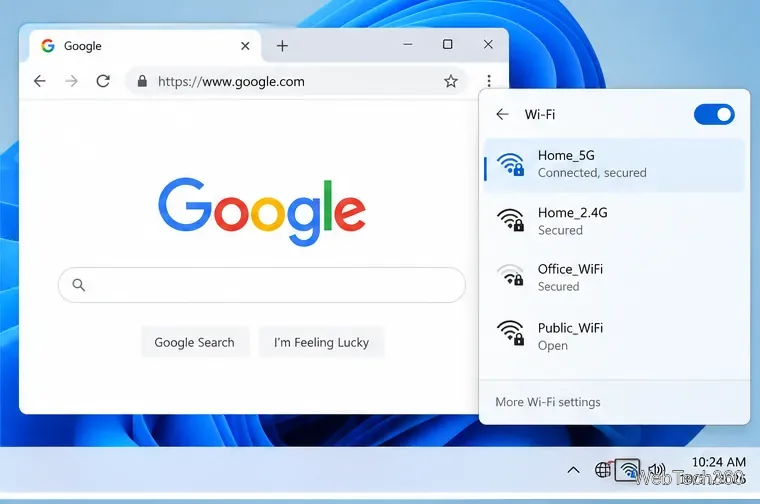
Disconnect and reconnect Wi-Fi, then restart the computer or phone and the modem/router if you control it. On public Wi-Fi, make sure you have completed any sign-in portal. You can also briefly test a phone hotspot: if the site works there, the original network or its DNS resolver is the likely cause. Google’s current Chrome guidance likewise recommends checking the internet connection and restarting network equipment for loading errors.
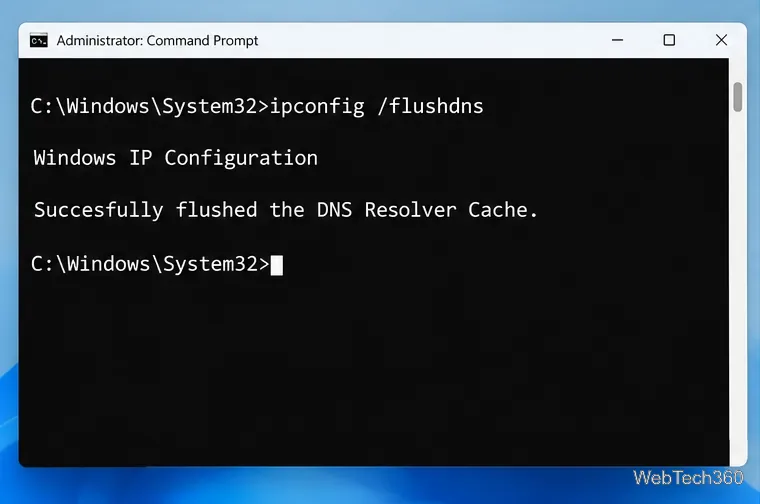
Windows can retain negative DNS answers in its resolver cache. Microsoft documents ipconfig /flushdns specifically for clearing that cache during DNS troubleshooting.
ipconfig /flushdns.If you also have an IP-address problem, ipconfig /renew can renew a DHCP configuration, but it is not required for every NXDOMAIN error. See Microsoft’s ipconfig documentation.
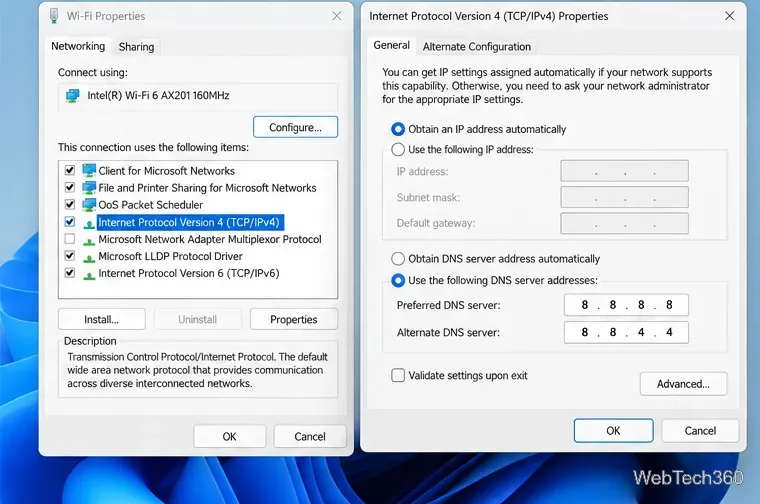
If your ISP or router resolver is returning bad results, temporarily switching resolvers is a useful test. Google Public DNS uses 8.8.8.8 and 8.8.4.4 for IPv4. Record your existing DNS settings first so you can restore them later. Google provides current instructions for Windows, macOS, iOS, Android, ChromeOS, and routers in its Public DNS setup guide.
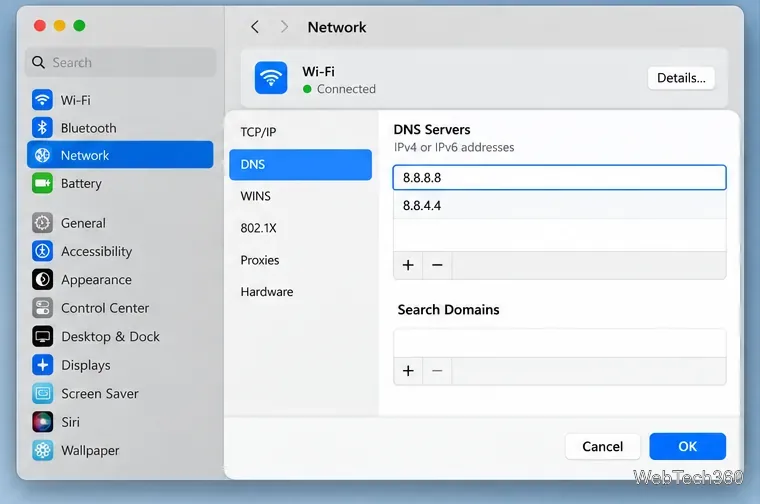
On current macOS releases, Apple’s path is System Settings > Network > your network service > Details > DNS. Apple documents adding or removing DNS servers in Mac network settings. On Android 9 or later, Google Public DNS can also be configured as Private DNS with the hostname dns.google.
On desktop Chrome, open More > Help > About Google Chrome, allow any update to install, and relaunch. Google’s Chrome update guide confirms that this page checks for updates.
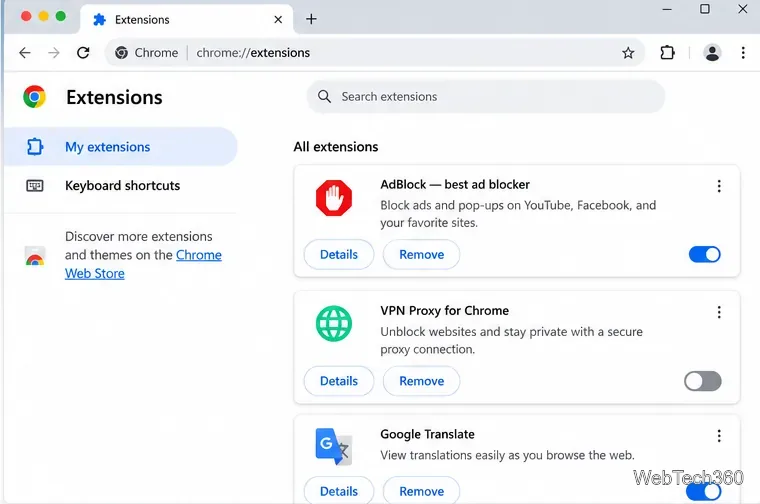
Next, try the site in an Incognito window. If it works there, disable extensions from More > Extensions > Manage extensions, then re-enable them one at a time. Google specifically recommends this sequence for connection and loading errors.
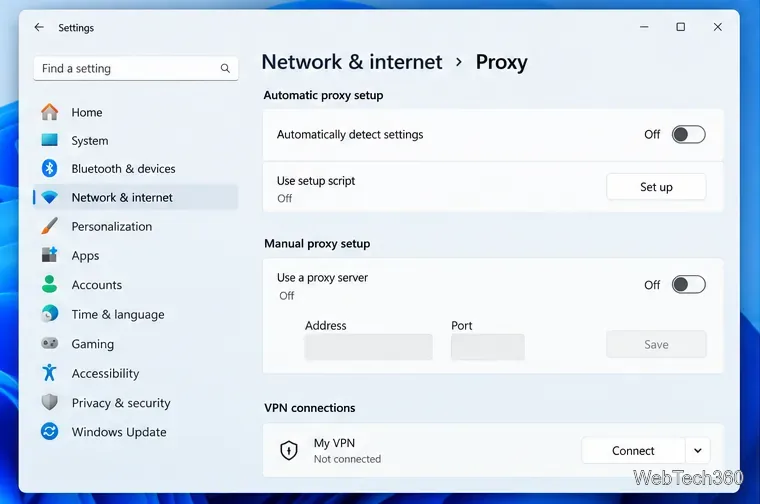
A VPN, proxy, filtering client, or security product can override the system resolver or route DNS through another service. Disconnect it briefly and test again. On Windows 11, proxy controls are under Settings > Network & internet > Proxy. If turning the software off fixes the error, correct its DNS or proxy configuration instead of leaving protection disabled permanently.
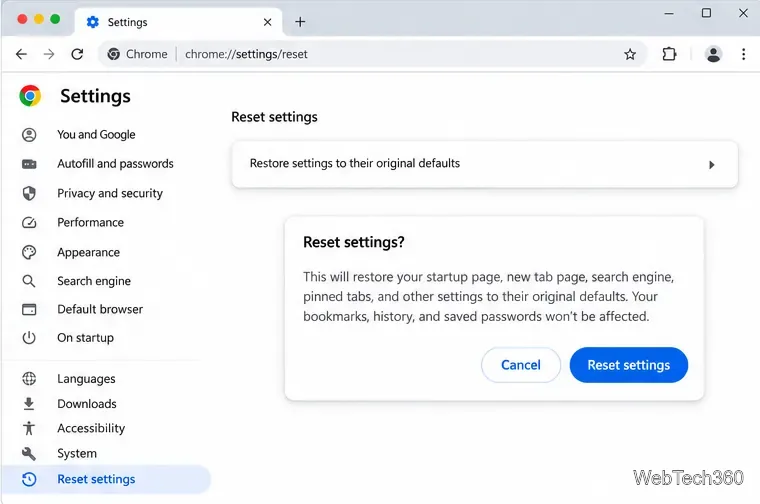
If other browsers work on the same device but Chrome still fails, reset Chrome from Settings > Reset settings > Restore settings to their original defaults. Google notes that bookmarks and saved passwords are not deleted by this reset, although settings such as extensions, the startup page, and content settings are restored. See the official reset instructions.
Do not downgrade Chrome, download an old browser from a mirror site, disable IPv6 at random, or turn off antivirus protection as a routine fix. Those steps can create security or connectivity problems without correcting the DNS cause.
If every device on one network gets NXDOMAIN for valid domains, contact the ISP or network administrator. If only one domain fails everywhere, the site owner or DNS provider needs to correct its records. If only one device fails after the steps above, review that device’s hosts file, DNS-management software, firewall rules, and network adapter configuration.
For Chrome-specific loading problems, Google’s connection and loading error guide is the best current reference for the browser-side checks.
Learn how to disable JavaScript in Chrome temporarily with DevTools, block it for one site, or change the browser default, plus how to restore it.
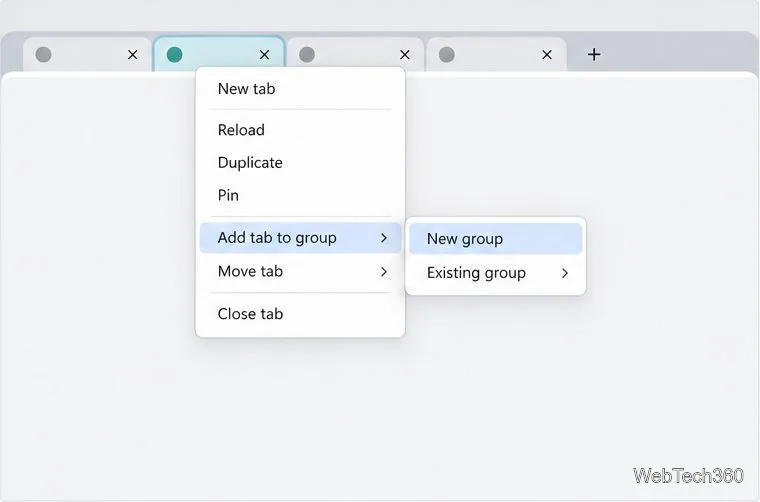
Organize related Chrome tabs into a group, then hide or reopen them with one click. See the current desktop steps, keyboard option, and what collapsing does.
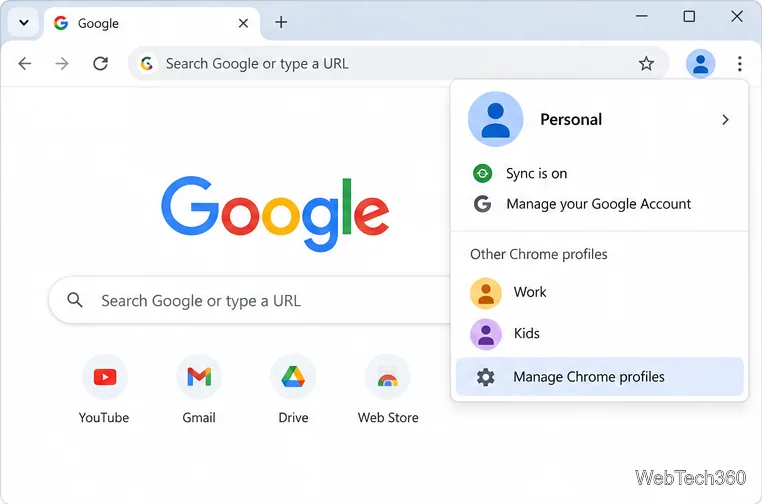
Rename a Chrome profile from its menu or profile manager, see what the label affects, and fix display delays without changing your Google Account name.
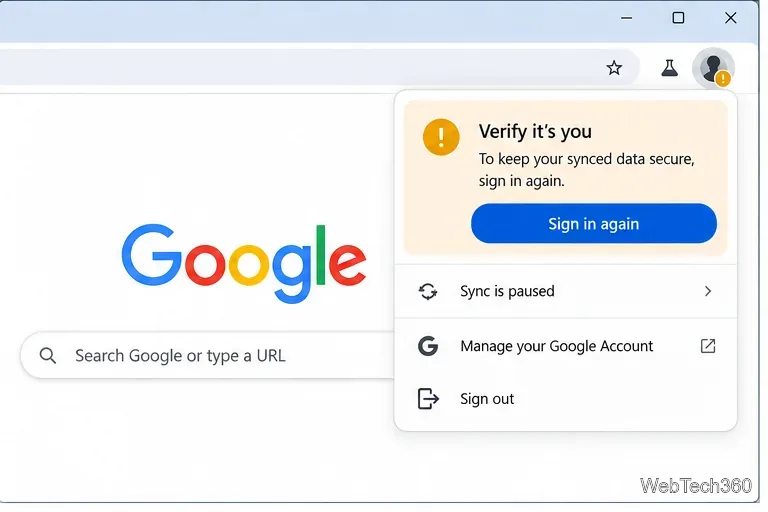
Fix Chrome sync pausing and repeated sign-in prompts by restoring account access, keeping site data, updating Chrome, and checking extensions or profiles.
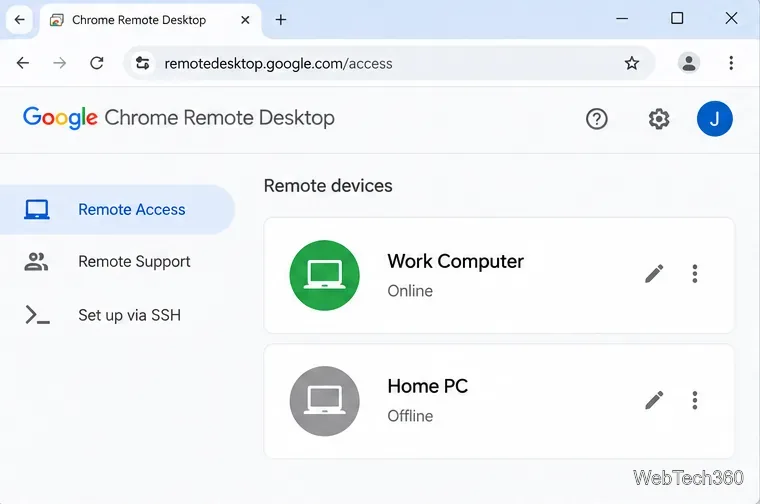
Chrome Remote Desktop not working? Fix offline hosts, update Chrome, reset remote access, check permissions, firewall rules, and managed-network restrictions.
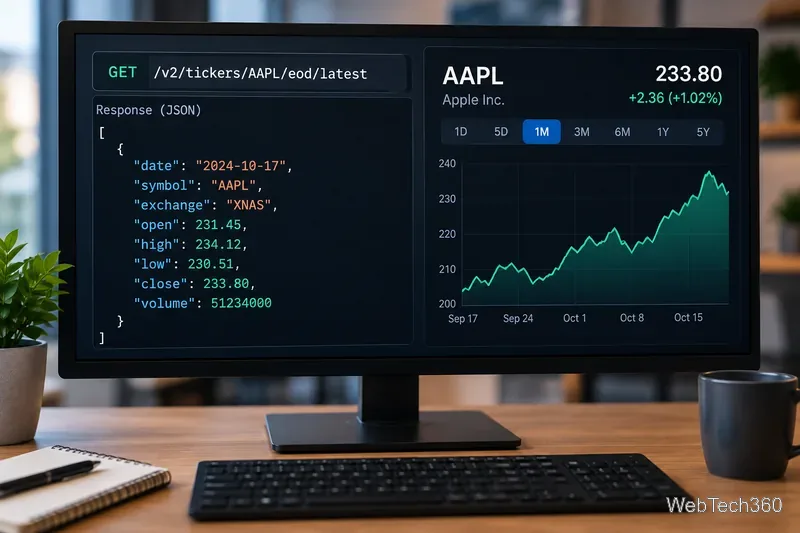
Marketstack review covering API v2, real-time and intraday data, historical coverage, pricing, limits, pros, cons, and who should use it.
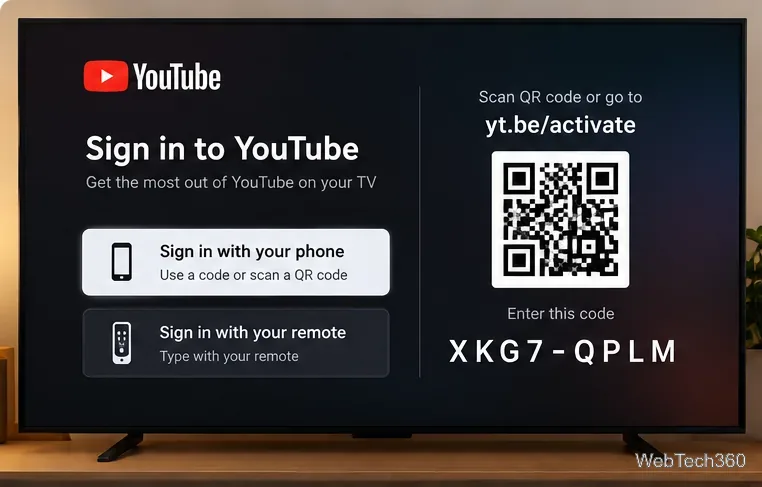
Learn how to activate YouTube at youtube.com/activate or yt.be/activate, enter your TV code, choose your Google Account, and fix sign-in problems.
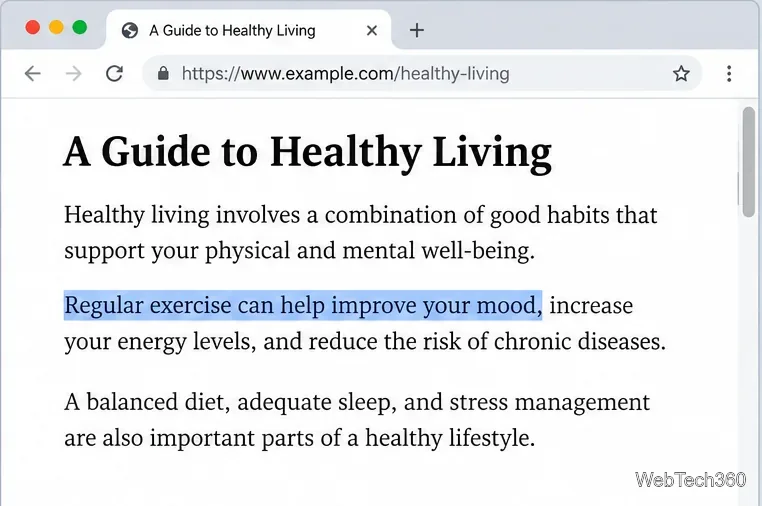
Learn how to link directly to selected text in Chrome with Copy link to highlight, how text-fragment URLs work, and what to do if a link fails.
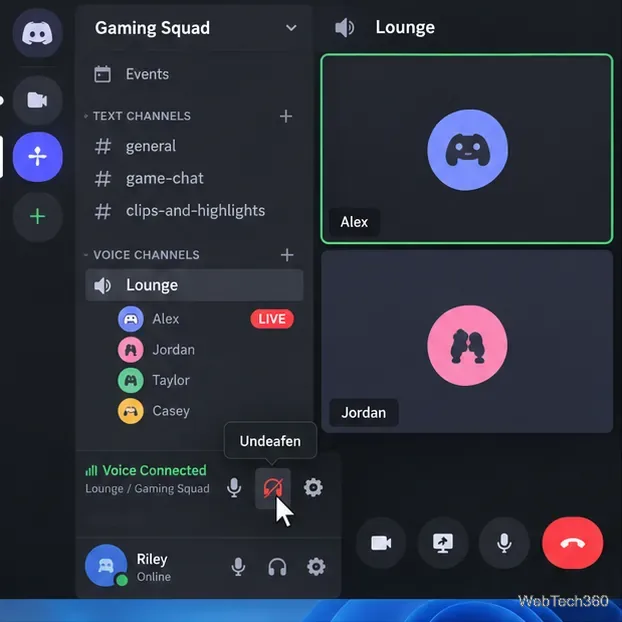
Can't hear anyone on Discord? Check Deafen and user volume, choose the right output device, reset Voice & Video, and fix Windows audio settings.
Learn how to add roles in Discord, change a role name, set permissions, assign or remove members, reorder roles, and delete roles safely.