Home
» WEB
»
How to Get Download-Complete Notifications in Chrome
How to Get Download-Complete Notifications in Chrome
Chrome already shows when a file finishes, but its built-in cue is the Downloads tray, not a separate desktop alert setting. When a download completes, Chrome opens the tray near the address bar. If you want a system notification while you are working in another app, add a Chrome extension that announces completed downloads and allow notifications for Chrome in your operating system.
Google’s current Chrome download instructions describe the tray as the normal completion indicator. The older advice to turn on an “Enable native notifications” flag is no longer a dependable setup path; Chrome’s current help does not list that flag as a download-alert control.
Check Chrome’s built-in completion indicator
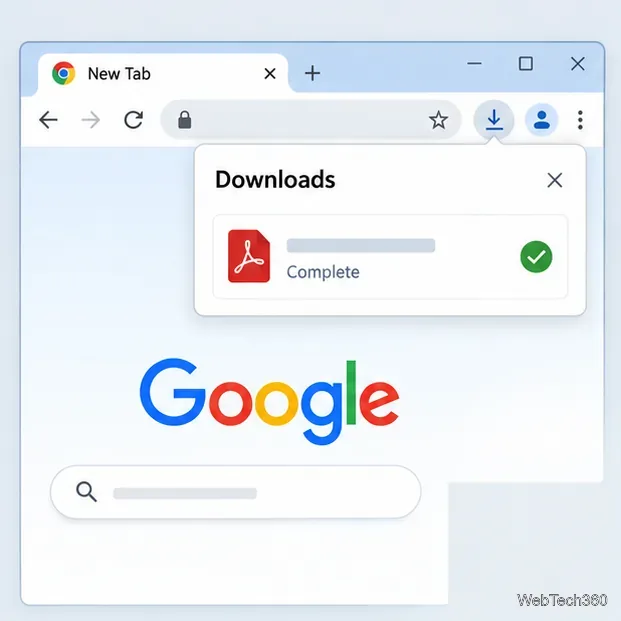
When a download starts, Chrome displays a progress icon to the right of the address bar. After it completes, the Download tray opens and shows the file. Click the file to open it, or point to its name to reveal actions such as showing it in its folder. If you missed the tray, open Chrome’s menu and choose Downloads, or go to chrome://downloads.
The Downloads tray is Chrome’s built-in visual cue when a file finishes.
This is enough if you only need a status you can check in Chrome. It does not create a persistent system banner or a completion sound. For a separate desktop notification, use the extension method below.
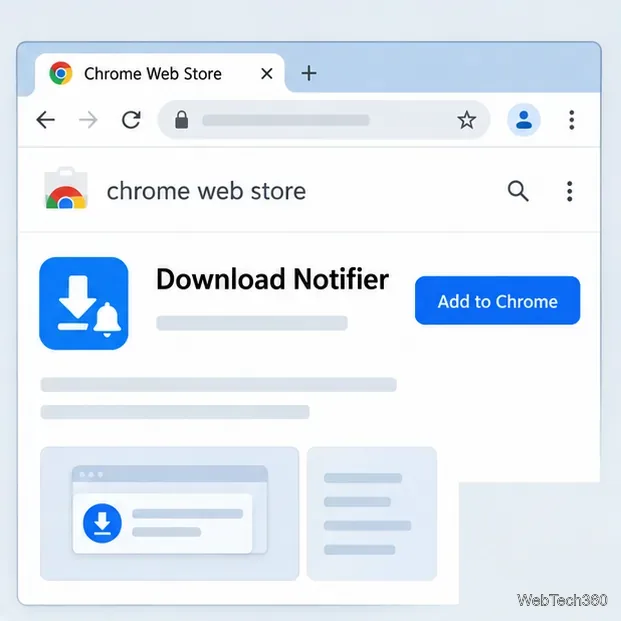
Select Add to Chrome and read the permission prompt before confirming. An extension that tracks a download’s state needs access to Chrome’s downloads information; the Chrome downloads API documentation explains the events extensions can use to detect a completed or interrupted download. Only continue if that access makes sense to you.
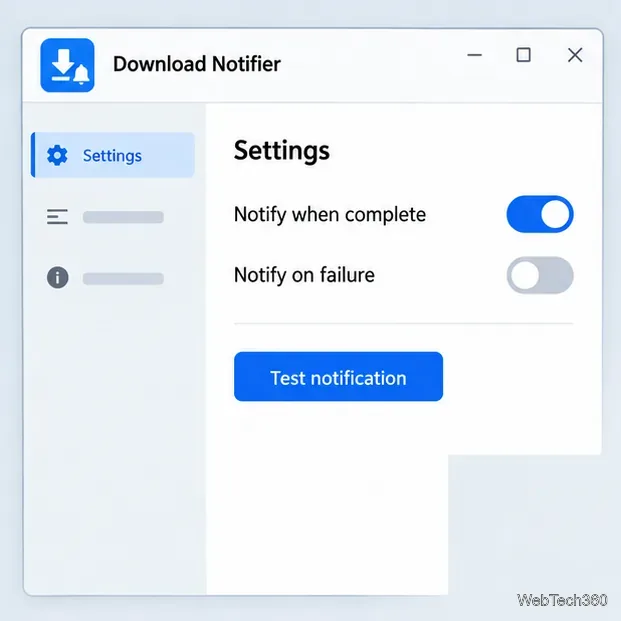
Open the extension’s settings from its toolbar menu or from chrome://extensions. Turn on completion alerts. The current store listing says completion and failure notifications can be toggled separately and includes a test-notification control. Use that test before relying on alerts.
Confirm you have the intended extension on its Chrome Web Store listing before adding it.Enable completed-download alerts, then send a test notification from the extension’s settings.
Review the listing carefully: at the time of this rewrite, it showed no user ratings. Its privacy section contains the developer’s disclosure about data handling; that is a developer statement, so read it alongside the permissions Chrome presents before you install.
Allow Chrome notifications in your operating system
An extension can be configured correctly and still appear silent if your computer blocks Chrome’s notifications or suppresses banners. Chrome’s site-notification setting is separate: it controls alerts from websites, not the operating system permission for an extension’s system notification. Google’s Chrome notification help explains the distinction between website, app, and extension notifications.
Windows 11: open Start > Settings > System > Notifications. Turn notifications on, select Google Chrome under notifications from apps, and allow banners or sound if you want them. Check that Do not disturb is off while testing. You can review missed alerts in Notification Center with Windows+N. See Microsoft’s Windows notification instructions.
macOS: open Apple menu > System Settings > Notifications, select Google Chrome, and enable Allow notifications. Choose a notification style and check that a Focus mode is not silencing alerts. Apple documents these controls in Notifications settings on Mac.
Linux: check the notification permissions and Do Not Disturb setting in your desktop environment; the menu names vary by distribution.
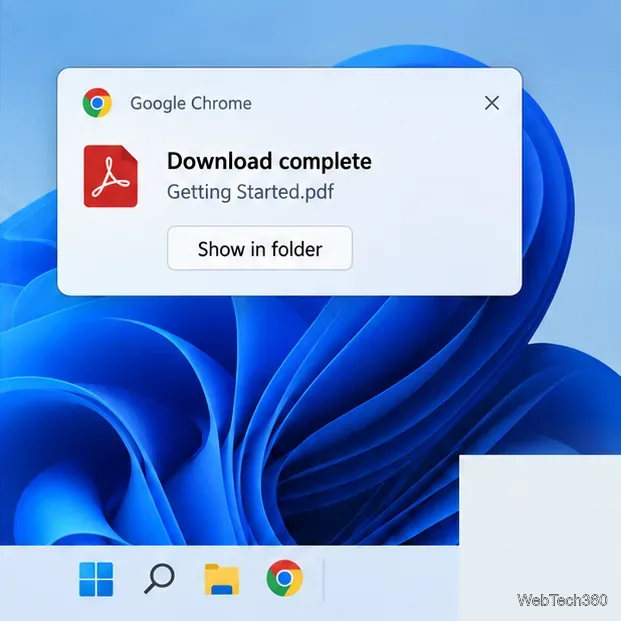
A system alert can identify the finished file and offer a shortcut to its folder.
Test it and fix missed alerts
Send the extension’s test notification. If it does not appear, recheck Chrome’s notification permission and your system’s banner, Focus, or Do Not Disturb settings.
Download a small, trusted file in a regular Chrome window. Private browsing does not deliver Chrome notifications, so do not use an Incognito window for this test.
If the test alert works but a real download does not, open chrome://downloads. Confirm the file says it is complete rather than interrupted, paused, or waiting for a safety decision, and make sure the extension is enabled at chrome://extensions.
If you only need to see whether a download finished, use Chrome’s Downloads tray and avoid installing an extension. If you specifically want a system alert, the extension plus operating-system notification permission is the current practical route.