How to Disable JavaScript in Chrome for One Tab or a Site
Learn how to disable JavaScript in Chrome temporarily with DevTools, block it for one site, or change the browser default, plus how to restore it.
Quick answer: a hard refresh reloads the current page while bypassing cached page files, which can fix stale layouts, old JavaScript, missing images, or a page that still shows an earlier version. It is less disruptive than clearing all browsing data because it does not normally erase your history, saved passwords, or cookies.
| Browser | Windows / Linux | macOS |
|---|---|---|
| Google Chrome | Ctrl + Shift + R | Command + Shift + R |
| Microsoft Edge | Ctrl + Shift + R or Shift + F5 | Command + Shift + R |
| Mozilla Firefox | Ctrl + F5 or Ctrl + Shift + R | Command + Shift + R |
| Opera | Ctrl + F5 | Command + Shift + R |
| Safari | Not applicable | Option + Command + R (Reload Page From Origin) |
On some laptops, an F-key shortcut may also require the Fn key. If a shortcut has been reassigned by your operating system or keyboard software, use the browser's menu or reload control instead.
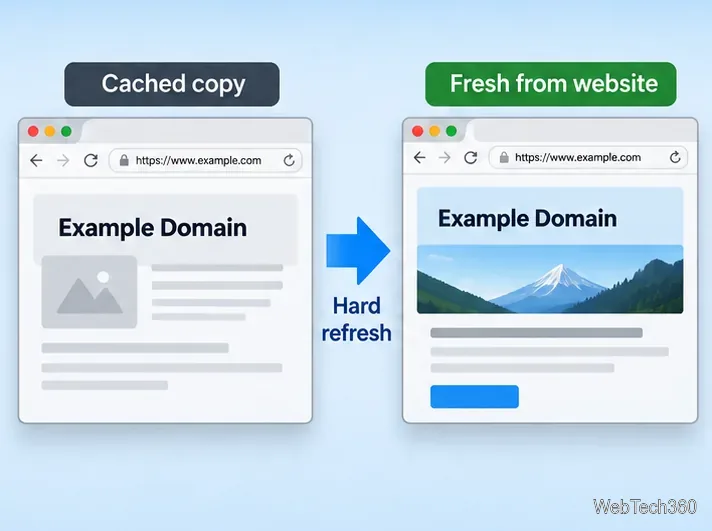
A normal reload can reuse files already stored in the browser cache. A hard refresh, also called a forced reload or reload that overrides cache, tells the browser to bypass those cached copies for the reload. Google describes Chrome's Hard Reload as bypassing the cache without emptying it, while Microsoft Edge and Firefox describe their equivalent actions as reloading while ignoring or overriding cached content.
This is useful when a website has just changed its CSS, JavaScript, images, or other static files but your tab still shows an older version. A hard refresh is not the same as clearing all browser data, and it does not fix content that is stale on the website's server or CDN.
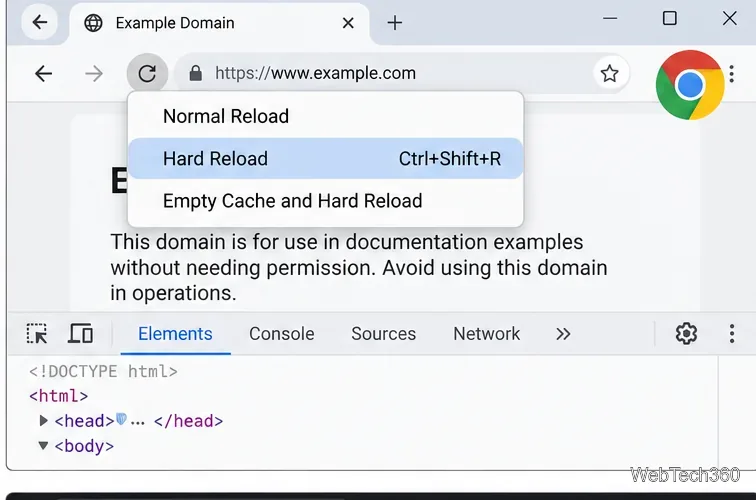
On Windows or Linux, open the affected page and press Ctrl + Shift + R. On a Mac, press Command + Shift + R. Google lists these as the Hard Reload shortcuts in Chrome DevTools documentation.
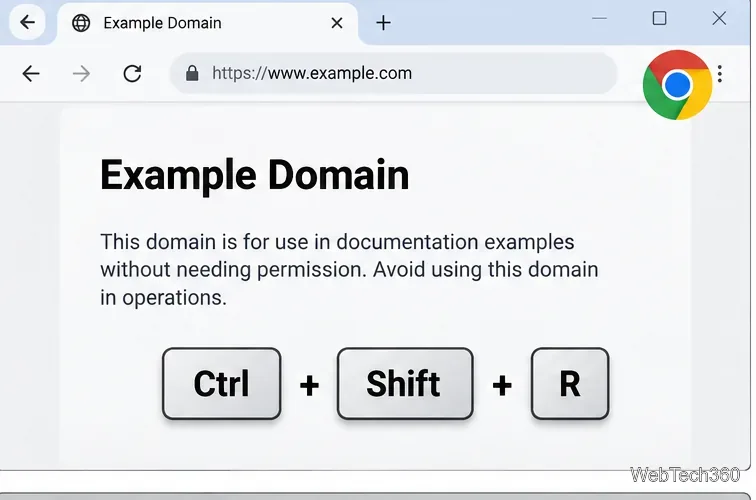
Chrome notes that the special reload menu is available when DevTools is open. See Google's Chrome DevTools reload documentation.
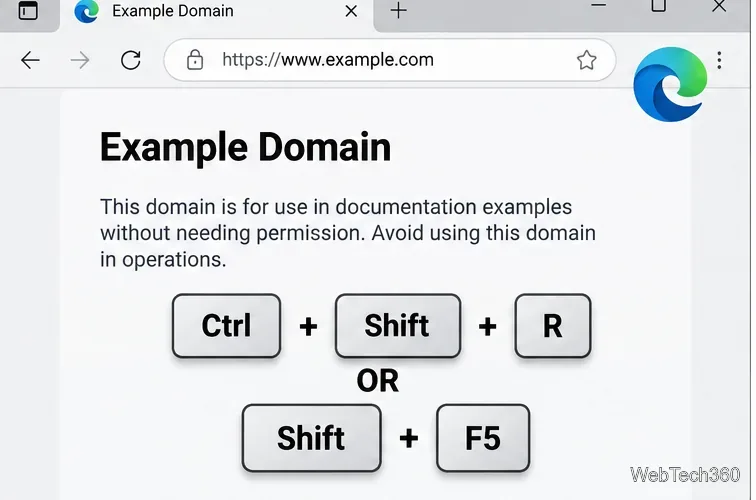
In Edge on Windows or Linux, use Ctrl + Shift + R or Shift + F5. On macOS, use Command + Shift + R. Microsoft identifies these commands as reloading the current page while ignoring cached content in its official Edge keyboard shortcut list.
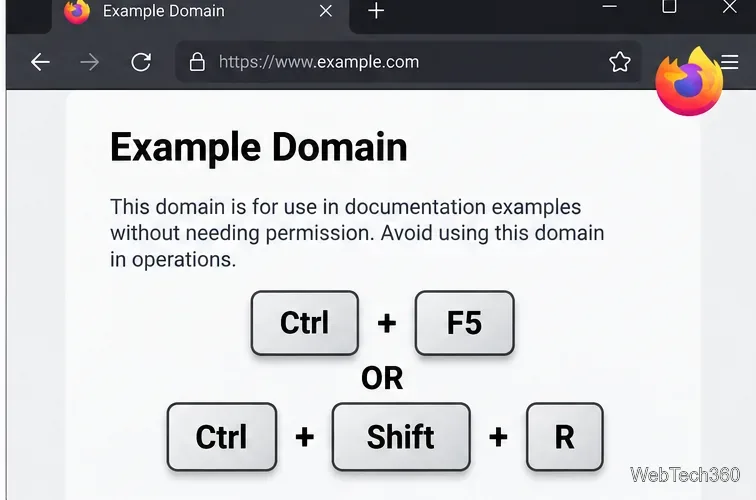
Firefox supports Ctrl + F5 or Ctrl + Shift + R on Windows and Linux, and Command + Shift + R on Mac. You can also hold Shift while clicking the Reload button. Mozilla calls this action Reload (override cache) in its Firefox keyboard shortcuts documentation.
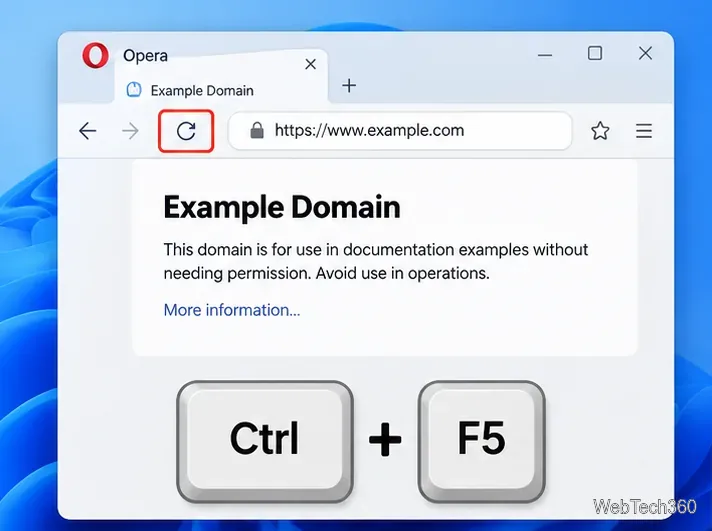
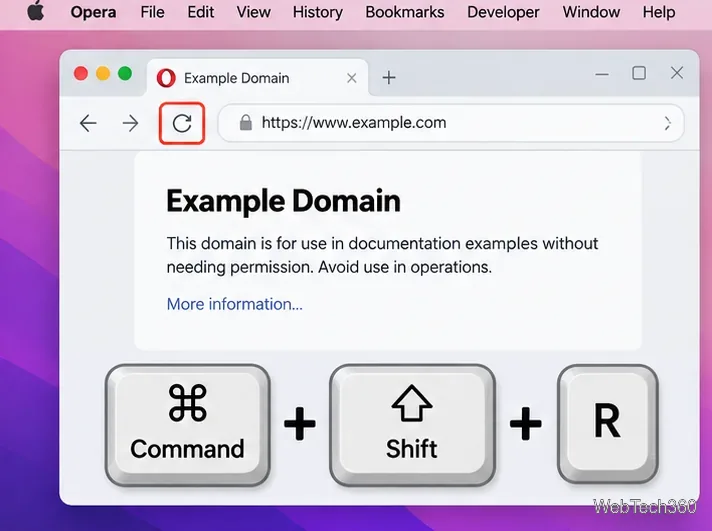
Opera's official troubleshooting guidance says to use Ctrl + F5 on Windows or Linux and Command + Shift + R on Mac. You can also hold Shift and click the Reload button. These methods are listed in the Opera Help FAQ under cache troubleshooting.
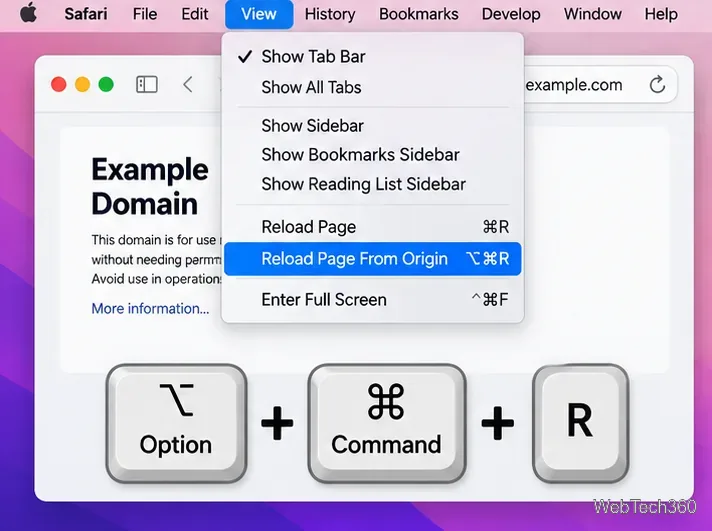
In Safari, use Option + Command + R to reload the page from its origin. You can also open the View menu and choose Reload Page From Origin. Apple documented this command as a reload without using cached resources when it introduced the feature; WebKit continues to expose a reload-from-origin behavior for revalidating webpage content. For a normal Safari reload, use Command + R.
See Apple's Safari release note for Reload Page From Origin and current Safari reload troubleshooting guidance.
For most stale-page problems, start with a normal reload, then try a hard refresh. Clear broader browsing data only if the targeted refresh does not solve the issue.
Learn how to disable JavaScript in Chrome temporarily with DevTools, block it for one site, or change the browser default, plus how to restore it.
Organize related Chrome tabs into a group, then hide or reopen them with one click. See the current desktop steps, keyboard option, and what collapsing does.
Rename a Chrome profile from its menu or profile manager, see what the label affects, and fix display delays without changing your Google Account name.
Fix Chrome sync pausing and repeated sign-in prompts by restoring account access, keeping site data, updating Chrome, and checking extensions or profiles.
Chrome Remote Desktop not working? Fix offline hosts, update Chrome, reset remote access, check permissions, firewall rules, and managed-network restrictions.
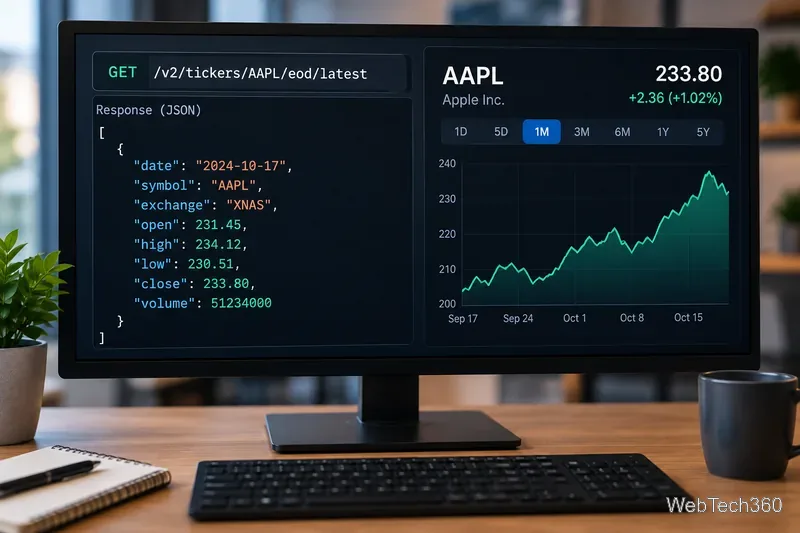
Marketstack review covering API v2, real-time and intraday data, historical coverage, pricing, limits, pros, cons, and who should use it.
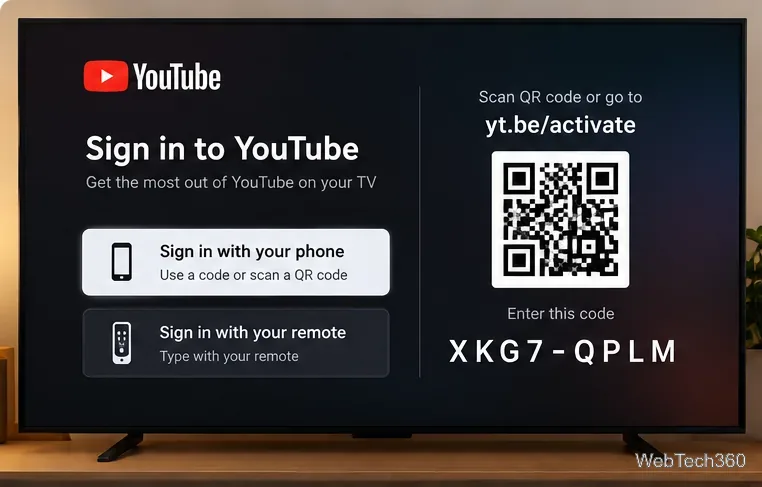
Learn how to activate YouTube at youtube.com/activate or yt.be/activate, enter your TV code, choose your Google Account, and fix sign-in problems.
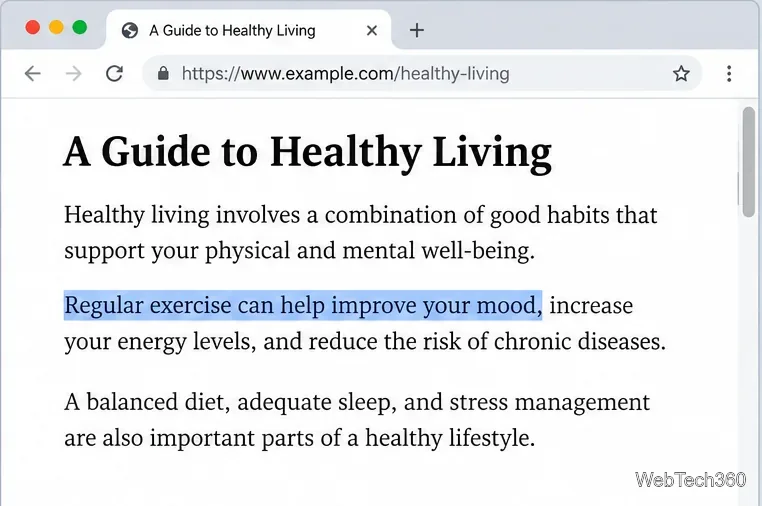
Learn how to link directly to selected text in Chrome with Copy link to highlight, how text-fragment URLs work, and what to do if a link fails.
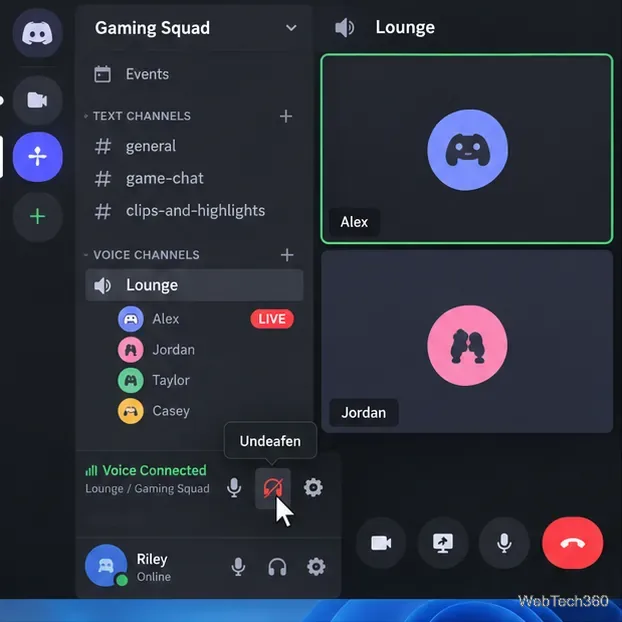
Can't hear anyone on Discord? Check Deafen and user volume, choose the right output device, reset Voice & Video, and fix Windows audio settings.
Learn how to add roles in Discord, change a role name, set permissions, assign or remove members, reorder roles, and delete roles safely.