How to Disable JavaScript in Chrome for One Tab or a Site
Learn how to disable JavaScript in Chrome temporarily with DevTools, block it for one site, or change the browser default, plus how to restore it.
Chrome does not have a separate switch that colors only the active tab. The quickest fix is to apply a theme with a strong difference between selected and background tabs. For example, the Chrome Web Store listing for White and Black Theme for Google Chrome describes a white active tab against black background tabs. That makes the selected tab easier to spot at a glance. These steps are for desktop Chrome. A theme changes the browser frame and New Tab page, not the colors inside websites, as Chrome Web Store Help explains.
Chrome themes are applied from the browser’s Appearance settings or from the customization panel on a New Tab page. The steps below use the theme gallery so you can inspect a listing before installing it.
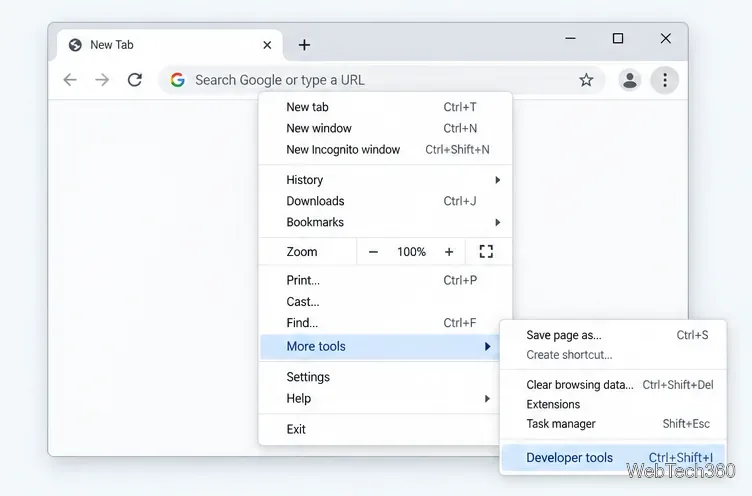
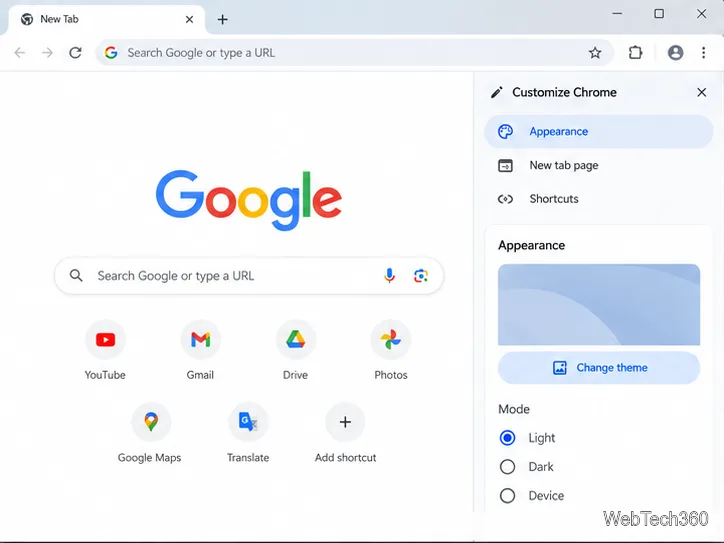
In Chrome, select the three-dot More menu > Settings > Appearance > Themes to open the Web Store gallery. Or, from a New Tab page, select Customize Chrome > Appearance > Change theme. The current paths appear in Chrome’s theme instructions and its New Tab customization guide.
Search for a high-contrast theme and check its description before installing it. The example listing says the active tab is white and background tabs are black. Do not choose by label alone: some dark themes use nearly the same shade across every tab. If the preview does not show the tab strip, choose a listing that identifies the active and inactive colors.
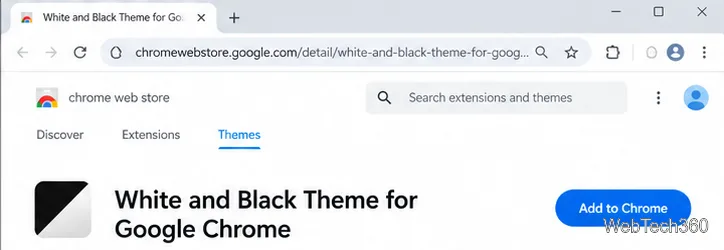
On the theme’s Chrome Web Store page, select Add to Chrome and confirm if prompted. The theme applies immediately; no restart is needed. Open several tabs and click between them: the white tab should follow the selected page while inactive tabs remain dark. If the contrast is hard to read, return to the gallery and try another theme.
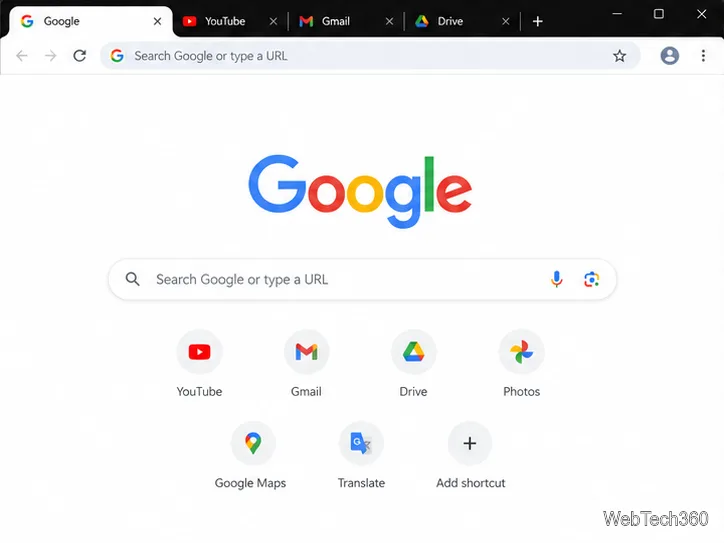
A theme affects Chrome’s interface, including the tab area and New Tab background. It does not change website text, colors, or content. A theme helps when the tabs themselves blend together, but it will not fix a low-contrast page. Because it changes more than the active tab, also check the toolbar and tab titles for readability.
For an overall color change without a full store theme, open a New Tab page and select Customize Chrome > Appearance. Choose an available browser color or mode; Chrome may suggest colors that pair with the selected theme or background. These controls change the browser palette, but the documented panel has no separate active-tab color picker. If the active tab still blends in, choose a theme that explicitly distinguishes active and background tabs.
To remove the theme, open More > Settings > Appearance and select Reset to default. Chrome returns to its classic theme. Immediately after installation, you can also select Undo. Both options are covered in the official instructions for removing Chrome themes.
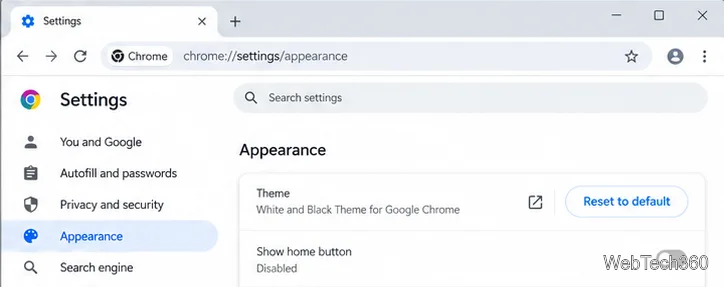
Chrome’s documented appearance controls have no dedicated active-tab toggle. The simplest option is a theme that clearly distinguishes active from inactive tabs. Exact custom colors require a theme package; the Chrome theme developer documentation describes that advanced route.
Learn how to disable JavaScript in Chrome temporarily with DevTools, block it for one site, or change the browser default, plus how to restore it.
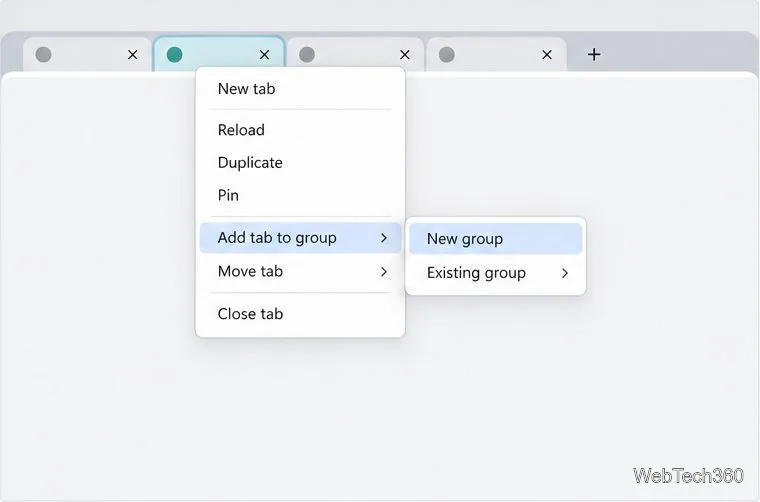
Organize related Chrome tabs into a group, then hide or reopen them with one click. See the current desktop steps, keyboard option, and what collapsing does.
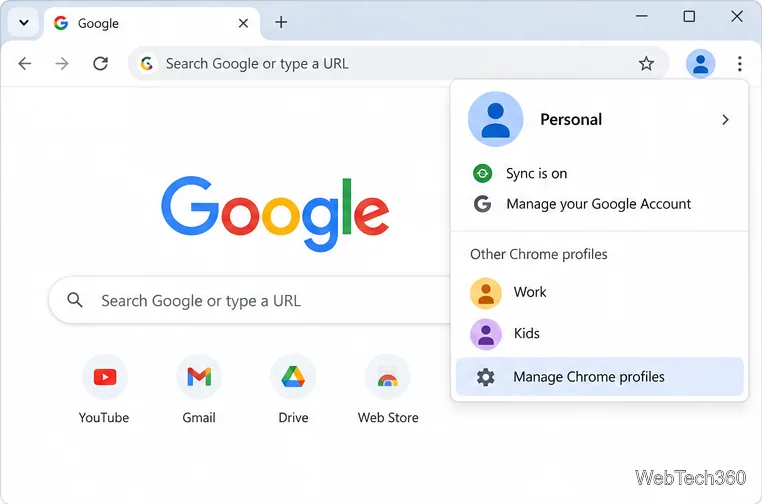
Rename a Chrome profile from its menu or profile manager, see what the label affects, and fix display delays without changing your Google Account name.
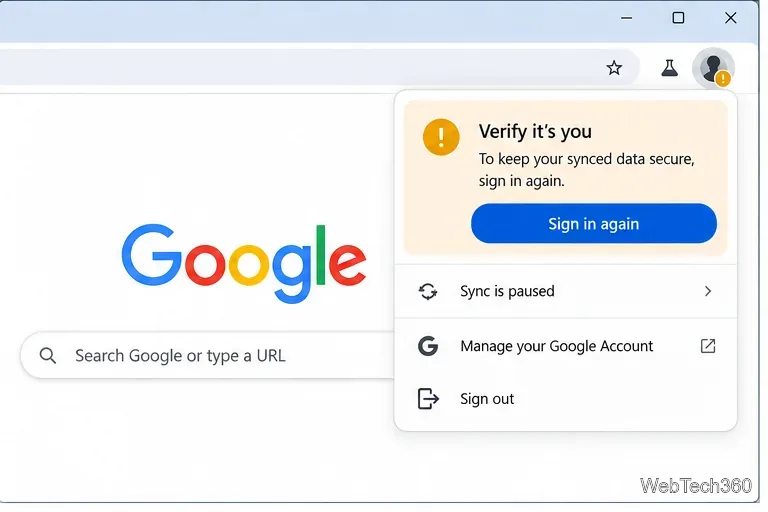
Fix Chrome sync pausing and repeated sign-in prompts by restoring account access, keeping site data, updating Chrome, and checking extensions or profiles.
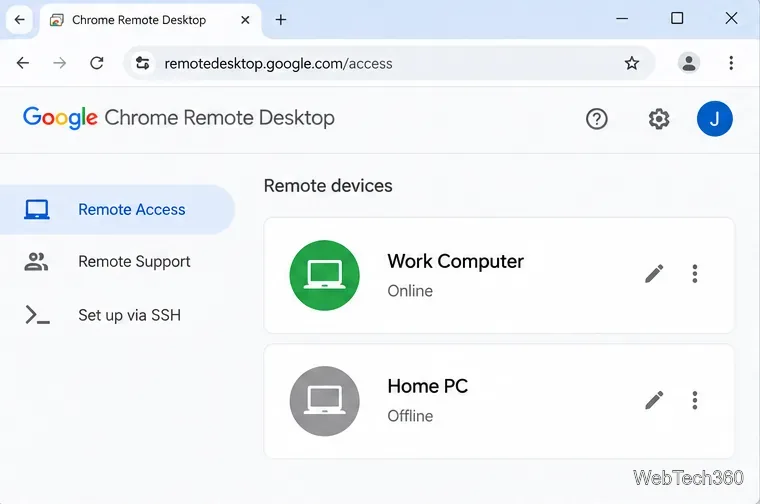
Chrome Remote Desktop not working? Fix offline hosts, update Chrome, reset remote access, check permissions, firewall rules, and managed-network restrictions.
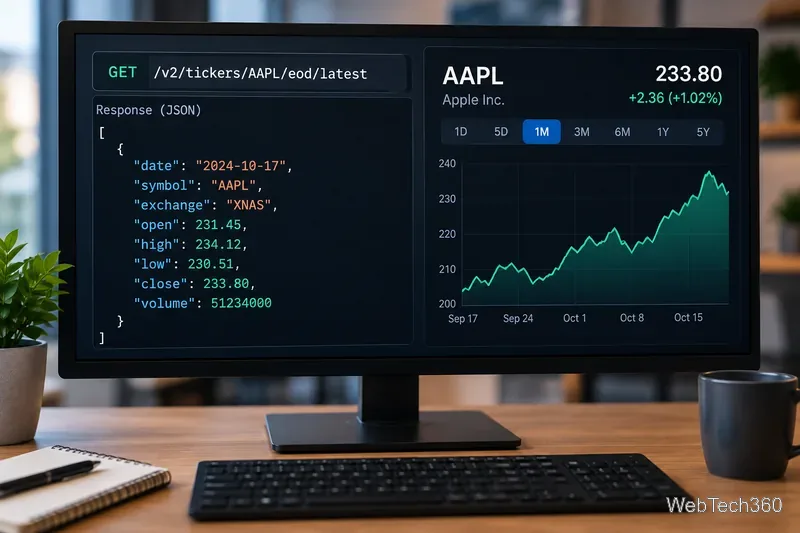
Marketstack review covering API v2, real-time and intraday data, historical coverage, pricing, limits, pros, cons, and who should use it.
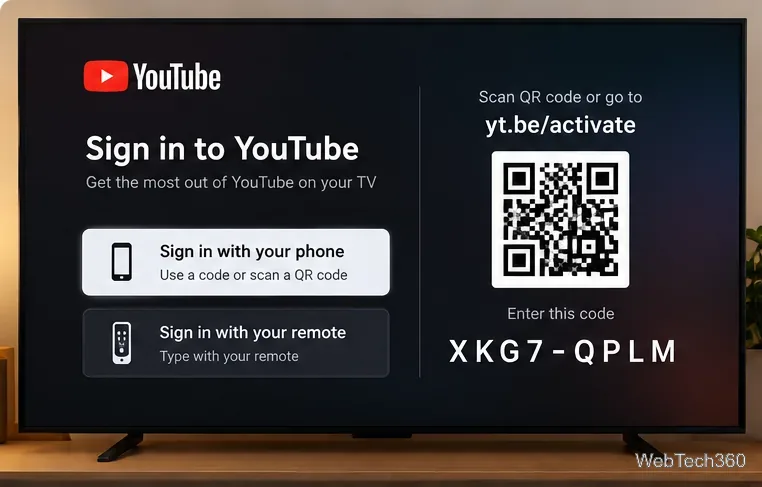
Learn how to activate YouTube at youtube.com/activate or yt.be/activate, enter your TV code, choose your Google Account, and fix sign-in problems.
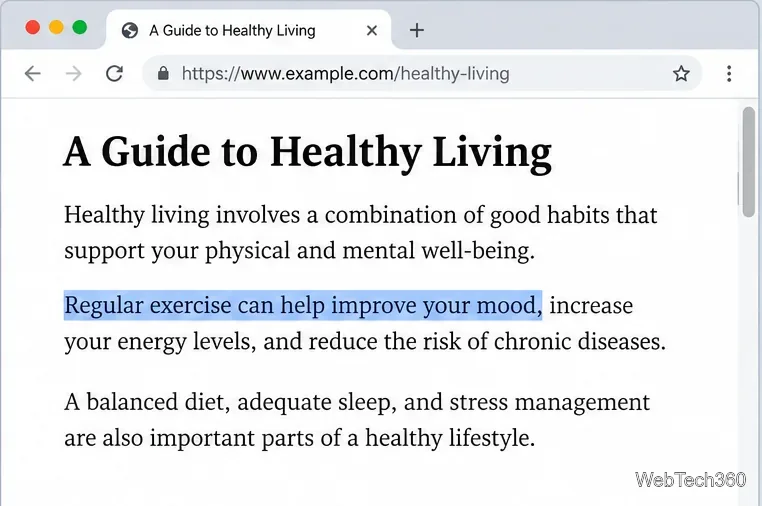
Learn how to link directly to selected text in Chrome with Copy link to highlight, how text-fragment URLs work, and what to do if a link fails.
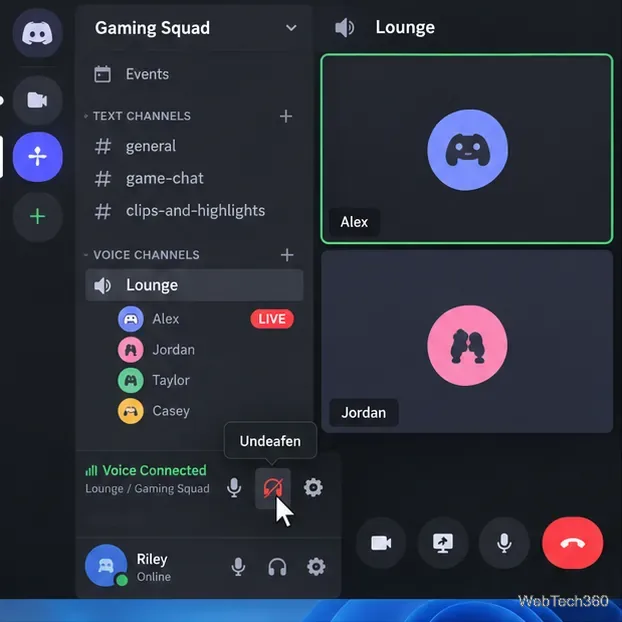
Can't hear anyone on Discord? Check Deafen and user volume, choose the right output device, reset Voice & Video, and fix Windows audio settings.
Learn how to add roles in Discord, change a role name, set permissions, assign or remove members, reorder roles, and delete roles safely.