Home
» WEB
»
How to Host a Facebook Watch Party: What Works Now
How to Host a Facebook Watch Party: What Works Now
You cannot start a Facebook Watch Party anymore. Facebook discontinued its original Watch Party feature on April 16, 2021. The old option in the Facebook post composer is gone from profiles, Pages, and Groups. If you want to watch videos with friends, the closest approach is Messenger’s Watch Together option, where available. For a larger community, Facebook Live or a Group discussion serves a different purpose.
Why the original Facebook Watch Party instructions no longer work
The old Create post → Watch Party instructions are obsolete. Neither reinstalling Facebook nor changing Group permissions brings the feature back.
How to watch Facebook videos with friends in Messenger
Meta introduced Watch Together for Messenger video calls as a separate way to view supported videos while talking and seeing each other’s reactions. The option and its placement may vary by app version, account, and region. The following flow applies when Watch Together is offered in your Messenger mobile app.
Step 1: Start a group video call
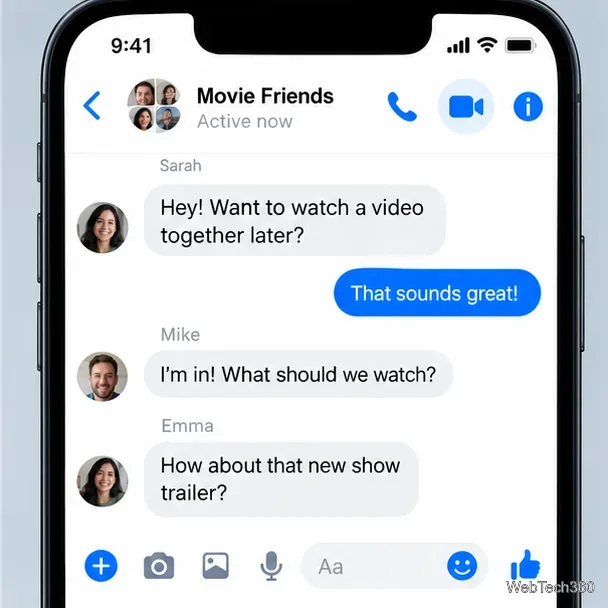
Open Messenger on your iPhone or Android phone. Choose an existing conversation with the friends you want to invite, or start a group chat. Tap the video camera icon and wait for at least one other person to join. A text thread or voice-only call does not provide the same viewing controls.
Start from a Messenger conversation and use the video camera button to invite friends.
Step 2: Look for Watch Together in the call controls
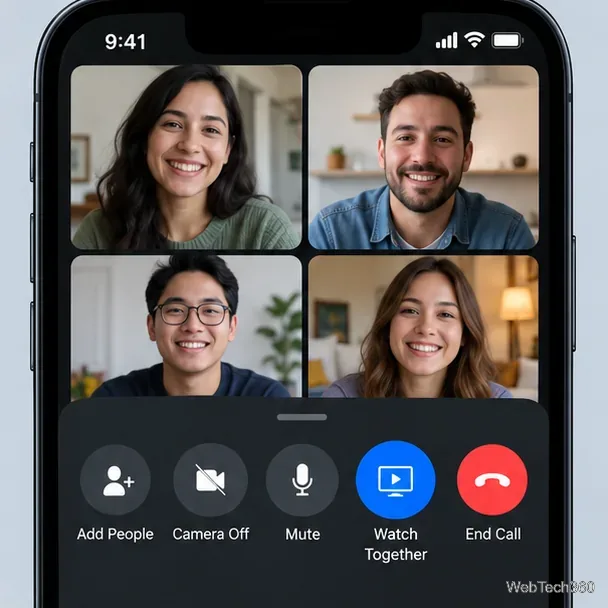
During the video call, tap the screen or open the call options. If your version supports the feature, choose Watch Together. Meta’s original instructions used a swipe-up call menu, although the appearance of the controls may differ now. Do not confuse this with the defunct Watch Party control in Facebook itself.
The Watch Together control, when available, appears within an active video call.
Step 3: Choose a supported video and start watching
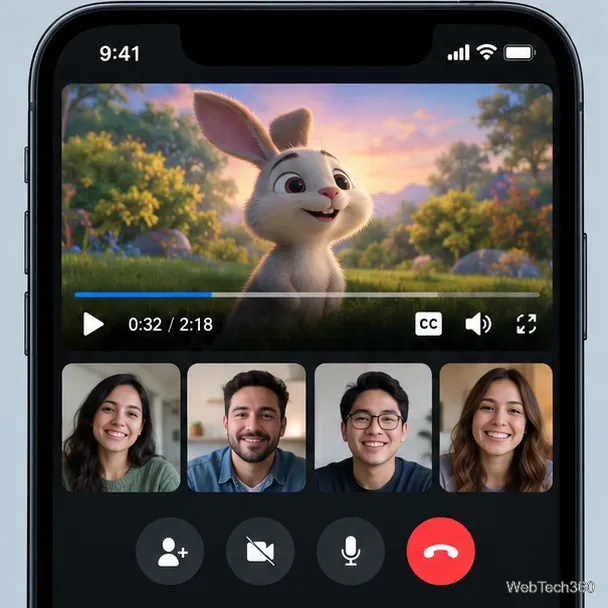
Browse the videos offered in Watch Together, or use its search field if available. Select an eligible video and keep the call open so everyone can watch and react together. It is a private call, not a Group Watch Party.
Video eligibility can depend on licensing, location, age restrictions, and privacy settings. If playback fails, choose another clip offered to everyone in the call.
How to host a larger viewing discussion in a Facebook Group
If you want to reach many Group members rather than a few people on a call, use Facebook Live for a presentation, Q&A, or commentary session. It is a live broadcast, not a way to synchronize playback of an existing Facebook video for every viewer.
Step 4: Start a Facebook Live session for your audience
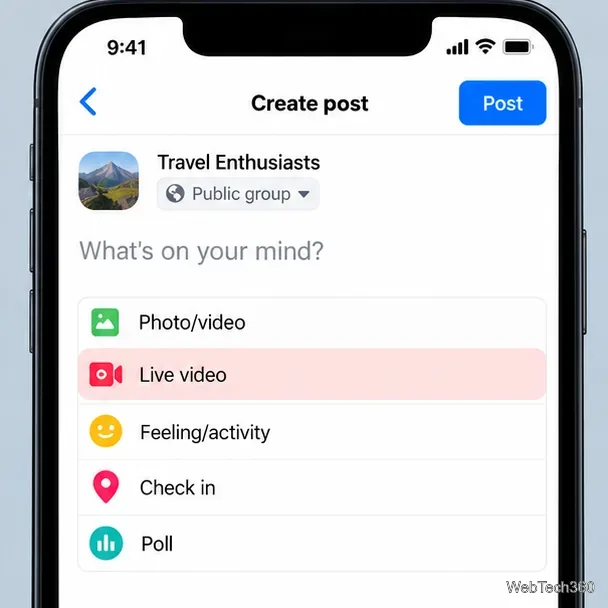
Open the relevant Facebook Group, choose the Live video option if it is available to your account, and follow the on-screen prompts to prepare and start the stream. You can then speak to your audience and respond to comments as they appear. Your ability to go live depends on account eligibility, Group permissions, and Meta’s current requirements; consult Facebook’s Going Live guidance if the option is missing.
Watch supported videos together while the participants remain visible in the call.For a larger Group audience, look for Live video rather than the retired Watch Party feature.
Important: Broadcast content you created or have permission to stream. A paid streaming subscription or the ability to play a movie privately does not automatically give you permission to retransmit it on Facebook. Meta also publishes Facebook Live policies that hosts should review before broadcasting.
What if everyone needs to watch a video hosted elsewhere?
For a film, class, or YouTube video you cannot legally rebroadcast, create a Facebook Group post or Event that states the start time, links to the authorized viewing page, and invites discussion in the comments or a separate call. Each person opens the video independently. This is useful for planning, but playback will not synchronize automatically, and every participant may need their own account or access to the source service.
Do not use outdated Messenger Rooms tutorials as a workaround. Meta confirms that Messenger Rooms ended in late 2023, even though old Watch Together announcements mention Rooms and their former participant limits.
Common problems and quick answers
There is no Watch Party choice in Facebook: That is expected. The original feature was removed, and an app update cannot restore it.
Watch Together is missing from Messenger: Confirm you are in a video call, update the mobile app, and check the call menu. If the feature still does not appear, it may not be available in your version or region. Share a video link and coordinate playback manually instead.
Someone cannot watch your selected video: Try another eligible video and check whether the original video is private, restricted, or unavailable to that viewer.
Facebook Live is unavailable: Check account eligibility and the Group’s live-video permissions rather than looking for an old Watch Party setting.
The old Watch Party cannot be hosted from a computer either. Messenger calls, Facebook Live, and Group posts offer ways to gather viewers, but none restores the former synchronized Facebook Watch Party playlist.