Home
» WEB
»
How to Insert a Text Box in Google Docs
How to Insert a Text Box in Google Docs
To insert a text box in Google Docs on a computer, open the document and choose Insert > Drawing > New. In the Drawing window, select Insert > Text box, drag to set the box’s size, type your text, and choose Save and close. Docs places the result in your document as a drawing object, so you edit its contents by reopening the drawing rather than typing into it like a normal paragraph.
Insert a text box in Google Docs
The steps below follow Google’s current desktop workflow. The box is created on a drawing canvas and then added at the insertion point in your document.
Open the document and choose a location. Click in the document where the text box should appear. If it belongs between paragraphs, place the cursor on a blank line so it is easier to position and read.
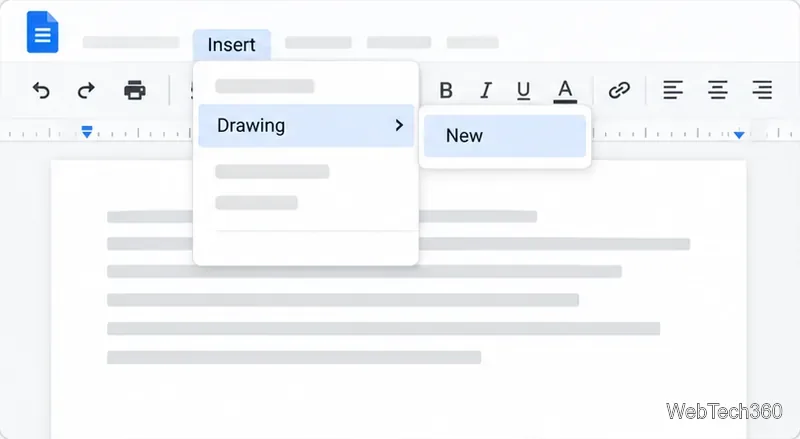
Open a new drawing. From the top menu, select Insert > Drawing > New. Google Docs opens a drawing editor over the document.
Choose Insert, then Drawing and New to open the embedded drawing editor.
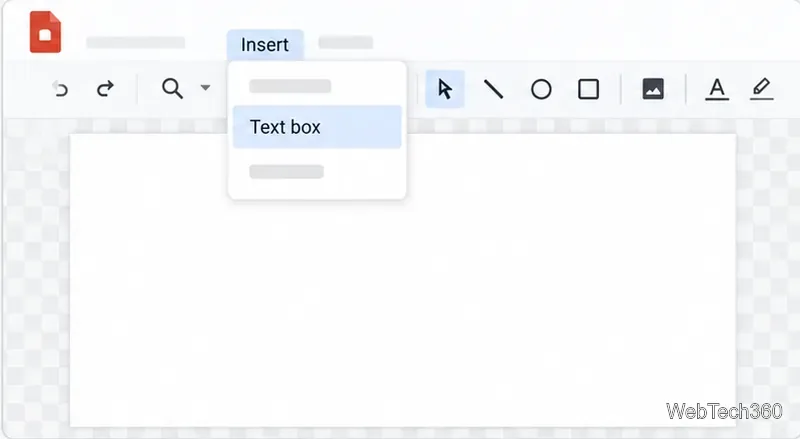
Add the text box. In the drawing editor, click Insert > Text box. Move to the canvas, then click and drag to outline the box. Drag farther to make a wider box for longer lines; a compact box works better for a short label or callout.
The Text box command is inside the drawing editor, not the document’s main page menu.
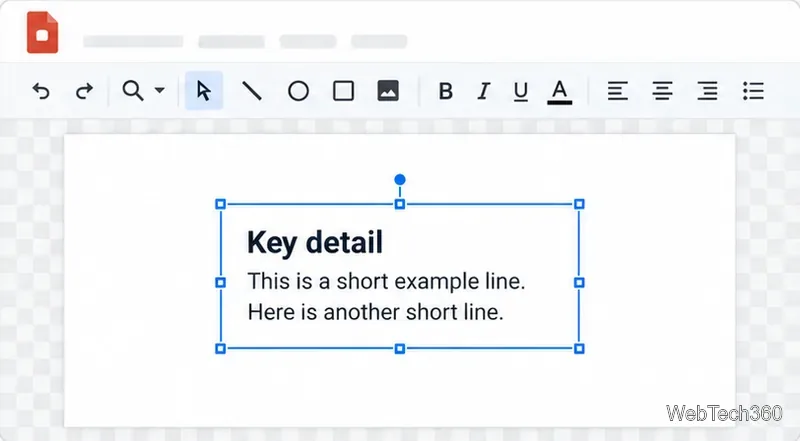
Type and format the text. Enter the text in the box. Select the text to change its font, size, color, alignment, or emphasis with the editor’s formatting controls. To style the container, select its border and choose a fill color, line color, line weight, or line style. These controls are useful for a shaded note or a bordered callout; a plain text box can stay unfilled.
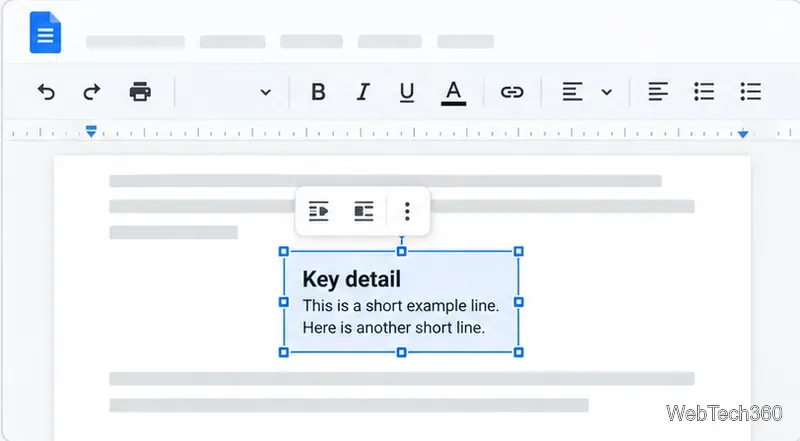
Save it to the document. Click Save and close. The drawing editor closes and the text box appears in the document where your cursor was. If the result is too large or small, select it in the document and drag a corner handle to resize it.
Drag the box edges to set its size, then format the text and border on the drawing canvas.After you save, the drawing appears as one object in the document.
Format and reposition the box
There are two layers to format. While the drawing editor is open, select the text to style the words, or select the box itself to change its fill and border. Google’s drawing instructions describe adding text boxes and changing their size, fill, line color, and border style.
After saving, click the drawing once to select the whole object. Use its floating layout controls to place it In line, Wrap text, Break text, Behind text, or In front of text. In a Pages-format document, Wrap text and Break text can also use Move with text or Fix position on page. These wrapping and position controls are unavailable in Pageless documents. If you need them, switch the document to Pages from File > Page setup, or use Format > Switch to Pages format. Google lists the layout options in its image positioning help and explains the Pages and Pageless modes in its page setup guide.
Edit or remove a text box
A text box made through Drawing is not a separate text field in the document body. To change its words or styling, select the drawing and click Edit (the pencil icon) if it appears, or double-click the object to reopen the drawing editor. Make the change there and click Save and close again. To move the entire drawing, drag it from the document; to change its size, use a corner handle. To remove it, select the drawing and press Delete or Backspace.
If you click the object and cannot place a text cursor inside it, that is expected: you have selected the drawing, not entered its editor. Reopen it with Edit or a double-click. If an empty box seems invisible, reopen the drawing and give its border a visible color and line weight, or add a fill.
When a table works better
Use a drawing text box when you want a movable, styled callout or a small block of text that sits apart from the body. If the text needs to behave like ordinary document text, or another person should type directly into the area without opening a drawing, insert a one-cell table instead and type in its cell. You can edit that text in place and adjust the table’s border and cell layout. For a simple highlight around a paragraph, Docs also supports paragraph borders and background color under Format > Paragraph styles > Borders and shading; see Google’s paragraph formatting help.
In short, use Insert > Drawing > New for a graphic-style text box, then edit it through the drawing controls. Choose a table or paragraph formatting when your priority is keeping the text directly editable in the document flow.