Home
» WEB
»
How to Install and Uninstall Add-Ons in Google Docs
How to Install and Uninstall Add-Ons in Google Docs
To install a Google Docs add-on, open a document, choose Extensions > Add-ons > Get add-ons, select an item in the Google Workspace Marketplace, and follow its install and permission prompts. To remove one, return to Extensions > Add-ons > Manage add-ons, open the add-on’s options, and choose Uninstall. The steps below describe the current desktop experience.
Google uses “add-on” for tools that extend Docs. Depending on the add-on and your account, it may open in the right sidebar or appear in a Docs menu. These are different from Chrome browser extensions, which you manage in Chrome itself.
The interface illustrations below are mockups, not screenshots. Product names, figures, and exact layout can differ from the Marketplace listing and Docs interface you see.
Install an add-on in Google Docs
Open a Google Docs document on a computer. If you are editing a Microsoft Word file in Office editing mode and do not see the add-on menu, convert the file to Google Docs first. Google’s current add-ons instructions are for Docs, Sheets, and Slides.
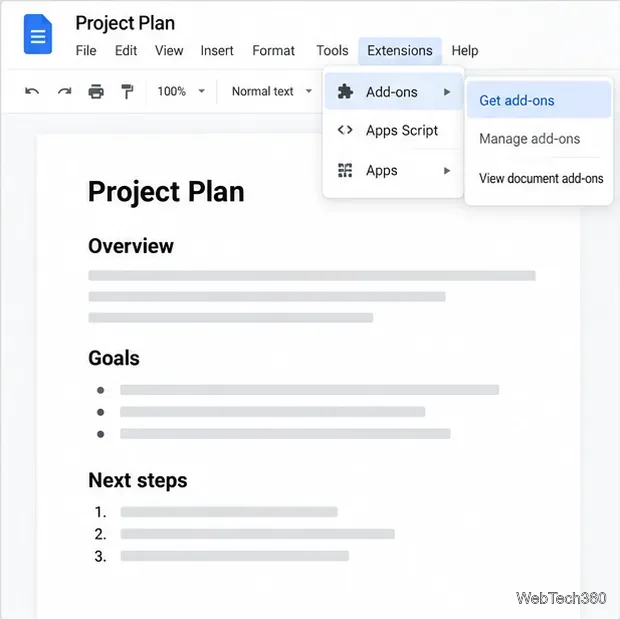
Open the add-on catalog. In the top menu, select Extensions > Add-ons > Get add-ons. For Google Workspace add-ons, you may also see Get add-ons in the right sidebar. Both paths lead to available Marketplace tools; menu labels can vary as Google updates the interface.
The Docs menu path opens the add-on catalog.
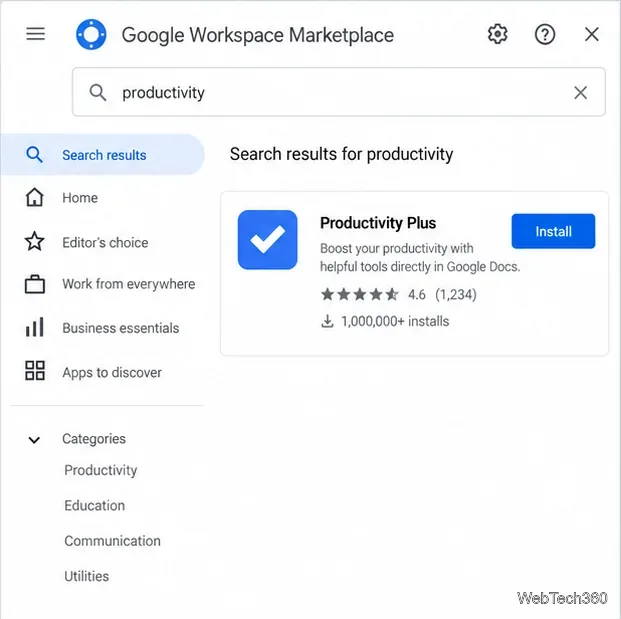
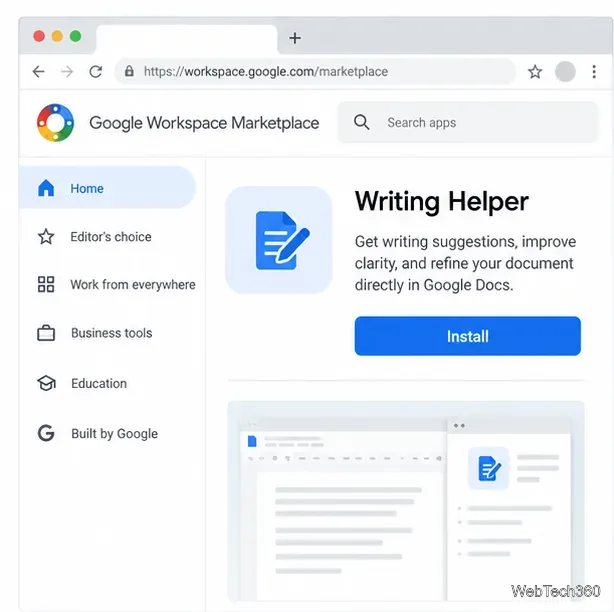
Find the add-on and read its listing. Search by name or browse categories, then open the listing to check what it does, who publishes it, and what access it requests. The Marketplace listing is the place to confirm current compatibility and support details.
Example Marketplace search result; the app name and figures shown are placeholders.Review the real listing’s publisher, description, and access details before installing.
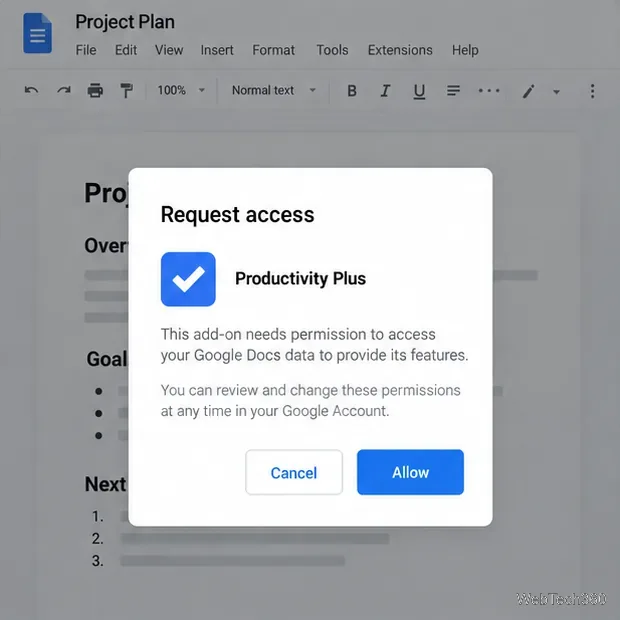
Select Install and continue through the prompts. Google may ask which account to use. If an access or authorization screen appears, read the requested permissions and allow them only if you trust the add-on and understand why it needs that access. Permissions differ by add-on; there is no single permission list that applies to every tool. Google explains the install and authorization flow in its developer documentation.
Read the actual access request before selecting Allow.
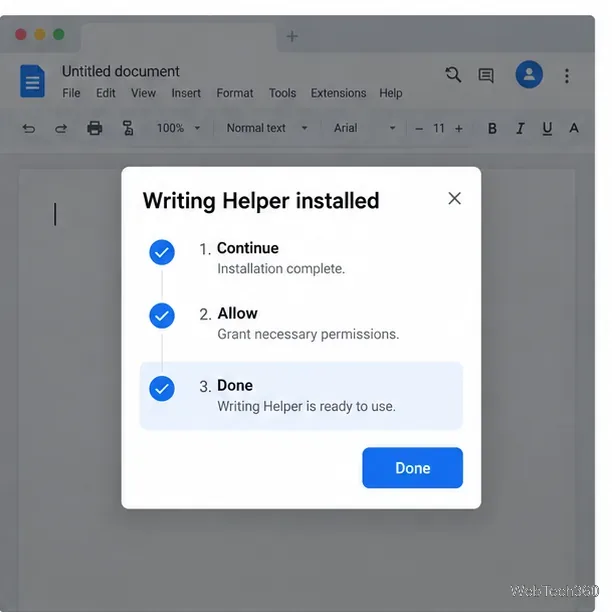
Finish the installation. Select Done when prompted. Open the add-on from the right sidebar or its menu, depending on how it is designed. If it does not appear, refresh the document and check again.
Complete the prompts, then return to the document to open the add-on.
Turn off or uninstall an add-on
Turning an add-on off for one document is different from uninstalling it. Google Docs lets you disable an add-on in the current document; uninstalling removes it from your account’s Google files. Use the temporary option if you may want it again, and uninstall it when you no longer need it.
Turn it off in the current document
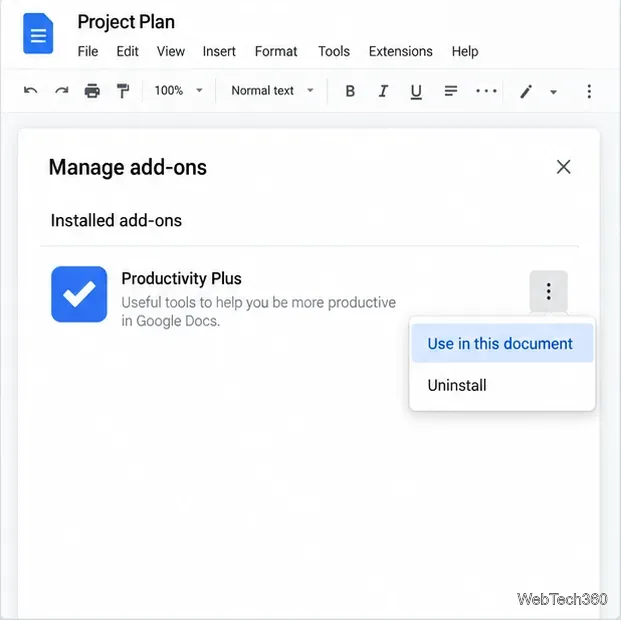
Open a document, then select Extensions > Add-ons > Manage add-ons. Find the add-on, open its More or options menu, and choose Use in this document to switch it on or off for that file. Google documents this control in its help page for add-ons.
Use the document-level option to turn an add-on on or off without uninstalling it.
Uninstall it completely
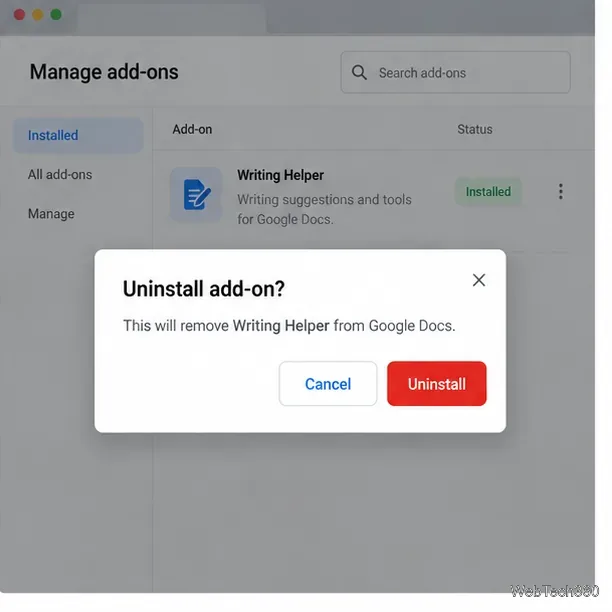
In Manage add-ons, open the options menu next to the add-on and select Uninstall. Confirm if Google asks. You can also open the add-on from the right sidebar, select More > Manage add-ons, and uninstall it there.
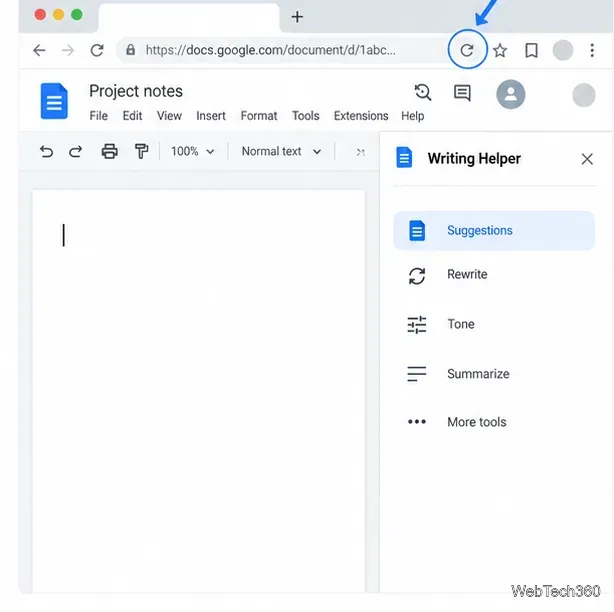
If the add-on remains visible in the sidebar after removal, reload the document. Google notes that a reload may be needed to clear an uninstalled Workspace add-on from the sidebar.
Confirm the removal when prompted; the exact confirmation screen may vary.If a newly installed add-on is missing, refresh Docs and look for its sidebar icon or menu entry.
If you cannot install or remove an add-on
The Marketplace blocks installation: On a work or school account, an administrator may limit which Marketplace apps users can install. Some apps are installed for the organization and can only be removed by the administrator. Check Google’s Marketplace installation messages or contact your Workspace administrator.
An older add-on is missing: Google is moving Editor add-ons from the Chrome Web Store to the Google Workspace Marketplace. Google says add-ons that have not moved cannot be newly installed, although previously installed ones may remain usable.
An add-on will not load: Refresh the document first. Some add-ons may also need browser support for third-party cookies; see Google’s troubleshooting note.
You meant a Chrome extension: A Chrome extension is managed separately through Chrome’s Extensions page. Installing or removing it there does not install or uninstall a Google Docs add-on.
For most users, the key distinction is simple: use Manage add-ons to turn a tool off for one document or uninstall it from Docs. If an organization controls the app, the administrator must handle its removal.