Home
» WEB
»
How to Install Chrome Extensions in Chromium-Based Browsers
How to Install Chrome Extensions in Chromium-Based Browsers
To install a Chrome extension in a Chromium-based browser, open the Chrome Web Store in that browser, choose an extension, review its access, and accept the browser’s prompt. Buttons and confirmations vary, and Chromium compatibility does not guarantee every extension will work everywhere.
Check the browser and extension first
These steps are for desktop browsers. Google says Chrome extensions cannot be installed in Chrome on mobile; support in other browsers varies. Update your browser first, as Google recommends a current version for Chromium-based browsers.
Open the store in the browser where you want to install the extension.
Confirm the extension name and publisher, then review its description, privacy information, and permissions. Ratings are feedback, not proof of safety.
If it can read or change data on websites, decide whether that access fits its purpose. Prefer narrower site access when available.
Browsers can support different extension APIs, so an extension may install but have missing features elsewhere. Check the developer’s support notes if a particular browser matters.
Install from the Chrome Web Store
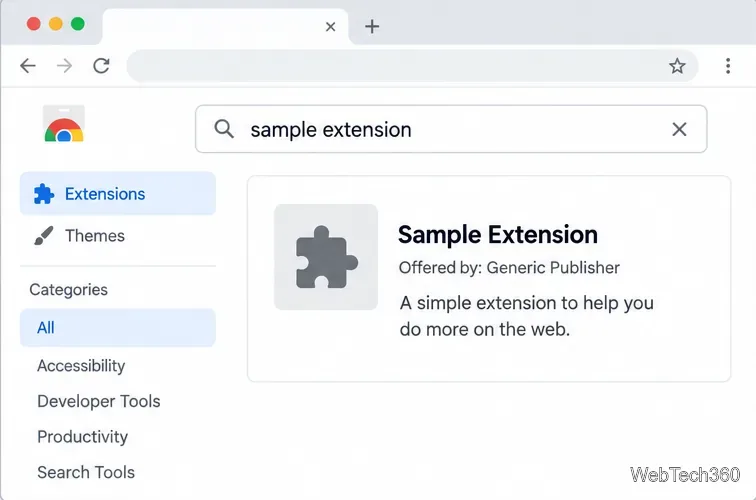
Find the listing. In your desktop Chromium browser, open the Chrome Web Store, search for the extension, and open its detail page. Compare the publisher before selecting an item with a similar name.
Review what it requests. Read the description, privacy information, and permissions before installing. A search result can help locate the item, but use its detail page to inspect it.
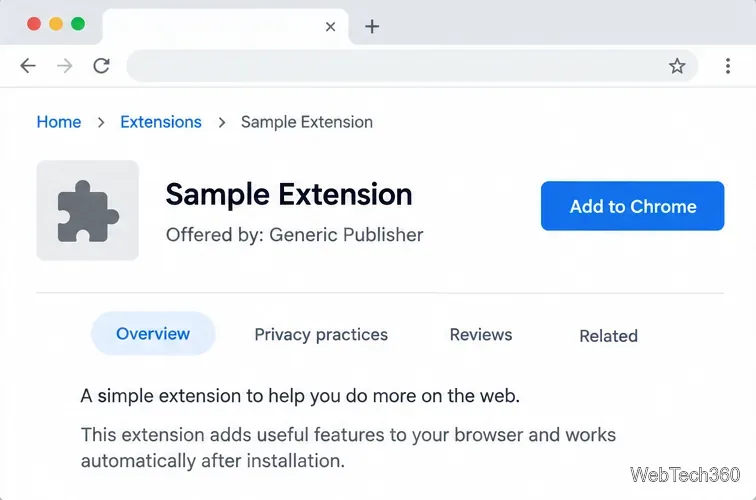
Select the install button. Depending on the browser, it may say Add to Chrome, Add to Brave, Get extension, or Add to Opera. Edge may ask whether to allow extensions from another store; select Allow only if you meant to use the Chrome Web Store.
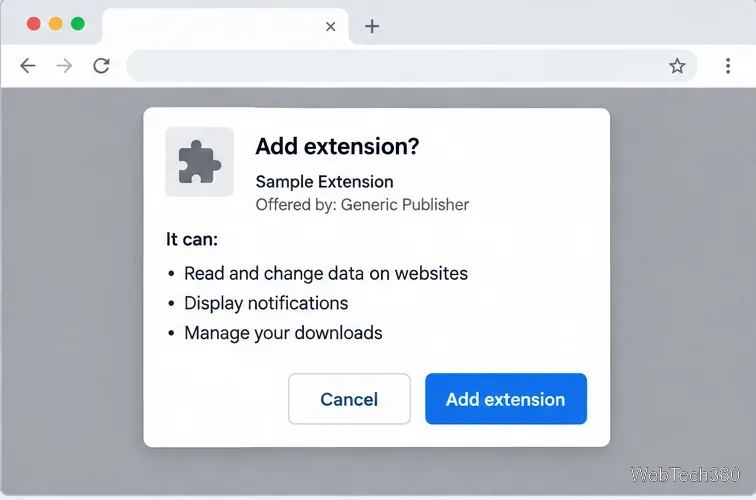
Approve the browser prompt. If the permissions make sense, choose Add extension, Install, or the matching confirmation. Cancel if the access is broader than you accept, then wait for the browser’s success message.
Search results help locate an extension; confirm the publisher on its listing. Store wording can vary.Review the listing before choosing its install control. Other browsers may show a different button label.Check the requested access in the confirmation dialog before approving installation.
Browser-specific steps
Microsoft Edge
In Edge, open Extensions and choose Get extensions for Microsoft Edge for the native store. For a Chrome-only extension, open the Chrome Web Store in Edge and choose Get extension or Get. If prompted, allow extensions from other stores, review permissions, and select Add extension. See Microsoft’s Edge extension instructions.
Brave
Brave’s Help Center says to find the item in the Chrome Web Store, select Add to Brave, and review the permission notice. Brave supports most Chromium-compatible extensions, not necessarily every one. Manage them from the Brave menu under More Tools > Extensions. See Brave’s instructions.
Opera
Opera’s FAQ says to choose an extension in the Chrome Web Store, select Add to Opera, and follow the prompts. Its customization article still calls for a helper add-on, but the linked add-on page returned a 404 when checked on October 23, 2026. Since Opera’s own pages conflict on that point, follow the in-browser prompts and consult Opera’s FAQ if the button is missing. Open Opera’s Extensions page from the menu; shortcuts are Ctrl+Shift+E on Windows/Linux or Command+Shift+E on Mac.
Manage or remove the extension
Look for the add-on in the browser’s Extensions menu beside the address bar; its icon may not be pinned automatically. Open the extensions manager for the full list.
Use its toggle to turn it off temporarily.
Choose Details or site-access controls to limit where it can run. Edge offers access when you click the extension, on the current site, or on all sites; see Microsoft’s site-access instructions.
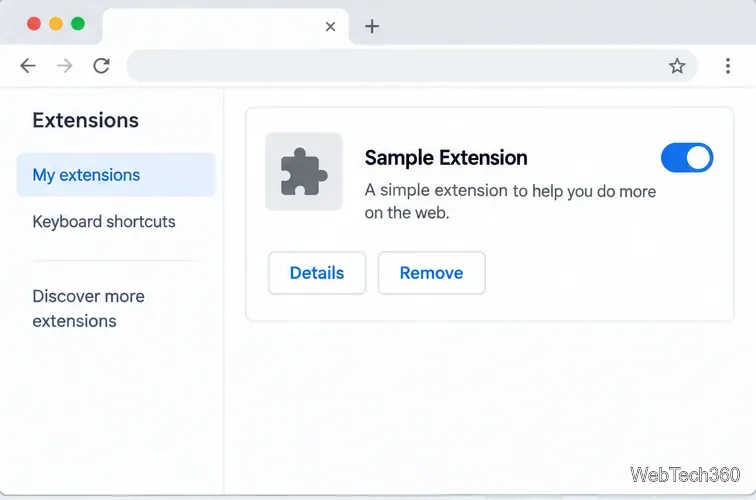
Choose Remove in the manager or toolbar menu, then confirm if asked. Removing uninstalls it; turning it off does not.
The extensions manager lets you disable an add-on, inspect its details, or remove it.
Troubleshooting
No install button: update the browser and reload the page. Check the browser’s native add-on store or official help for any cross-store setting.
Installation is blocked: Google says Chrome extensions cannot be installed in Chrome’s Guest or Incognito modes, and a work or school administrator may block store items. Other browsers may set their own limits; ask your administrator rather than bypassing policy.
Installed but missing: open the Extensions menu or manager, then enable or pin the extension if those controls are available.
Installed but not working: check site access and the extension’s Details page. It may need a permission you declined or may use an API the browser does not fully support.