How to Disable JavaScript in Chrome for One Tab or a Site
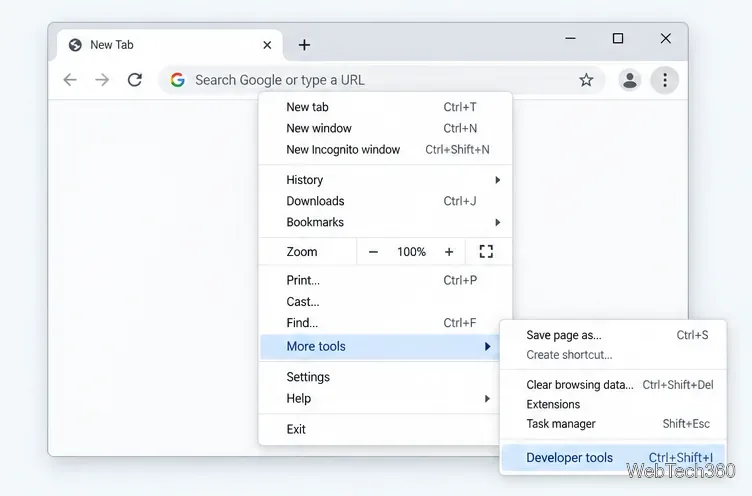
Learn how to disable JavaScript in Chrome temporarily with DevTools, block it for one site, or change the browser default, plus how to restore it.
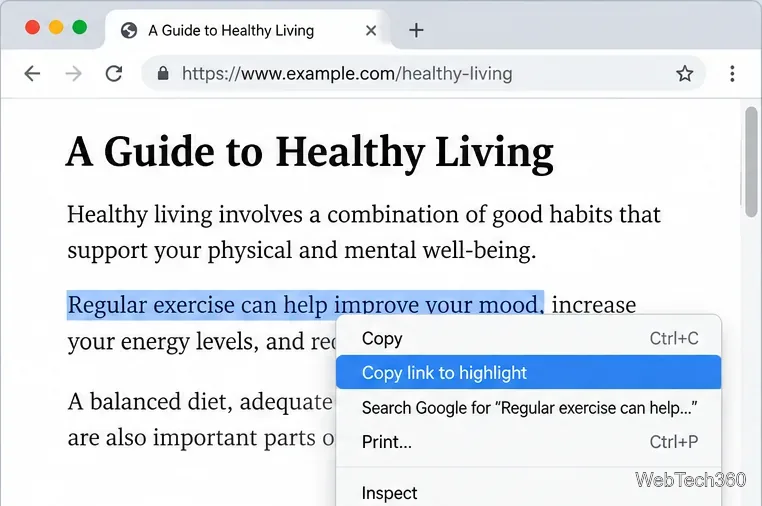
Google Chrome can create a shareable link that opens a web page at a specific passage and highlights the relevant text. You do not need the old Link to Text Fragment extension anymore: the feature is built into Chrome as Copy link to highlight. Google documents the current desktop workflow in its Chrome Help guide to linking to highlighted text.
The desktop process is simple and works on ordinary selectable text, not just headings or sections with HTML anchor IDs.
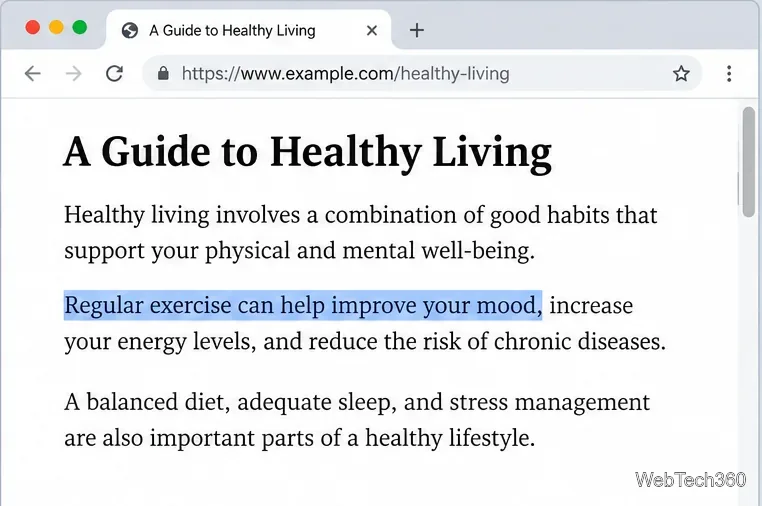
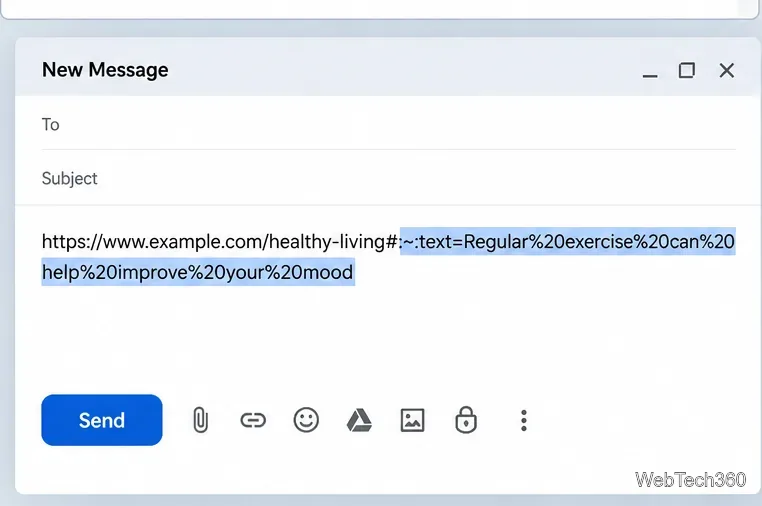
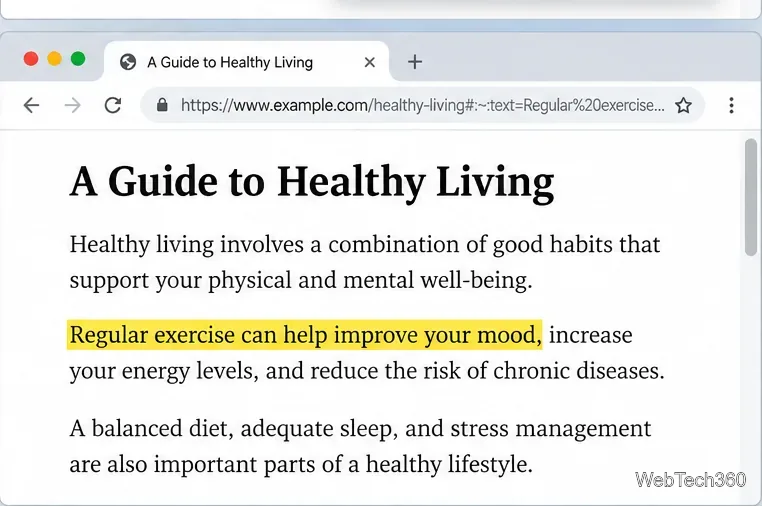
Chrome uses the web platform's Text Fragments feature. Instead of requiring the website owner to add an ID to a heading or paragraph, a text-fragment URL identifies words directly in the address. The recognizable part starts with #:~:text=.
For example, a link may resemble https://example.com/article#:~:text=selected%20words. Browsers encode spaces and some other characters so the text can safely appear in a URL. The full syntax can also include surrounding words to distinguish between repeated matches. The MDN Text Fragments reference explains the syntax and behavior in detail.
You normally should not build this syntax by hand. Chrome's context-menu command creates the link for you and can add enough context to identify the intended passage.
Not necessarily. Text Fragments are now a broadly available web feature in current browser versions. MDN lists the related Fragment Directive capability as part of Baseline 2025, meaning support is available across the latest major browser engines. Older or unsupported browsers may ignore the text directive and simply open the page without scrolling to or highlighting the passage.
This is an important change from older guidance that described the feature as Chromium-only. The safest approach is still to test an important link before sending it, especially if the recipient may be using an older browser.
A text-fragment link depends on the target words still existing on the page. If an article is edited and the matching text changes or disappears, the browser may no longer find the fragment and can fall back to opening the page normally. That makes text links excellent for pointing someone to a passage right now, but less durable than a stable section anchor for long-term references.
Chrome also supports this feature on mobile, but the controls differ. On Android, Google's current instructions are to select the text, tap Share, and then choose the app where you want to send the highlighted link. On iPhone and iPad, select the text and tap Create link; you may need to tap the selected text again to reveal that option. See Google's official Android instructions and iPhone and iPad instructions for the current mobile steps.
For desktop Chrome, the key action is simply: select the passage, right-click it, and choose Copy link to highlight. It is faster and more precise than telling someone to search through a long page manually.
Learn how to disable JavaScript in Chrome temporarily with DevTools, block it for one site, or change the browser default, plus how to restore it.
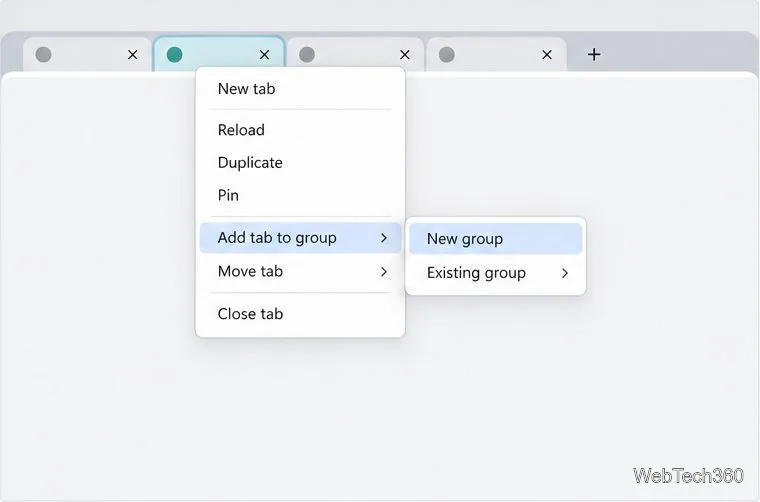
Organize related Chrome tabs into a group, then hide or reopen them with one click. See the current desktop steps, keyboard option, and what collapsing does.
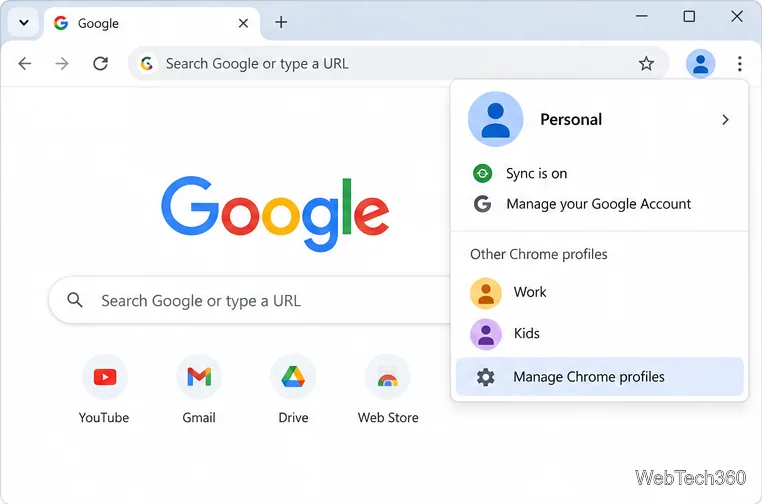
Rename a Chrome profile from its menu or profile manager, see what the label affects, and fix display delays without changing your Google Account name.
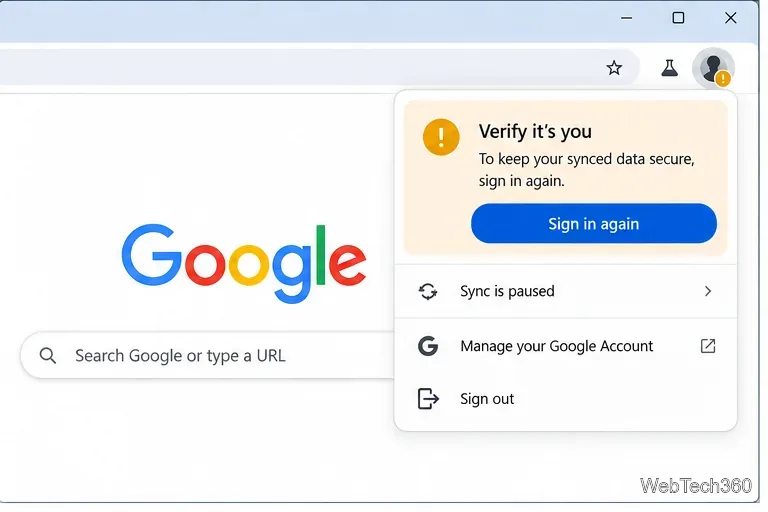
Fix Chrome sync pausing and repeated sign-in prompts by restoring account access, keeping site data, updating Chrome, and checking extensions or profiles.
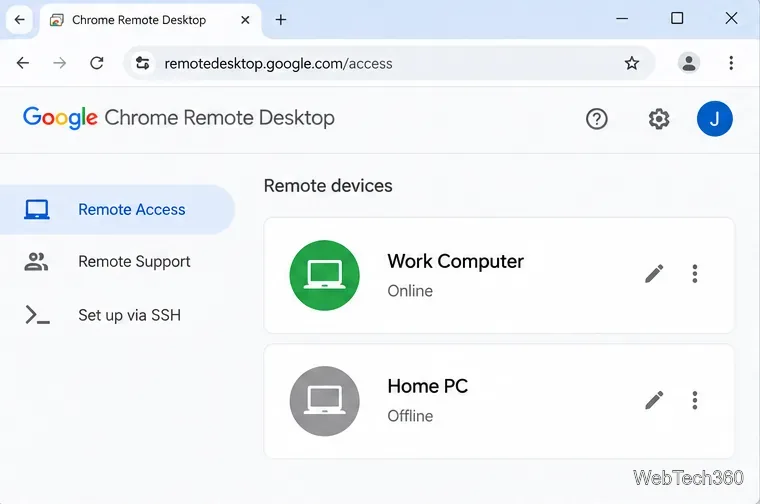
Chrome Remote Desktop not working? Fix offline hosts, update Chrome, reset remote access, check permissions, firewall rules, and managed-network restrictions.
Marketstack review covering API v2, real-time and intraday data, historical coverage, pricing, limits, pros, cons, and who should use it.
Learn how to activate YouTube at youtube.com/activate or yt.be/activate, enter your TV code, choose your Google Account, and fix sign-in problems.
Learn how to link directly to selected text in Chrome with Copy link to highlight, how text-fragment URLs work, and what to do if a link fails.
Can't hear anyone on Discord? Check Deafen and user volume, choose the right output device, reset Voice & Video, and fix Windows audio settings.
Learn how to add roles in Discord, change a role name, set permissions, assign or remove members, reorder roles, and delete roles safely.