Home
» WEB
»
How to Make a Phone Call From a Computer: 3 Methods That Work
How to Make a Phone Call From a Computer: 3 Methods That Work
Yes. Use Google Voice to dial regular phone numbers, Microsoft Phone Link to call through a paired phone, or WhatsApp to call another WhatsApp user. Choose based on the number you need to reach and the devices or accounts you have.
What you need before making a call
Each method needs internet, plus a working microphone and speaker. A headset helps prevent echo; a wired or USB headset works with a desktop. Allow microphone access when prompted. Bluetooth is needed for Phone Link.
Google Voice and Phone Link can dial ordinary numbers. WhatsApp calls connect to WhatsApp accounts over the internet.
1. Use Google Voice to call a phone number
Google Voice is a computer-only option where it is available for your account and location. It works in Chrome, Firefox, Microsoft Edge, and Safari. Check service access and rates before relying on it.
Open Google Voice in a supported browser and sign in. Follow setup prompts if this is your first use.
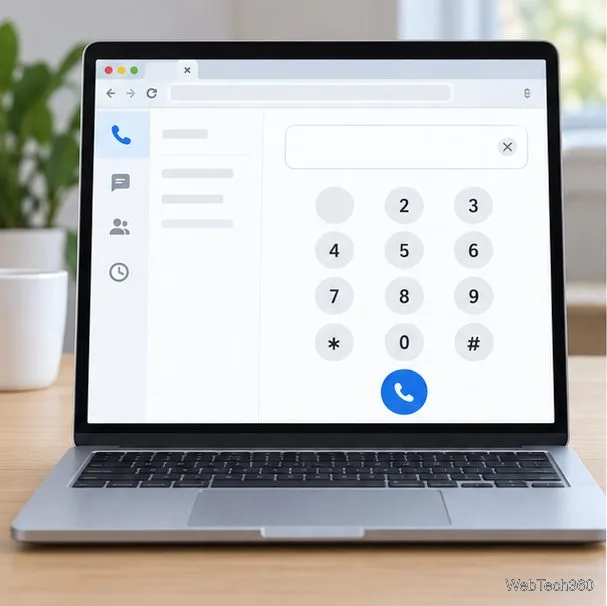
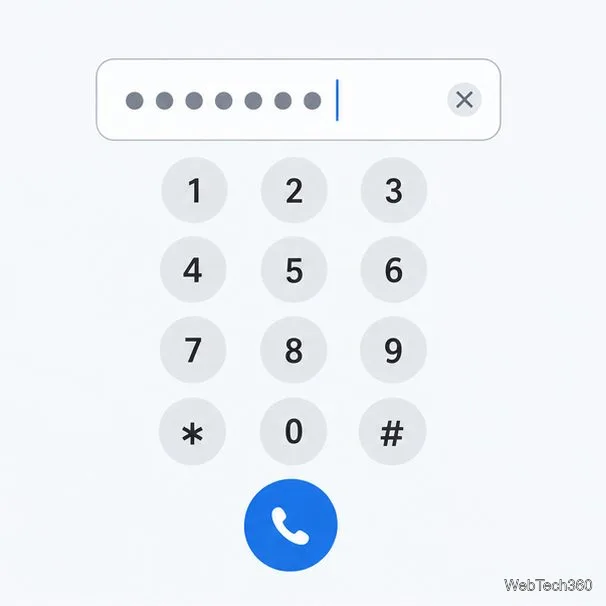
Select Calls. Search contacts or open the keypad; include the country code for international calls.
Select the call button. Allow microphone access and choose the correct audio devices if needed.
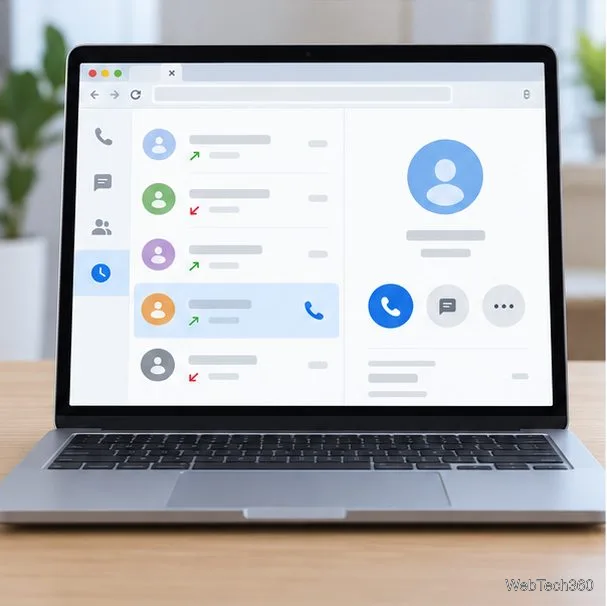
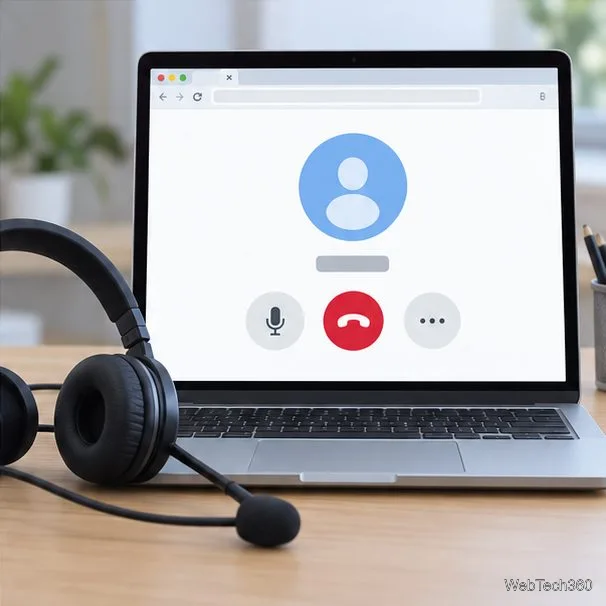
Call from the chat and use the on-screen controls.Enter the complete phone number, including its country code when calling internationally.You can start a Google Voice call from a saved contact or the recent-calls list.During a call, use the browser controls and your selected audio device to manage the conversation.
Cost and safety: From the United States, almost all Google Voice calls to U.S. and Canadian numbers are free; some numbers and international destinations have per-minute rates. Check Google’s calling instructions and rates. Standard Google Voice calling is not for emergencies.
2. Use Microsoft Phone Link with your phone
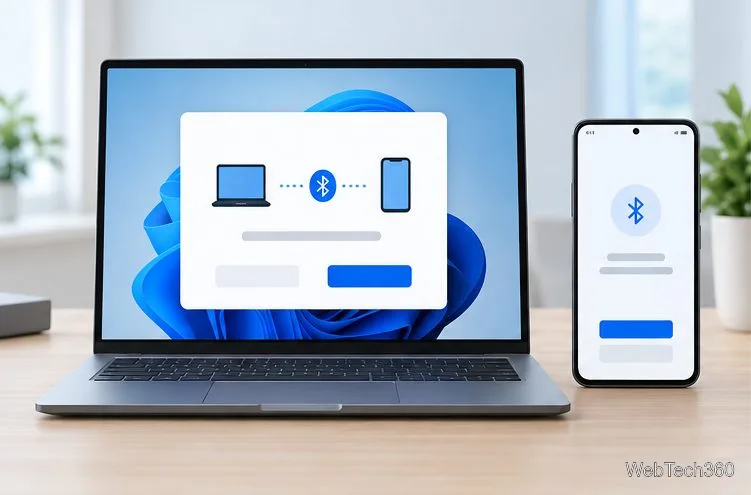
Phone Link pairs a Windows PC with a supported Android phone or iPhone. The other person needs only a reachable phone number. Keep the phone powered on and nearby with Bluetooth enabled; Android setup may also ask both devices to use the same Wi-Fi.
Open Phone Link on Windows and follow the pairing prompts. On Android, install or open Link to Windows if asked. Approve call and contact permissions as needed.
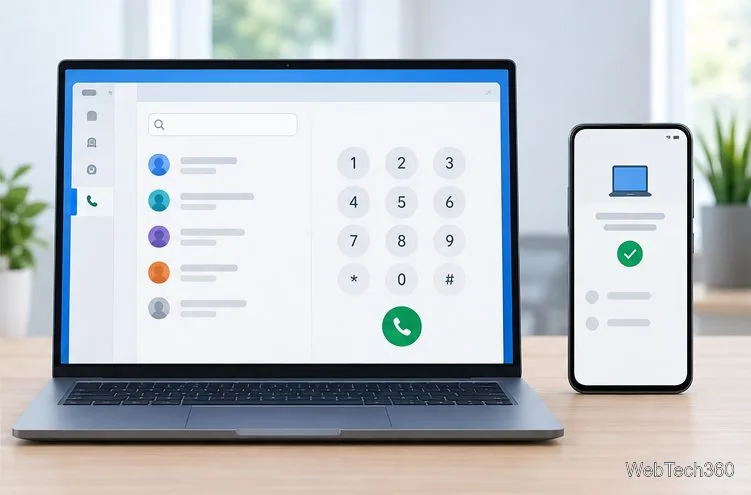
Turn on Bluetooth on both devices. In Phone Link, choose Calls, then search for a contact or enter a number on the dial pad.
Select the dial icon. Use the PC’s microphone and speakers or headset; keep the paired phone connected.
Phone Link pairs the computer and phone so the PC can access calling features.After pairing, open Calls in Phone Link and dial a contact or phone number.
Microsoft lists Windows 10 (October 2022 update or later) or Windows 11 and Android 10 or later for Android. For iPhone, it lists Windows 10 (May 2019 update or later) or Windows 11, Bluetooth Low Energy, and iOS 16 or later. See the current Phone Link requirements. Calls can fail if Bluetooth, power, or distance interrupts the connection; Microsoft says Phone Link is not a replacement for emergency calling.
3. Call a WhatsApp contact from your computer
Use WhatsApp if the person you want to reach has WhatsApp. Calls use internet and can work across countries, but this method does not dial ordinary phone numbers.
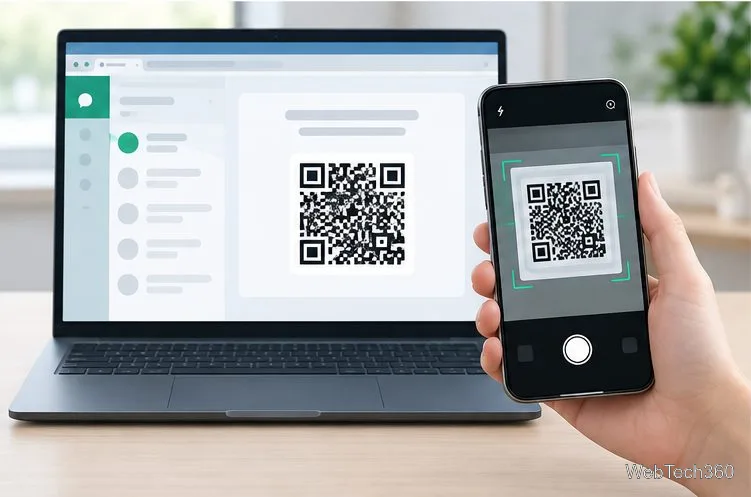
Open WhatsApp Desktop or WhatsApp Web and link it to your account. If prompted, scan the QR code from Linked devices on your phone.
Open the individual chat for the contact you want to call.
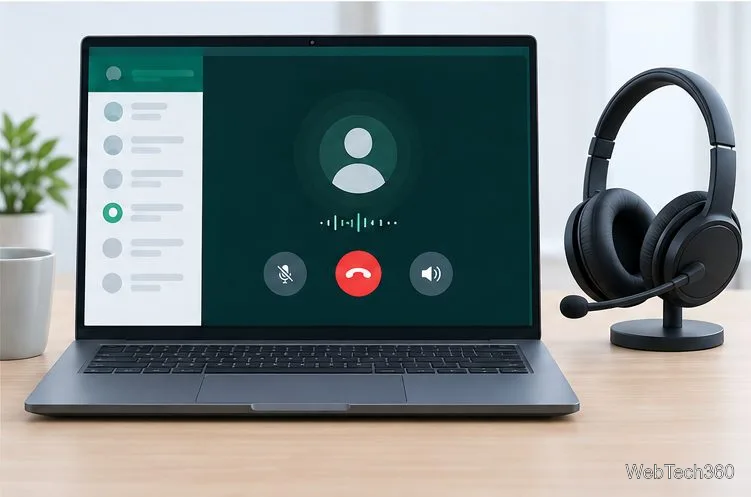
Select the voice-call icon. Allow microphone access and confirm that the computer is using the intended microphone and speakers.
Link the computer to your WhatsApp account by scanning the code shown on screen.Start a voice call from the contact’s chat and use the on-screen mute or end-call controls.
WhatsApp Web calling works on Windows, Linux, and macOS. Desktop calls need a microphone and audio output. Check WhatsApp’s Web calling guide or one-to-one voice call steps. WhatsApp cannot contact emergency services.
Which method should you choose?
Method
Best for
What the other person needs
Google Voice
Calling a standard phone number from a browser
A phone number that can receive calls
Phone Link
Using a Windows PC as the interface for your paired phone
A reachable phone number; your phone and PC must stay connected
WhatsApp
Internet calls to friends, family, or coworkers in WhatsApp
A WhatsApp account and internet access
If the call does not connect
Check that the internet is working and that the number includes the correct country code.
Confirm microphone permission and select the right microphone, speakers, or headset in the app or system settings.
For Phone Link, keep the phone nearby with Bluetooth on; reopen Calls or repeat pairing if the connection dropped.
For WhatsApp, make sure the computer is linked and the recipient’s account is active. For Google Voice, confirm the service and calling credit or rates apply to your account and destination.
For urgent help, use your local mobile or landline service.