Home
» WEB
»
How to Make Facebook Private: 6 Settings to Review
How to Make Facebook Private: 6 Settings to Review
To make Facebook more private, narrow the audience for new and older posts, limit who can see your friends list and profile details, review tags, and turn off search-engine links and Active Status. Facebook does not have one switch that makes an account completely invisible: current profile and cover photos are public, and content shared in public groups or by other people may remain visible.
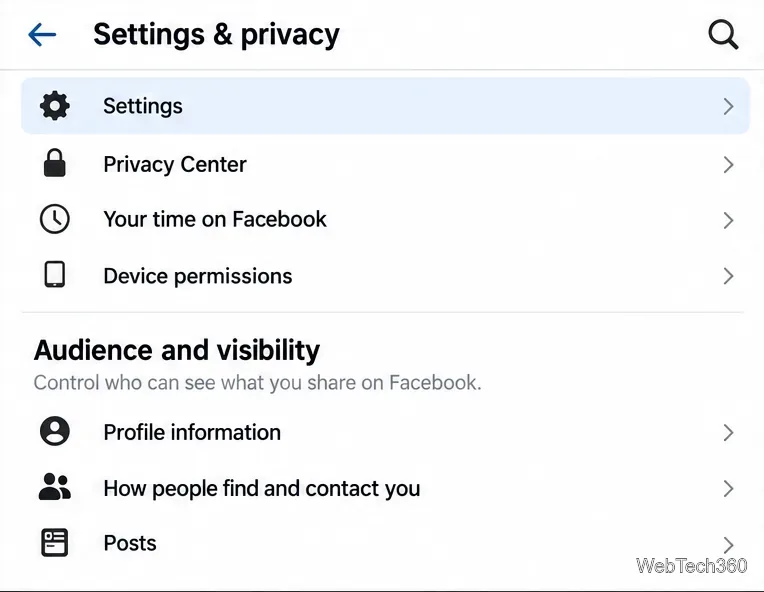
On the app, open Menu and choose Settings & privacy > Settings. On desktop, click your profile picture, then choose the same options. Most of the controls below are grouped under Audience and visibility; menu names can vary slightly by account or app version. Meta’s privacy settings guide and Privacy Checkup can help you review the available choices.
Open Audience and visibility to reach the main profile and post controls.
1. Set an audience for future and past posts
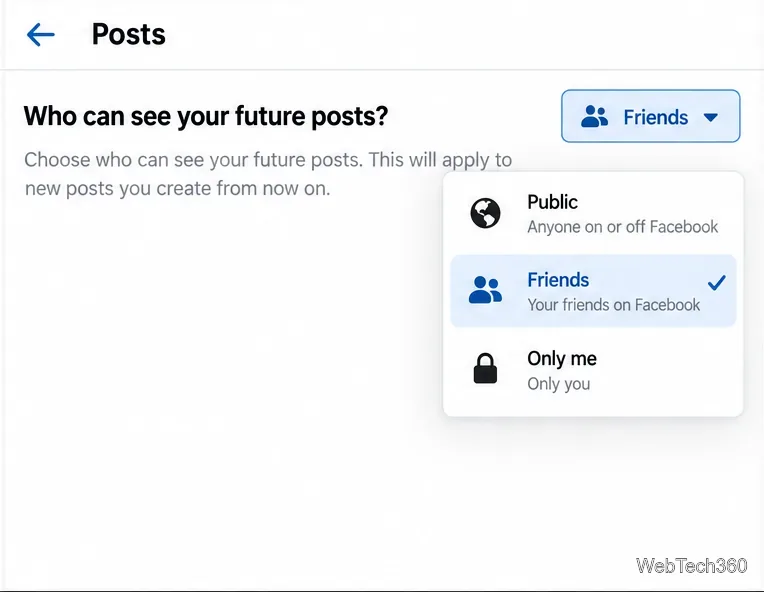
Open Posts and find Who can see your future posts? Choose Friends for a smaller default audience, or Only me for posts you want to keep private. You can still change the audience on an individual post before sharing it, so check the audience selector whenever a post is sensitive. Stories and reels may have separate audience controls.
To reduce the reach of older posts, look for Limit past posts in Privacy Checkup or the post privacy settings. This can change older posts shared with a broader audience to Friends. It does not remove posts, change content on someone else’s profile, or guarantee that tagged content is hidden from everyone who could see the original post. Review older items in Activity Log as well. Meta explains how to choose an audience when sharing.
Choose a default audience for future Facebook posts.
2. Hide your friends list and narrow discovery
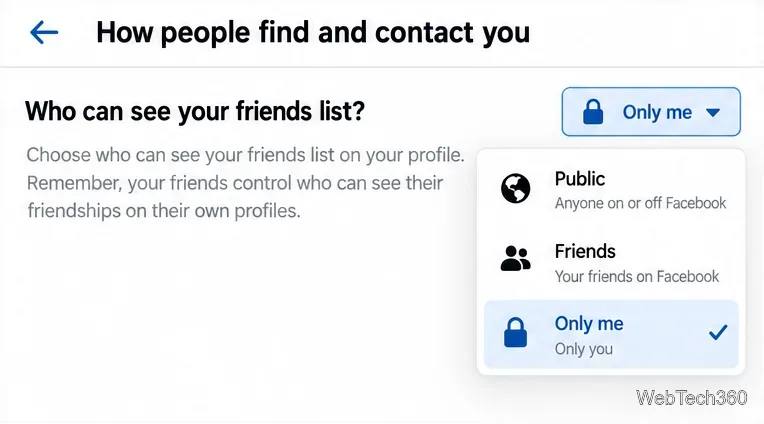
Under How people find and contact you, open Who can see your friends list? and select Only me. This hides the full list on your profile, but it cannot hide every connection: friends control their own lists, and people may still see mutual friends. In the same section, consider changing Who can send you friend requests? to Friends of friends, and review whether Facebook can suggest your profile using your email address or phone number. Availability of some lookup options varies. See Meta’s friends-list privacy instructions.
Set the friends-list audience to Only me; mutual friends may still appear.
3. Review profile details and photo albums
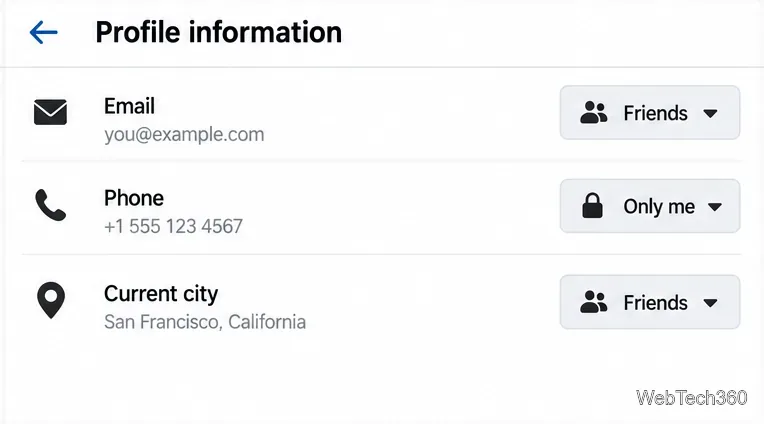
In Profile information, check the audience beside each field, including your birthday, workplace, education, city, email address, and phone number. Set sensitive details to Only me or a limited audience; do not assume all fields share one privacy setting.
Check each profile detail because every field has its own audience selector.
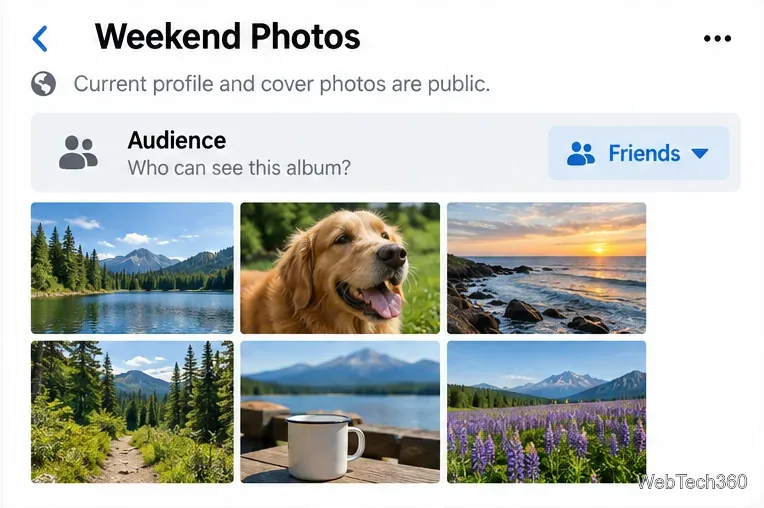
Then review photos from your profile. For an editable album, open Photos > Albums, choose the album, and change its audience if Facebook offers that control. The current profile picture and cover photo remain public, although you can change the audience for older profile or cover photos individually. Meta describes these limits in its privacy troubleshooting guide and album privacy instructions.
Review album audiences and remember that current profile and cover photos stay public.
4. Stop search engines from linking to your profile
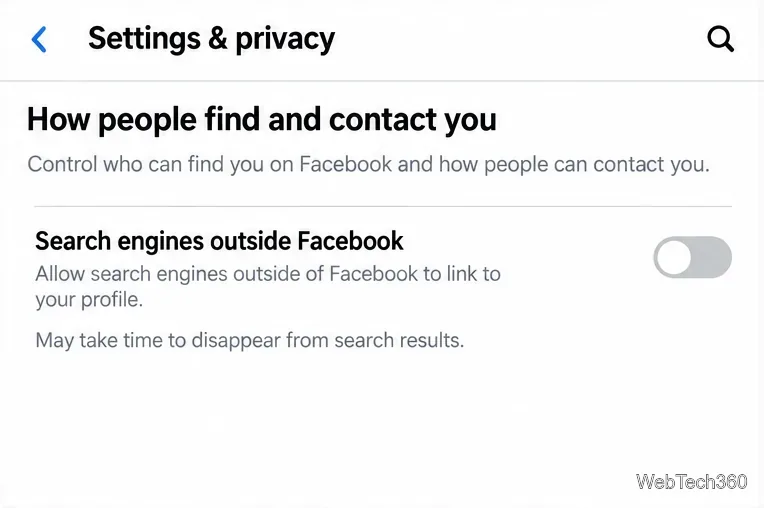
In How people find and contact you, look for Do you want search engines outside Facebook to link to your profile? and turn the option off. This asks external search engines not to link directly to your Facebook profile; it does not prevent people from finding you inside Facebook or remove a result immediately. Search engines may keep cached listings until they refresh their results. Meta notes that it cannot remove those cached copies for you.
Turn off external search-engine links, while allowing time for cached results to update.
5. Review tags before they appear on your profile
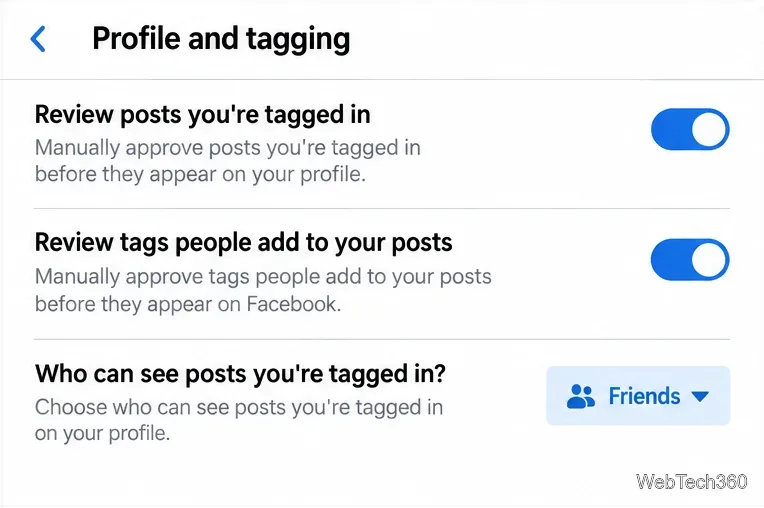
Open Profile and tagging. Turn on the options to review posts you’re tagged in before they appear on your profile and to review tags people add to your posts. Also check who can see posts you’re tagged in on your profile. These controls help manage what appears on your timeline, but they do not necessarily hide the original post from the audience selected by the person who shared it. Use Activity Log to review older tags. Meta explains how tagged-post audiences work.
Enable tag review and set who can see tagged posts on your profile.
6. Turn off Active Status in Facebook and Messenger
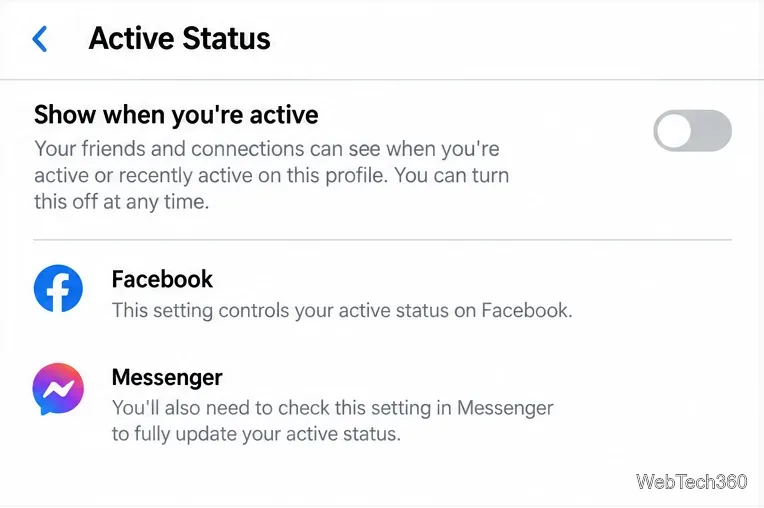
In Facebook Settings, open Active Status and turn off Show when you’re active. If you use Messenger, check its Active Status setting there too; changing it in one app may not update the other. Meta provides separate steps for Facebook Active Status and Messenger Active Status.
Turn off Active Status in Facebook and check Messenger separately.
Do a final privacy check
After changing settings, view your profile as someone who is not your friend if that option is available, and scan your recent posts, photos, tags, and public comments. Repeat the review after major Facebook app updates. These six changes reduce exposure, but they cannot control what other people share or make every part of Facebook private.