Home
» WEB
»
How to Manage Site Settings in Chrome on Any Device
How to Manage Site Settings in Chrome on Any Device
Chrome site settings let you choose what websites can request across your browser, then adjust permissions for an individual site when needed. On a computer, open More > Settings > Privacy and security > Site settings. On Android, open Chrome’s menu, go to Settings > Site settings (in some versions, expand Advanced first). On iPhone or iPad, use Settings > Content Settings for the smaller set of controls Chrome provides on iOS.
Use the steps below to update defaults for all sites or change one site’s access. Chrome saves changes automatically. The interface images show representative controls; names and layout can vary by Chrome version and device.
Change site settings in Chrome on a computer
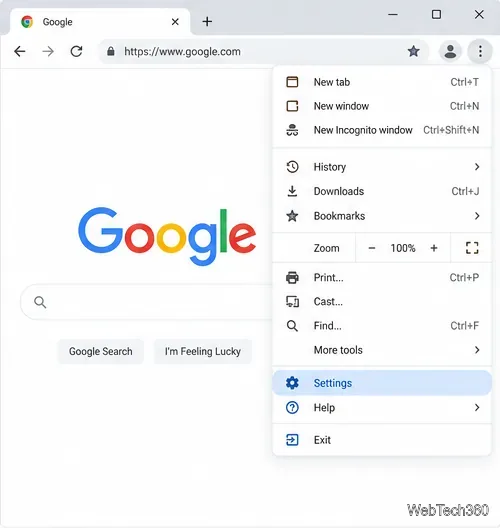
Open Chrome and select the three-dot More menu, then choose Settings.
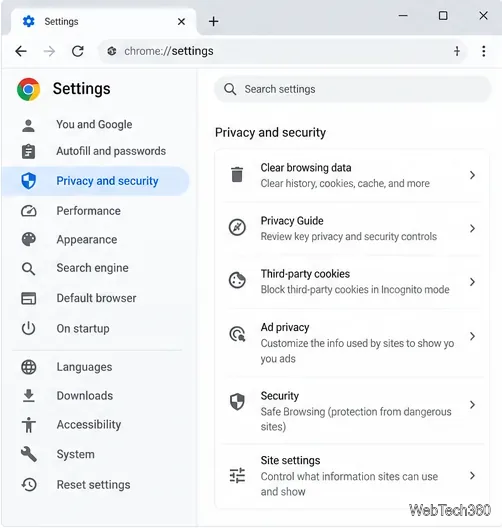
Select Privacy and security in the side panel.
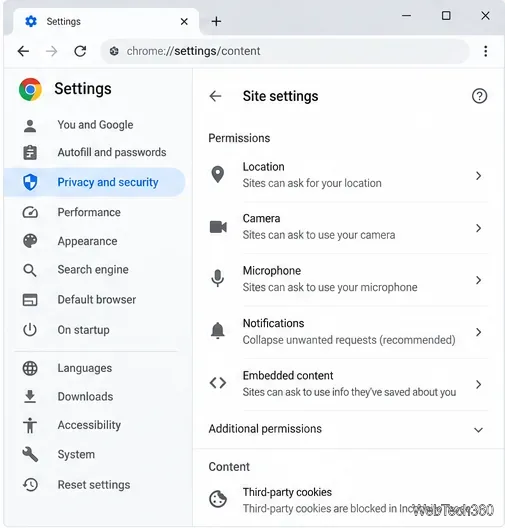
Open Site settings. You can review permissions and content controls there; choose a category to set its default behavior.
Choose a default for a permission
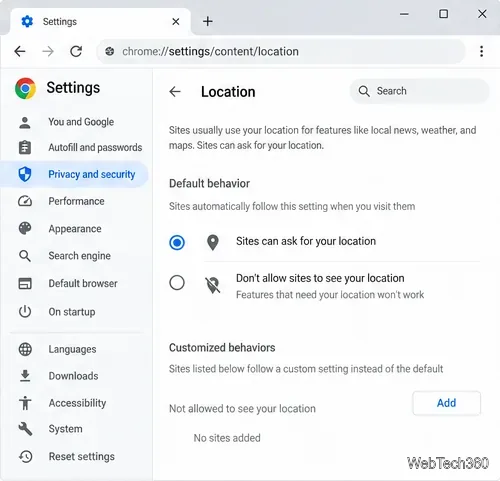
For Location, Chrome can ask before a site receives your location, or you can block location requests. Check the site’s purpose before allowing access; maps and local search may need it, while many pages do not.
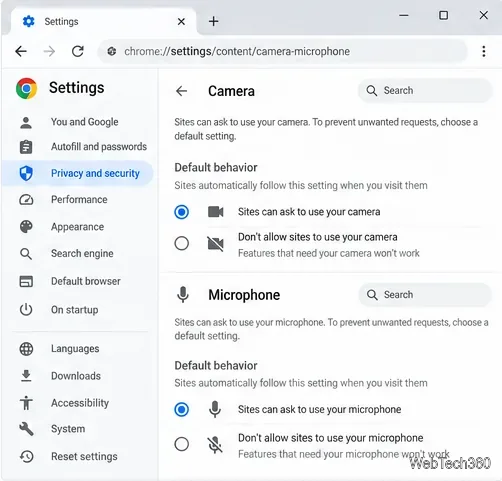
For Camera or Microphone, choose whether sites must ask or are blocked by default. You can also review allowed and blocked site exceptions. A site that needs a video call may not work if access is blocked.
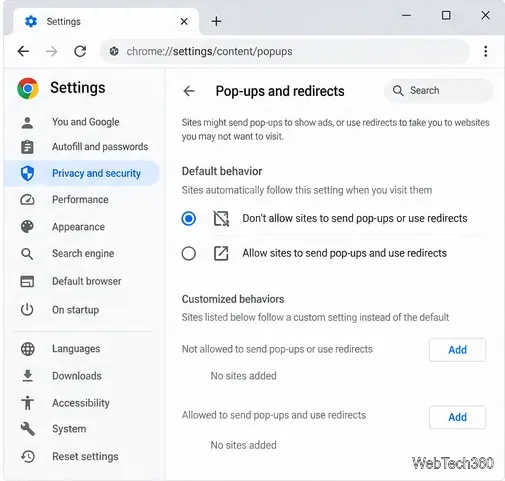
Other controls include Notifications, Pop-ups and redirects, JavaScript, automatic downloads, sound, third-party cookies, and on-device site data. For example, Chrome blocks pop-ups by default; you can keep that default and allow a specific trusted site if a workflow depends on a pop-up.
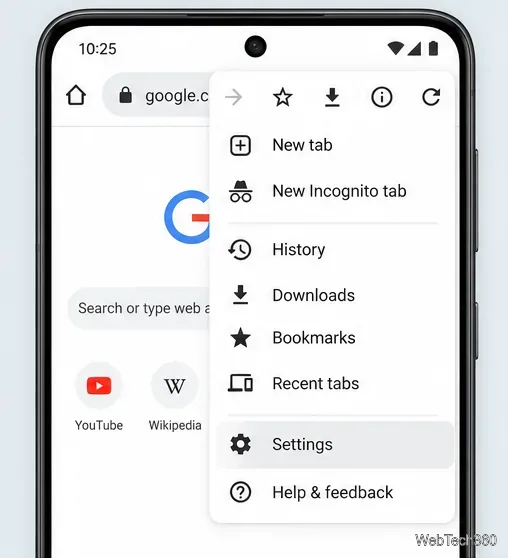
Open Chrome and tap More (three dots), then Settings.
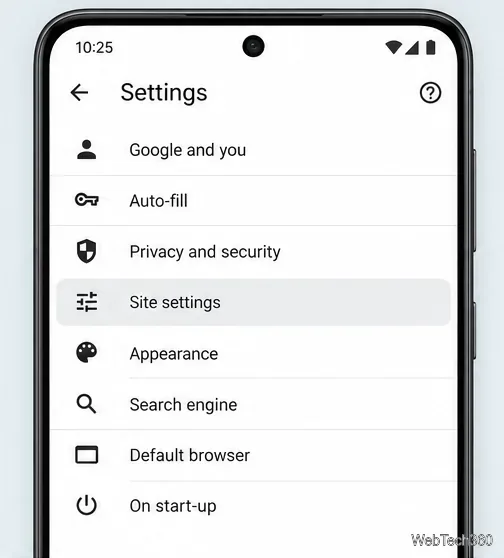
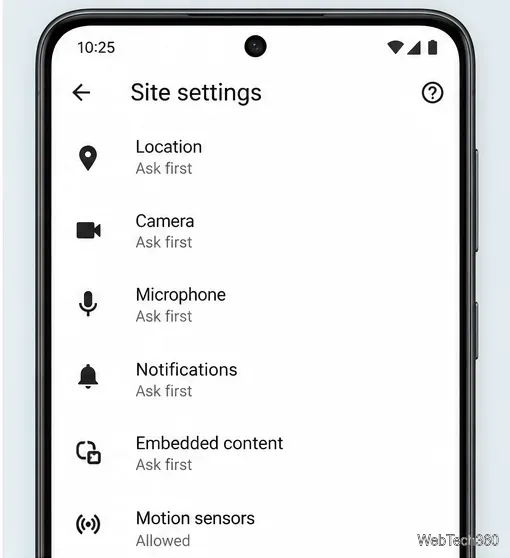
Tap Site settings. Depending on your Chrome version, this may appear under Advanced.
Choose a category such as Location, Camera, Microphone, or Notifications, then select the behavior you want.
Android site settings also include content and device controls such as pop-ups, downloads, sound, and on-device site data. These controls are separate from Android’s app permissions: Chrome must have device-level access before a website can use the camera or microphone.
Change permissions for one site
A site-specific choice overrides Chrome’s default for that site, so you do not need to loosen a setting for every website.
On a computer: Open the site, select View site information to the left of its address, choose Site settings, and change the permission.
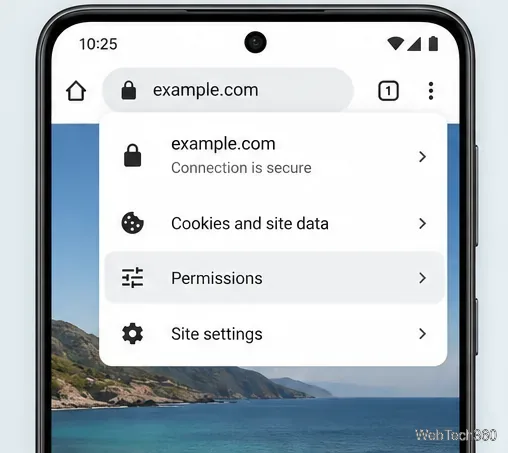
On Android: Open the site, tap View site information beside the address, tap Permissions, and choose a setting. To remove that site’s saved choices, tap Reset permissions if available.
When Chrome asks for camera, microphone, or location access, the available choices can include Allow this time, Allow while visiting the site, or Never allow. A one-time choice expires after the visit; a persistent choice applies again on later visits. Review the site name in the prompt before deciding.
Manage Chrome site settings on iPhone or iPad
Open Chrome, tap More, then Settings.
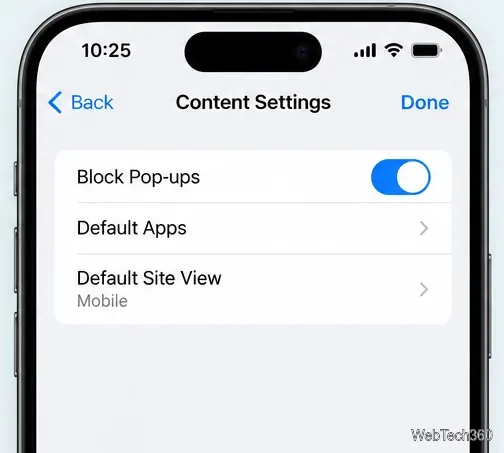
Tap Content Settings, then choose a listed control. Chrome’s iOS menu includes options such as Block Pop-ups, Default Apps, and Default Site View; it does not provide the same full list of site permissions as desktop or Android.
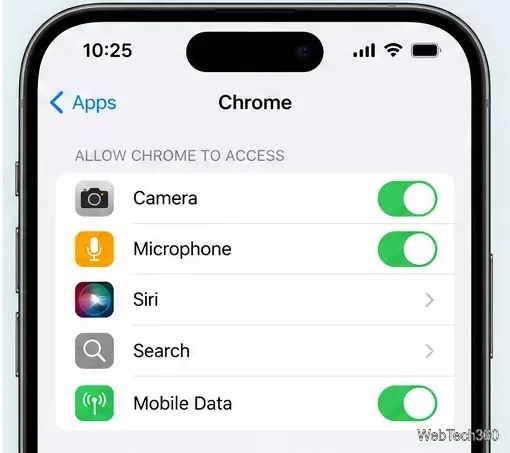
For camera or microphone access, first respond to Chrome’s site prompt. If access is disabled at the iOS level or the prompt does not appear, open the iPhone or iPad Settings app, find Apps > Chrome, and review Camera or Microphone access. If you previously changed a site’s camera or microphone permission, tap its matching icon beside the address bar to review it; Chrome shows those icons after a site-level change. Google’s camera and microphone instructions for Chrome explain both the browser prompt and device-level setting.
What to check if a site still cannot use a feature
Chrome’s site permission is only one layer. For hardware access, check the permission for that site in Chrome and the app permission for Chrome in Windows, macOS, Android, or iOS. Then reload the page and confirm that the site itself has not muted the call or disabled the feature. On a work or school device, an administrator may control some settings.
Use the narrowest change that solves the problem. Location, camera, microphone, and notifications are separate controls, and a website may need one without needing the others. Cookies and on-device site data are storage controls, not the same as camera or location permissions; blocking them can sign you out or affect shopping carts and other site features. See Google’s guides to cookies and site data and on-device site data before changing those options.
If you want to undo one site’s choice, return to that site’s settings and reset or change the permission. On desktop, Chrome may also remove permissions from sites you have not used recently. Avoid using Chrome’s full Restore settings to their original defaults option for a single-site problem: that resets other browser preferences too. If needed, review what Chrome’s full settings reset changes.