Home
» WEB
»
How to Mute Facebook Stories From Profiles and Pages (and Unmute Them)
How to Mute Facebook Stories From Profiles and Pages (and Unmute Them)
To mute Facebook Stories from a person or Page, open one of their active stories, choose the three-dot Options menu, and select Mute. Their stories will stop appearing in your Stories feed, but you can still be friends with the person or follow the Page. Muting a story does not automatically hide their regular Facebook posts.
The steps are similar on iPhone, Android, and the Facebook website. You can reverse the change later without unfriending, unfollowing, or blocking anyone.
How to mute Facebook Stories on iPhone or Android
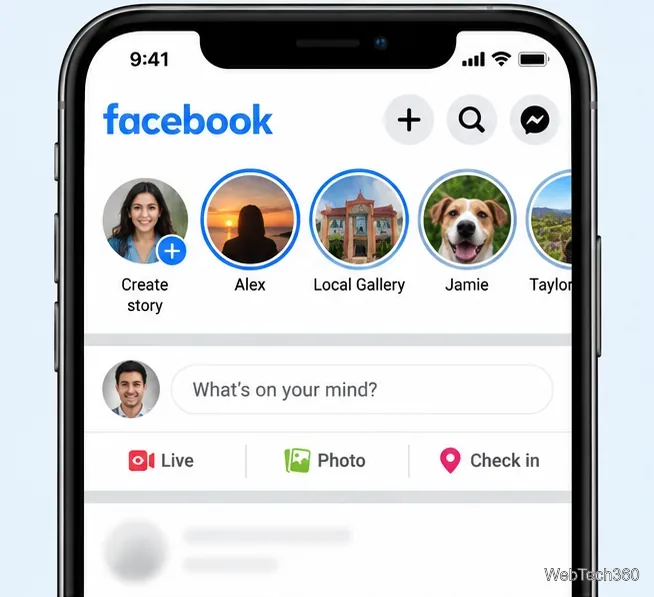
In the Facebook app, the Stories section generally appears near the top of your Feed. You need a story from the account you want to mute. The menu wording and placement may vary slightly with the app version.
Find the story. Open Facebook, scroll to the Stories section, and tap the story from the friend, profile, or Page whose stories you want to hide.
Choose the story from the person or Page you want to mute.
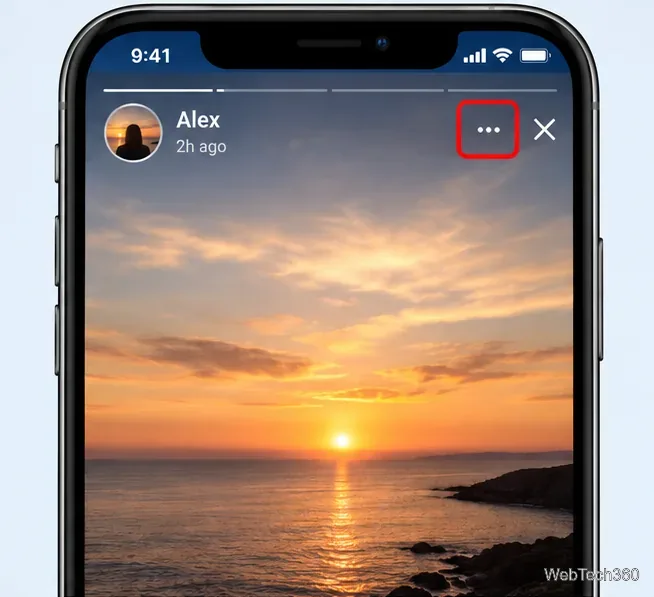
Open the story options. While the story is displayed, tap the three dots (Options) near the top of the story viewer.
Open the three-dot menu inside the story viewer.
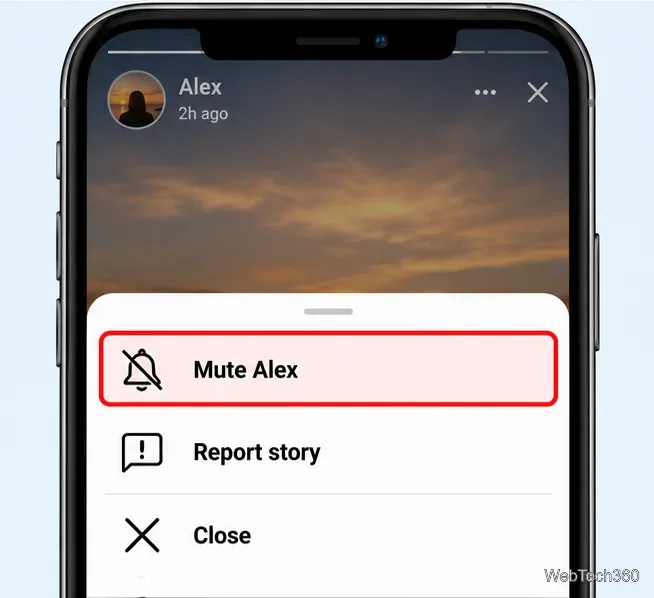
Choose Mute. Select the option labeled Mute [name] or Mute [name]’s story, depending on your version of Facebook.
Choose the option to mute stories from that account.
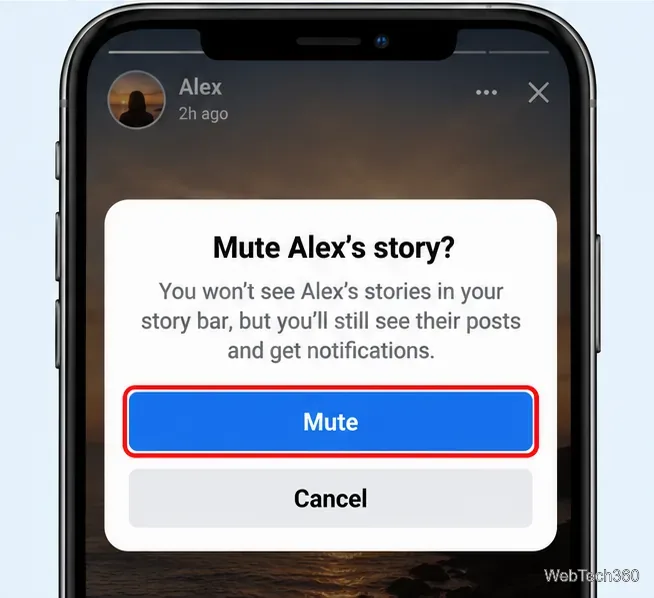
Confirm if prompted. Tap Mute in the confirmation dialog. Future stories from that account should no longer be shown in your normal Stories lineup.
Confirm the mute action if Facebook asks you to.
These steps apply to both personal profiles and Pages when the account has a story available and Facebook offers the mute option. You are muting the account’s stories, not deleting its story or changing what anyone else can see.
How to mute stories on the Facebook website
On a computer, open Facebook and locate Stories near the top of your Feed. Older guides describe Stories as a permanent right-hand column, but that placement should not be treated as a reliable instruction for today’s layout.
Click an active story from the profile or Page you want to mute.
While viewing the story, click the three-dot Options menu, if present.
Choose the Mute option for that account, then confirm if requested.
If the desktop story viewer does not offer Mute, try the Facebook mobile app instead. Facebook changes its web layout and may not display identical controls for every account or interface.
How to unmute Facebook Stories
Changed your mind? Facebook’s help instructions describe a list of muted stories within story privacy settings. The following path is documented for the app:
Go to the Stories section at the top of your Feed and tap Your Story.
Open Options and select Edit story privacy near the bottom.
Tap Stories you’ve muted.
Find the person or Page and tap Unmute next to its name.
You do not need the person or Page to publish a new story to unmute them from this list. If you cannot find the path in your version of the app, look for story settings or story privacy controls and consult the Facebook Help Center’s mute and unmute instructions.
What muting a Facebook Story does—and does not do
Muting is a viewing preference, not a privacy restriction. You stay connected to the profile or Page in the same way as before. Regular posts may continue to show up in your Feed, and existing notification preferences are not automatically turned off. Muting is also different from unfollowing an account or blocking someone.
The person or Page does not receive a special notification that you muted their stories. Muting their stories also does not prevent them from seeing your own stories. To control who can see what you post, use Facebook’s separate story privacy settings.
Why can’t I find the Mute option?
If Mute is missing, first confirm that you are viewing an active story, not a regular post, Reel, or profile page. Open the three-dot menu inside the story itself. If the account has no active story, you may need to wait until it shares one or use the unmute/settings controls to review accounts you have already muted.
On mobile, make sure you are using the Facebook app rather than a limited browser view, and check whether an app update is available. On desktop, try the app if the feature does not appear. These steps are more reliable than hunting for an old menu label or installing a browser extension just to control stories.
Bottom line: If you only want fewer Stories from a particular friend or Page, mute their story rather than unfollowing or blocking them. You can restore their stories later through Stories you’ve muted.