Home
» WEB
»
How to Play Classic Minecraft in a Browser: Quick Steps
How to Play Classic Minecraft in a Browser: Quick Steps
You can play Classic Minecraft in a browser for free by opening Mojang’s official classic.minecraft.net page on a compatible computer. There is no launcher to download. This is the small, early Minecraft sandbox made available in 2019, not the current Java or Bedrock game. Mojang’s release overview describes the browser version as a return to the 2009 experience with 32 blocks, while Minecraft Help lists Classic for Windows, Mac, and Linux through the official site.
What you need before you start
Use a desktop browser with a physical keyboard and mouse. The live Classic page says a keyboard is required and displays a compatibility message when WebGL or WebRTC support is missing. If the page reports that your browser cannot run the game, try an up-to-date browser that supports those technologies. You do not need to install Java or the Minecraft Launcher for this browser version.
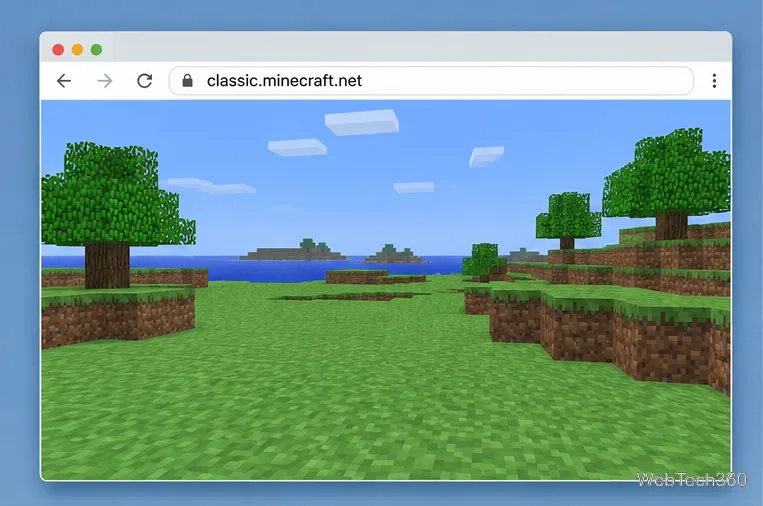
classic.minecraft.net appears in the browser address bar above a simple Classic-style block landscape.
How to start a Classic Minecraft world
Open the official page. Enter classic.minecraft.net in the browser address bar. Check that the address is on the Minecraft domain before you proceed; you should not need to download a third-party launcher to play this edition.
Enter a nickname if the page asks for one. Choose a display name for the browser session, then use the page’s play or start control to launch a world. This is a separate Classic session, not your Java or Bedrock save.
Let the world load, then try the keyboard. Once the block landscape appears, click the game area if needed and use WASD to move. The original-style world is intentionally simple, so you can begin exploring and building without a modern crafting or survival setup.
Copy the session link to invite people. If the game provides a shareable world link, copy that exact link and send it to the people you want to join. They should open it in a compatible browser. Keep the link while the session is active; it is how players return to that particular world.
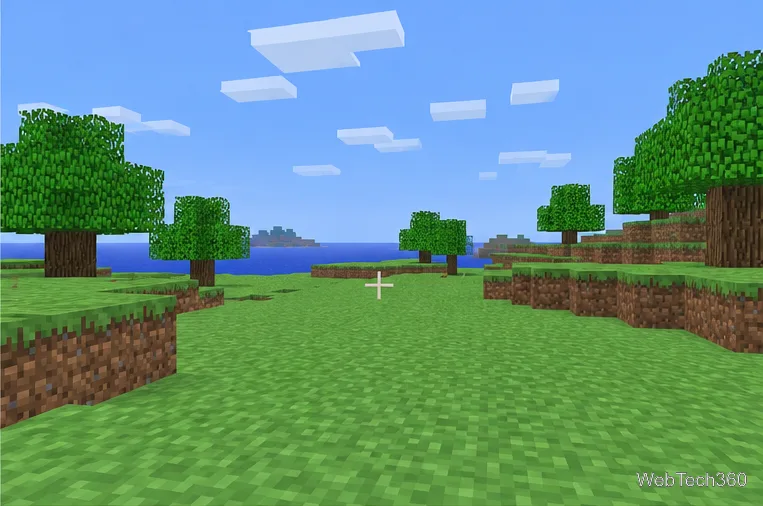
After the browser game loads, you can explore a sparse first-person block world.
Classic Minecraft controls
The basics are quick to learn. The game’s own control prompt is the best reference for mouse actions if your browser or input device behaves differently.
Action
Control
Move
W, A, S, and D
Jump
Spacebar
Toggle fog
F
Look around and interact with blocks
Mouse, using the on-screen control prompt for the exact actions
Classic does not use the same tool and crafting loop as modern Minecraft. You can place or break the available blocks directly, making the browser version better suited to a quick build or a short visit with friends than to a long survival world.
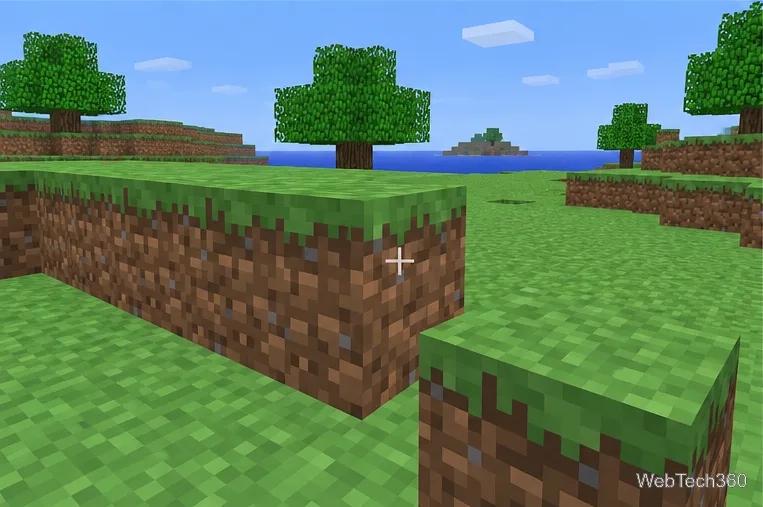
Classic building centers on placing and removing blocks directly, without modern tool progression.
What Classic can and cannot do
Mojang describes the browser edition as the original, free-to-play version. Its limited block set and old-fashioned feel are part of the point: it is a nostalgic sandbox, not a free copy of the full game. Do not expect current Java or Bedrock features, your existing servers, or a world that transfers into the installed game.
A browser world is also not a reliable permanent save. The original Classic page can end a session when the host leaves and no other players remain. If someone is still in the world, the session link may let you return; if the world has ended, start a new one and share its new link.
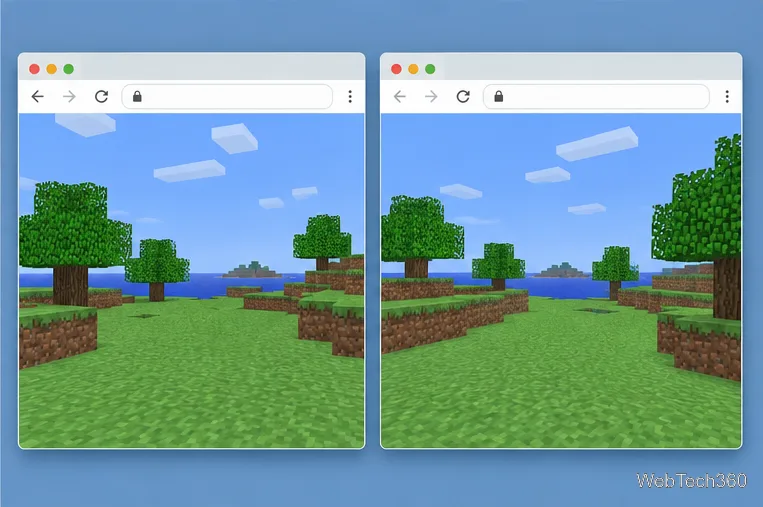
Share the session URL the game provides so invited players can open the same active world.
If the game will not load
“This version requires a keyboard” appears: switch to a computer with a physical keyboard. The page does not present the game as a touch-first mobile experience.
The page mentions WebGL or WebRTC: try another current desktop browser and check that browser settings or extensions are not disabling those capabilities. Reload the official page after making changes.
A friend cannot join: make sure they opened the current session link, not an older one, and that their browser meets the same compatibility requirements.