Home
» WEB
»
How to Save a Google Docs File: Auto-Save, Download, and Offline Access
How to Save a Google Docs File: Auto-Save, Download, and Offline Access
Google Docs saves your document to Google Drive automatically as you type while you’re online, so there is no Save button to click. If you want a separate file on your computer, choose File > Download and select a format such as Word or PDF. If you want to keep editing the same Drive document without an internet connection, turn on offline access and mark the document available offline. Those are different results: a download is a separate copy, while offline access keeps your Google Docs file ready to sync back to Drive.
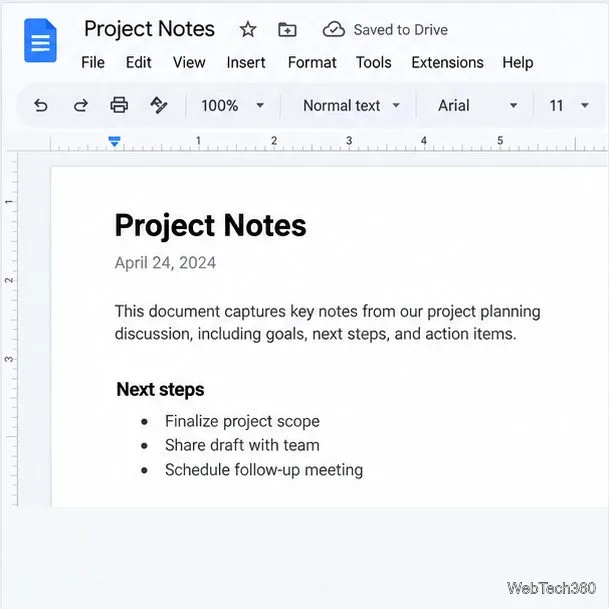
The open document shows its Drive save status beside the title.
How Google Docs saves your work online
A Google Doc lives in Drive under the Google Account you’re signed in to. When online, Docs saves changes as you type, and you can reopen the file from Drive or the Docs home screen on another device with that account. See Google’s Docs save and download instructions.
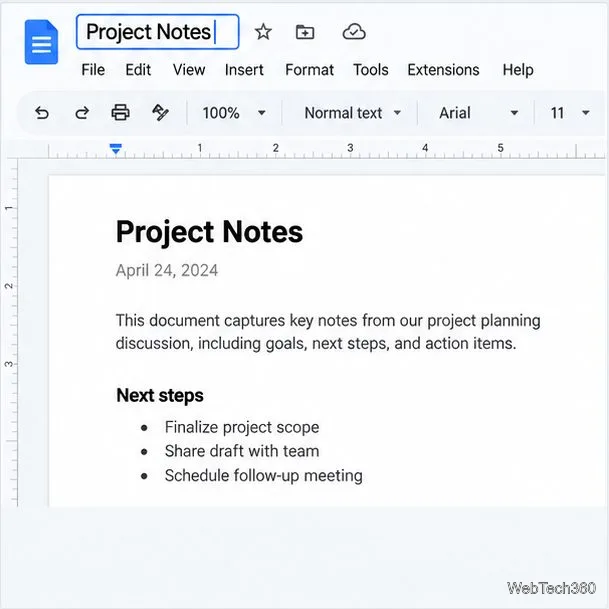
To find a document more easily, click its name at the top, type a descriptive title, and press Enter. The new title is saved with the document.
Click the document name at the top to give the Drive file a clear title.
Before closing after important edits, wait for the status beside the title to show the latest changes are saved to Drive. Offline edits sync after reconnecting only if offline access was set up in advance.
Download a Google Docs file to your computer
Downloading creates a copy in another format. It does not remove the original from Drive, and later edits to the downloaded copy do not automatically update the Google Doc. On a computer:
Open the document in Google Docs and wait for its changes to finish saving.
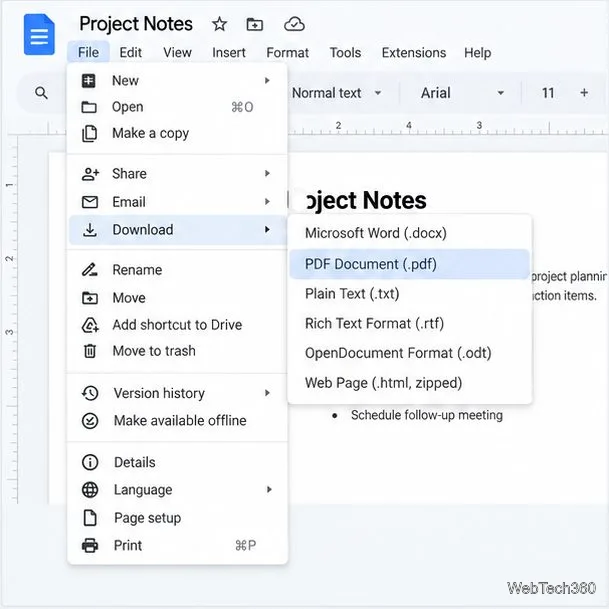
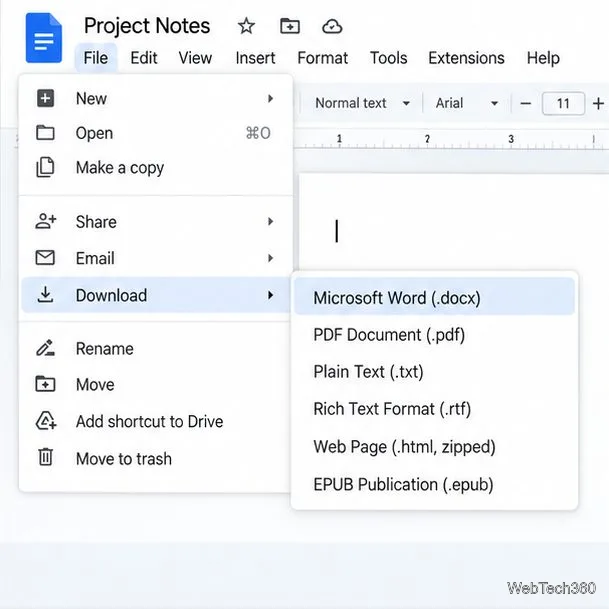
Click File in the top menu, then point to or select Download.
Choose the format you need, such as Microsoft Word (.docx) or PDF Document (.pdf).
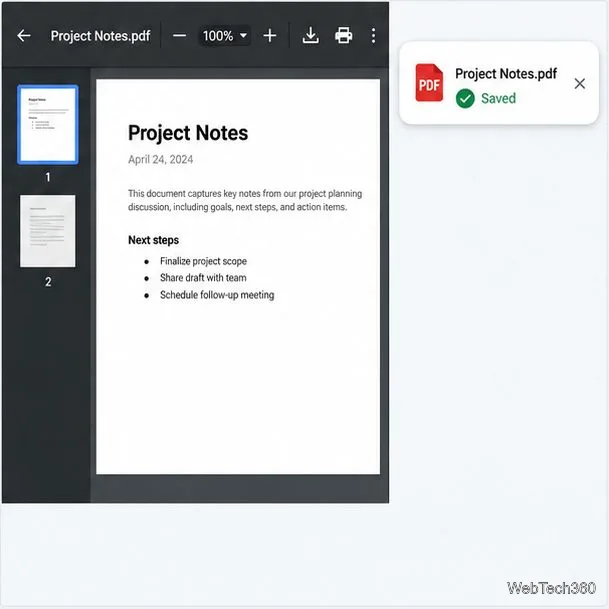
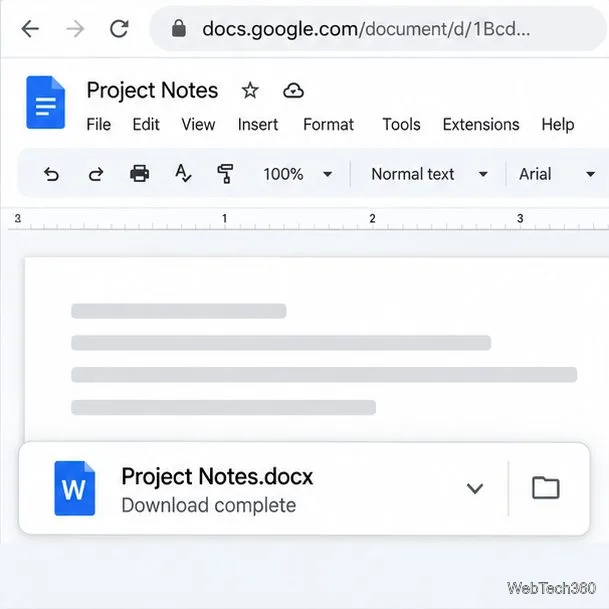
When the download finishes, find the copy in your browser’s Downloads list or the Downloads folder on your computer.
Google lists DOCX, PDF, ODT, RTF, plain text, HTML, and EPUB among its export formats.
Open File and Download, then choose a format from the submenu.A downloaded PDF is a separate file saved on the computer.
Choose the right file format
Format
Use it when
What to expect
DOCX
You want to continue editing in Microsoft Word or another compatible editor.
Most text formatting carries over, though page layout or fonts can shift.
PDF
You’re sharing a final copy or preparing a document to print.
It is designed to preserve page layout and is less convenient for editing.
ODT or RTF
You need a file for another word processor.
Formatting support varies between apps.
TXT
You need only the words for a plain-text editor.
Text styling and most page formatting are removed.
Web-page exports may arrive as a ZIP archive. See Google’s export-format reference. Use PDF for sharing or printing, and DOCX when someone needs to edit the file.
Choose Word format when the recipient needs an editable copy.The browser download message confirms the separate Word copy is ready.
Make a document available offline
Offline access lets you keep editing the Drive document without a connection; it is different from downloading a PDF or Word copy. Set it up while online:
Use Google Chrome or Microsoft Edge, do not use a private or incognito window, and install and turn on the Google Docs Offline extension. Edge may direct you to the Chrome Web Store.
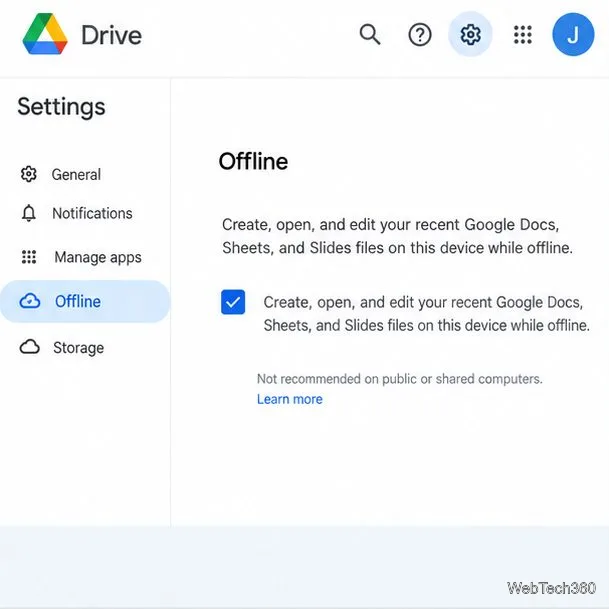
In Google Drive, open Settings and enable the Offline option. Allow enough storage space on the device.
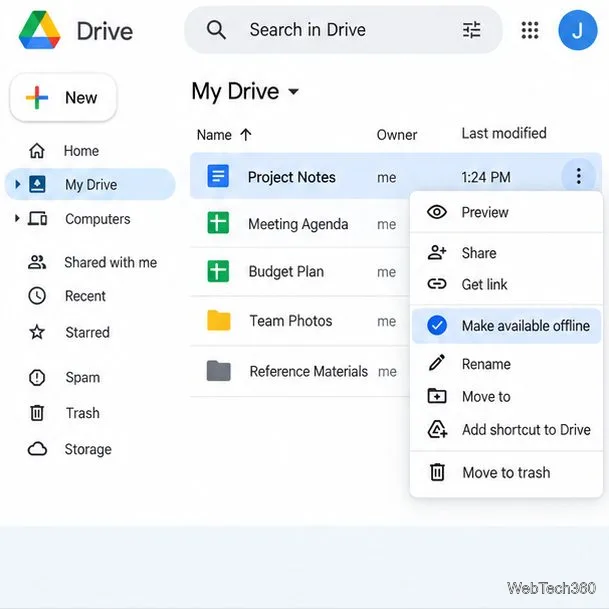
In Drive, open the file’s three-dot menu and choose Available offline or Make available offline. In an open document, you can also use File > Make available offline.
A check mark indicates the file is prepared. Offline edits save on the device and sync to Drive when you reconnect. A work or school administrator may disable offline access. Review Google’s offline-access requirements and troubleshooting steps if the option is missing.
Enable Drive’s Offline setting before marking a document for offline use.Use the file menu in Drive to prepare one specific document for offline access.
Quick fixes if saving seems to fail
No local copy: The document is in Drive. Use File > Download to save a computer copy.
Recent edits are missing: Reconnect, wait for the save status, then download a fresh copy. Old downloads do not refresh.
Offline is missing: Enable Offline in Drive settings, use Chrome or Edge, and check for an administrator restriction.
Use Drive autosave for everyday work, Download for a portable copy, and offline access when you need to keep editing without a connection.