Home
» WEB
»
How to Save Google Docs as a PDF: 2 Reliable Methods
How to Save Google Docs as a PDF: 2 Reliable Methods
To save a Google Doc as a PDF, open it on a computer and choose File > Download > PDF Document (.pdf). If you want to review print layout or adjust page settings first, choose File > Print and save the browser’s print output as a PDF. Both methods create a separate copy; your original Google Doc remains editable.
What to know before exporting
A PDF is useful when you need to share, submit, archive, or print a document whose formatting should look consistent across common PDF viewers. It captures the document at the time you export it. Later edits to the Google Doc do not update the downloaded PDF, so export a fresh copy after making changes.
PDF is a file format, not a guarantee that nobody can edit or copy the content. PDF editing tools can change some files. If access or confidentiality matters, review the document’s sharing permissions and the recipient before sending it; do not rely on the file extension as a security control. Adobe explains how PDF text can be edited in Acrobat.
Method 1: Download the Google Doc as a PDF
This is the quickest option when you do not need to change print settings. Google’s desktop download instructions include PDF as an export format.
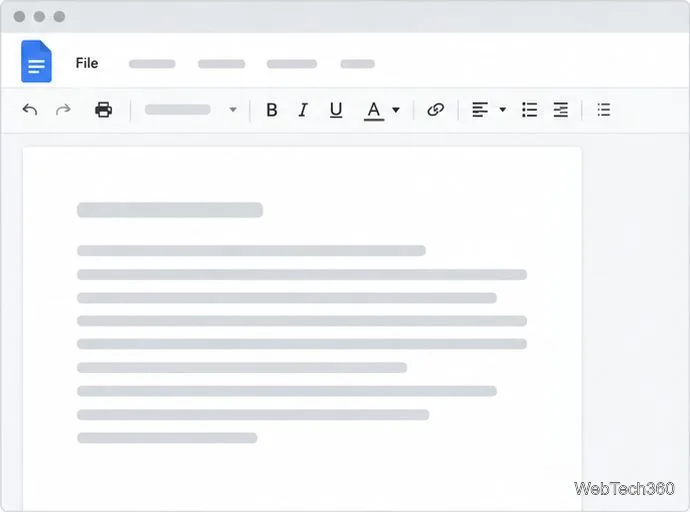
Open the document. In Google Docs, choose the file you want to export. If you have just edited it, wait for the saved status before continuing. Google Docs saves online changes automatically.
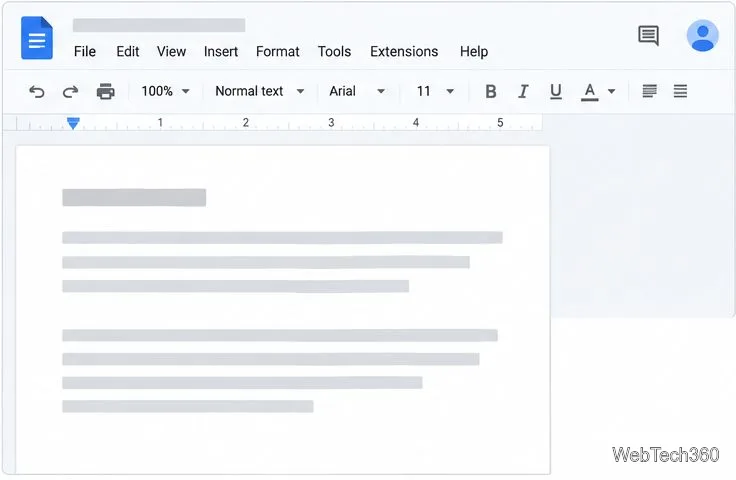
Open the document you want to turn into a PDF.
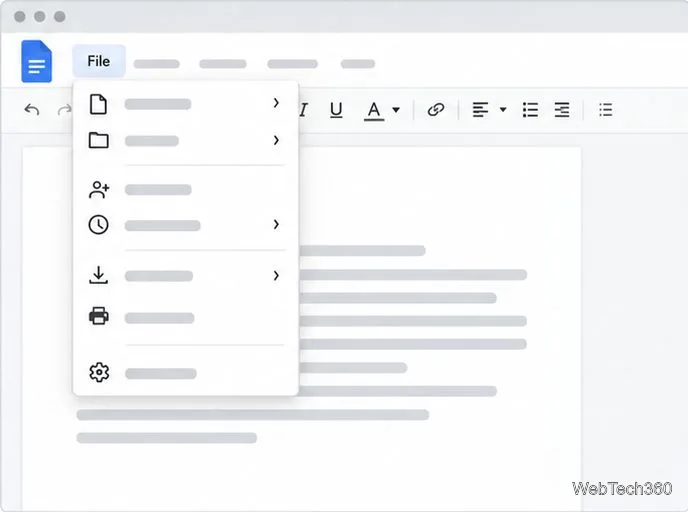
Open the File menu. Select File in the top menu bar.
Start the export from the document’s File menu.
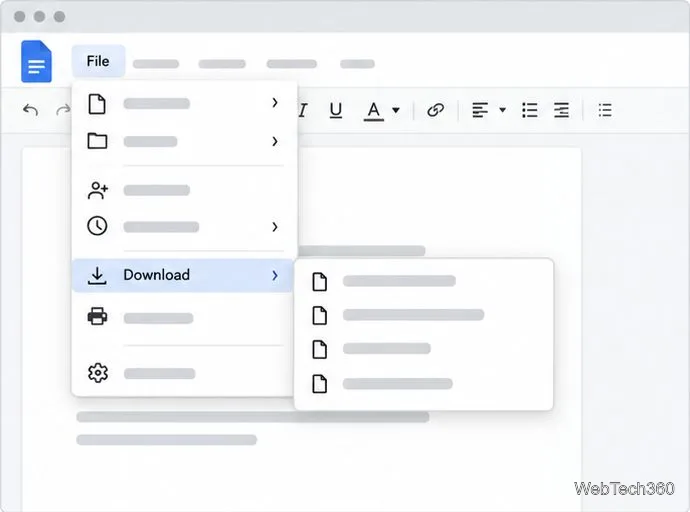
Open the Download submenu. Point to or select Download to show the available file formats.
Choose Download to see the available export formats.
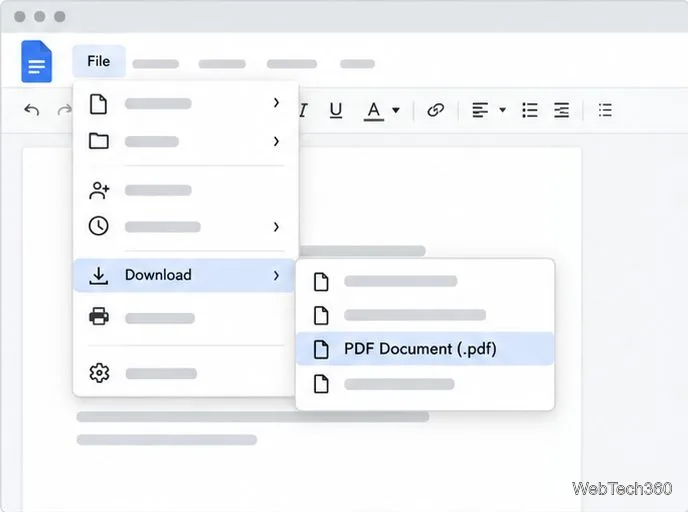
Select PDF Document (.pdf). The browser downloads the PDF, usually to its default downloads folder. Depending on your browser settings, it may ask where to save the file.
Select PDF Document (.pdf) to create the downloadable copy.
Open the resulting file before sharing it. Confirm that the filename is recognizable and that the pages, images, tables, and links look as expected. For a document that will be revised again, keep the Google Doc as the working source and treat the PDF as a snapshot for distribution.
Method 2: Print the document to PDF
Use the print route when you want to inspect the pages or make print-specific choices before saving. The exact dialog depends on your browser and operating system. These steps describe the common Chrome desktop flow; Google also notes that Docs may download a PDF automatically when you print from Firefox or Safari.
Open the Google Doc. Check that you have the right document and that its latest edits are saved.
Begin with the document open in Google Docs.
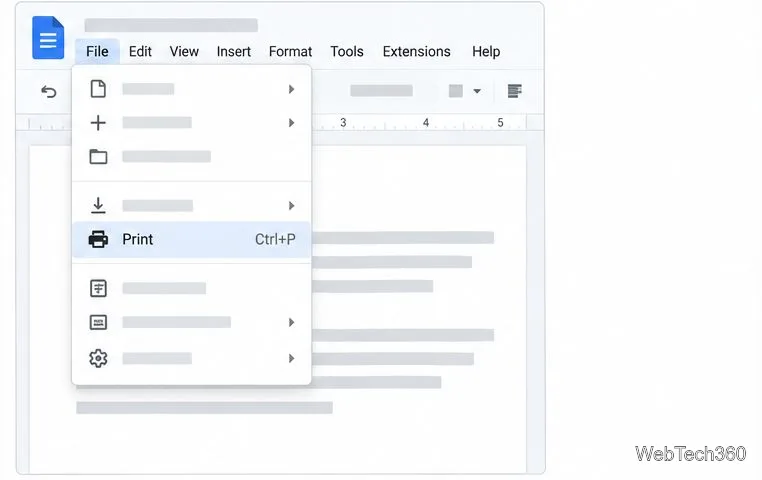
Choose File > Print. You can also use Ctrl+P on Windows, ChromeOS, or Linux, or ⌘+P on Mac.
Choose Print from the File menu to open the print preview.
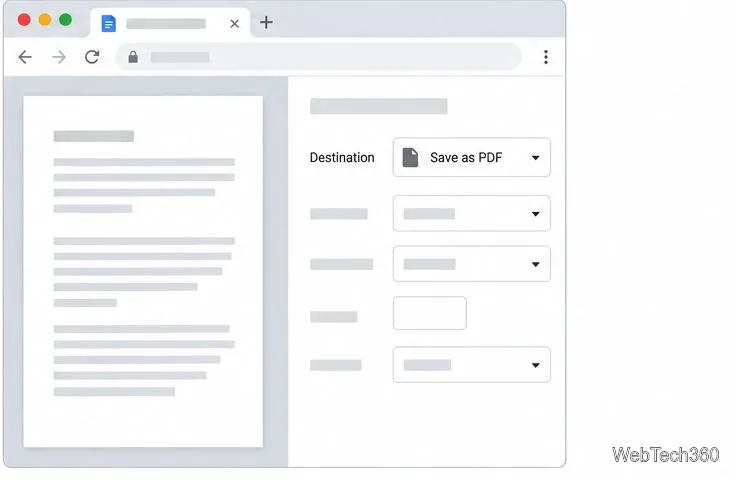
Set the destination to Save as PDF. In Chrome’s print dialog, open Destination and select Save as PDF. If your browser shows a different print window, choose its PDF-saving destination or follow its download prompt.
Choose Save as PDF as the print destination where that option is available.
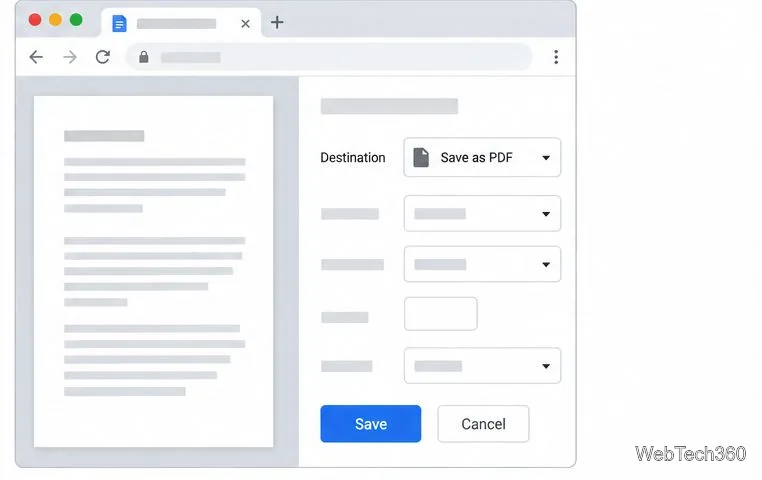
Review the preview and save. Check page range, paper size, orientation, and margins if those controls are available. Select Save, then choose a folder and filename in the save dialog.
Review the output, then save the PDF to your chosen folder.
Google’s print instructions for Docs describe the desktop print flow and explain that output can differ for pageless documents. In Chrome, the browser’s print dialog controls the final PDF destination and print settings.
Check page layout, especially in pageless documents
A pageless Google Doc can still be printed, but the print preview may not match the continuous editing view. Google says images can resize to fit page width and wide tables can be squeezed to fit. If exact page breaks, margins, headers, or page orientation matter, switch the document to Pages format before exporting. Use Format > Switch to Pages format, or open File > Page setup to check page size, orientation, and margins. See Google’s guidance for switching between pages and pageless formats and changing page settings.
If Download or Print is missing
The document owner or a Google Workspace administrator may restrict viewers’ and commenters’ ability to download, print, or copy a file. If you cannot use either method, ask the owner for permission or for a PDF copy. Google documents these controls in its file-sharing settings help. Do not upload a private document to an unrelated converter just to work around a restriction.
If the PDF is simply hard to find, check your browser’s downloads list and its configured download folder. If pages look wrong, return to the Google Doc, adjust the page format or print settings, and export again. For most documents, direct download is fastest; print-to-PDF is more useful when you need to inspect or tailor the page output.