Home
» WEB
»
How to Set Up Google Authenticator for a Gmail Account
How to Set Up Google Authenticator for a Gmail Account
Google Authenticator adds a code from your phone as a second way to verify your identity when you sign in to Gmail. To connect it, enable 2-Step Verification for the Google Account behind your Gmail address, add the account in Authenticator, and confirm one code. The app generates codes without internet or cellular service. Google may offer a different sign-in challenge; choose Try another way if you want to use Authenticator and that option is available.
Google can vary labels and screens by device or account, so follow the current instructions shown in your settings.
Google's setup instructions do not list a phone number as a prerequisite for Authenticator codes, though it may ask you to verify your identity or complete other 2-Step Verification prompts. Work or school account administrators can restrict sign-in methods.
Set up Google Authenticator for Gmail
1. Open your Google Account security settings
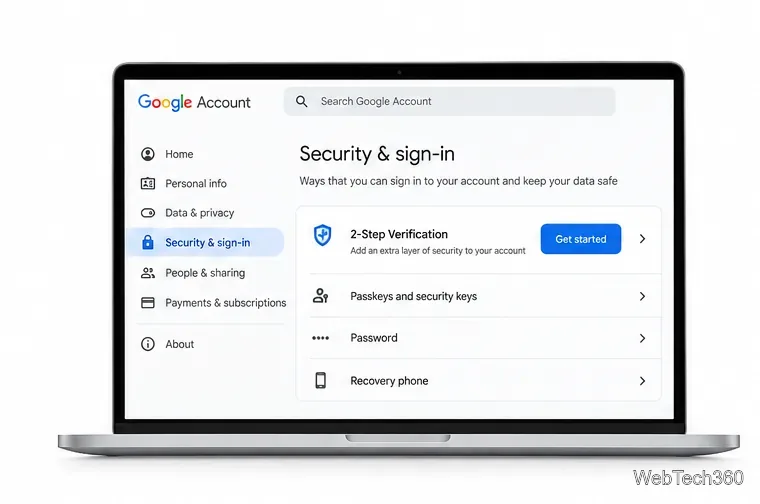
Go to Google Account security and sign in with the Gmail account you want to protect. Under How you sign in to Google, open 2-Step Verification. If it is off, select Turn on 2-Step Verification and complete Google's prompts. If it is already on, continue to the authenticator option.
Open 2-Step Verification from your Google Account security settings.
2. Add the account to Authenticator
In 2-Step Verification settings, find Authenticator or Authenticator app, then choose Set up authenticator. Google may ask you to confirm your identity again. Open Authenticator on your phone and follow its welcome screens. Signing in to a Google Account in Authenticator can sync codes across devices; using the app without an account keeps codes on that device. This choice affects code storage, not Gmail's 2-Step Verification enrollment.
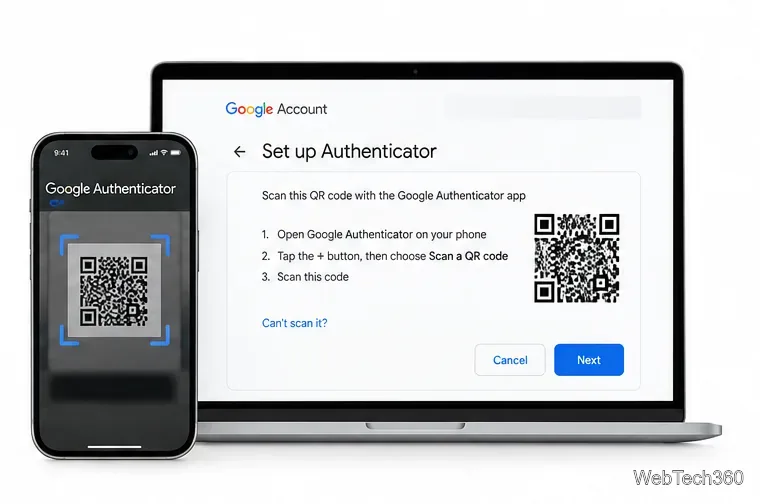
When Google displays a QR code, tap the plus button in Authenticator and choose its QR-scanning option. Scan the code on your computer. Treat the setup QR code as a secret because another person could use it to add the same code. If you cannot scan it, follow any alternative instructions Google displays.
Scan the setup QR code on your computer with Authenticator on your phone.
3. Confirm the setup code
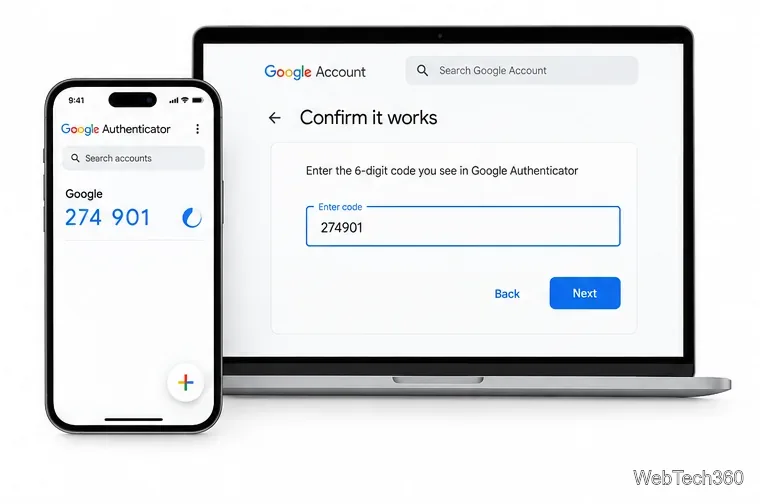
Authenticator adds an entry for your Google Account and displays a one-time code. Enter the current code in Google's confirmation field and select the button to verify or continue. Codes refresh automatically, so use the one currently on screen before it expires.
Enter the current code to confirm that the app is linked.
4. Use the code when signing in
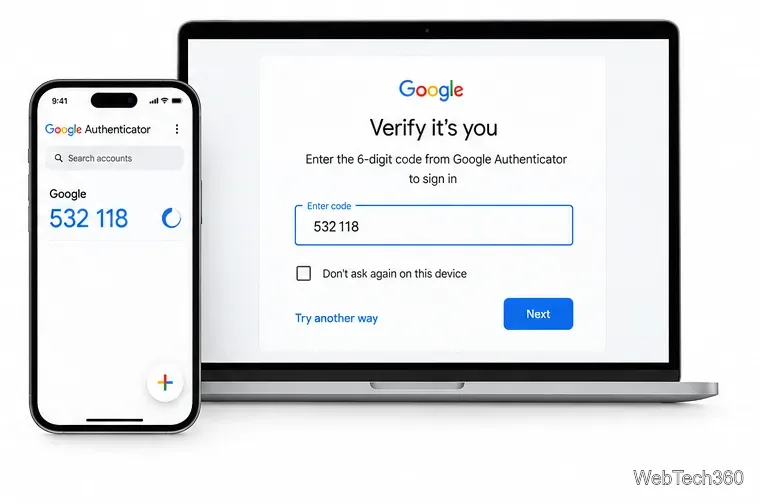
If Google asks for another verification step during a Gmail sign-in, open Authenticator and enter the current code for the correct account. Google may offer a prompt or passkey instead; select Try another way and choose Authenticator if available. Never share a verification code with someone who contacts you. Google will not call and ask you to read one aloud.
Enter an Authenticator code when Google offers it as a sign-in challenge.
Save a backup method
Set up another way to sign in in case your phone is lost or replaced. In your Google Account's 2-Step Verification settings, open Backup codes and choose Continue to download or print them. Google provides 10 single-use codes; used codes become inactive, and creating a new set disables the old set. Keep them private in a secure place separate from your phone. See Google's backup-code instructions.
You can also add a passkey or hardware security key. Google describes these as more phishing-resistant sign-in methods in its 2-Step Verification guidance.
Troubleshoot common problems
Authenticator is missing at sign-in: Confirm that 2-Step Verification is on and that you opened the correct Google Account. Google says Authenticator can take up to seven days to appear as an available sign-in option. Work or school accounts may have administrator restrictions.
Google rejects a code: Select the entry for the right account and enter the current code before it expires. Set your phone's date and time to update automatically; Authenticator uses the device's time.
You changed phones: Sign in to the same Google Account in Authenticator if you synced your codes. Otherwise, use the app's transfer feature while the old phone is available. If it is gone, use a backup method, then update Authenticator in Google Account settings.
To stop using Authenticator for Gmail, open Google Account security settings, go to 2-Step Verification, and remove the authenticator method there. Uninstalling the phone app does not update your account settings. Confirm another verification option or backup code works first. When changing phones, add or transfer the code to the new phone and confirm it works before resetting the old one.