Home
» WEB
»
How to Share Clipboard Text Between Chrome Browsers
How to Share Clipboard Text Between Chrome Browsers
Chrome does not currently provide a supported setting that mirrors arbitrary clipboard text from one device’s system clipboard to another. The older instructions based on experimental Chrome Flags describe a past feature test, not a dependable setup for current Chrome. To move a snippet between Chrome browsers, use a synced note as a temporary bridge: save the text in Google Keep on the first device, then open and copy it on the second. This works across computers and phones when Keep is available under the same Google Account, but it is a manual copy-and-paste process.
What Chrome can share across devices
Chrome’s current built-in sharing tools handle web content, rather than general clipboard contents. You can send a page or tab to another device, and Chrome can create a link that opens at selected text. Neither action puts arbitrary copied text directly into the other device’s clipboard.
Send to your devices opens a shared page in Chrome on a selected device. Google’s current instructions require you to choose a tab, open Chrome’s sharing menu, and select a destination device.
Copy link to highlight makes a URL pointing to selected text on a webpage. It shares a link and context, not a standalone text snippet.
The article’s older Chrome 79 recipe uses three experimental flags, including “Sync Clipboard Service.” Those names are not part of Google’s current documented cross-device workflow. Treat the flag method as obsolete; do not rely on it to keep two clipboards synchronized. For an ordinary snippet, the Keep method below is the straightforward workaround.
Use Google Keep as a clipboard bridge
1. Open Keep on both devices
On each device, open Google Keep in Chrome and sign in to the same Google Account. You can use the Keep app on a phone instead. Keep notes are designed to be available from your devices, but each device needs internet access to load the shared account data.
Open a note in Keep on the device where the text is currently available.
2. Save the copied text on the first device
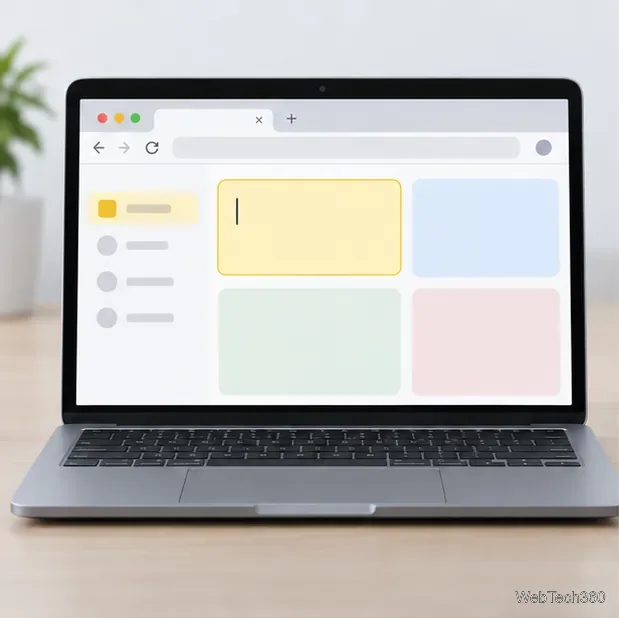
Copy the text as you normally would. In Keep on the source device, click Take a note, paste the text into the note, and click Done. On a phone, create a note in the Keep app and paste into it. This stores a copy in your Keep account; it does not change or sync the operating system clipboard.
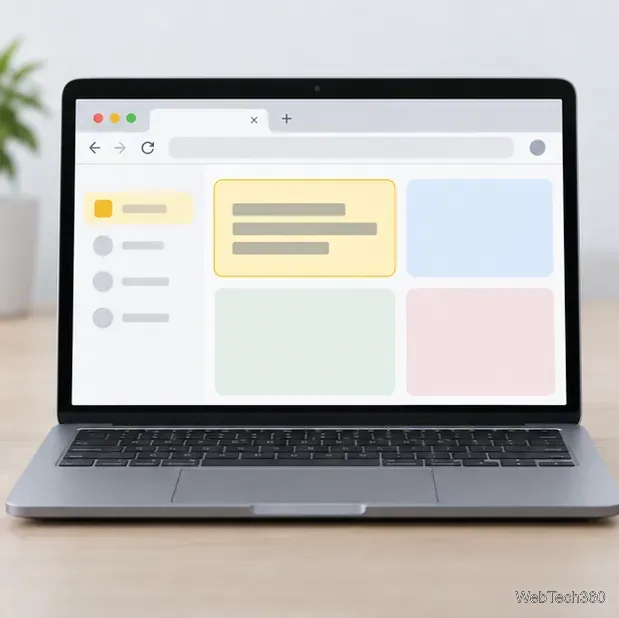
Paste the snippet into a note so it can load on the other signed-in device.
3. Open that note on the other device
On the second computer or phone, open Keep with the same Google Account and select the note. If it does not appear right away, confirm the account shown in Keep, check the internet connection, and refresh or reopen the app. Google’s Keep instructions describe creating notes on a computer and finding notes from other devices.
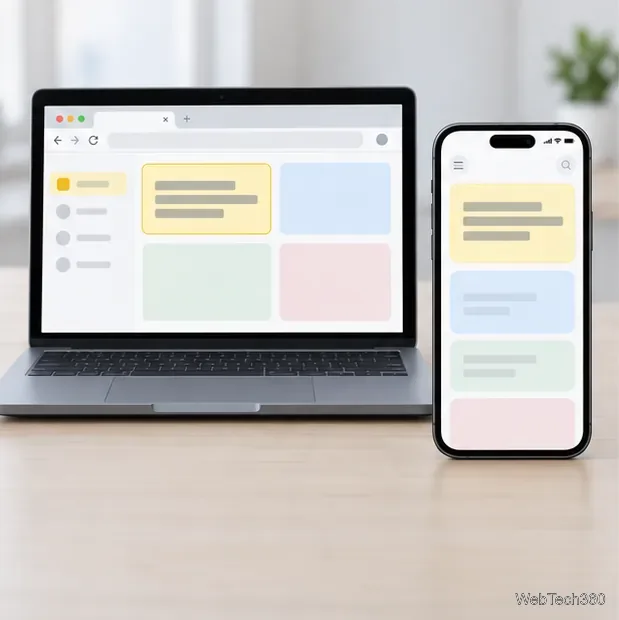
Open the saved note on the receiving device after signing in to the same account.
4. Copy the text into the app you need
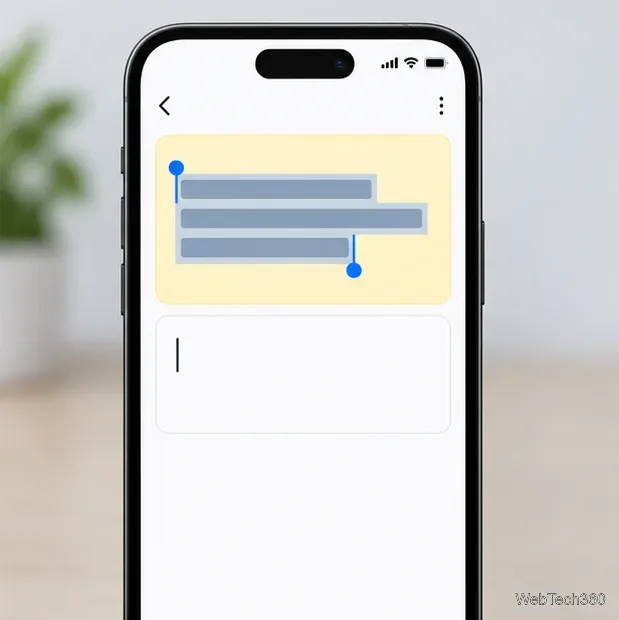
Select the text inside the note and copy it. On Windows or Linux, use Ctrl+C and Ctrl+V; on macOS, use Command+C and Command+V. On a phone, press and hold the text, adjust the selection handles if needed, tap Copy, then press and hold the destination field and tap Paste. When you no longer need the temporary note, use Keep’s More menu and choose Delete note. Deleted notes remain recoverable in Trash for seven days before permanent deletion.
Copy the note text on the receiving device, then paste it into the destination app.
Send a page or a link to highlighted text instead
If the content you want is on a webpage, Chrome may be quicker than Keep. On desktop, open the page, choose More > Cast, save, and share > Send to your devices, then pick the target device. Chrome also lets you right-click selected webpage text and choose Copy link to highlight; paste that link into a message or note. The recipient opens the page at the relevant passage, but must still copy the text themselves if they need it on their clipboard.
These sharing options require the receiving device to be signed in and available to Chrome. If you do not see a device, check that Chrome is signed in to the intended Google Account on both ends. If you do not see Copy link to highlight, Google notes that the feature may not work for the selected content.
Keep sensitive text out of temporary notes
A Keep note is stored in your Google Account, so avoid using this method for passwords, authentication codes, financial details, private customer information, or anything your organization does not permit you to store there. For sensitive work data, use an approved secure transfer method. For ordinary snippets, delete the temporary note after pasting and remember that deletion first moves it to Trash rather than erasing it instantly.