Home
» WEB
»
How to Star an Email to Keep Important Messages Easy to Find
How to Star an Email to Keep Important Messages Easy to Find
To star an email, click or tap the star beside the message in Gmail or Yahoo Mail. In Thunderbird, use the message’s star column or press S after selecting it. Outlook.com does not use a star for this job; use a follow-up flag to track a message or pin it to keep it at the top of the inbox. The steps below show where to mark a message and how to find it again.
A star is a personal visual reminder. It does not protect a message from deletion, and it does not automatically move the message out of its folder. If your email app has no star, choose the closest tool for your goal: a flag for follow-up or a pin for quick access.
How to star and find an email in Gmail
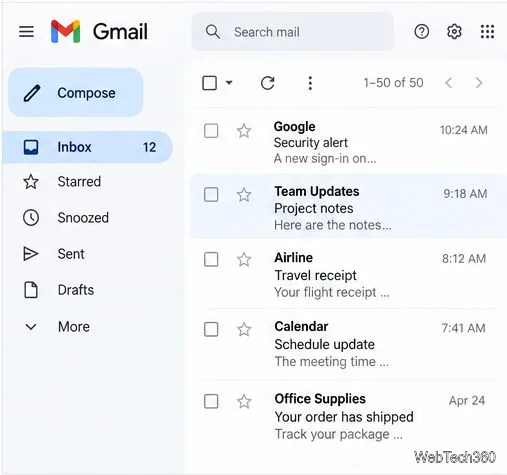
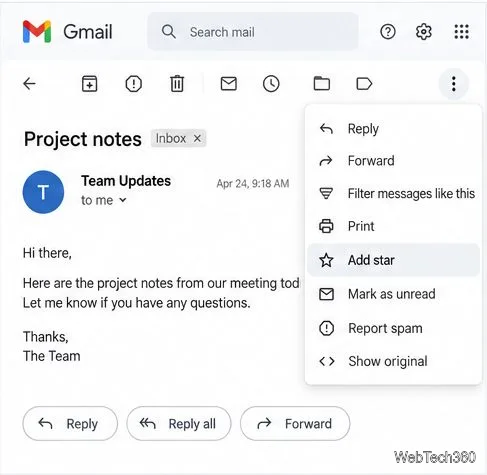
On Gmail for desktop, open your inbox and click the star icon just to the left of the message row. The star fills in when the message is marked. If you already opened the email, choose More in the message toolbar, then select Add star.
Click an outlined star beside a Gmail message.Use More > Add star on an open email.
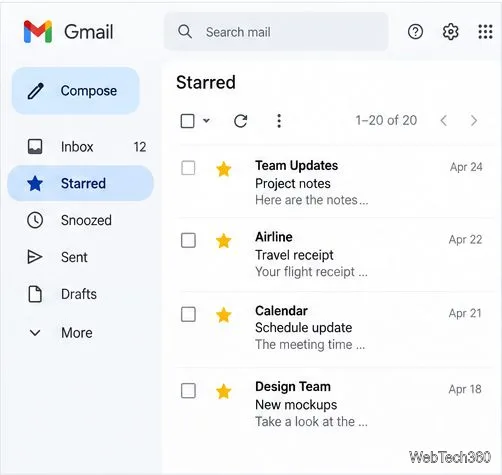
To review messages you marked, select Starred in the left sidebar. If it is hidden, click More in the sidebar first. You can also type is:starred in the search box to find starred messages.
Starred collects messages you marked in Gmail.
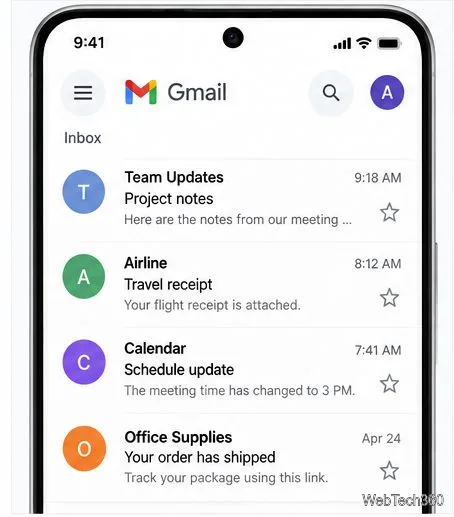
In the Gmail mobile app, tap the star to the right of a message or subject. To see those messages, open the menu and tap Starred.
Tap the star beside a mobile message.
Starred is different from Important. Gmail has a separate importance marker that may be set automatically using signals such as your past activity. A star is a marker you apply to remember an email; use the importance marker separately if that is what you intend. Gmail’s official guide to importance markers explains the distinction and the is:important search.
To enable extra star colors or icons, go to Settings > See all settings > Stars, move choices into In use, and save. See Google’s Gmail star instructions for the available presets.
How to star an email in Yahoo Mail
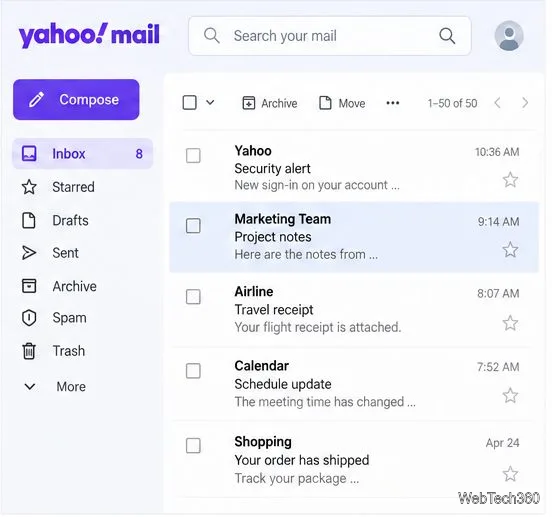
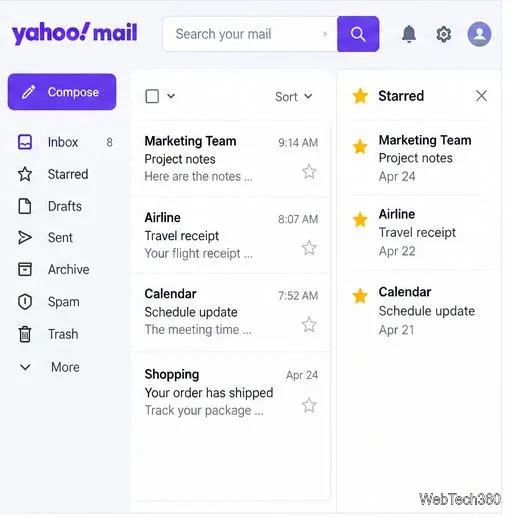
In Yahoo Mail, find the message in your inbox and click the star beside its row. The message is then marked for later. In the current desktop experience, starred messages appear in a dedicated panel near the top-right of the inbox; open that panel to review the messages you have marked.
Click the star on the Yahoo Mail row.Yahoo’s Starred panel lists marked messages.
If you are using the Yahoo Mail mobile app and do not see a star beside messages, Yahoo says stars may need to be enabled: tap your profile icon, open Settings, and turn on Stars. Yahoo’s star instructions for the mobile app and overview of New Yahoo Mail describe the starred-message tools.
How to star an email in Thunderbird
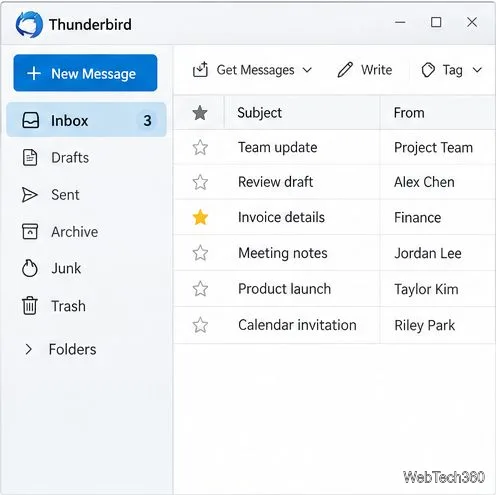
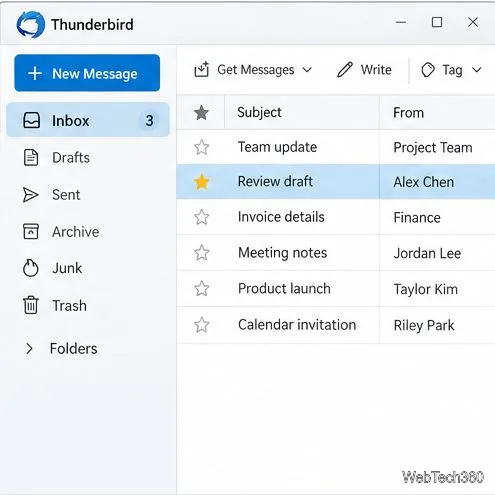
In Thunderbird’s message list, click the star column beside the email you want to mark. The star fills in to show that it is active. Click it again to remove the star. If you prefer the keyboard, select the message and press S; Thunderbird’s shortcut toggles the star on or off.
Thunderbird shows stars in a dedicated column.A filled star marks the selected Thunderbird message.
The keyboard shortcut is listed in Mozilla’s Thunderbird keyboard-shortcut reference. If your layout looks different, switch to the message list’s table view or use the shortcut; names and positions can vary with view settings.
What to use instead of a star in Outlook
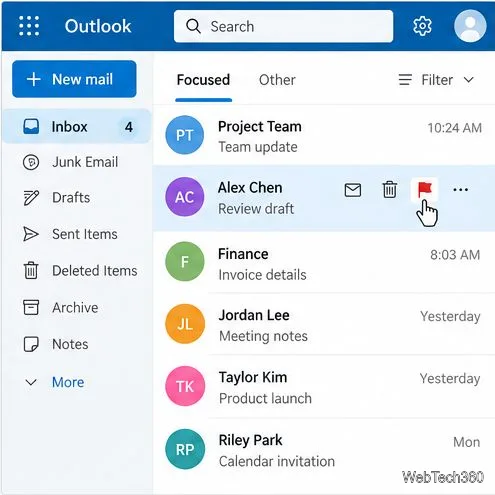
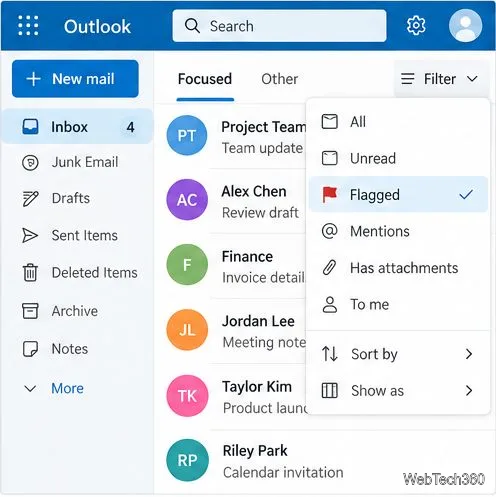
Outlook.com uses flags and pins, not email stars. Choose a flag when you want a follow-up reminder or a visible cue that a message needs action. In the message list, hover over the email and select the flag icon. To find flagged mail later, choose Filter above the list and select Flagged.
Hover and choose Outlook’s follow-up flag.Filter the inbox to show flagged messages.
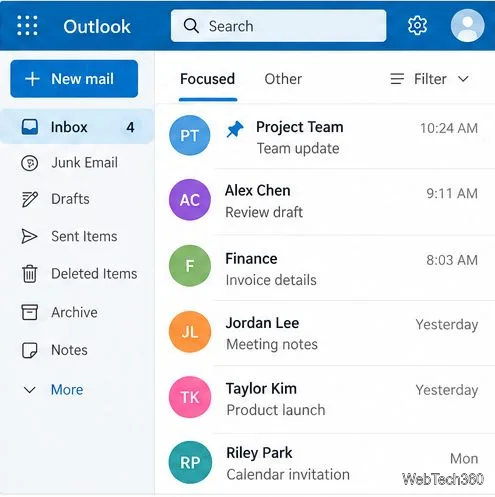
Use a pin when you want a message to stay at the top of your inbox. Hover over the row and select the pin. Microsoft notes that the inbox must be sorted by date for pinned messages to appear at the top; change the sort order if a pin seems to have no effect.
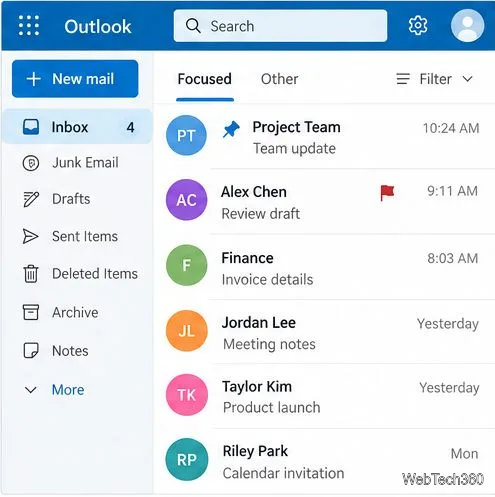
Date sorting keeps a pinned message above others.A pin and a flag mark different things.
These steps describe Outlook.com. Other Outlook versions may arrange controls differently, but flags are the usual follow-up marker. Microsoft’s Outlook.com flag and pin guide shows where to find both actions.
In short: use a star in Gmail, Yahoo Mail, or Thunderbird; use an Outlook.com flag for follow-up or a pin to keep a message visible at the top.
If you cannot find a starred message
Check that you are in the same account and that the star or flag is active.
In Gmail, search is:starred; in Yahoo Mail, open Starred. In Thunderbird, select the message and press S to toggle its star.
A star, flag, or pin does not protect a message from deletion. Archive mail you want to keep but remove from the inbox.