Home
» WEB
»
How to Stop YouTube’s “Video paused. Continue watching?” Prompt in Chrome
How to Stop YouTube’s “Video paused. Continue watching?” Prompt in Chrome
YouTube does not provide a setting that hides the “Video paused. Continue watching?” prompt in Chrome. The simplest built-in workaround is to turn off Autoplay; YouTube’s help page says the prompt can appear on the web after 60 minutes of uninterrupted viewing when Autoplay is on. If you want videos to keep advancing automatically, the YouTube NonStop extension is still listed in the Chrome Web Store. Its listing clarifies that it does not prevent the prompt from appearing: it automatically clicks the confirmation so playback continues.
Why YouTube pauses a video
YouTube says the confirmation is meant to protect your watch history and avoid using internet data when you are not actually watching. Its current guidance ties the web prompt to Autoplay being on and 60 minutes of uninterrupted viewing. That makes this a YouTube playback behavior, not a Chrome setting for background tabs. You can read YouTube’s explanation of the “Continue watching?” prompt for the platform’s current details.
Option 1: Turn off Autoplay in YouTube
Choose this option if you are comfortable deciding when each next video starts. It requires no extension and removes the autoplay condition named in YouTube’s help guidance.
Open YouTube in Chrome and start any video.
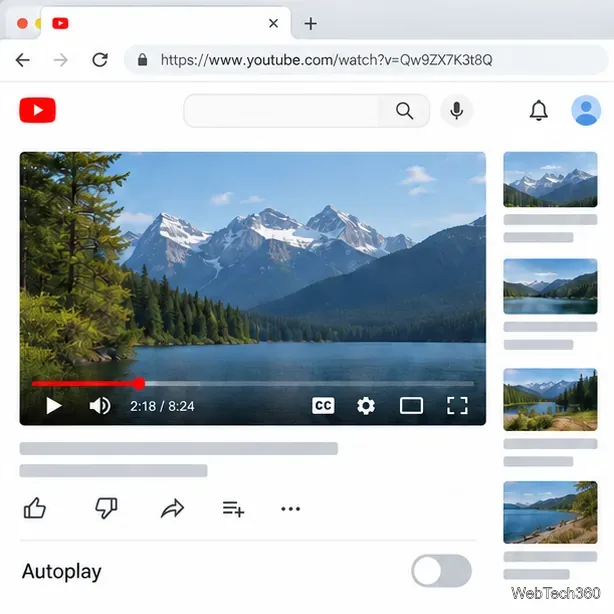
Find the Autoplay switch below or beside the video player controls. The exact placement can shift with YouTube’s layout.
Click the switch so Autoplay is off. On YouTube’s desktop help page, the switch is described as being at the bottom of the player.
Leave Autoplay off while watching. When a video ends, YouTube will wait for you to choose another video instead of starting the next one automatically.
Turn off Autoplay below the YouTube video player to stop the next video from starting automatically.
You can turn Autoplay back on at any time from the same switch. Turning it off changes how the next video starts; it does not turn off playback controls, playlists, or manual video selection. See YouTube’s instructions for turning Autoplay on or off.
Option 2: Keep Autoplay on with YouTube NonStop
If you want a playlist or recommendations to continue without manual input, install YouTube NonStop from the Chrome Web Store. The extension’s current listing says it automatically clicks YouTube’s confirmation. That means the prompt may still flash on screen briefly; the extension is an automatic response, not a YouTube setting that disables the prompt itself.
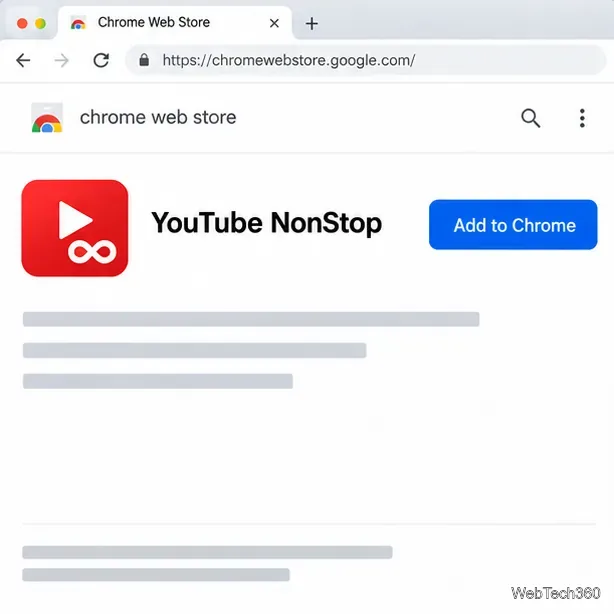
Open the linked Chrome Web Store listing and check that the extension name and developer match the listing you intended to install.
Select Add to Chrome.
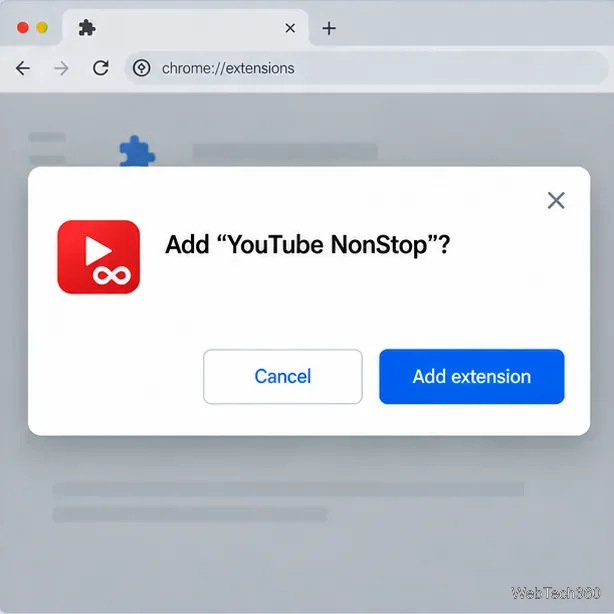
Review Chrome’s confirmation, including any requested access, then select Add extension only if you are comfortable with it.
Return to YouTube. If the tab was already open during installation, reload it and test playback on a watch page.
Open the YouTube NonStop entry in the Chrome Web Store and choose Add to Chrome.Read Chrome’s extension confirmation and approve installation only if you accept the requested access.
Chrome’s official extension guide explains how to add, review, disable, and remove extensions. The Web Store listing I checked identifies YouTube NonStop as version 0.9.2, last updated October 30, 2023. Since that date is several years old, check the listing and recent reviews before installing, and expect that a YouTube update could affect whether the extension continues to work.
Check permissions and privacy before installing
A browser extension that responds to a prompt on YouTube needs to interact with the YouTube page. Read Chrome’s permission message rather than approving it automatically; Chrome explains that extension permissions determine what a browser add-on can access. If the requested access seems broader than the feature needs, cancel the installation and use the Autoplay switch instead.
The extension’s Web Store privacy section currently shows the developer’s declaration that it does not collect or use data. That is the developer’s disclosure, not an independent security audit. Prefer the official Chrome Web Store listing over download mirrors, and review the listing again if you install it later because its permissions and privacy details can change.
Disable or remove the extension later
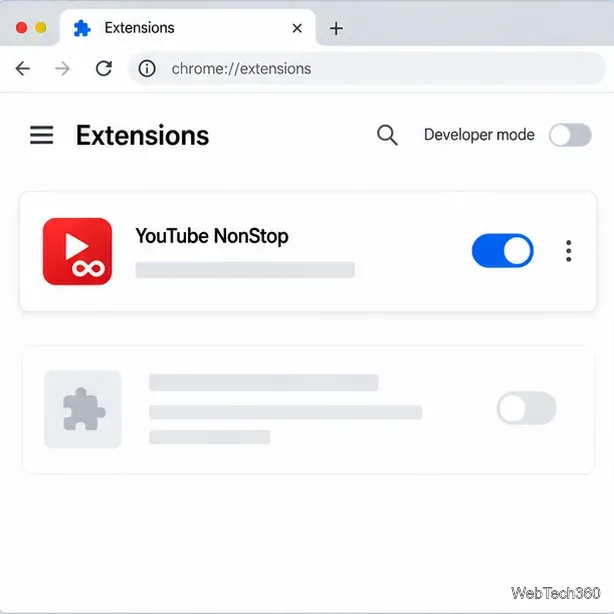
To restore YouTube’s normal confirmation behavior, type chrome://extensions in Chrome’s address bar and press Enter. Find YouTube NonStop and turn its switch off. To uninstall it, choose Remove on its extension card and confirm. Reload any open YouTube tabs after changing the extension so the page reflects the updated state.
Use Chrome’s Extensions page to turn YouTube NonStop off or remove it.
If the prompt still pauses playback, confirm that the extension is enabled, reload YouTube, and check the extension’s current listing for compatibility notes. You can also use the no-extension workaround by switching Autoplay off. If YouTube changes the prompt or its timing, there may not be a browser-side fix until the extension is updated.
Which option should you use?
Turn off Autoplay if you want the simplest supported workaround and do not need the next video to start by itself. Use YouTube NonStop only if uninterrupted autoplay matters enough to justify installing a third-party extension and accepting its access. Neither option changes YouTube’s account-level history settings, and the extension does not truly remove the confirmation prompt—it clicks it for you.