Home
» WEB
»
How to Turn Off Chrome Extension Sync Without Turning Off Sync
How to Turn Off Chrome Extension Sync Without Turning Off Sync
To stop Chrome from syncing extensions while keeping bookmarks, passwords, history, and other selected data in sync, change the Extensions option under Customize sync. Leave Chrome sync on and turn off only that category. The setting controls extension sync for the signed-in Google account; it does not uninstall extensions already on a device.
Before you change the setting
These steps are for Chrome on a computer. Make sure you are in the Chrome profile signed in to the Google Account whose sync settings you want to change. If Chrome is set to “Sync everything,” you will first choose “Customize sync,” then select the data types you want to keep syncing.
Do not use the separate Turn off control beside your account or turn off the main Sync switch. Those controls stop more than extension sync. Google’s Chrome Help instructions for extension sync describe the Extensions switch inside Customize sync.
Turn off Chrome extension sync
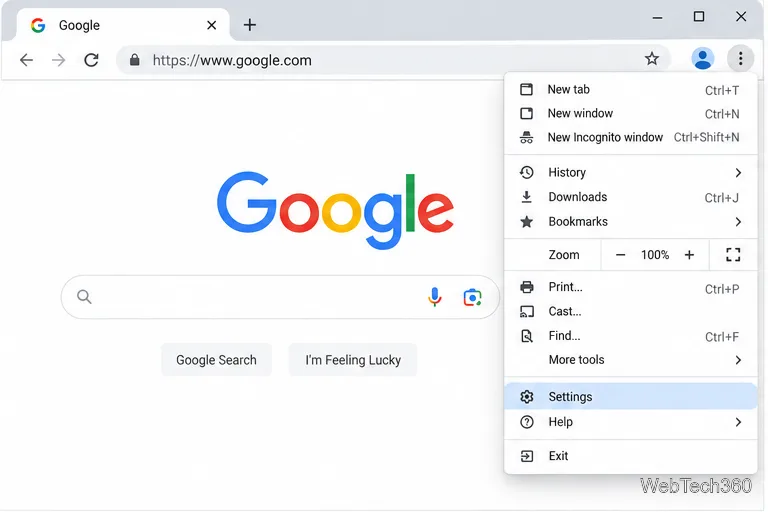
Open Chrome Settings. Select the three-dot More menu in the upper-right corner, then select Settings.
Open Settings from Chrome’s More menu.
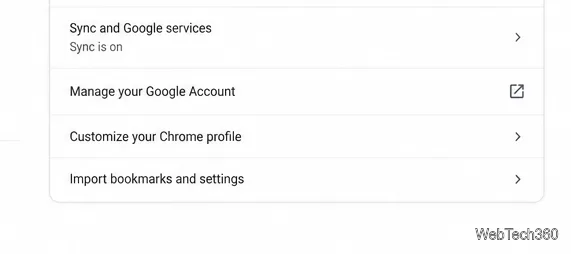
Open the sync controls. In Settings, select You and Google, then choose Sync and Google services. If you do not see the sync options, check that this Chrome profile is signed in to the intended Google Account.
Select Sync and Google services in the profile’s settings.
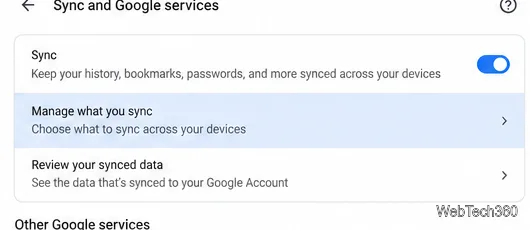
Choose which data types sync. Select Manage what you sync. If the page offers Sync everything and Customize sync, choose Customize sync to show the individual categories.
Manage what you sync opens Chrome’s data-type controls.
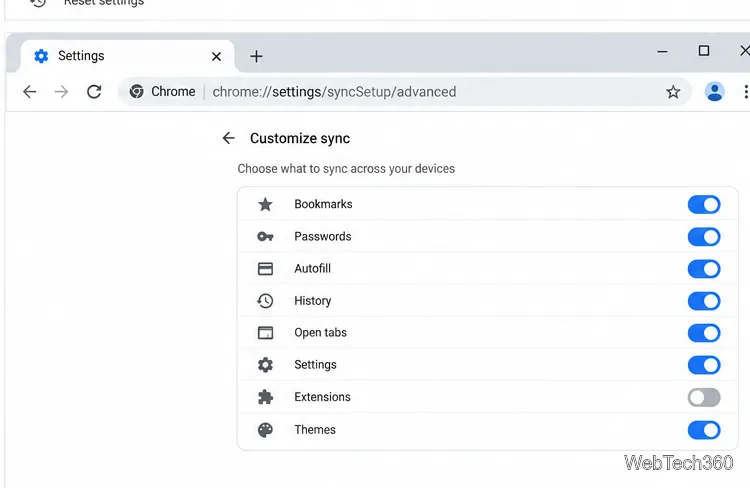
Turn off Extensions only. In the list under Sync data, switch Extensions off. Leave the main Sync control on and leave any other categories you still want enabled. Chrome saves the setting automatically.
Turn off Extensions while keeping other sync categories enabled.
Google’s current desktop help uses this same route: Settings, You and Google, Sync and Google services, Manage what you sync, then Customize sync. Its sync settings guide also explains that Customize sync lets you choose data types across the Chrome browsers signed in to the account.
What changes when Extensions is off?
Chrome stops syncing the Extensions category while other enabled categories continue to sync. The choice applies to extension sync as a category, not to one named extension at a time. Chrome does not provide a built-in switch for excluding a single extension while syncing the rest.
Turning off this category does not remove or deactivate extensions already installed on the computer where you changed the setting. To remove or disable an extension on a particular device, open More > Extensions > Manage extensions and manage it there. Also, an extension may have its own account or cloud-sync feature; Chrome’s Extensions sync setting does not control a separate feature offered by the extension’s developer.
Because the choice is tied to the signed-in account’s Chrome sync, it is not a per-device exception list. If one computer needs a different set of extensions while other Chrome browsers should continue syncing extensions, use a separate Chrome profile and avoid signing that profile into the same account with extension sync enabled. Chrome profiles keep their browser information separate; see Google’s guide to managing multiple profiles.
If you cannot change the Extensions switch
On a work or school computer, an administrator may manage Chrome settings or extension behavior. Check the bottom of Chrome’s More menu for Managed by your organization, or enter chrome://management in the address bar. You can also open chrome://policy to review policies. If the setting is locked, ask your organization’s administrator to change it; creating another profile may also be restricted. Google explains these controls in its managed Chrome browser help.
If the page looks different, confirm that you are using desktop Chrome and the correct signed-in profile. The goal is to select Customize sync and turn off only Extensions; do not reset sync or turn off the main Sync control when you want bookmarks, passwords, or other chosen data to keep syncing.