Home
» WEB
»
How to Turn Off Messages from Firefox on the New Tab Page
How to Turn Off Messages from Firefox on the New Tab Page
If the banner at the bottom of a Firefox tab literally says “Messages from Firefox,” it is the older Snippets feature. Mozilla says Snippets stopped appearing on the New Tab page starting with Firefox 89, so current Firefox does not need that old switch. If you are seeing sponsored tiles or stories instead, you can turn those off in the New Tab settings below.
These controls are separate from Firefox Sync. You do not need to sign out of a Mozilla account or stop syncing bookmarks, passwords, or tabs to change what appears on a new tab.
Identify the message before changing settings
Legacy Snippets were short messages at the bottom of Firefox Home, such as browser tips or notices about Mozilla products. A sponsored shortcut is a tile among the site links, and a sponsored story is a card in the recommendations feed. They look different and use different controls. Mozilla’s Snippets FAQ documents the older feature and states that it applies to Firefox 88 and earlier.
To check your version, open the Firefox menu and choose Help > About Firefox. If you use Firefox 89 or later, the old Snippets option is not part of the current New Tab controls. If an old banner persists in an older installation, update Firefox before troubleshooting the page.
Turn off sponsored content on the New Tab page
On current desktop versions, start from a new tab and use its customization panel. Firefox’s labels and available sections can vary by version, language, and region, but the controls are usually in the same place.
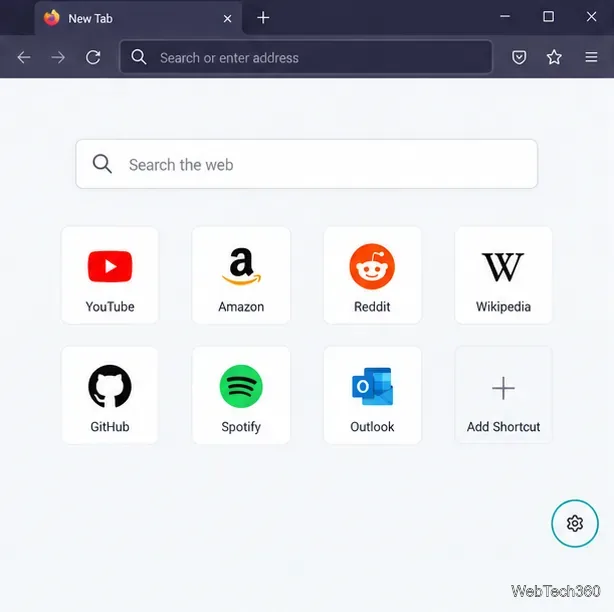
The New Tab customization control sits in the lower-right corner of Firefox Home.
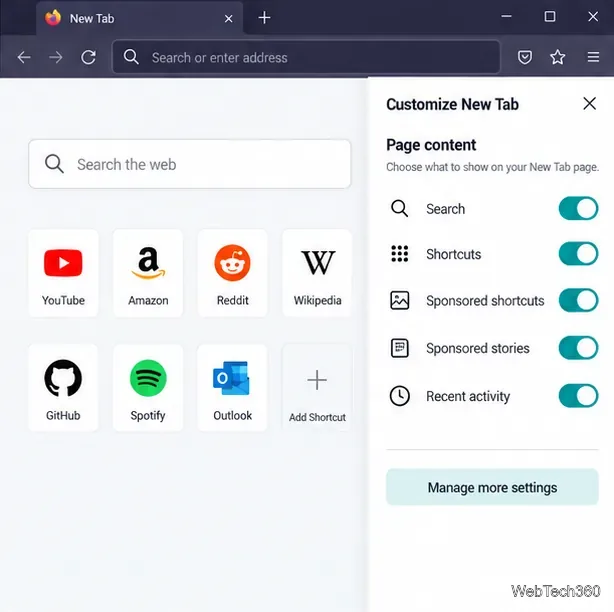
Open a new tab. Click the small gear or customize icon at the lower-right corner of the page. The Customize New Tab panel opens.
Turn off Stories if you want to remove the whole stories section. In the panel, switch off Stories or Recommended stories if that option appears. This hides the section, including both sponsored and other recommended stories.
Open the detailed settings for sponsored items. If you want to keep the New Tab layout but remove sponsored placements, select Manage more settings at the bottom of the panel.
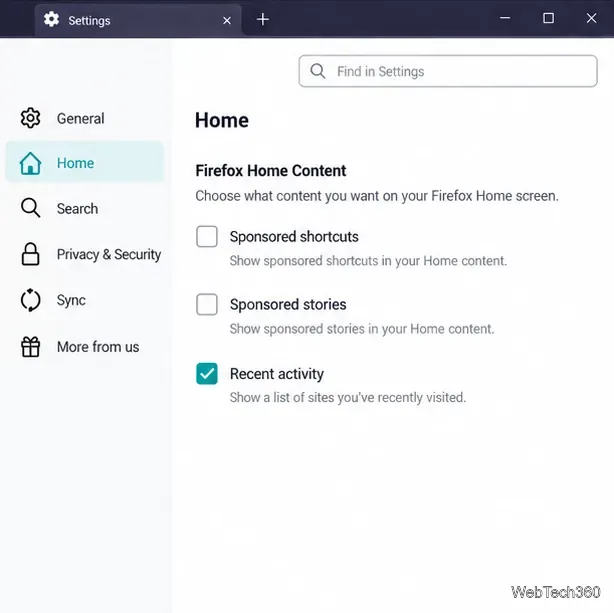
Clear the sponsored options. In the Home or Home and startup settings, find Firefox Home Content (some versions group these under headings such as Shortcuts, Recommended stories, or Support Firefox). Clear Sponsored shortcuts and/or Sponsored stories, depending on what you want to hide. Leave the other options selected if you still want search, regular shortcuts, recent activity, or weather.
The customization panel provides quick switches and a link to the full Home settings.In Home settings, clear Sponsored shortcuts and Sponsored stories to remove sponsored content while keeping other sections.
Firefox saves these preferences automatically. Open another new tab to confirm the change. Mozilla’s New Tab customization guide describes the panel and Home settings, and its sponsored-content instructions explain which switch controls shortcuts versus stories.
Hide one item or make new tabs blank
If you only want to remove one sponsored shortcut or story, use the item’s three-dot menu and choose Dismiss. That dismisses that placement; it does not disable all sponsored content. To stop seeing the entire recommendations feed, turn off Stories in the customize panel or clear Sponsored stories in Home settings.
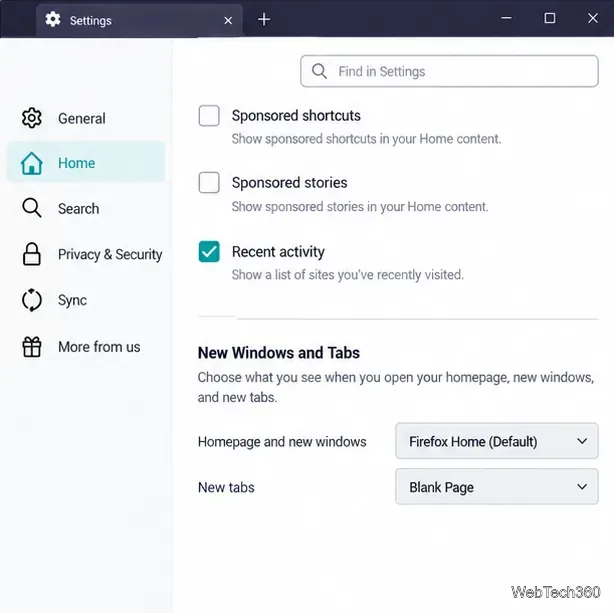
For a completely empty new tab, open Manage more settings, go to New Windows and Tabs, and set the New tabs menu to Blank Page. This removes the New Tab page layout from newly opened tabs, including its search box, shortcuts, stories, and widgets. It does not change your homepage or tabs that were already open.
Choose Blank Page under New tabs only if you want to hide the entire New Tab layout.
If “Messages from Firefox” is still visible
Confirm the tab page. The steps above affect Firefox’s built-in New Tab page. If the message appears on a website, it is part of that site rather than Firefox Home.
Check the setting name. The old Snippets checkbox was removed from later Firefox versions. Current sponsored controls use names such as Sponsored shortcuts, Sponsored stories, or Stories. A missing Snippets checkbox is expected in a current release.
Check for an older or managed installation. In Firefox 88 or earlier, Mozilla’s archived instructions were to open the New Tab gear, go to the Home panel, and clear Snippets. If the Home controls are locked or reset by an organization, Firefox may be managed by an administrator.
Update, then verify in a fresh tab. Use Help > About Firefox to check for updates, then reopen a new tab after Firefox restarts. Mozilla’s update guide covers the update process.
The key distinction is the age and type of content: legacy bottom-of-page Snippets are already disabled in Firefox 89 and newer, while current sponsored shortcuts and stories have their own opt-out controls.